Google Drive for desktop is a free Windows and macOS app that shows your cloud storage inside File Explorer or Finder. You choose to stream files (saves disk space) or mirror files (keeps full local copies). Setup takes about five minutes, and the free 15 GB fills up fast, so most people end up on Google One.
Let me be honest with you.
I used to email files to myself. Yes, really.
Then I found this app, and that habit died overnight. Here's everything you need to know, in plain English.
What Is Google Drive for Desktop?
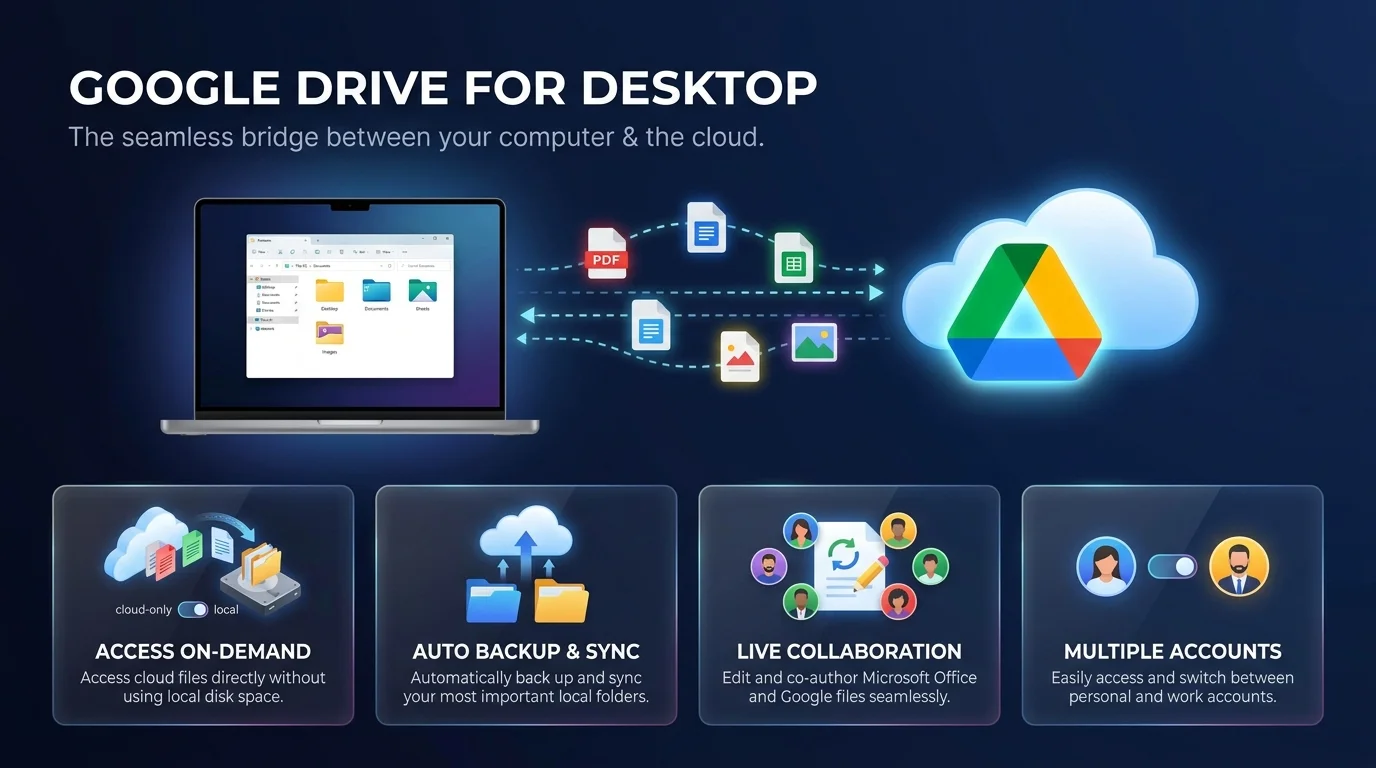
Think of it as a bridge. On one side, your computer. On the other, your Google Drive account. The app joins them so your files look local, even when they live in the cloud.
It's also the successor to older tools. Google merged Drive File Stream and Backup and Sync into one client. That means file sync, automatic backup and on demand access, all in one place.
Old tool | Built for | What happened |
|---|---|---|
Drive File Stream | Business users | Renamed Drive for desktop |
Backup and Sync | Consumers | Replaced by Drive for desktop |
Drive for desktop | Everyone | The single, unified client |
Key Features You Get
Here's what you actually get, per Google's official overview:
Your files appear in File Explorer or Finder like any other drive.
Edits sync across your devices automatically.
Microsoft Office files can be edited with others in real time.
You can use up to four Google accounts at once.
Stream vs Mirror: Which Mode Should You Pick?
This is where people get stuck, so let's fix that. Google offers two ways to handle My Drive, and your choice decides how much space the app uses. Here's the short version, based on Google's stream and mirror guide.
Stream files | Mirror files | |
|---|---|---|
Where files live | In the cloud | Cloud and your computer |
Disk space used | Almost none | A full copy |
Offline access | Only files you pin | Automatic |
Best for | Saving space | Heavy editing |
My take? Go with streaming if your connection is solid. Choose mirroring if you edit video or big photos.
One catch. Folders from your computer can only be mirrored, so there's no choice there.
How to Set Up Google Drive for Desktop Step by Step
You can be done in five minutes. Seriously.
First, check your computer. Per Google's system requirements, Windows needs 64-bit Windows 10 or later plus Microsoft WebView2. Google also lists macOS Ventura 13.0 as the minimum starting June 2026.
Now follow these steps:
Download the installer from Google's setup page.
Open GoogleDriveSetup.exe on Windows or GoogleDrive.dmg on Mac.
Follow the onscreen prompts.
Click Get started and sign in.
Open Preferences and pick Stream files or Mirror files.
Add the folders you want backed up.
Done. A new "Google Drive" location appears in your file manager.
Using a Work Account?
Work accounts play by different rules. Your admin can turn the app on or off in the Google Admin console. They can also set cache location and bandwidth limits. So if the download fails, ask IT.
Offline Access and Backup
The cloud only works when you're online, right? Not quite.
With offline access, you can mark streamed files as available offline. Right click, choose Offline access, then Available offline. Mirrored files are already offline, as Google's offline files guide explains.
Two things to remember:
Offline files use local disk space.
The app has to be running to reach them.
Backup is just as simple. Pick your Desktop and Documents folders, and Drive keeps a cloud copy. If your laptop dies, your work doesn't.
Big Change: Google Photos Backup
This one matters. Reports say the app stopped backing up folders to Google Photos after August 10, 2026, and TechRepublic covered the change. You now do that through the Google Photos website. Photos already backed up stay put.
Photos are a big part of most people's storage. If you want a safety net beyond Google, see our guide to the best photo backup solutions and these online photo storage options.
What's New in the Redesigned App
Google refreshed the interface, and honestly, it's a nice upgrade. The redesign adds a sync status tile, a detailed sync activity view, notifications for sync errors, a search bar and a Pause button.
There's more. The release notes mention Spotlight search for Drive content on macOS 26 and later. Large files now upload only the changed parts. And you get an alert if syncing stalls for a long time.
Troubleshooting: What to Do When Sync Stops
No app is perfect. When file sync stalls, try Google's basic troubleshooting steps in this order:
Check your internet connection.
Quit and reopen Drive for desktop.
Restart your computer.
Disconnect and reconnect your account.
Reinstall the latest version.
Some extra tips:
If antivirus keeps crashing the app, exclude Drive from scans.
Avoid system cleaners like CCleaner. Google warns they can cause data loss.
Stay on a release from the last 12 months.
Check the Lost and Found folder before you disconnect your account. Unsynced files can end up there and are lost when you disconnect.
Already lost something? Here's how to recover deleted files.
Storage and Pricing: Why Upgrading Makes Sense
Every Google account gets 15 GB free, shared across Drive, Gmail and Photos. It disappears faster than you'd think. If you're weighing your options, compare free cloud storage plans in 2026 before you commit.
Here's the part that confuses people. Per Google's storage explainer:
Streamed files use almost no computer space, but they still count toward your cloud storage.
Files shared with you don't count against your Google storage.
After a big delete, storage numbers can take 48 to 72 hours to update.
A 2026 Google One promotion listed the 2 TB plan at $49.99 for a new subscriber's first year, then $99.99 yearly. Prices change, so check the current offer. Not sure how big 2 TB really is? See how many GB are in a TB. And if you'd like to see how Google stacks up against rivals, read our cloud storage services comparison.
Why I recommend upgrading:
More room for photos, backups and projects
One bill for Drive, Gmail and Photos
Peace of mind if your computer dies
For the price of a few coffees a year, it's an easy decision. Install the app, choose your sync mode, and upgrade your Google Drive storage. You'll wonder why you waited.
Frequently Asked Questions
Is Google Drive for desktop free?
The app is free. Storage is free up to 15 GB, shared across Drive, Gmail and Photos. After that, you need a paid plan such as Google One.
What's the difference between streaming and mirroring?
Streaming keeps files in the cloud and downloads them when you open them. Mirroring keeps a full copy on your computer.
Can I use Google Drive for desktop offline?
Yes. Mirrored files are always available offline. Streamed files can be pinned with Available offline, but the app must be running.
How many accounts can I use at once?
Up to four.
Does it still back up photos to Google Photos?
No. Reports say that stopped after August 10, 2026. Use the Google Photos website to back up folders.
Why won't my files sync?
Start with your connection, then restart the app, restart your computer, reconnect your account, and reinstall if needed.