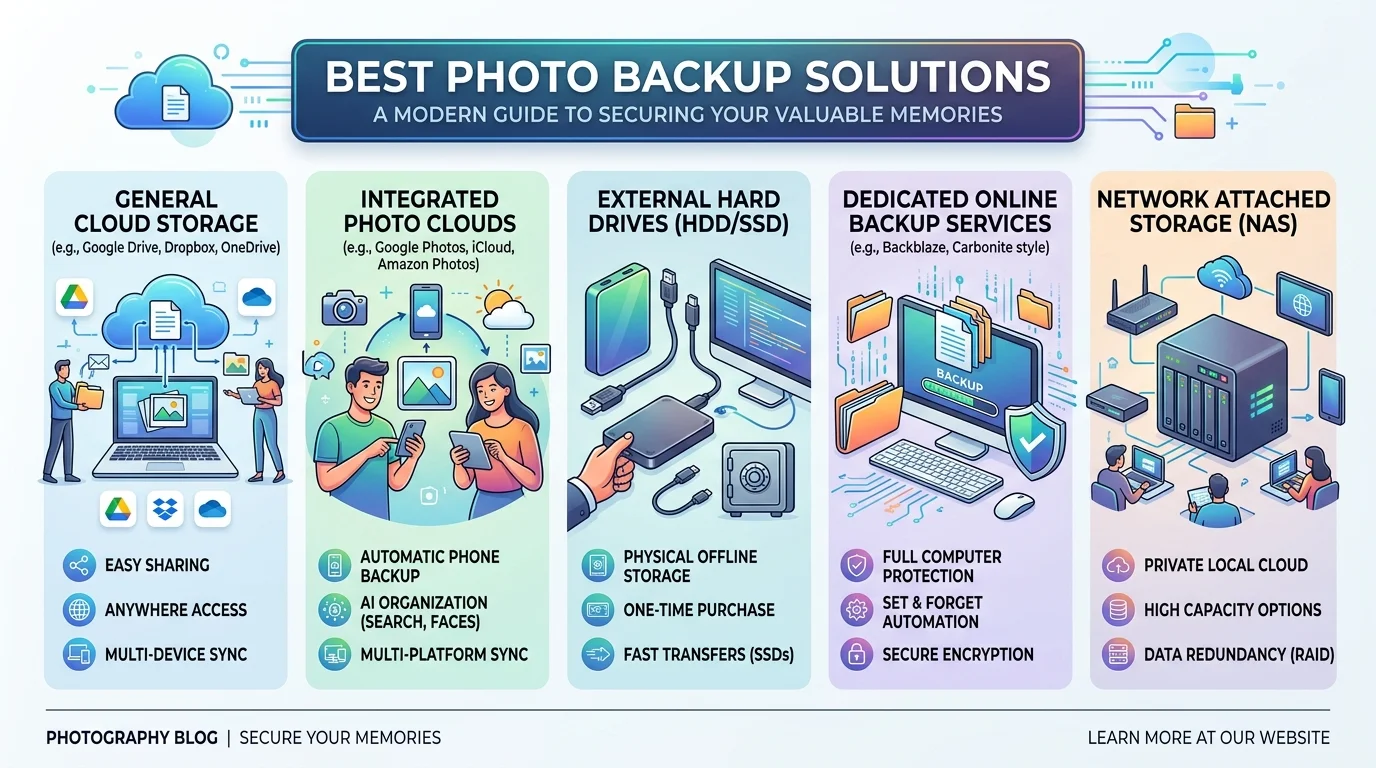
The best photo backup solutions is a mix, not a single app. Use an external drive, add an unlimited cloud backup like Backblaze ($9/month) for the offsite copy, and keep Google Photos or iCloud for daily phone uploads. That covers the 3-2-1 rule for about the cost of a coffee a month.
Your phone dies. Your laptop gets stolen. Your external hard drive clicks once and goes silent.
It happens more often than you think, and it always happens right before you needed that folder.
I've seen too many people lose years of memories over a $9 problem. So I went through the latest 2026 photo backup reviews, compared prices, and boiled it all down for you.
Why Sync Is Not the Same as Backup
Most people assume Google Photos or iCloud has them covered. Not quite. Cloud sync mirrors your library, so a deleted photo can vanish everywhere at once. A true photo backup keeps a copy even after the original is gone.
Here's the catch, too. Google ended unlimited High Quality uploads on 1 June 2021, so every new photo now counts against the 15GB free tier. And when that account fills up, backups quietly stop.
Already deleted something by accident? Try this guide on how to recover deleted files before you do anything else.
Sync is convenient. Backup is insurance. You need both.
The 3-2-1 Backup Rule Explained
Photographers have trusted one rule for almost two decades. It's the 3-2-1 rule, usually credited to Peter Krogh and his 2009 book The DAM Book. It's simple, and it works.
Here's what it means:
Three copies of every photo
Two different storage types, like an SSD plus cloud storage
One offsite copy, away from your home or studio
ShutterMuse calls it the absolute minimum level of protection, and I agree.
The offsite copy gets skipped most often. But a backup sitting beside your original can burn, flood, or get stolen right alongside it. It also helps against ransomware, which can spread across drives that stay connected.
One more thing. A RAID array is not a backup on its own, because it protects against a drive failing, not against deletion or theft. If you're curious how it works, read what a RAID array is.
Best Photo Backup Solutions Compared (2026)
Now the fun part. There's no single winner, because the best photo storage service depends on your gear and budget. So I built a quick comparison for you.
Service | Best for | Price (checked 2026) | Standout feature |
|---|---|---|---|
Backblaze | Unlimited computer backup | $9/month; $189 for two years | Backs up attached external drives |
IDrive | Best value per TB | 10TB for $4.98 first year (intro price) | Hybrid cloud plus NAS support |
Google Photos / Google One | Android and everyday use | 15GB free; from $1.99/month for 100GB | Top tier AI photo search |
iCloud+ | iPhone users | About $9.99/month for 2TB | Native HEIC and ProRAW support |
Prime members | Free with Prime | Unlimited full resolution photos | |
pCloud | No monthly fees | Lifetime 2TB around $399 | Pay once, keep for life |
MEGA | Best free plan | 30GB free | Private, encrypted storage |
Prices change fast, so confirm on each provider's page before you buy. Want a wider look beyond photos? See our cloud storage services comparison.
Backblaze: Best for Unlimited Computer Backup
If your photos live on a laptop or desktop, start here. Backblaze gives you unlimited cloud backup for one computer. It also picks up your attached external drives automatically.
Got a huge RAW library? It doesn't care. And when disaster strikes, you can ship a restore drive instead of downloading 2TB over slow broadband.
IDrive: Best Value Per Terabyte
Budget matters, right? IDrive's first year deal is hard to beat. Just remember it's an intro price, and one 2026 price check put the real cost near $105.
It also suits people running a NAS device, since it works as a hybrid backup solution.
Google Photos, iCloud, and Amazon Photos: Best for Phones
These three win on automatic phone backup. Google Photos finds shots with plain language search, and iCloud handles Live Photos without quality loss. Prime members already get free unlimited photo storage, so don't pay twice.
iPhone shots saved as HEIC won't open everywhere. If that bites you, here's how to convert HEIC to JPG.
Think of these as your everyday layer, not your safety net.
SmugMug and pCloud: Best for Professional Photographers
Do you sell or share your work? SmugMug pairs storage with a gallery your clients can buy from, so it suits wedding and portrait shooters. pCloud suits anyone who hates subscriptions and wants lifetime storage with strong privacy.
Best Free Photo Backup Options
Not ready to pay? Fair enough. Free plans are a decent starting point, but treat them as a trial, not a plan. You can also browse our roundup of free cloud storage plans.
MEGA's 30GB is the most generous free tier among major providers, and it's private too. Flickr gives you 1,000 free photos and videos, but it displays only JPEG, GIF, and PNG, so it's weak for RAW files. Google's free 15GB is shared with Gmail, so a busy inbox eats into your photo space.
Privacy and Encryption: What to Check Before You Upload
Your photos are personal, so read the privacy terms first. Look for zero knowledge encryption, where only you hold the keys. Proton Drive and MEGA lead on privacy, while some cheaper services scan or compress uploads.
Also check whether a provider strips metadata or downgrades resolution. And read the inactivity rules so an unused account doesn't get deleted.
How to Set Up Your Photo Backup in 15 Minutes
Stop reading and start doing. This is the backup workflow I'd follow from scratch tonight. Each step takes minutes, and then it mostly runs itself.
Step 1: Turn On Your Phone's Auto Upload
Open Google Photos, iCloud Photos, or Amazon Photos and enable automatic camera roll upload. The gap between taking a shot and the first backup is arguably the riskiest moment. Also check your quota while you're there. Not sure how much you need? Here's how many GB are in a TB.
Step 2: Copy Everything to a Local Drive
Buy an external SSD or hard drive and copy your whole library onto it. Keep the originals on your computer, and treat this drive as your second media type. Label it with the date. Future you will be grateful.
Step 3: Install Backblaze for Offsite Protection
Sign up, install, and let it run. That's your offsite cloud backup handled. The first upload takes a while, but it doesn't throttle and keeps going in the background.
Step 4: Test a Restore Every Six Months
A backup you've never restored from is just a hope. So pick a random photo twice a year and download it.
Common Photo Backup Mistakes
Most photo loss isn't caused by bad technology. It's caused by small habits people never fix.
Trusting one copy. One drive is zero backups.
Relying on one company. If Google bans your account, your photos go with it, so keep one backup inside your ecosystem and one outside.
Ignoring RAW support. Check the fine print before you upload originals.
Skipping the export. Export a copy of your originals before switching services.
Frequently Asked Questions
What is the best way to back up photos?
Follow the 3-2-1 rule: three copies, two storage types, one offsite. In practice that means an external drive plus a cloud backup like Backblaze.
Is Google Photos a real backup?
Not entirely. It's a sync service, so deletions can carry across devices. Pair it with a second backup outside Google.
How much does unlimited photo backup cost?
Backblaze charges $9 a month for one computer. Amazon Photos is free for Prime members.
What's the best free photo backup?
MEGA offers 30GB free with strong privacy. Google's 15GB is shared with Gmail.
Do I need both cloud and local backup?
Yes. Local drives restore fast, and cloud copies survive fire, theft, and flood.
How often should I test my backup?
Every six months. Restore one random photo to prove it works.
My Recommendation: Buy This Combo Today
Here's where I land, and I'm not hedging. Get a local external drive, add Backblaze for the offsite copy, and keep Google Photos or iCloud for daily phone uploads. That's three copies, two media types, one offsite, done.
It costs roughly a coffee a month. Compare that to losing a decade of birthdays, weddings, and trips. There's no contest.
Many reviewers agree that pairing an active service with an archival one is the smartest setup. For more depth, Alan Ranger's backup guide is worth your time.
So don't wait for a dead drive to motivate you. Pick your best photo backup solution tonight, start the free trial, and give your library the protection it deserves.