How to Enable Pop-Ups in Chrome: On a computer, open Chrome and go to Settings > Privacy and security > Site settings > Pop-ups and redirects, then add the site under Allowed to send pop-ups and use redirects. Or click the Pop-up blocked icon in the address bar and choose Always allow. On phones, the switch lives under Site settings (Android) or Content Settings (iPhone).
That's the short version.
Now let me show you the full walkthrough, plus what to do when it doesn't work.
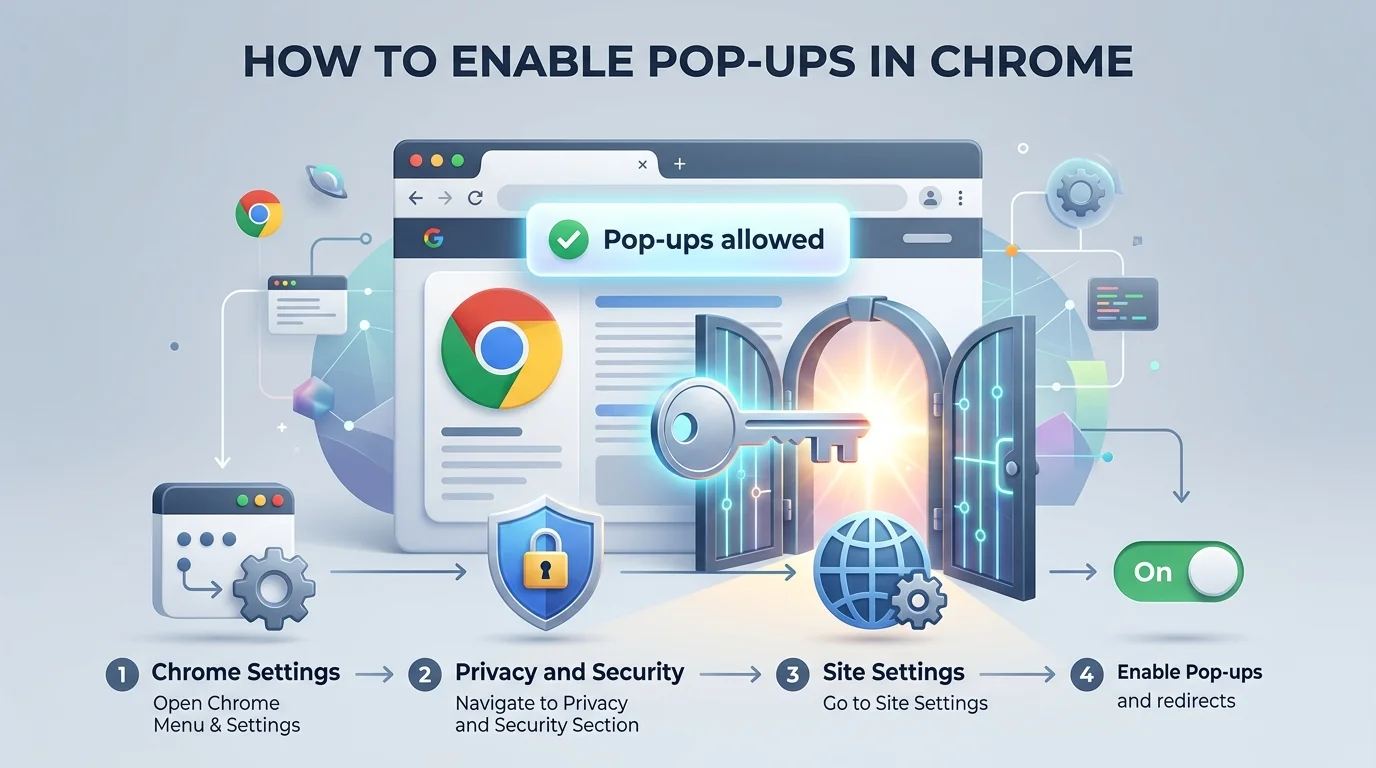
Why Does Chrome Block Pop-Ups?
You click a button. Nothing happens. Annoying, right?
Here's the thing: Chrome blocks pop-ups by default and marks the address bar with a Pop-up blocked icon when it stops one. That protects you from spam ads, fake alerts and sneaky redirects.
But blocking everything has a cost. Google itself notes that some legitimate sites show real content in pop-up windows.
Which Sites Need Pop-Ups?
Think online banking, payment gateways, school portals and login windows. They open a small secondary window to finish the job. Blocked window, stuck task.
Pop-Ups vs. Notifications
Quick clarification, because people mix these up. Browser notifications are a separate permission. If messages keep appearing after you block pop-ups, Google says you may be subscribed to a site's notifications instead.
How to Allow Pop-Ups for One Site on Desktop
I always recommend the per-site method first. It's faster, safer and you won't forget to switch anything back.
Two options here. Pick whichever you prefer.
Method 1: The Blocked Pop-Up Icon
Open Chrome and go to the page where the pop-up was blocked.
Click Pop-up blocked in the address bar.
Click the link for the pop-up you want to see.
Select Always allow pop-ups and redirects from [site].
Click Done.
Simple. Google lists these exact steps in its desktop help page.
Method 2: Add the Site in Settings
No icon showing? Add the site by hand.
Click the three dot menu at the top right, then Settings.
Open Privacy and security, then Site settings.
Click Pop-ups and redirects.
Next to Allowed to send pop-ups and use redirects, click Add.
Type the site's address and click Add.
Want to cover every subdomain? Use the wildcard pattern [*.]example.com, which Google documents for the block list and works the same way for allow rules.
How to Turn Off the Pop-Up Blocker for All Sites
Maybe you're testing a web app or doing heavy web based work all day. Fair enough.
Go back to Pop-ups and redirects in Site settings. Under Default behavior, choose the option that lets all sites send pop-ups.
But listen: I don't love this option. It opens your browsing security to every malicious pop-up out there. Use it briefly, then switch it back.
And if your real goal is the opposite, keeping distracting or risky sites out of your browser entirely, check our guide on how to block websites on Chrome.
How to Enable Pop-Ups in Chrome on Android and iPhone
Phones work differently, so let me split this up.
Android Steps
Open Chrome and tap the three dot menu, then Settings.
Tap Site settings, then Pop-ups and redirects.
Turn the setting on.
Faster trick: when a pop-up is blocked, tap Always show at the bottom of the screen. That's straight from Google's Android guide.
iPhone and iPad Steps
Open the Chrome app and tap More, then Settings.
Tap Content Settings, then Block Pop-ups.
Turn Block Pop-ups off.
That's it, according to Google's iPhone and iPad page. Notice that iOS gives you one on/off switch, not a per-site list.
Desktop vs. Android vs. iPhone at a Glance
Platform | Where to go | Per site control? |
|---|---|---|
Desktop | Settings > Privacy and security > Site settings > Pop-ups and redirects | Yes, via Allowed list |
Android | Settings > Site settings > Pop-ups and redirects | Yes, via Always show |
iPhone/iPad | Settings > Content Settings > Block Pop-ups | Global toggle |
Per Site vs. Global: Which Should You Choose?
Let me make this easy.
Approach | Risk | Speed | Best for |
|---|---|---|---|
Allow one site | Low | Fast | Banking, payments, school portals |
Allow every site | High | Fastest | Short term testing only |
My advice? Go per site. Always.
Pop-Ups Still Not Showing? Try This
You did everything right. Still nothing. Let's fix it.
Check Extensions and Ad Blockers
A browser extension or ad blocker can override Chrome's settings. If the standard steps fail, McGraw Hill's help page points to a third party blocker as the likely cause. Whitelist the site there, or pause the extension.
Test in Incognito
Open an Incognito window with extensions off. If the pop-up works there, an extension or stale cached data is your culprit, as Herond's guide also suggests.
Try a Hard Refresh
Press Ctrl+Shift+R after changing settings. Old scripts can linger, a tip echoed by Stands' walkthrough.
Setting Greyed Out or Locked?
On a work or school computer, an administrator may control this. Chrome Enterprise has a policy called PopupsAllowedForUrls that sets which sites can open pop-ups. If it's unset, the default policy applies, and if that's unset too, your personal setting applies. Ask your IT team to add the site.
Is It Safe to Allow Pop-Ups?
Mostly, yes, if you're picky about it.
The danger is fake security pop-ups. The FTC warns that scammers use pop-up warnings that look like error messages from your operating system or antivirus, then tell you to call a phone number. Its rule is clear: real security warnings never ask you to call a number.
So here's your safety checklist:
Allow only trusted websites.
Never call a number shown in a pop-up.
Keep Chrome and your antivirus software up to date.
Remove the exception when you're done.
Worried a shady pop-up already installed something? Read what a keylogger is and how to spot one.
For more detail, read the FTC guide on spotting tech support scams and Chrome's own advice on unwanted ads and pop-ups.
Frequently Asked Questions
Why is Chrome blocking pop-ups?
Chrome blocks them by default to stop spam and misleading redirects. You can allow trusted sites individually.
Is it safe to allow pop-ups in Chrome?
It's safe for sites you trust. Avoid allowing them everywhere, because fake pop-up warnings are a common scam tactic.
How do I allow pop-ups on iPhone?
Open Chrome, tap More > Settings > Content Settings, then turn off Block Pop-ups.
What's the difference between pop-ups and redirects?
A pop-up opens a new window. A redirect sends you to a different page. Chrome groups both under one setting.
Why can't I change the pop-up setting?
An administrator may be managing Chrome through policy, or an extension may be interfering.
How do I undo it?
Return to Pop-ups and redirects, find the site under Allowed, and remove it.
Take Control in the Next Two Minutes
You now know how to enable pop-ups in Chrome for one site, for all sites, and on Android and iPhone, plus how to fix it when it fights back.
So open Chrome right now. Add the one site you actually need. Then move on with your day.
Your future self will thank you.