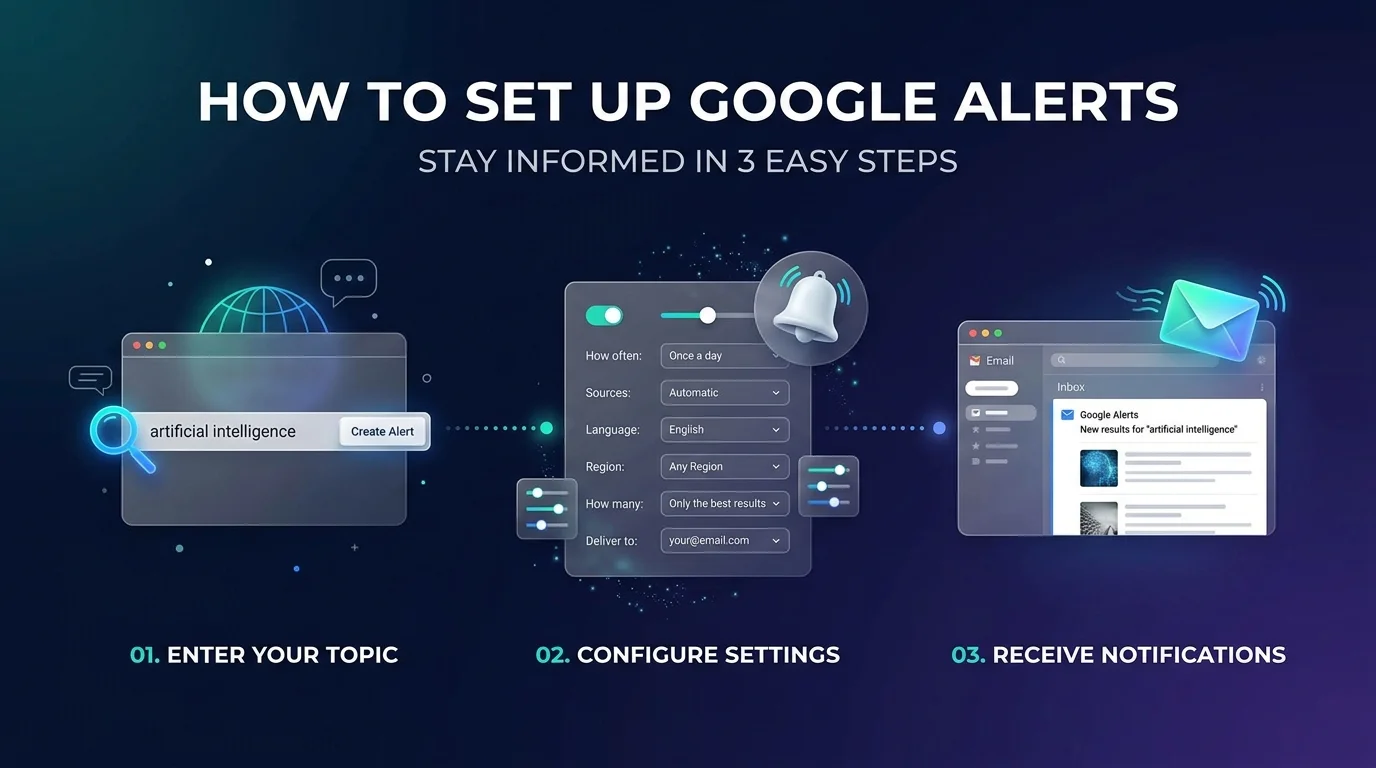
To set up Google Alerts, go to google.com/alerts, type your topic, click Show options, pick your frequency, sources, language, and region, then click Create Alert. The whole thing takes about two minutes. It's free, and it works best when you pair it with search operators.
Here's the thing. You shouldn't have to Google your own brand name every morning.
I used to. It wasted time.
So let me show you a better way.
What Is Google Alerts, and Why Should You Care?
Google Alerts is a free tool that emails you when new search results match a topic you follow. Google's help page says you can track news, products, or mentions of your name.
Think of it as a search that keeps running after you close the tab.
For bloggers, that's a big deal. You get brand mentions, content ideas, and competitor tracking without lifting a finger. SEO teams also use it to find unlinked mentions and link building chances.
What Should You Track First?
Before you click anything, pick one clear goal. A vague alert just floods your inbox.
Start with these four:
Your blog name, for brand monitoring
Your main topic, for industry trends
One or two rivals, for competitor tracking
One unique sentence from your best post, for plagiarism detection
Not sure which rival terms to watch? Start with our guide on how to find your competitors' keywords.
How to Set Up Google Alerts in 6 Steps
Setting this up is easy. Honestly, you'll finish before your tea cools down.
These steps follow Google's official instructions and SE Ranking's walkthrough.
Open the page. Go to google.com/alerts and sign in with your Google Account. Running a team blog? Use a shared work account, so alerts survive staff changes.
Type your query. Enter the word or phrase you want to follow.
Check the preview. Google shows sample results, so you can spot a bad query early.
Click "Show options." Most people skip this. Don't.
Choose your settings. See the table below.
Click "Create Alert." You're done.
Your Settings, Explained
Each option changes what lands in your inbox. Here's the quick version.
Setting | Your Choices | When to Use It |
|---|---|---|
How often | As it happens, once a day, once a week | Daily for brand alerts, weekly for competitors |
Sources | Automatic, news, blogs, web, video, books, and more | Blogs and web for link building |
Language | Any language | Match your audience |
Region | Any region or one country | Local audiences only |
How many | Only the best results, or all results | All results for brand names |
Deliver to | Email or RSS feed | RSS if your inbox is crowded |
The "when to use it" tips come from AIOSEO's guide, so treat them as one expert's advice, not a rule.
Use Search Operators to Cut the Noise
Quick story. My first alert was the single word "marketing." By lunchtime, I had hundreds of useless emails.
Lesson learned.
The fix is search operators. These tiny symbols tighten your search query, so only relevant results reach you. Most of the same operators from regular Google work here, and Google lists its supported ones.
The Operators I Use Most
Operator | What It Does | Example |
|---|---|---|
Quotation marks | Exact match phrase | "your blog name" |
Minus sign | Excludes a word or site | -site:yourblog.com |
site: | Limits results to one domain | site:competitor.com |
OR | Matches either term | "roundup" OR "best tools" |
intitle: | Requires a word in the title | intitle:"guest post" |
Don't put a space between the operator and your term. As TeachThought notes, site:nytimes.com works, but site: nytimes.com won't.
Find Unlinked Mentions in Seconds
Here's a trick I love. Set this alert:
"Your Blog Name" -site:yourblog.com
Now you'll only see what other people write about you. When someone mentions you without a link, send a short, friendly email and ask for one. That's link building on autopilot.
Want more ideas like this? Read our breakdown of the best link building strategies in 2026.
One warning, though. Operators in alerts can act a little differently than in normal search. So test your query in Google first.
Send Alerts to an RSS Feed Instead of Email
Is your inbox a mess? Mine too.
So try this. Under Deliver to, choose RSS feed. Each alert then gets an RSS icon, and you can paste its link into a reader like Feedly.
If the Option Is Greyed Out
This happens sometimes. According to Feeder's help page, you need to turn off the digest and delivery time settings first. Then set "How often" to as it happens. After that, the RSS option should unlock.
Where Google Alerts Falls Short
Now, let me be straight with you. It isn't perfect.
It only reports content Google has indexed, so it can miss things. Users have reported reliability problems since at least 2013. Competing vendors also claim it misses mentions, though those are marketing claims, so take them with some salt. It also doesn't offer sentiment data or strong social listening.
Here's how to work around that:
Run several alerts with slightly different wording.
Check your spam folder, and add googlealerts-noreply@google.com to your contacts, as Google suggests.
Search manually now and then, using the "past week" filter.
Try a paid alternative if mentions drive real revenue.
Frequently Asked Questions About Google Alerts
Is Google Alerts free?
Yes. AIOSEO confirms it's free, and you can create multiple alerts.
How do I stop or delete an alert?
Click the trash icon next to it on the Alerts page. You can also click Unsubscribe at the bottom of any alert email.
Can I get alerts in one daily email?
Yes. Click the gear icon, set a delivery time, and turn on the digest option.
Why am I not getting alerts?
Check which account you're signed into, then check your spam folder, per Google's troubleshooting steps.
Does it work for Google Scholar?
Yes. Google Scholar has its own alerts, as NUS Libraries explains.
Start Your First Alert Today
Here's what I want you to do next.
Open a new tab. Go to Google Alerts. Create three alerts: your brand, your main topic, and one competitor.
That's five minutes, and it costs nothing. In return, you get content marketing ideas, backlink chances, and early warning when someone copies your work.
So don't wait for the perfect plan. Set up your first alert right now. Then come back and tell me what it found.
Related reading: