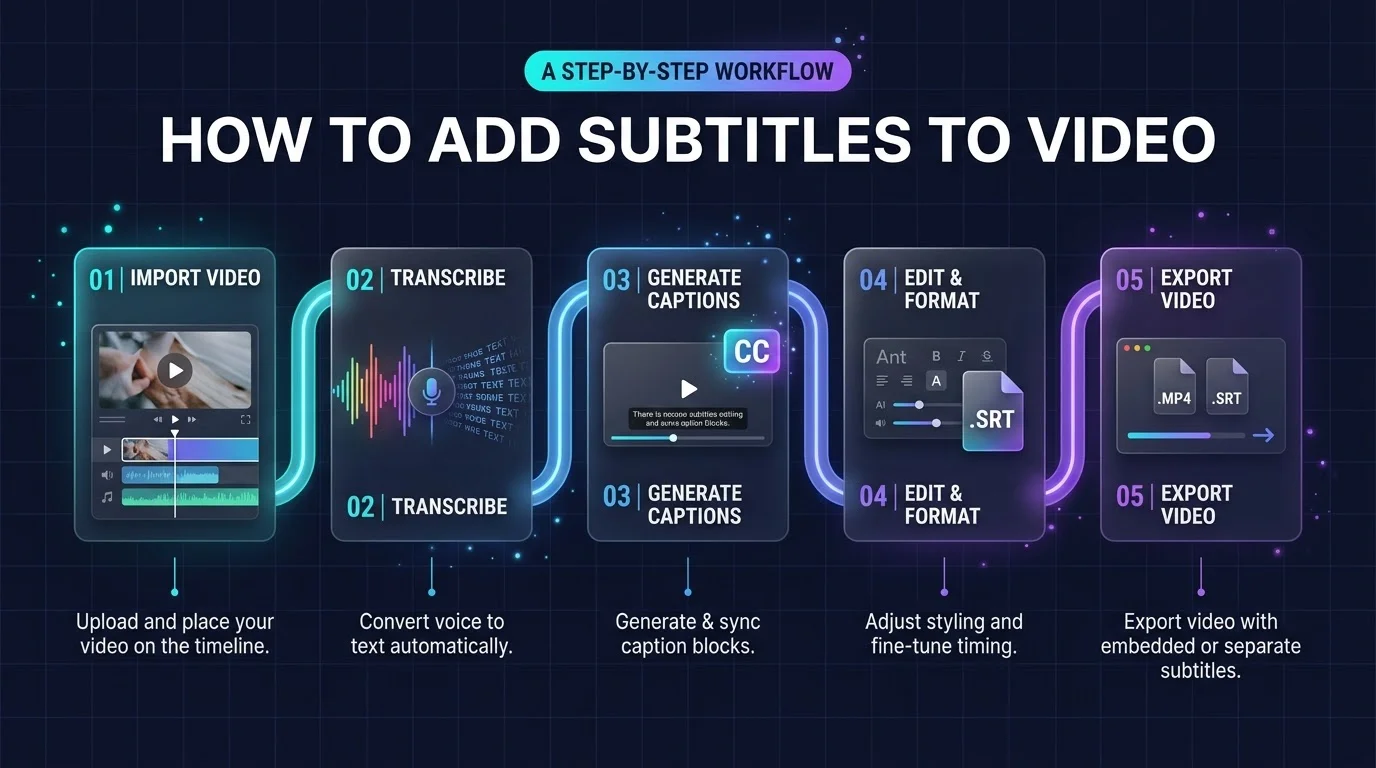
How to Add Subtitles to Video: You can add subtitles to a video in three ways. Upload an SRT or VTT file in YouTube Studio, auto generate captions in an AI editor like CapCut or Premiere, or burn them in permanently with HandBrake or FFmpeg. Use a separate file if you want viewers to toggle them. Burn them in for social clips.
I wasted a whole weekend on my first subtitled video. The text lagged, and the font was microscopic.
So I tested every method. Now you get the shortcut.
Why You Should Add Subtitles to Video
Let's start with why, because it keeps you going when the boring parts show up. Subtitles help people watch on mute and follow along in noisy places. They also open your content to wider audiences. And they give search engines text to read. That's a lot of upside for a small job.
Here's what you gain:
Better accessibility for deaf and hard of hearing viewers
Higher viewer engagement, since people can watch without sound
Wider reach through translated subtitles
More indexable text, which supports video SEO
Adobe notes that subtitles improve accessibility and engagement together. If you're building a channel from scratch, our guide on how to be a content creator shows where captions fit into the bigger picture.
Subtitles vs. Closed Captions vs. Open Captions
Before you open any software, get the terms straight. Mixing them up leads to the wrong export settings. It takes two minutes and saves you a re-render.
Subtitles assume the viewer can hear. Captions don't, so they add sound cues and speaker identification.
Then there's the on/off question:
Closed captions live in a separate file, so viewers can toggle them
Open captions are burned in subtitles, permanently part of the picture
SRT vs. VTT: Which Subtitle File Format Should You Use?
This one feels technical, but it's a one minute call. Pick wrong and your upload fails.
SRT is the most widely supported format across editors and upload forms. VTT is built for the web. Browsers' HTML5 <track> element reads VTT, not SRT.
My rule: SRT for YouTube and editors, VTT for your own website.
Which Method Is Right for You? (Comparison Table)
Not sure where to start? This table shows the trade offs at a glance.
Method | Best for | Viewer can toggle? | Cost | Skill level |
|---|---|---|---|---|
YouTube Studio upload | Long form YouTube videos | Yes | Free | Beginner |
AI auto captions (CapCut, Canva, Flixier) | Fast edits, social clips | Depends on export | Free tiers available | Beginner |
Adobe Premiere captions | Professional workflows | Yes (sidecar) or No (burned in) | Subscription | Intermediate |
HandBrake or online burner | Permanent captions | No | Free | Beginner |
FFmpeg | Batch jobs, automation | No | Free | Advanced |
How to Add Subtitles to a Video, Step by Step
Here's the part you came for. I'll show three routes. Pick the one that matches your goal and skip the rest.
Tip: Finish your edit first. Subtitling a sequence that's still changing means redoing the timing. If you need to trim footage, read how to cut a video to a target length without losing the story before you start captioning.
Method 1: Add Subtitles on YouTube (Free)
This is my top pick for most creators. It's free, and you can fix mistakes after publishing. Follow YouTube's official steps:
Sign in to YouTube Studio
Click Subtitles in the left menu
Select your video
Click Add language
Under Subtitles, click Add
Choose Upload file, Auto-sync, or Type manually
YouTube accepts SRT, SBV, SUB and VTT files. Spot check a few minutes before you hit publish.
Method 2: Auto Generate Captions with an AI Editor
Hate typing? Same here. Automatic captions transcribe your speech in minutes, and you just fix the errors. Here's the flow in CapCut:
Import your video
Open the Text tab
Select Automatic Captions
Choose the spoken language
Edit the text, then export
Prefer a browser? Canva and Flixier both generate subtitles from speech. Want to see how the newest tools stack up? Check our roundup of the best AI agent video editors in 2026.
Pro tip: Record in a quiet room. Clean audio means fewer corrections.
Method 3: Burn Subtitles into the Video (Hardcoded)
Posting somewhere that ignores subtitle files? Burn them in. Hardcoded subtitles show everywhere, though viewers can't turn them off.
Your options:
HandBrake or Aegisub for a visual workflow
A free online subtitle burner
FFmpeg for the command line
The FFmpeg wiki gives this one liner:
ffmpeg -i video.avi -vf subtitles=subtitle.srt out.avi
Two catches. FFmpeg must be compiled with libass. And burning in requires reencoding the video, because the filter changes the frames.
Adding Subtitles in Premiere Pro
Editing professionally? Lock your edit first, then add captions. Adobe's guide says to wait until most of the editing is done. You can then export subtitles burned in or as a sidecar file viewers can hide.
Don't have it yet? Follow our Adobe Creative Cloud download guide to get set up. Rendering long videos with burned in captions is also demanding, so see our picks for the best laptops for video editing.
Subtitle Best Practices
Bad subtitles can annoy viewers more than none at all. A few habits fix that.
Keep lines short, two lines max
Match subtitle timing to the speech
Use high contrast, readable fonts
Add sound cues like [applause]; YouTube recommends this
Watch the whole video once before publishing
Common Subtitle Problems and Fixes
Things go wrong. Here's how I handle the usual suspects.
Subtitles out of sync: In YouTube, use Auto-sync with a transcript, or retime the cues in the editor.
Upload rejected: Check the file extension. YouTube takes SRT, SBV, SUB and VTT.
Subtitles won't show on your website: Convert SRT to VTT, since HTML5 players expect VTT.
Garbled characters: Resave the file with UTF 8 encoding.
Frequently Asked Questions
What is the easiest way to add subtitles to a video?
Upload the video to YouTube and use automatic captions in YouTube Studio. Then edit the text and timing before publishing.
What's the difference between subtitles and closed captions?
Subtitles assume the viewer can hear the audio. Closed captions also describe sounds and speakers, and viewers can switch them on or off.
Which subtitle format is best, SRT or VTT?
Use SRT for YouTube and most editors. Use VTT for HTML5 web players.
Can I add subtitles without reencoding the video?
Yes, with soft subtitles. Tools like MKVToolNix can embed an SRT track without reencoding. Burning subtitles in does require reencoding.
Can I add subtitles to a video for free?
Yes. YouTube Studio, VLC, HandBrake and Aegisub are all free. CapCut and Canva have free tiers.
My Recommendation: Stop Guessing and Pick a Proper Workflow
You've now seen every route. So here's what I'd do in your shoes.
Publishing on YouTube? Use YouTube Studio. It's free, and it's all you need.
Creating short social videos? Use CapCut for fast auto captions with styling.
Editing professionally? Go with Adobe Premiere. You transcribe, edit and export from one timeline, and you can choose burned in or sidecar output.
Time is the one thing you can't buy back. Pick a tool today, subtitle your next video, and watch what happens to your reach.