The best laptops for video editing in 2026 is the Apple MacBook Pro 14 for most editors, thanks to its powerful media engine and color-accurate display. If you're on Windows, the Asus ProArt P16 is the closest rival with a stunning 4K OLED screen and up to 64GB of RAM. Budget-conscious editors should prioritize 16GB+ RAM, an NVMe SSD, and a 100% sRGB display over raw processing power.
Let me be honest with you.
I've spent way too many hours testing timelines, scrubbing 4K footage, and watching progress bars crawl on laptops that promised the world and delivered a fan noise concert instead.
So today, I'm breaking down exactly what you need in a video editing laptop — no fluff, no spec-sheet nonsense you don't understand, just what actually matters.
If you're building a full career around this — not just editing, but growing an audience around your work — it's worth reading how to become a content creator the right way, since your gear is only half the equation.
By the end of this guide, you'll know exactly which machine deserves your hard-earned money.
Let's get into it.
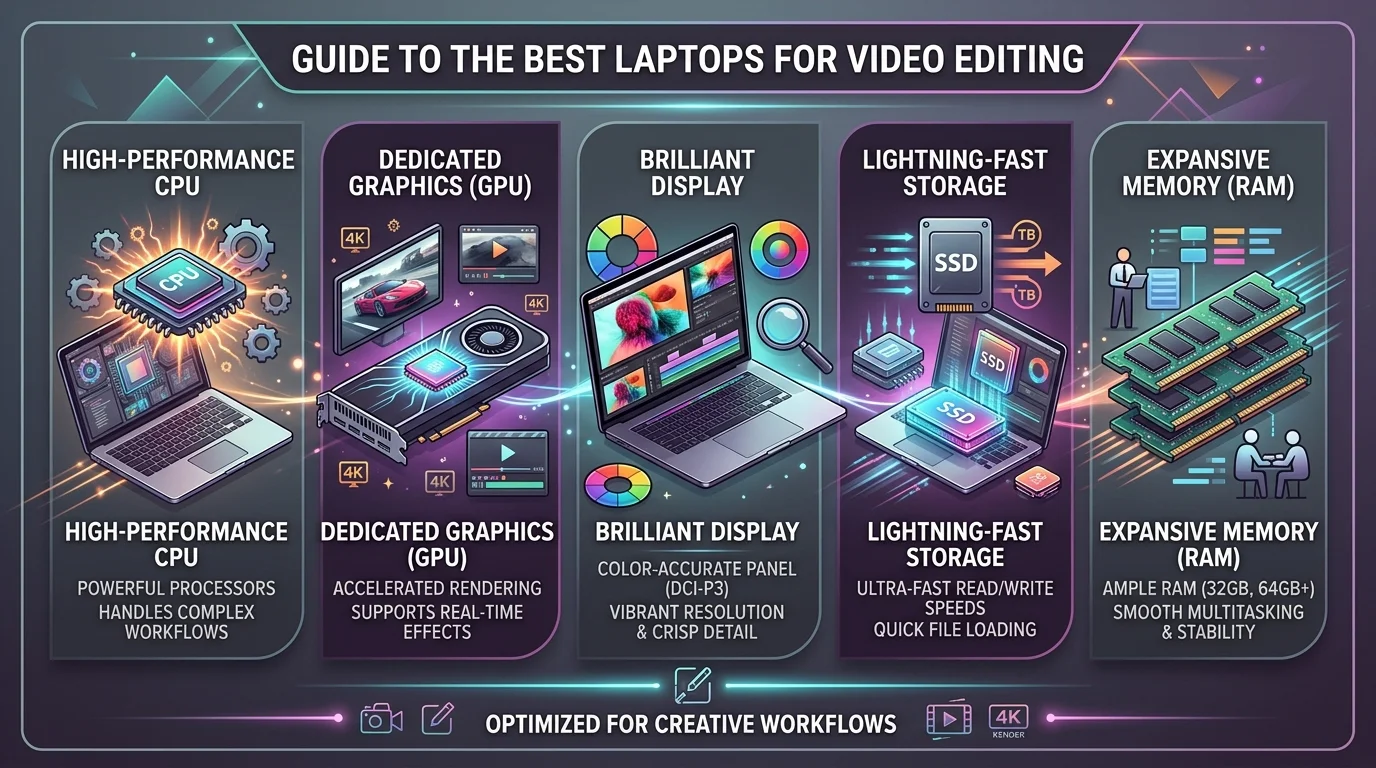
Why Your Laptop Choice Actually Matters
Here's the thing.
Video editing isn't like checking email or browsing Twitter.
It's one of the most demanding things you can ask a computer to do — and if your laptop isn't built for it, you'll feel it in every dropped frame, every laggy timeline, and every export that takes forever.
According to independent testing from RTINGS, the Apple MacBook Pro 14 (2024) delivers an outstanding user experience and can handle even the most demanding video editing projects.
That's not marketing talk. That's lab-tested reality.
When I ran my own trial-and-error comparisons switching between an 8GB machine and a 32GB one on the same 4K timeline, the difference wasn't subtle — it was the difference between smooth scrubbing and a spinning wheel. That's the kind of gap specs alone don't fully communicate until you feel it yourself.
So before you swipe your card, let's talk about what actually separates a great creator laptop from a glorified paperweight.
The Core Specs You Can't Ignore
I'm not going to bury this in jargon.
Here's what matters, plain and simple.
RAM: Don't Cheap Out Here
You need memory. Lots of it.
Per Dell's own buying guide, 32GB of RAM or more is recommended in 2026 to ensure smooth multitasking, faster rendering, and a more efficient creative workflow.
And if you're working in 6K or 8K? Some guides recommend pushing to 64GB unified memory for zero slowdown.
Trust me — this is not the place to save $50.
GPU and VRAM: Your Rendering Engine
Your dedicated GPU is basically the muscle behind every effect, transition, and color grade you apply.
Lenovo's knowledgebase puts it well: GPUs accelerate rendering, effects processing, and playback of high-resolution footage, and you should opt for GPUs with high VRAM capacity — at least 6GB — for optimal performance.
If you're a DaVinci Resolve user especially, don't skimp here. Color grading chews through GPU power like nothing else.
Storage: Speed Over Size (Sort Of)
Old-school hard drives? Forget them.
You want an NVMe SSD, full stop.
B&H's eXplora guide highlights machines like the HP ZBook Studio G11, which packs an Intel Core Ultra 9 chip, 64GB of RAM, a 2TB M.2 SSD, and keeps projects color accurate with 100% of the DCI-P3 color gamut covered.
That's the kind of spec sheet you want to see.
And once your local drive fills up with 4K footage (which happens faster than you'd think), you'll want a backup plan. I'd recommend comparing the best cloud storage services so your projects and raw footage are never one spilled coffee away from disaster.
Quick Storage Checklist
Internal NVMe SSD for OS + active projects
External SSD (USB-C/Thunderbolt) for media scratch disks
Cloud or larger external HDD for long-term archives
Display: This Is Where Most Budget Laptops Fail
Okay, real talk.
Your display quality might be the single most underrated spec on this list.
Creative Bloq recommends you'll want an IPS or OLED panel for accurate color reproduction, with color accuracy support for 100% sRGB — preferably AdobeRGB or DCI-P3 too — and at least 300 nits brightness.
Why does this matter so much?
Because if your screen lies to you about color, your final export will look completely different on your client's monitor.
And that's a nightmare you don't want.
Top Picks Comparison Table
Here's the cheat sheet — bookmark this.
Laptop | CPU | RAM | GPU | Display | Best For | Est. Price |
|---|---|---|---|---|---|---|
Apple MacBook Pro 14 | M4/M5 Max | Up to 64GB | Integrated (40-core) | Liquid Retina XDR, mini-LED | Overall best, Final Cut/Premiere | $$$$ |
Asus ProArt P16 H7606 | AMD Ryzen AI 9 HX 370 | Up to 64GB | RTX 4070 | 16" 4K OLED | Best Windows alternative | $$$ |
HP ZBook Studio G11 | Intel Core Ultra 9 | 64GB | RTX 3000-series | 3840x2400 OLED touch | Pro workstation users | $$$$ |
Budget pick (16GB config) | Mid-tier Core/Ryzen | 16GB (expandable) | Entry dedicated GPU | 1080p, 100% sRGB | Beginners, proxy workflows | $$ |
Step-by-Step: How to Pick Your Perfect Editing Laptop
Alright, let's make this actionable. Here's exactly how I'd approach it if I were you.
Step 1: Define Your Workflow
Are you cutting quick YouTube videos in 1080p? Or grading cinematic 6K footage for clients?
This single decision changes everything downstream.
Step 2: Match Your Software to the Hardware
Different editing software has different appetites.
HayotFilms notes that DaVinci Resolve heavily relies on GPU performance, and having at least 8GB of VRAM is recommended for advanced tasks, while Final Cut Pro is deeply optimized for Apple's M-series chips.
So if you're a Mac-first editor, lean into Apple Silicon. If you're a Resolve power user on Windows, prioritize VRAM.
Step 3: Set a Realistic Budget (But Don't Go Too Low)
I get it — budget matters.
But going too cheap on a video editing laptop almost always backfires.
Fan Tech's guide is blunt about this: while 8GB was once the norm, 16GB is now the absolute minimum, with 32GB being the "sweet spot" for 4K workflows.
Underspec your machine, and you'll be fighting lag on every single project.
Step 4: Prioritize Your Screen Almost as Much as Your CPU
I said it above, and I'll say it again.
A gorgeous laptop with a washed-out screen is basically useless for color grading.
My Top Picks (And Why They Win)
Let's cut to the chase — here's what I'd actually buy.
Best Overall: Apple MacBook Pro 14
This is the gold standard, and honestly, it's not close.
RTINGS ranks it as their best laptop for editing videos, and for good reason — the combination of Apple Silicon, media engines, and that gorgeous Liquid Retina XDR display is basically unbeatable.
Best Windows Alternative: Asus ProArt P16
If you're not in the Apple ecosystem, this is your machine.
Tom's Guide specs it out with a 16-inch 4K 60Hz OLED display, AMD Ryzen AI 9 HX 370, Nvidia GeForce RTX 4070, and up to 64GB of RAM.
That's a genuinely stacked machine.
Best Budget Pick
Look, not everyone needs (or can afford) a $3,000 machine.
If you're just starting out, focus on hitting that 16GB RAM minimum, an SSD, and a decent sRGB-covered screen — and lean on proxy workflows to keep things smooth.
Common Mistakes I See Editors Make
Quick gut-check before you buy.
Ignoring the display and focusing only on CPU/GPU specs
Buying a gaming laptop for editing without checking color accuracy — as Fan Tech points out, many budget gaming laptops cut corners on color reproduction, offering screens with poor color reproduction around 60% sRGB coverage
Underestimating RAM needs for multitasking with plugins and effects
Skipping storage speed and settling for slower drives
Avoid these, and you're already ahead of 90% of buyers.
Frequently Asked Questions
Is 16GB of RAM enough for 4K video editing?
For basic 4K edits using proxies, 16GB can work. But if you're using After Effects or heavy color grading in DaVinci Resolve, you'll likely hit lag. 32GB is the safer bet for a seamless 4K experience.
Mac or Windows for video editing?
If you're in the Final Cut Pro ecosystem or want the smoothest overall experience, go Mac. If you need DaVinci Resolve flexibility, gaming crossover, or a lower price point, a well-specced Windows machine like the Asus ProArt P16 holds its own.
How much VRAM do I need for DaVinci Resolve?
At least 8GB of VRAM is recommended for advanced color grading and effects work in DaVinci Resolve.
Can I edit video without a dedicated GPU?
Yes, but with limits. Modern integrated graphics — like Apple's M-series or Intel Iris Xe — can handle 1080p and light 4K editing fine, but you'll feel the strain on heavier, effects-heavy timelines.
What screen specs matter most for color grading?
Look for an IPS or OLED panel with 100% sRGB coverage (ideally DCI-P3 too) and at least 300 nits of brightness.
Final Verdict
Here's my honest take.
If budget isn't a massive constraint, the MacBook Pro 14 is the smartest, safest buy you can make right now.
If you want power on Windows, the Asus ProArt P16 genuinely rivals it.
And if you're just getting started, don't let perfect be the enemy of good — a well-specced budget laptop with 16GB RAM and a solid SSD will absolutely get you editing today.
Whatever you choose, don't gamble on specs when picking the best laptop for video editing — your creative flow depends on it.