To clean laptop screen safely, turn it off, unplug it, wipe away dust with a dry microfiber cloth, then lightly dampen the cloth (never spray the screen directly) with distilled water or a diluted isopropyl alcohol solution. Wipe gently in circular motions and let it air dry before closing the lid. Avoid glass cleaners, bleach, paper towels, and tap water — they can strip your screen's protective coating.
Okay, real talk. I used to be that person who grabbed a paper towel and a spray of Windex and just went to town on my laptop screen. Big mistake. Huge.
If you're here, you're probably staring at a smudgy, dusty, fingerprint-covered display right now and wondering what's actually safe to use. I get it. So let me walk you through everything I've learned about how to clean a laptop screen properly — the tools, the technique, and the stuff you should never, ever touch your screen with.
If you own a touchscreen device, this pairs well with my guide on how to turn off the touchscreen on a Chromebook — handy if you want to avoid smudges while cleaning. And if you're in the market for a new machine altogether, check out my picks for the best laptops for video editing, which also covers display quality.
Why Your Laptop Screen Deserves More Care Than You Think
Here's the thing — your screen isn't just glass. Most modern displays have a thin anti-glare coating or an oleophobic coating sitting on top, and that layer is surprisingly delicate.
Quick facts worth knowing:
One wrong cleaner can permanently strip a screen's protective coating
A dirty screen can be a genuine germ transmission point, especially on touchscreens
Most laptop screens show visible smudging within just a few days of regular use — so "once and done" cleaning doesn't really work
What You'll Need Before You Start
You don't need a fancy toolkit — just a few things that actually work.
A microfiber cloth (lint-free, always)
Distilled water
Isopropyl alcohol (diluted — more on ratios below)
A screen-safe cleaning solution or pre-moistened wipe made for electronics
Optional: an electronic cleaning kit that bundles cloth + solution together
Step-by-Step: How to Clean Your Laptop Screen Safely
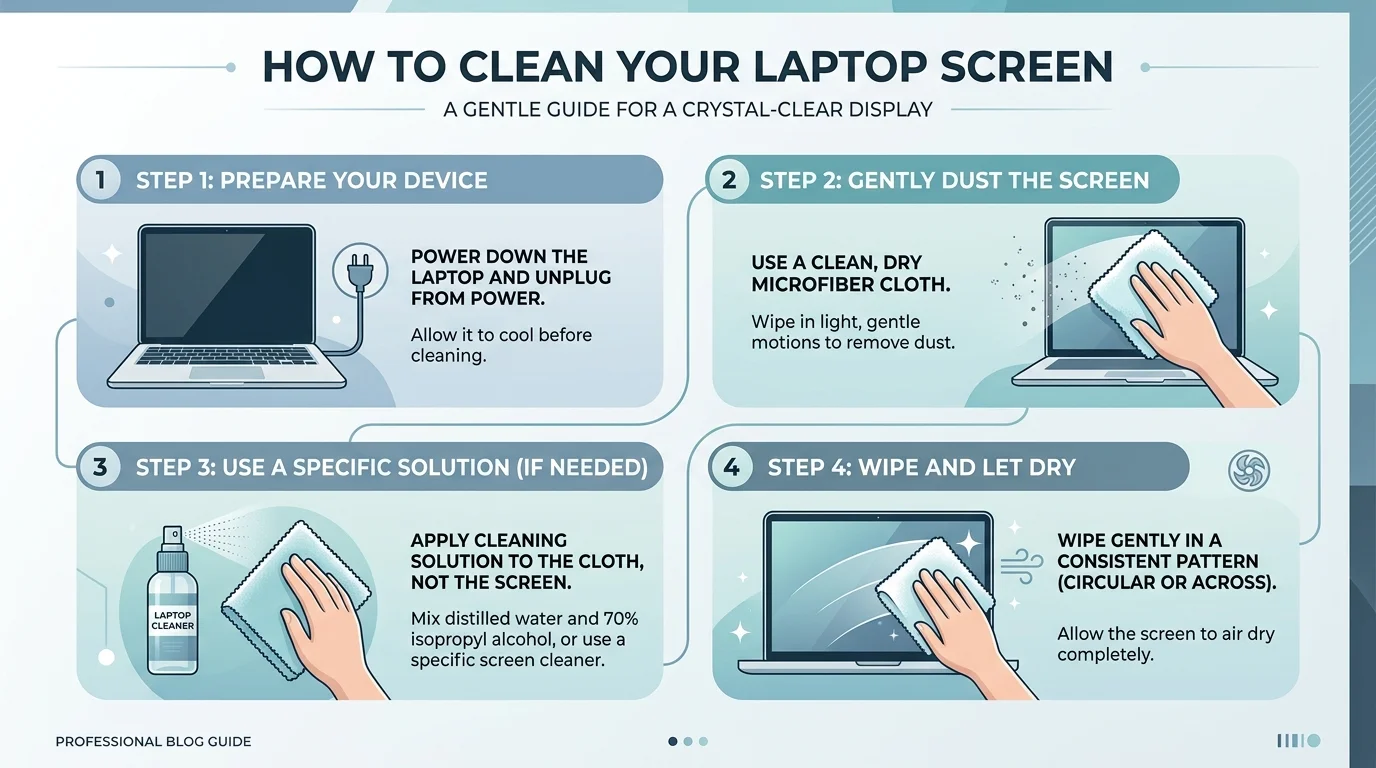
Step 1: Shut Everything Down
Turn off your laptop completely and unplug the power cable. No liquid should ever be near a running laptop — if moisture gets into the hardware while it's powered on, you could damage something important.
Step 2: Dust It Off First
Grab your dry microfiber cloth and gently wipe away loose dust and debris before any liquid touches the screen. A little compressed air around the edges and keyboard helps too.
Step 3: Dampen (Don't Soak) Your Cloth
Never spray liquid directly onto the screen. Instead, lightly dampen your cloth with distilled water and white vinegar, or diluted isopropyl alcohol if your manufacturer allows it.
Step 4: Wipe in Circular Motions
Gently wipe using small, circular motions. Light pressure only — you're not scrubbing a pan.
Step 5: Let It Dry Completely
Give the screen a few minutes to air dry fully before closing the lid or powering back on.
Cleaning Method Comparison by Screen Type
Here's a quick reference table so you know exactly what's safe for your display:
Screen Type | Safe Cleaning Method | Avoid |
|---|---|---|
LCD/LED (standard laptop) | Microfiber cloth + distilled water, or 60–70% isopropyl alcohol | Ammonia-based cleaners, paper towels |
OLED display | Microfiber cloth + 70% ethanol solution | High-concentration alcohol, excessive pressure |
Touchscreen laptop | Microfiber cloth + distilled water, light pressure only | Aggressive scrubbing, alcohol wipes with fragrance |
Glass-coated screen | Microfiber cloth + screen-safe glass cleaner | Household glass cleaner (e.g., Windex) |
What NOT to Use (Seriously, Avoid These)
I learned this the hard way, so let me save you the trouble:
Glass cleaners like Windex — the ammonia in most window cleaners erodes protective coatings
Bleach or acetone — obviously harsh, obviously bad
Paper towels or tissues — rough enough to scratch your screen
Tap water — contains minerals that leave residue behind
Fragranced alcohol wipes meant for other surfaces — chemicals can mess with screen coatings
Touchscreen Laptops Need Extra Care
Got a touchscreen? Two quick tips: disable your touch features before cleaning to prevent accidental clicks, and avoid pressing too hard since touchscreens tend to be more pressure-sensitive than standard displays. If you use a Chromebook, you can find the exact steps in my Chromebook touchscreen guide.
How Often Should You Actually Clean It?
There's no single right answer, but according to Jessica Ek, an expert at the American Cleaning Institute, you should clean your screen any time you notice visible dust or buildup — and more frequently if anyone nearby deals with asthma or allergies.
For most people, once a week is a solid habit. Eating lunch at your desk? Bump that up.
Preventing Dirt Buildup in the First Place
A little prevention means less scrubbing later:
Place a thin microfiber cloth over your keyboard before closing your laptop
Store your laptop in a sealed laptop bag when not in use
Keep food and drinks away from your workspace
Wash your hands before typing
Frequently Asked Questions
What's the best thing to clean a laptop screen with?
A dry microfiber cloth is best for daily dust. For smudges, lightly dampen it with distilled water or a screen-safe cleaner made specifically for displays.
Is it safe to use alcohol on a laptop screen?
Only if your manufacturer allows it, and only diluted to around 60–70%. Never apply it directly — always dampen the cloth first, and never use it on coatings the manufacturer specifically warns against.
Can you use baby wipes or disinfectant wipes on a laptop screen?
Generally not recommended. Most contain alcohol, fragrance, or other chemicals that can damage screen coatings over time. Stick to microfiber cloth and distilled water instead.
How do you remove scratches from a laptop screen?
Minor scratches are usually permanent and can't be "cleaned" away — cleaning only removes dirt and residue. Prevention (using a keyboard cloth barrier, avoiding rough materials) is your best defense.
Can you clean an OLED laptop screen the same way as an LCD screen?
Mostly yes, but OLED panels are more sensitive. Some manufacturers specifically recommend a 70% ethanol solution rather than standard isopropyl alcohol — check your device's documentation first.
Why I Switched to a Dedicated Screen Cleaning Kit
You can mix your own vinegar-and-water solution every time, but honestly, it gets old fast and it's easy to get the ratio wrong.
That's why I'd genuinely recommend picking up a proper electronic screen cleaning kit — one that bundles a microfiber cloth with a pre-formulated, screen-safe solution. It removes the guesswork, it's formulated specifically for LCD, LED, and OLED displays, and it travels well.
It's a small purchase that protects a device that probably cost you hundreds — sometimes thousands — of dollars. That math just makes sense.
Final Thoughts
Cleaning your laptop screen isn't complicated once you know the steps: turn it off, dust it, dampen (never spray), wipe gently, and let it dry. Avoid harsh chemicals, rough materials, and anything not designed for electronics.
Do this regularly and your screen stays crisp, smudge-free, and scratch-free for years. Your eyes — and your laptop — will thank you.