Quick answer: There's no built-in Settings toggle for this. You enable an experimental Chrome flag called ash-debug-shortcuts, restart your Chromebook, then press Search + Shift + T to turn the touchscreen off (and back on again whenever you want). If you want something more permanent, there's also a Developer Mode + terminal method, which I'll walk you through below.
So your touchscreen is driving you a little crazy, huh?
Maybe you keep brushing the screen while typing. Maybe the glass cracked and now it's registering phantom taps. Or maybe you just don't use it and want it gone.
Whatever your reason, you're in the right place.
I've spent a good chunk of time digging into this, testing shortcuts, and reading through ChromeOS support threads. Honestly, it's not as simple as flipping a switch in Settings. There's no big obvious toggle sitting there waiting for you.
But don't worry. I'm going to walk you through exactly how to disable touchscreen functionality on your Chromebook — the easy way and the more advanced way — so you can pick whichever fits your comfort level.
Let's get into it.
Why Would You Even Want To Turn Off Your Chromebook Touchscreen?
Before we jump into the "how," let's talk about the "why." Because honestly, this matters more than people think.
I know, I know — touchscreens are supposed to be a feature, not a bug. But here's the thing: for a lot of Chromebook owners, the touch screen becomes more annoying than helpful. And once you understand your own reason, the rest of this guide will make a lot more sense.
Here's when people usually want to kill the touch input:
Accidental taps while typing — your palm or fingers brush the screen and mess up your cursor position
A cracked screen or broken digitizer causing random, ghost-like touches
Wanting to save a bit of battery life (touch digitizers do sip power)
Keeping the screen clean — fewer fingerprints, less smudging
Childproofing a shared or classroom Chromebook so kids can't tap around and mess things up
Simple preference — some of us just like typing and using the trackpad, plain and simple
If any of these sound like you, keep reading.
Is There A Built-In Settings Option To Disable The Touchscreen?
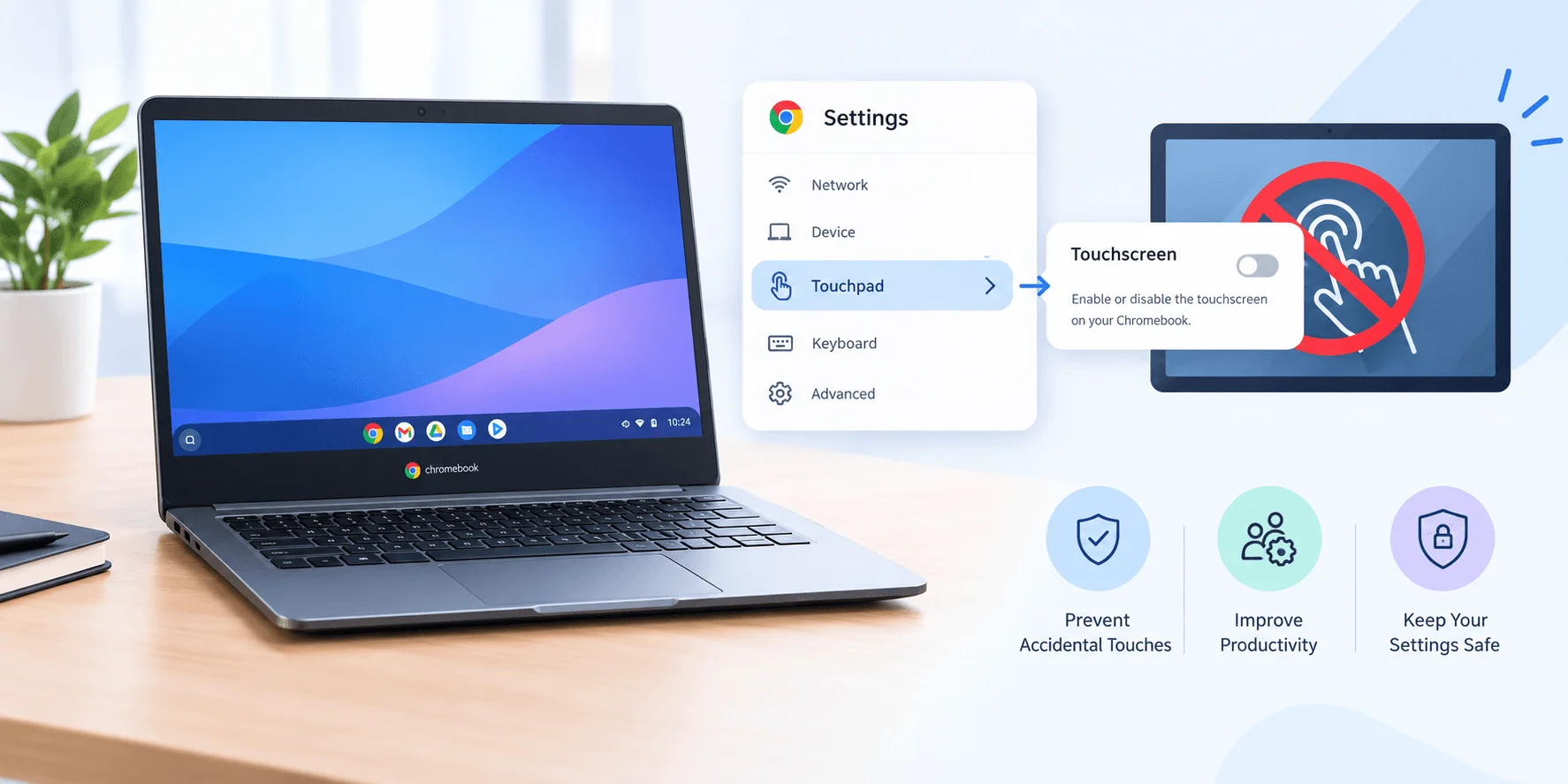
Short answer: no. Not really.
I wish I could tell you there's a nice little toggle buried in your Chrome OS Settings menu labeled "Touchscreen: On/Off." There isn't. Not on most Chromebook models, anyway.
Instead, Google buried this functionality inside an experimental Chrome flag — which sounds intimidating, but trust me, it's genuinely not that hard once you know where to click. While you're in customization mode, you might also want to learn how to block distracting websites on Chrome — handy if this Chromebook is shared with kids or used for focused work
So that's Method 1, and honestly, it's the one I'd recommend for 95% of you.
Method 1: Turn Off Touchscreen Using Chrome Flags (Recommended)
This is the easiest, most widely-used method — and it works across most Chromebook models, from HP to Acer to Lenovo. Android Authority confirms this same flag-and-shortcut combo works across current ChromeOS builds, and HelpDeskGeek's testing backs it up too.
And once your touchscreen situation is sorted, it's worth checking out these best productivity Chrome extensions for 2026 to get even more out of your setup.
Here's exactly what you need to do.
Step 1: Open Chrome And Head To The Flags Menu
Open your Google Chrome browser. In the address bar, type or paste this:
chrome://flags/#ash-debug-shortcuts
Hit enter. You'll land straight on the flag you need — no scrolling through hundreds of settings.
Step 2: Enable "Debugging Keyboard Shortcuts"
You'll see a dropdown labeled Debugging keyboard shortcuts. Click it, and switch it from Default (or Disabled) to Enabled.
This single flag is the gateway to a whole set of hidden ChromeOS hardware shortcuts — not just for the touchscreen, but for the touchpad, tablet mode, and even a CPU performance overlay. AboutChromebooks' guide to this flag breaks down the full list if you're curious.
Step 3: Restart Your Chromebook
Once you flip that toggle, a blue Restart button pops up at the bottom of the screen. Click it.
Your Chromebook will reboot itself — takes maybe 20-30 seconds.
Step 4: Use The Keyboard Shortcut To Toggle Touch Off
This is the fun part.
Once it's back on, press:
Search + Shift + T
That's it. The touchscreen should immediately stop responding. Try tapping the screen — nothing should happen.
Want it back? Just press the same combo again.
Oh, and here's a bonus tip — if your touchpad is also giving you grief, the shortcut Search + Shift + P does the exact same thing for that.
A Quick Word Of Caution
Because this is an experimental Chrome flag, Google hasn't fully committed to it as a permanent feature. That means:
It could behave inconsistently across ChromeOS updates
On some detachable-keyboard devices — the HP X2 is one confirmed example, according to a thread on HP's own support community — the touchpad shortcut fails because ChromeOS treats the detachable keyboard as an external accessory rather than built-in hardware
If you ever disable the flag itself, the touchscreen will automatically re-enable
So yeah, it's not bulletproof. But for most people, it does exactly what you need.
Method 2: Disable Touchscreen Using Developer Mode + Terminal (Advanced)
Okay, if you're the type who likes a more permanent, code-level solution — or the flag method just isn't cutting it — there's a second route. This one requires enabling Developer Mode, so heads up: that usually wipes your local data and can affect your device's warranty status, so go in with eyes open.
This method comes straight from testing outlined in TechySnoop's guide to disabling Chromebook touchscreens.
Here's the step-by-step.
Step 1: Enable Chrome OS Developer Mode
This varies slightly by device, but generally involves holding Esc + Refresh + Power, then following the on-screen prompts to switch to Developer Mode.
Fair warning — this will factory reset your Chromebook. Back up anything important first.
Step 2: Open The Crosh Terminal
Once you're in Developer Mode, press:
Ctrl + Alt + T
This opens Crosh, ChromeOS's built-in command shell.
Step 3: Type "shell" And Hit Enter
Crosh alone won't let you run system-level commands. Type:
shell
And press Enter. This drops you into a full Linux-style shell.
Step 4: List Your Input Devices
Now run:
xinput list
This'll spit out a list of every connected input device — keyboard, trackpad, and yep, your touchscreen. Look for something labeled with "touch" or "digitizer" in the name, and note its device ID (it'll be a small number).
Step 5: Disable The Touchscreen Device
Now run this command, swapping in your actual device ID:
xinput set-prop [device-id] "Device Enabled" 0
Hit enter, and the touchscreen should go dead immediately.
Step 6: Reboot To Lock It In
Restart your Chromebook to make sure the change sticks.
Want to reverse it later? Just run the same command but change that final 0 to a 1.
Comparing The Two Methods: Which Should You Choose?
Here's the honest breakdown, side by side:
Method | Difficulty | Reversible? | Wipes Your Data? | Best For |
|---|---|---|---|---|
Chrome Flags + Shortcut | Easy | Yes, instantly | No | Most people — accidental taps, cracked screens, childproofing |
Developer Mode + Terminal | Advanced | Yes, via command | Yes (on setup) | Power users who want a system-level, more permanent fix |
For most readers, Method 1 (Chrome Flags) is the way to go. It's quick, reversible, and doesn't require wiping your device.
Method 2 (Developer Mode) makes sense if:
You want a more "under the hood" fix
You're comfortable using terminal commands
You've already got Developer Mode enabled for other reasons
If you're just trying to stop your kid from tapping the screen during homework time, don't overthink it — go with the flag method.
What Happens After A ChromeOS Update?
This is worth calling out on its own, because it catches people off guard.
ChromeOS updates can reset experimental flags — including ash-debug-shortcuts. If your touchscreen suddenly starts responding again after an update you didn't expect, that's almost certainly why. The fix is simple: just repeat Method 1 from Step 1.
If you're on the Developer Mode route, updates behave a bit differently — your xinput change can persist through minor updates, but a full OS reset or re-enrollment will wipe it, and you'll need to redo the terminal steps.
What About Tablet Mode?
Quick note here since it trips people up: turning off the touchscreen doesn't automatically turn off tablet mode. They're related but separate settings.
If your Chromebook is a 2-in-1 and you fold it into tablet mode, ChromeOS may still expect touch input for its tablet-optimized interface — even with the touchscreen technically disabled via the flag. If you want to avoid this entirely, stick to clamshell (laptop) mode after disabling touch, or use the shortcut Ctrl + Alt + Shift + T, which toggles tablet mode independently once debugging shortcuts are enabled.
Troubleshooting: What If The Shortcut Doesn't Work?
Sometimes things don't go as planned. Here's what I'd check if your Search + Shift + T shortcut isn't doing anything:
Double-check the flag is actually enabled — go back to
chrome://flags/#ash-debug-shortcutsand confirm it says Enabled, not DefaultMake sure you actually restarted — the flag doesn't take effect until you reboot
Try the shortcut again after a fresh reboot — sometimes it just needs a clean restart to register
Check if your keyboard is external or detachable — as mentioned earlier, some 2-in-1 and detachable models treat the keyboard as an external accessory, which can interfere with the shortcut recognizing input properly
Update ChromeOS — an outdated OS version can sometimes cause flags to behave unpredictably, and Google periodically adjusts how debug flags behave between releases
If none of that works, it might genuinely be a hardware issue, in which case it's worth checking with your device manufacturer or a repair shop.
Frequently Asked Questions
Can I permanently turn off my Chromebook's touchscreen?
Not through official Settings, no. The closest thing to "permanent" is the Developer Mode + terminal method, since it disables the device at a system level rather than through a toggle-able flag. Even then, a full OS reset can undo it.
Will disabling the touchscreen save battery?
A little, yes. Touch digitizers do draw some power, though the difference is usually modest rather than dramatic.
Does this work on all Chromebook models?
Mostly, yes — the flag-based method is fairly universal across current ChromeOS builds. But as we saw with the HP X2 example, some 2-in-1 or detachable-keyboard devices behave a bit differently, so your mileage may vary slightly.
Is enabling Chrome Flags safe?
Generally, yes. Chrome Flags are experimental features Google is testing, not hacks or security risks. That said, some flags can affect stability, so it's smart to only enable ones you actually need — and know how to disable if something feels off.
Does turning off the touchscreen also disable tablet mode?
No. They're separate settings. See the "What About Tablet Mode?" section above for how to handle both together.
Wrapping This Up
And there you have it — everything you need to turn off the touchscreen on your Chromebook, whether you want a quick toggle or a deeper, more permanent fix.
My honest recommendation? Start with the Chrome Flags method. It's fast, it's reversible, and for the vast majority of use cases — accidental taps, cracked screens, battery savings, childproofing — it does exactly what you need without any real risk.
Save Developer Mode for when you're genuinely comfortable with terminal commands or need something more locked-in.
Either way, you're now equipped to make your Chromebook behave exactly how you want it to. If you're fine-tuning other settings, you might also want to change your default browser while you're at it. Go give it a try.