Quick answer: To change your default browser, go to your device's Settings app, find "Default apps" (Windows/Android) or "Desktop & Dock" (Mac) or "Apps" (iPhone), select your preferred browser, and tap Set Default. The exact path differs slightly by platform, but the whole process takes under two minutes on any device.
Now let me walk you through it properly.
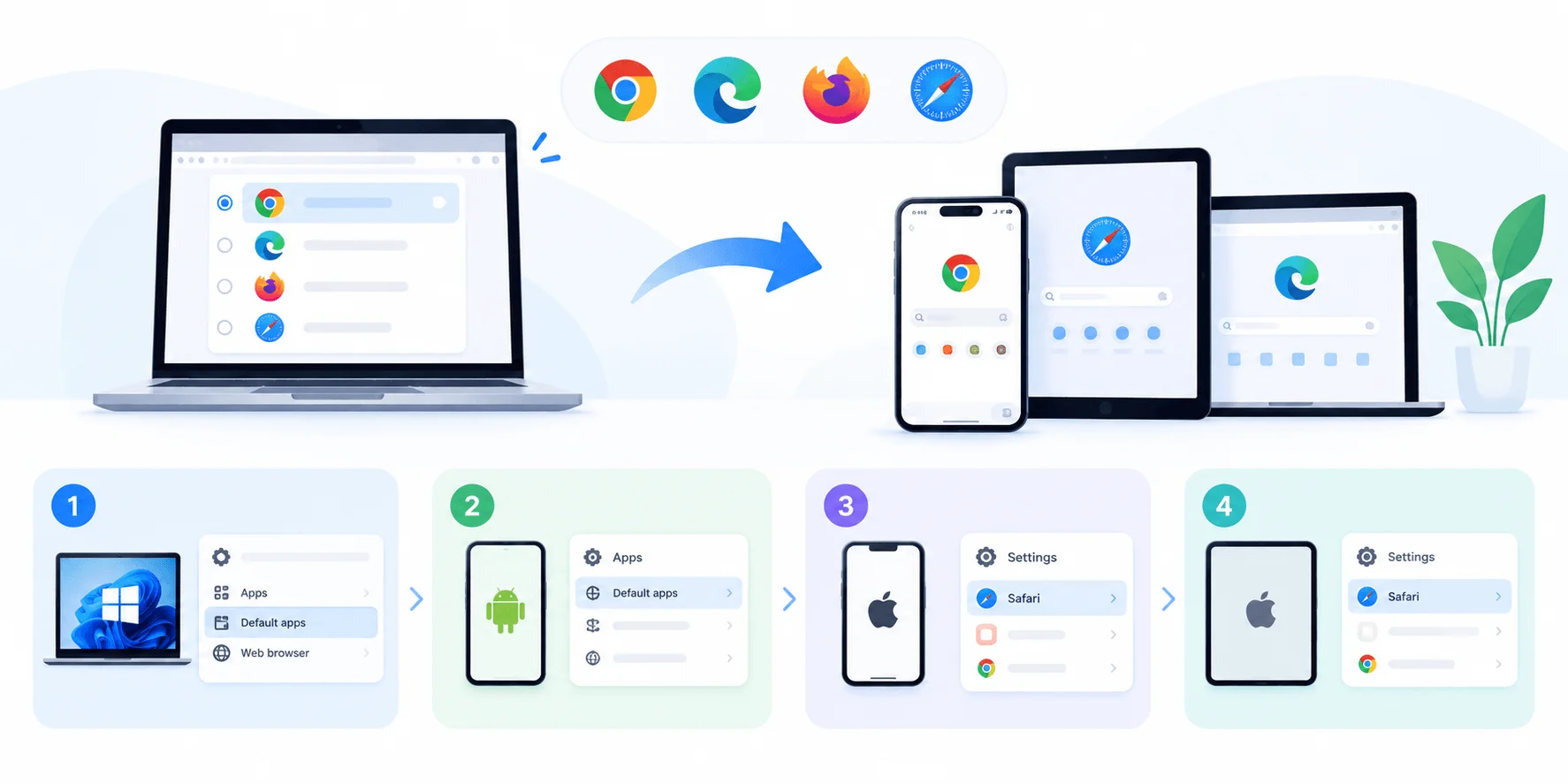
Quick Steps Box (Jump To Your Device)
Windows 11/10: Settings → Apps → Default apps → search browser → Set default
macOS (Sonoma/Sequoia): Apple menu → System Settings → Desktop & Dock → Default web browser
iPhone/iPad (iOS 18+): Settings → Apps → Default Apps → select browser
Android (15/16): Settings → Apps → Default apps → Browser app → choose browser
Got your device? Let's go deeper.
What Is A Default Browser (And Why It Actually Matters)
Quick definition before we get into the how-to stuff.
Your default browser is simply the app your operating system automatically opens whenever you click a link — whether that's from an email, a text message, a PDF, or literally any other app on your device.
Here's the thing though: most people never even think about this setting. They just... accept whatever came pre-installed.
Big mistake.
Your choice of default web browser affects your privacy, your speed, your bookmarks syncing across devices, and honestly, your entire browsing experience. If you're using Safari on your Mac but Chrome everywhere else, you're not getting synced bookmarks, saved passwords, or a consistent experience.
That's why learning how to switch default browser settings is one of those small tweaks that makes a surprisingly big difference. If you're also looking to lock down your browsing experience further, check out our guide on how to block websites on Chrome — handy if you're trying to stay focused or restrict certain sites
How To Change Default Browser On Windows 11
Alright, let's start with Windows since that's what most people are searching for.
Microsoft ships Windows with Microsoft Edge as the default. And look — Edge isn't a bad browser (it runs on the same Chromium engine as Chrome now). But if you're more of a Google Chrome or Mozilla Firefox person, here's exactly what to do.
Step 1: Open Windows Settings
Press Windows + I on your keyboard. This is the fastest shortcut, and honestly, once you learn it, you'll never go back to clicking through menus.
Alternatively, click the Start menu, then select the Settings gear icon.
Step 2: Navigate To Default Apps
Once Settings opens, click on Apps, then click Default apps. Per Google's own support documentation, this is the exact path Chrome instructs users to follow.
This is basically Windows' command center for every default application on your machine — not just your browser, but your email client, PDF reader, and more.
Step 3: Search For Your Preferred Browser
In the search box, type the name of the browser you want — say, "Chrome" or "Firefox."
Click on it once it appears.
Step 4: Click "Set Default"
You'll see a Set default button. Click it.
Boom. Done.
Now here's a pro tip I learned the hard way: sometimes Windows is sneaky, and certain link types (like mailto links from Outlook) will still open in Edge even after you've changed your default. Norton's browser guide confirms this is a known quirk — if it happens, scroll through the list of file types under your new browser's settings page and manually reassign anything still pointing to Edge.
Annoying? Yes. But a five-second fix.
How To Change Default Browser On Windows 10
Good news — the process on Windows 10 is nearly identical to Windows 11.
Here's the deal:
Click Start, then Settings
Select Apps
Click Default apps on the left sidebar
Scroll down and click Web browser
Choose your new browser from the pop-up list
That's genuinely it. Five clicks and you're set.
How To Change Default Browser On macOS
Now let's switch gears and talk Mac.
If you're running current macOS (Sonoma, Sequoia, or later — Apple renamed and relocated this setting starting with Ventura), here's the current path.
Step 1: Click The Apple Menu
Top-left corner of your screen. Click the Apple logo.
Step 2: Open System Settings
Select System Settings from the dropdown.
Step 3: Click "Desktop & Dock"
I know — weird place to put a browser setting, right? But that's where Apple hides it now.
Step 4: Scroll To Default Web Browser
You'll see a dropdown menu labeled Default web browser. Click it.
Step 5: Select Your Browser
Pick whichever browser you want — Chrome, Firefox, Brave, whatever floats your boat — and macOS saves it instantly. No "Save" button needed.
If you're on an older Mac (pre-Ventura), you'll find this same setting under System Preferences → General instead. Same concept, slightly different location.
How To Change Default Browser On iPhone And iPad
Here's a fun bit of history for you: Apple didn't actually let iPhone users change their default browser until iOS 14 launched in 2020. Before that, you were stuck with Safari whether you liked it or not.
Fast forward to today's iOS 18 and later, and switching is refreshingly simple.
Step 1: Install Your New Browser First
Head to the App Store and download whatever browser you want to switch to — Chrome, Firefox, Edge, and DuckDuckGo are all approved options.
Step 2: Open Settings
Scroll down and tap Apps.
Step 3: Tap "Default Apps"
This is the newer, streamlined menu Apple introduced. Tap it.
Step 4: Select Default Browser App
Choose your new browser from the list. You'll see a checkmark appear next to it once it's set.
Now here's something worth mentioning: if you're in the European Union, according to Apple's official support page, you might get prompted with an actual browser choice screen on iOS 17.4 (or iPadOS 18.2) and later — this is due to EU digital regulations requiring Apple to give users a genuine, unbiased choice from the get-go.
Pretty cool, honestly.
How To Change Default Browser On Android
Android has actually made this process dead simple since Android 6.0 Marshmallow back in 2015. Before that? You had to manually clear cached data and defaults for your old browser — a total pain. Today's Android 15 and 16 devices keep the same straightforward flow.
Here's the modern way:
Step 1: Open Settings
Tap the gear icon in your app drawer or notification shade.
Step 2: Tap "Apps"
Scroll down until you see the Apps menu.
Step 3: Select "Default Apps"
This shows you every default app category on your phone — browser, dialer, messaging, the works.
Step 4: Tap "Browser App"
You'll see your current default listed here.
Step 5: Choose Your New Browser
Tap whichever browser you want — and just like that, you're switched over.
Some Android manufacturers (looking at you, Samsung) love pre-loading their own browser and setting it as default automatically. If your phone's stock browser feels sluggish or missing features compared to something like Chrome, this is exactly the fix you need.
Which Browser Should You Actually Switch To?
Before you commit, here's a quick side-by-side so you're not guessing:
Browser | Best For | Privacy | Sync Across Devices | Notes |
|---|---|---|---|---|
Chrome | Extensions & speed | Moderate | Excellent | Largest extension library |
Firefox | Customization | Strong | Good | Independent engine, not Chromium |
Safari | Mac/iOS battery life | Strong | Excellent (Apple only) | Best on Apple hardware |
Brave | Built-in ad/tracker blocking | Very strong | Good | Blocks trackers by default |
Edge | Windows integration | Moderate | Good | Chromium-based, AI features built in |
DuckDuckGo | Privacy-first browsing | Very strong | Limited | Includes a one-tap data-clearing "fire" button |
If privacy is your top priority, Brave or DuckDuckGo are your best bets. If you live inside Google's ecosystem, Chrome keeps everything synced. And if you're all-in on Apple hardware, Safari genuinely does sip less battery than the alternatives. If you want maximum anonymity rather than everyday privacy, Tor Browser is a free option that routes your traffic through three relays, though most people keep it as a second browser for private sessions.
Why Your Default Browser Choice Actually Matters
I want to zoom out for a second here.
This isn't just about convenience — although, yeah, that's the main draw.
Your browser preferences actually tie into bigger things:
Privacy: Some browsers, like Brave or DuckDuckGo, block trackers by default. Others don't.
Security: IT professionals and cybersecurity-minded folks often prefer browsers with stronger sandboxing or update cadences.
Speed: Rendering engines differ. Chrome's Blink engine handles some sites faster; Safari sips less battery on Mac hardware.
Sync: If your bookmarks, saved passwords, and browsing history are already living in Chrome on your laptop, keeping Chrome as your phone's default keeps everything seamless.
Once you've settled on your default browser, it's worth optimizing it further. We've put together a list of the best productivity Chrome extensions for 2026 if Chrome ends up being your pick — they can genuinely transform how efficiently you browse and work
So really, changing your default browser isn't some throwaway setting. It's a decision that touches your daily digital life more than you'd think.
Common Mistakes People Make When Switching Default Browsers
Let me save you some headaches.
Mistake #1: Forgetting to install the browser first. You can't set a browser as default if it's not installed. Sounds obvious, but I've seen people get stuck on this constantly.
Mistake #2: Not checking file-type associations. On Windows especially, changing your default browser doesn't always update every single file type (like .htm, .html, or mailto links). Double-check these manually.
Speaking of security settings, if you're auditing your browser setup anyway, it's also worth knowing what a keylogger is and how to spot one — since your browser is often the first entry point for this kind of threat
Mistake #3: Assuming the change is permanent. Older versions of iOS were known to reset default apps after a restart, a bug reported by outlets like Gizmodo back during the iOS 14 rollout. If your default browser mysteriously reverts on a current device, just redo the steps above — it's quick, and this bug has largely been resolved in modern iOS releases.
Mistake #4: Ignoring the "Make Default" prompt. Here's a shortcut most people miss: the very first time you open a newly installed browser, it usually pops up a "Make Default" button right away. Click it then, and you skip the whole settings menu dance entirely.
Frequently Asked Questions
Can I have different default browsers on different devices?
Yep, absolutely. Your Windows laptop, your Mac, your iPhone, and your Android tablet all have completely independent default browser settings. Changing one doesn't affect the others.
Will changing my default browser delete my bookmarks?
No. Your old browser and all its data stay exactly where they are. You're just changing which app opens links automatically going forward.
Is Microsoft Edge really that bad?
Honestly? Not really — modern Edge is built on the same Chromium engine as Chrome. A lot of the hate is leftover reputation from the old Internet Explorer days. But hey, personal preference is personal preference.
What's the best browser to switch to?
That depends entirely on what you value most. Want speed and a massive extension library? Go Chrome. Want privacy by default? Try Brave or DuckDuckGo. Want deep customization? Firefox is an excellent choice.
Wrapping This Up
So there you have it — a complete, no-nonsense walkthrough on how to change default browser settings across every device you probably own.
Here's the truth: this whole process takes maybe two minutes, tops. Yet so many people go months — sometimes years — clicking links into a browser they don't even like.
Don't be that person.
Pick the browser that fits your workflow using the comparison table above, follow the steps for your platform, and enjoy links opening exactly where you want them to.
That's it from me today. Go make the switch.