To fix audio on PC, check your volume and playback device, run the Windows audio troubleshooter, then update or reinstall the audio driver. If sound still glitches, change the sample rate and turn off exclusive mode. If the speaker icon shows a red X, restart the Windows Audio service. If every fix fails on every app, the hardware is likely faulty.
Your PC goes silent right when the movie starts. Annoying, right?
I've been there. Most Windows audio problems come down to a muted setting, a cranky audio driver, or a stopped service. I'll walk you through every fix in the order I'd try them.
Quick facts:
Microsoft's own guide covers Windows 11 and Windows 10.
On Windows 11, Microsoft says to start with the automated Get Help troubleshooter.
For crackling, one 2026 guide calls 24 bit at 48000 Hz the sweet spot for most devices.
The Windows Audio service depends on AudioEndpointBuilder and RpcSs, so one stopped dependency can silence everything.
Which Fix Matches Your Problem?
Not every audio problem needs every fix. This table shows you where to start, so you don't waste time on steps that won't help.
Symptom | Likely cause | Best fix |
|---|---|---|
No sound after an update | Corrupt or mismatched sound driver | Reinstall the driver or switch to the generic one |
Crackling or popping | Sample rate mismatch, audio enhancements, exclusive mode | Set 24 bit and 48000 Hz and turn off the extras |
Red X on the speaker icon | Windows Audio service stopped | Set the service to Automatic and restart it |
Silent with headphones plugged in | Wrong playback device | Unplug them and pick the right output |
Broken on every device and app | Failing audio jack or sound card | Use a USB audio adapter |
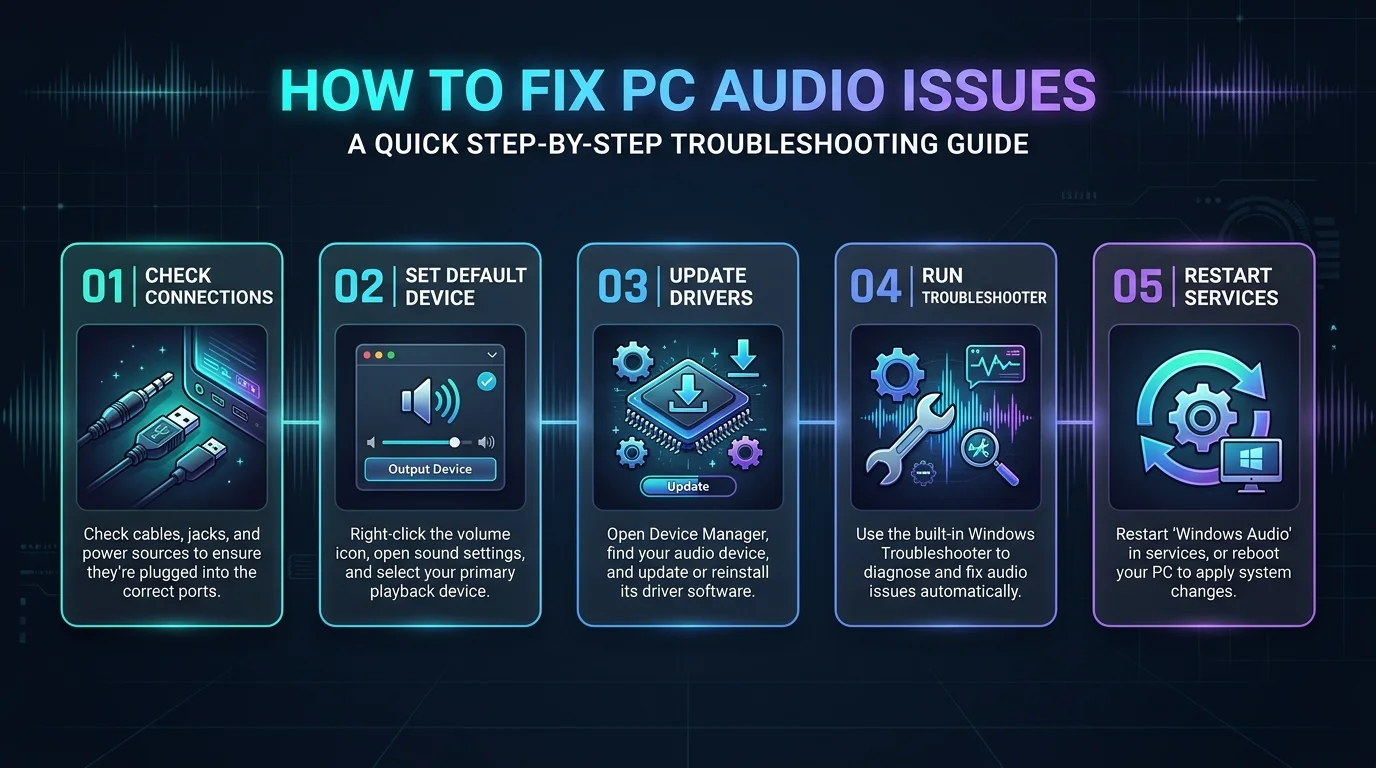
Start With the 60 Second Checks
Before you touch deep settings, rule out the dumb stuff. I once burned an hour on a no sound on PC problem that was just one muted app. These quick audio troubleshooting checks take a minute, and they solve more cases than you'd expect.
Open the volume mixer and make sure nothing is muted.
Unplug your headphones. Speakers may not work while they're plugged in.
Pick the right audio output device in Sound settings.
Restart your PC.
Using a monitor or TV for sound? Windows may be sending audio to the wrong screen. This happens a lot after you set up two monitors, because each display adds its own playback device.
Run the Windows Audio Troubleshooter
Windows ships with a free repair tool, and most people never use it. The audio troubleshooter scans your playback device and settings, then tries to repair what it finds. It takes 30 seconds, so run it before you dig deeper.
Right click the speaker icon in your taskbar.
Choose Troubleshoot sound problems, as Pureinfotech shows.
Follow the prompts.
You can also press Win + R and run msdt.exe -id AudioPlaybackDiagnostic, a tip from a Microsoft Q&A moderator. It may be missing on newer builds.
Fix Your Audio Driver
When sound dies right after an update, the audio driver is my first suspect. Drivers translate between Windows and your hardware. When one gets corrupted, you get silence, glitches, or a "no audio device installed" error. If the problem started after an update, pause automatic Windows updates while you test, so a fresh update doesn't undo your fix.
Update or Reinstall the Driver
Start with your manufacturer's version. HP's support team recommends installing the latest Realtek driver from your exact model's support page.
Press Win + X and open Device Manager.
Expand Sound, video and game controllers.
Right click your Realtek audio device and choose Update driver.
Still broken? Choose Uninstall device and reboot. Microsoft says it reinstalls automatically.
Switch to the Generic Windows Driver
Sometimes the fancy driver is the problem. Windows Report walks through this scenario: choose Update driver, then Browse my computer, then Let me pick from a list, and select High Definition Audio Device. Reboot and test.
Stop Crackling, Popping, and Distortion
If your sound works but crackles, Windows usually can't deliver audio on time, or your format doesn't match your hardware. Two settings fix most cases. Open the Sound panel with Win + R, then mmsys.cpl.
Change the Sample Rate and Bit Depth
A mismatch causes plenty of audio distortion. Right click your device, open Properties, then Advanced, and set Default Format to 24 bit, 48000 Hz. If it still crackles, try 24 bit, 44100 Hz. Hit Test after each change.
Turn Off Enhancements and Exclusive Mode
PCrisk confirms that audio enhancements and exclusive mode can fight your driver.
Open the Enhancements tab and disable them all.
On Advanced, untick Allow applications to take exclusive control of this device.
Untick Give exclusive mode applications priority.
Click Apply.
Restart the Windows Audio Service
A red X on your speaker icon, or the message "The Audio Service is not running," usually means a background service stopped. Winhelponline covers this error in depth.
Press Win + R, type
services.msc, and hit Enter.Find Windows Audio and Windows Audio Endpoint Builder.
Set both to Automatic, then click Start.
Prefer the command line? Open Command Prompt as administrator and run net stop audiosrv, net stop AudioEndpointBuilder, then net start AudioEndpointBuilder and net start audiosrv. Microsoft Q&A lists the same sequence. If the service still won't start, The Windows Club suggests checking dependencies and updating your driver.
When Hardware Is the Problem (And What to Buy)
If you've tried everything and your speakers, headphones or sound card still fail, the hardware is likely dying. A worn audio jack or a faulty motherboard audio chip beats any setting you change. Test your headphones on another device. If they work there, your PC's own audio is the weak link.
If you rely on HDMI for sound, check the cable and adapter too. Our USB-C to HDMI guide explains how these connections work and what to look for.
When the onboard chip is the culprit, I'd stop fighting and buy a USB audio adapter or USB DAC. It bypasses the onboard chip entirely, and Windows usually detects it on its own. It's the cheapest way to end the problem for good.
FAQ: Fixing Audio on PC
Why is there no sound on my PC?
The usual causes are a muted or wrong playback device, a corrupted driver, or a stopped Windows Audio service. Work through the table above from the top.
How do I fix crackling audio on Windows 11?
Set the format to 24 bit and 48000 Hz, disable audio enhancements, and turn off exclusive mode. If that fails, reinstall the driver.
How do I restart the Windows Audio service?
Open services.msc, find Windows Audio, set it to Automatic, and click Start. Do the same for Windows Audio Endpoint Builder.
Do I need to download a Realtek driver?
Not always. Windows can use its generic driver. If errors persist, install the latest driver from your PC maker's support page.
How do I know it's a hardware problem?
If audio fails on every app and every output after the driver and service fixes, and your headphones work on another device, your PC's audio hardware is the likely cause.
Your Next Move
Start at the top and work down: basic checks, troubleshooter, driver, sample rate, Windows Audio service. Don't skip steps. If hardware is the culprit, grab a USB audio adapter and get back to your music.