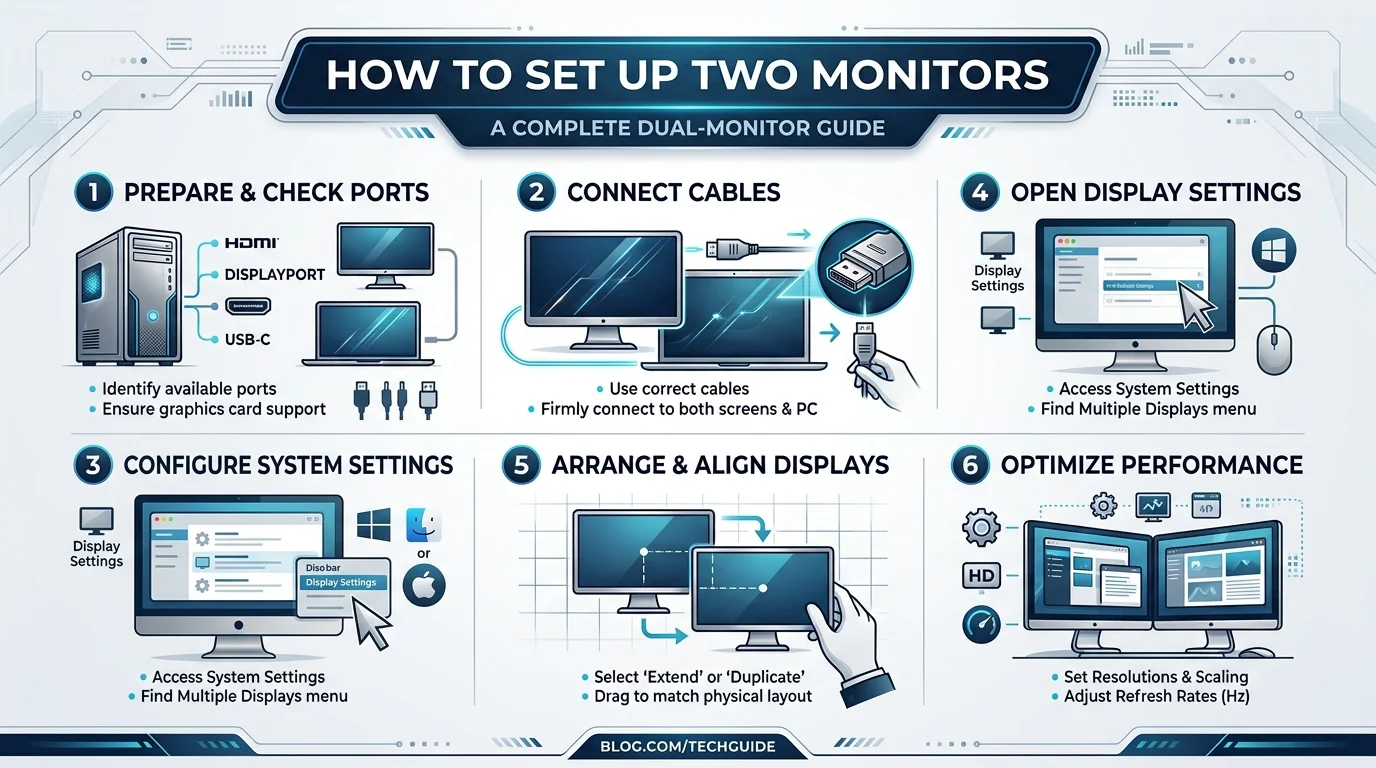
To set up two monitors, connect your second display to your computer using HDMI, DisplayPort, or USB-C, then go to your display settings and select "Extend" to create one continuous workspace across both screens. Most modern computers detect the second monitor automatically. The whole process takes under 10 minutes, and once your ergonomics are dialed in, it's one of the fastest productivity upgrades you can make in 2026.
I'll be honest with you — the first time I tried a dual monitor setup, I plugged in the wrong cable, restarted my PC three times, and almost gave up.
But once I got it working? Game changer.
You suddenly have double the space to work with. No more alt-tabbing every five seconds. No more squinting at tiny split-screen windows.
In this guide, I'm going to walk you through exactly how to set up two monitors, step by step — the same way I'd explain it to a friend over coffee.
Let's get into it.
Why You Even Need a Multi-Monitor Setup
Look, I get it — one screen feels "good enough" until you actually try two.
A multi-monitor setup isn't just a flex for your desk setup pics. It genuinely changes how you work. You get more screen real estate, smoother multitasking, and way less time wasted switching between tabs.
According to Vitrue Health, working across multiple screens can boost productivity by up to 42% and cut error rates by 33%. That's not a small bump — that's the difference between finishing work at 5 PM or 8 PM.
So yeah, if you're on the fence, I'd say jump off it.
Who Actually Benefits From This
Writers and editors juggling research tabs and drafts
Developers running code on one screen, docs on the other
Traders watching live data feeds
Gamers who want Discord or a walkthrough open beside gameplay
Content creators editing video/audio while referencing timelines
Basically... anyone who touches a computer for more than 3 hours a day
If browser tabs are eating up half your screen already, it's worth pairing your new setup with a few productivity Chrome extensions to keep things organized across both displays.
Step 1: Check Your Hardware First
Before you buy anything, you need to know what you're working with.
Your graphics card (or GPU) is the real MVP here. It decides how many displays you can actually run — and at what refresh rate and resolution. As of 2026, most current-gen GPUs (including integrated graphics on recent laptops) handle dual 1440p or even 4K displays without breaking a sweat. Older machines from before 2020 might struggle more.
Which Cable Should You Use?
This is where most people get stuck. Here's a quick comparison to make the choice easy:
Port Type | Best For | Max Common Resolution | Availability |
|---|---|---|---|
HDMI | Most desktops & TVs | 4K @ 60Hz | Very common |
DisplayPort | Desktop PCs, high refresh rate monitors | 4K @ 144Hz+ | Common on desktops, rare on laptops |
USB-C / Thunderbolt | Newer laptops | 4K @ 60Hz+ (varies) | Growing, but not all ports support video |
RTINGS.com has a deeper technical breakdown of these ports if you want the nerdy details. Personally, I just check the back of my monitor and match the port to whatever's free on my laptop or GPU.
If your ports don't match? No stress. Grab an adapter — if you're working off a laptop with only USB-C, this USB-C to HDMI guide walks through exactly which adapter to get and how to hook it up. Problem solved in five bucks.
Step 2: Physically Connect Your Second Monitor
Okay, hardware time. This part is honestly the easiest.
Plug your second monitor into a power source
Connect it to your computer using HDMI, DisplayPort, or USB-C
Power everything on
That's it. Seriously.
Windows and macOS are both pretty good these days at detecting a new external monitor automatically. If it doesn't show up right away, don't panic — we'll fix that in the troubleshooting section below.
Step 3: Set Up Your Extended Display
This is where the magic actually happens.
On Windows: Right-click your desktop and hit Display settings. Scroll down to "Multiple Displays" and choose Extend desktop — this turns your two monitors into one big continuous workspace instead of just duplicating the same screen. Dell's official guide walks through this with visuals if you want a second reference.
On macOS: Head into System Settings > Displays, and choose "Extend Display" instead of "Mirror."
On Chromebook: Click the time in the bottom-right corner, open Settings > Device > Displays, and select your external monitor to configure it — Best Buy's guide covers this OS-by-OS if your setup differs from the norm.
Quick tip: if your monitors are mismatched in size or resolution, don't worry too much. Just make sure the screen resolution for each one is set to whatever it recommends. You'll thank yourself later.
Rearranging Your Screens
Here's a mistake I made early on — my mouse would vanish off one screen and I couldn't find it.
Turns out, your display arrangement in settings needs to match how your monitors are physically placed on your desk. Left monitor on your desk? Drag it to the left in settings too.
Takes ten seconds. Saves you a headache.
Step 4: Fix the Ergonomics (Please Don't Skip This)
I'm going to be real with you — this is the part most guides skip, and it's the part that actually matters long-term.
A bad ergonomic monitor setup will absolutely wreck your neck and shoulders. I learned this the hard way after weeks of my neck constantly aching from having my second screen at a weird angle.
Here's what actually works, based on guidance from Ergonomic Zone and Herman Miller's research:
Keep the top of your primary monitor at or slightly below eye level
Sit about 20–28 inches away from your screens
Tilt each screen back 10–20 degrees
Angle your secondary screen inward if you use both equally
Keep elbows at 90–100 degrees with wrists neutral
While you're cleaning up your desk setup, it's also worth wiping down your screens properly — check out this how to clean a laptop screen guide so you don't accidentally scratch the display while you're at it.
Recommendation: Consider a Monitor Arm
This section is my personal take, separate from the neutral how-to steps above.
You can stack your monitor on some books. I've done it. It's not great.
A good monitor arm fixes basically every ergonomic issue in one move. It gets your screen to eye level instantly, frees up desk space, and lets you adjust height, tilt, and distance without fighting a flimsy stand.
I know it feels like an extra purchase you didn't plan for. But compare a $40–80 cost to weeks of neck pain and lost focus — it's not even close, in my opinion. If you're serious about your dual monitor setup, this is the one upgrade I'd personally tell you not to skip.
Troubleshooting Common Issues
Second monitor not detected (Windows)? Restart your computer, then go to Display settings and hit "Detect."
Second monitor not detected (Mac)? Check System Settings > Displays > click "Detect Displays" while holding the Option key.
Resolution looks blurry or off? Set both screens to their recommended resolution — mismatched res is the most common cause of fuzzy text.
Using a laptop? You can run dual external monitors while keeping your laptop screen active too — most laptops made since 2022 support this natively.
Colors look different between screens? This is normal for mismatched monitor models; you can calibrate each display separately in your OS's display settings.
Frequently Asked Questions
Can I use two different-sized or different-brand monitors together?
Yes. Your OS will treat them as separate displays regardless of brand or size — just expect a slight visual mismatch in height if they're not the same size, which a monitor arm or riser can fix.
Will running two monitors slow down my computer?
Generally no, for modern hardware. It may add a small load on your GPU, but most systems from the last several years handle dual displays without noticeable performance loss.
Do I need a docking station for a laptop with two monitors?
Not always — if your laptop has enough video-capable ports for both external monitors, you don't need one. A docking station helps mainly when you're short on ports or want a single-cable connection.
Can I set up three monitors instead of two?
Yes, as long as your GPU supports it. The setup process is nearly identical — just repeat the connection and arrangement steps for the third display.
What's the difference between "Extend" and "Duplicate" display modes?
"Extend" spreads your desktop across both screens as one large workspace. "Duplicate" (or "Mirror") shows the exact same content on both screens — useful for presentations, not for productivity.
Final Thoughts
Setting up two monitors sounds intimidating until you actually do it — then it's like, "wait, that's it?"
Plug it in. Extend your display. Fix your ergonomics. Done.
You'll wonder how you ever survived on one screen.