A USB-C to HDMI adapter converts the DisplayPort Alt Mode signal coming out of your USB-C port into an HDMI signal your monitor or TV can read. That's the short answer. But if you've ever plugged one in and stared at a blank screen, you know there's a lot more going on underneath — and I want to walk you through all of it.
By the end of this guide, you'll know exactly how a USB-C to HDMI adapter works, which one to buy, and how to troubleshoot it when your screen goes dark. If you're setting up a full editing rig, you might also want to check out our guide to the best laptops for video editing once you've got the basics down here. Let's get into it.
What Is USB-C to HDMI, Really?
Here's the thing most people get wrong: USB-C isn't actually a video connector. It's a physical shape, not a video standard. So when your phone or laptop sends a picture out through that little oval port, something else is doing the heavy lifting behind the scenes.
That "something else" is called DisplayPort Alt Mode, and it's the reason your USB-C to HDMI cable works at all.
In plain English: DP Alt Mode repurposes some of the high-speed data lanes inside your USB-C port and hands them over to carry DisplayPort video signals instead of regular data. Your adapter then takes that DisplayPort signal and converts it, on the fly, into something your HDMI display understands.
You're not getting native HDMI out of that USB-C port. You're getting a translation. And like any translation, sometimes things get lost along the way — more on that later.
Why Not Just Use "HDMI Alt Mode"?
Good question, and one a lot of people ask. Technically, there is a competing standard called HDMI Alt Mode that was designed to send native HDMI signals straight through USB-C, no conversion required.
Except almost nobody uses it.
According to reporting from Notebookcheck, the HDMI Licensing Administrator said they don't know of a single adapter that has ever shipped using this standard. It quietly died before it ever got going. So for all practical purposes, DisplayPort Alt Mode is the standard you're dealing with, even when the box says "USB-C to HDMI."
How a USB-C to HDMI Adapter Actually Works (Step by Step)
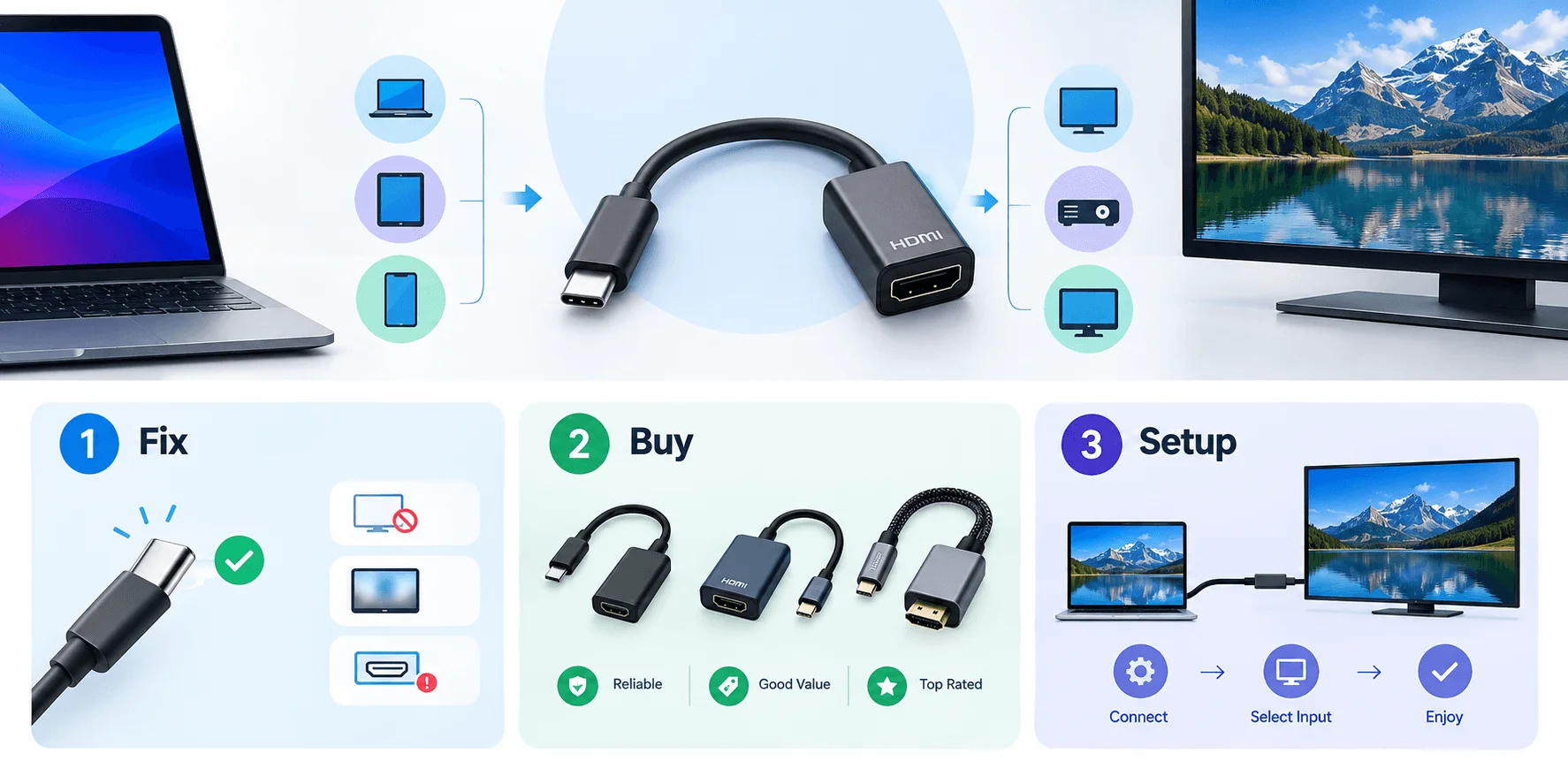
I want to break this down like a step-by-step guide, because once you see the chain of events, troubleshooting gets way easier.
Here's what happens the moment you plug in:
Your device checks the port. Your laptop, phone, or tablet checks whether that specific USB-C port supports video output. Not all of them do — some are charge-only.
The GPU sends a DisplayPort signal. If the port supports it, your graphics chip routes a DisplayPort signal through the USB-C lanes.
The adapter intercepts and converts. Your USB-C to HDMI adapter grabs that DisplayPort signal and actively converts it into an HDMI-compatible signal using a small onboard chip.
EDID data gets exchanged. Your monitor sends back something called EDID data — basically a spec sheet telling your device what resolutions and refresh rates the display can handle.
The picture appears. Assuming everything lines up, your screen lights up.
Sounds simple, right? It mostly is — until step 3 or step 4 breaks down, which happens more often than you'd think.
The EDID Problem Nobody Talks About
Here's something worth knowing before you blame your monitor or your laptop for a bad connection.
That EDID handshake I just mentioned travels through a long chain: from your GPU, to the USB-C controller, through the dock or hub, through the adapter chip, and finally to your display. Every link in that chain is a chance for the data to get corrupted or dropped entirely. This is the same kind of signal integrity issue that causes a CRC error during file transfers — the data itself isn't gone, it just didn't arrive intact.
That's why two seemingly identical USB-C ports can behave completely differently. It's not really about the port's shape at all — it's about what's supported underneath. If you're also dealing with a USB-C hub that seems to drop your connection randomly, our USB-C hub troubleshooting guide covers a lot of the same underlying causes.
Does Your Device Even Support Video Output?
This is the single most important thing to check before you buy anything, and honestly, most buying guides skip right past it.
Not every USB-C port supports video. Some are strictly for charging and file transfer. So before you spend money on an adapter, confirm your device actually supports DisplayPort Alt Mode, USB4, or Thunderbolt.
Here's how to check:
Look at your device's exact spec sheet for phrases like "DisplayPort over USB-C," "DP Alt Mode," or "USB-C video output."
Check for a small DisplayPort logo printed next to the port itself.
A battery icon next to the port usually means charging only — not video.
So before you spend money on an adapter, confirm your device actually supports DisplayPort Alt Mode, USB4, or Thunderbolt. This is especially worth checking on iPads — if you're already using yours with a connected Apple Pencil, you'll want to confirm your specific model's USB-C port supports video before buying an adapter
And here's a hard truth worth repeating: an adapter cannot magically add video output to a port that was never wired for it. No adapter, no matter how expensive, can create a signal that isn't there in the first place.
USB-C to HDMI vs DisplayPort vs HDMI: What's the Difference?
You might be wondering why there are three different standards floating around in the first place. Let me clear that up quickly.
Standard | Best For | Notes |
|---|---|---|
HDMI | TVs, consoles, projectors | Easiest for long cable runs and living-room setups |
DisplayPort | PC gaming, high-refresh monitors | Better for daisy-chaining multiple screens |
USB-C (DP Alt Mode) | Laptops, docking, portability | One cable for video, charging, and data at once |
None of these is objectively "the best." It really depends on your setup. If you're plugging into a TV, HDMI wins on simplicity. If you're running a dual-monitor desk setup with a laptop, USB-C wins on convenience.
How to Pick the Right USB-C to HDMI Adapter (Buying Guide)
Alright, let's talk about actually buying one, because there's a lot of junk out there.
1. Match the Resolution to Your Needs
If you're just mirroring your screen for a presentation, 1080p is fine. But if you're editing video or gaming, you'll want an adapter that supports 4K 60Hz output — not just "4K," which sometimes secretly means 4K at a sluggish 30Hz.
2. Check the Chipset (Yes, Really)
This sounds nerdy, but it matters. Cheap adapters cut corners on the internal conversion chip, and that's usually where screen flickering and black screen issues come from. Look for adapters that explicitly list HDCP compliance and a known chipset.
3. Consider the Build Quality
According to Lention's troubleshooting guide, adapters with an aluminum alloy chassis dissipate heat better and hold up longer than cheap plastic ones, especially if you're using them daily for presentation setups or travel.
4. Think About Power Delivery
If you want to charge your laptop while it's connected to an external display, make sure your adapter or hub supports USB Power Delivery pass-through. Otherwise you'll be juggling two cables instead of one.
Quick Buying Checklist
Feature | Budget Pick (~$15–20) | Mid-Range (~$25–35) | Premium (~$40+) |
|---|---|---|---|
Max resolution | 1080p–4K@30Hz | 4K@60Hz | 4K@60Hz + HDR |
Chipset quality | Basic, unbranded | Named chipset, HDCP 1.4 | Named chipset, HDCP 2.2 |
Build | Plastic | Plastic/aluminum hybrid | Aluminum alloy |
Power Delivery pass-through | Rarely | Sometimes (60W) | Usually (85–100W) |
Best for | Occasional mirroring | Daily work setups | Video editing, gaming |
USB-C to HDMI Not Working? Here's How to Fix It
Let's be real — this is probably why you're here. Your adapter isn't working, and you just want it fixed. I get it. Let's go through this systematically.
Step 1: Check the Physical Connection First
Before anything else, unplug everything and plug it back in. It sounds too simple to matter, but loose connections cause a huge chunk of these problems. Also inspect the port for dust or debris that might be blocking a clean connection.
Step 2: Try a Different Port and Cable
Not all USB-C ports on the same device are created equal — some support video, some don't. Try a different port. Then try swapping the HDMI cable itself, since a worn cable is a sneaky, common culprit.
Step 3: Restart Everything
Turn off your laptop or phone, disconnect the adapter completely, then restart and reconnect. This resets the handshake between your device and the display, which fixes a surprising number of "no signal" errors.
Step 4: Update Your Drivers
Outdated graphics drivers are a classic cause of adapter trouble. Head to your manufacturer's website, grab the latest driver, install it, and restart your machine.
Step 5: Adjust Your Display Settings
Sometimes your device is outputting a resolution your monitor doesn't like. Lower the resolution manually in your display settings and see if the picture returns. If it does, you've found your bottleneck.
Step 6: Isolate the Problem
Disconnect any docks, hubs, or extra USB devices you have chained together. Test one laptop, one adapter, one monitor, and nothing else. This kind of basic isolation is exactly what Microsoft recommends for external display troubleshooting, and it works.
Symptom-to-Fix Table
Symptom | Likely Cause | Fix |
|---|---|---|
No signal at all | Port doesn't support video | Check spec sheet, try a different port |
Black screen after recognition | Resolution mismatch | Lower resolution manually in display settings |
Flickering picture | Loose connection or weak chipset | Reseat cable, try a higher-quality adapter |
No sound through HDMI | Wrong audio output selected | Set HDMI as default audio device in system settings |
Adapter overheating | Poor build quality, extended use | Let it cool, switch to an aluminum-chassis adapter |
Picture works but there’s no sound? Follow our guide to fix audio on PC, including the driver and output-device fixes.
Frequently Asked Questions
Does every USB-C port support HDMI output?
No. Only ports with DisplayPort Alt Mode, USB4, or Thunderbolt support carry video. A charge-only port never will, regardless of the adapter you use.
Why does my external monitor run at a lower refresh rate through a dock?
Because your dock may be splitting the same high-speed lanes between USB data and video, reducing what's left over for the display itself.
Is USB-C to HDMI the same as native HDMI?
Not exactly. It's a converted signal, not a native one — which is why quality varies so much between adapters.
Can a USB-C to HDMI adapter add video to a charging-only port?
No. If the port was never built to send video, no adapter can force it to.
How much should I expect to pay for a good adapter?
Reliable options generally start around $15–20 for basic 1080p use, while 4K@60Hz adapters with solid chipsets and Power Delivery pass-through run $25–40.
Wrapping Up
At the end of the day, a good USB-C to HDMI adapter comes down to three things: making sure your port actually supports video, picking a well-built adapter with the right chipset, and knowing the basic troubleshooting steps when things go sideways.
Once you've got those three pieces sorted, you'll rarely think about this connection again — it'll just work, every time you plug in.