A CRC error happens when a device recalculates a file's checksum and it doesn't match the one stored with the data, signaling that something got corrupted along the way. You'll usually see it as a blunt little message on Windows: "Data error (cyclic redundancy check)." It looks scary, but in most cases it's fixable once you know whether you're dealing with a loose cable, a damaged file system, or a genuinely failing drive.
I want to walk you through this properly. Not the five-minute version. The version where you actually understand what a cyclic redundancy check is, why it fails, and what you should, and shouldn't, do about it.
For deeper reading on related storage topics, you might also want to check our guides on best cloud storage services and free cloud storage plans once you've got this fixed
Let's get into it.
What Is a Cyclic Redundancy Check (CRC), Really?
Here's the thing about CRC. It's not some mysterious Windows glitch invented to ruin your day. It's a legitimate, decades-old error detection technique used across computing, from your hard drive to the network cable running under your desk.
A CRC is an error-detecting code commonly used in digital networks and storage devices to catch accidental changes to data. When a block of data enters a system, it gets a short check value attached to it, calculated from the remainder of a polynomial division of its contents. Later, when that data is read back, the same calculation runs again. If the two values don't match, something changed along the way, and that's your error.
A useful data point here: a well-chosen n-bit CRC will detect any single error burst up to n bits long, and it catches roughly (1 − 2⁻ⁿ) of all longer error bursts. So a CRC-32 checksum, the kind used in ZIP files and Ethernet, catches virtually all realistic corruption events. That's why it's still the industry default decades after it was introduced.
Think of it like a tamper-proof seal on a jar. You don't know exactly what's different inside, but you know the seal is broken.
How CRC Works Under the Hood
You don't need a math degree to get the gist. Here's the simplified version.
Your data gets run through a formula, using something called a generator polynomial.
That formula spits out a small value, the checksum.
The checksum gets attached to the data before it's saved or sent.
When the data is read or received again, the formula runs one more time.
The new checksum gets compared to the original one.
Match? Great, your data is intact. No match? You've got a CRC error, and something got corrupted between step one and step five.
One thing worth clearing up early, because a lot of articles gloss over it. CRC is built for detection, not correction. It's not designed to fix the damage, only flag it. That job belongs to different tools entirely, like Reed-Solomon codes or Hamming codes, which can actually reconstruct data even after it's been altered. I'll break down exactly how these compare later in this guide.
What Does "CRC Error" Actually Mean When You See It?
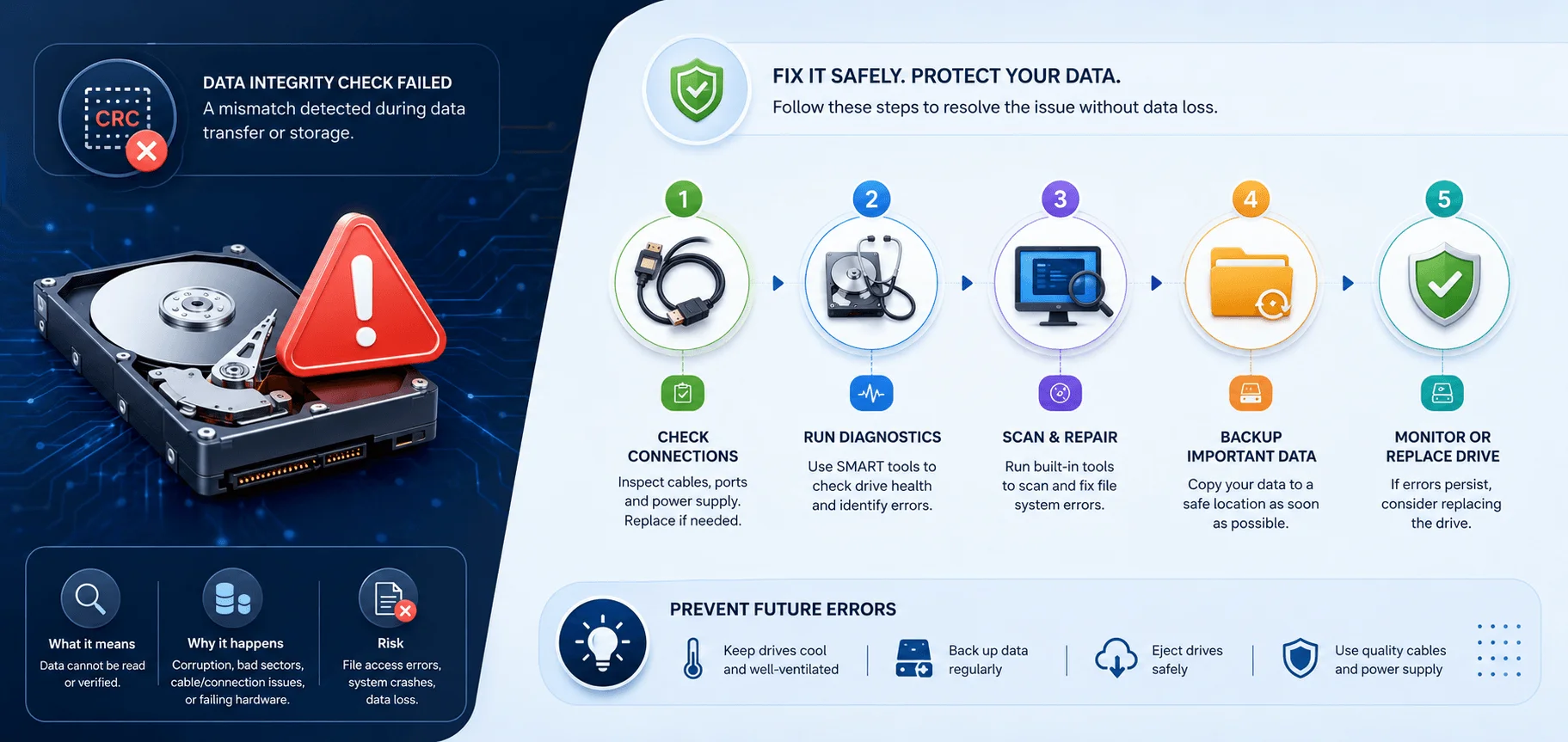
You'll run into this term in two very different worlds, and knowing which one applies to your situation matters.
In networking, protocols like Ethernet and ATM lean on CRCs to catch transmission errors in packets moving from one device to another. If a cable is picking up interference or a connector is loose, the checksum on arrival won't match the one that was sent, and the network layer flags it.
In storage, this is the version most people actually search for. Your hard drive, SSD, USB stick, or SD card stores a checksum next to every block of data. When your operating system reads that block back, it recalculates the checksum. If it doesn't line up, Windows throws up that dreaded pop-up: "D:\ is not accessible. Data error (cyclic redundancy check)."
So when you're troubleshooting, ask yourself first: is this a network CRC error, or a storage CRC error? The fixes are completely different, and mixing them up wastes time.
Common Causes of a CRC Error
You want the real list, not the vague "corruption happens sometimes" answer. Here's what's actually behind most CRC errors, broken down by where they show up.
Storage-related causes
Bad sectors on a hard drive's magnetic platters
A damaged file system from an improper shutdown
Sudden power failure while the drive is mid read or write
A failing read/write head, common on aging mechanical drives
Unsafe ejection of a USB drive or external hard disk
Physical wear from drops, heat, or years of use
Network-related causes
Electrical interference from nearby devices sharing a frequency
Faulty cables or connectors, including bent pins
Poor conduit spacing between wires in a shared setup
Unstable network connections during large transfers
You'll notice a pattern here. Storage issues tend to be either physical (the drive itself is failing) or logical (the file system got confused). Network issues are almost always about interference or a bad physical connection. Knowing which category you're in tells you exactly where to start looking.
How to Fix a CRC Error: Step-by-Step
Alright, this is what you actually came for. Let's fix it.
If you don't have a second drive handy, a free cloud storage plan is a fast way to get your files off the affected device before you run any repair tool.". Fixes that follow can sometimes make things worse on a drive that's already struggling.
Step 1: Check the Physical Connection First
This sounds too simple to matter, but it solves a surprising number of cases. Disconnect the drive, wait about ten seconds, and reconnect it using a different USB port or SATA cable if you have one available. A worn cable or a loose connector can absolutely trigger a CRC error even when the drive itself is perfectly healthy.
Step 2: Run CHKDSK
Windows has a built-in tool for exactly this situation. Open Command Prompt as an administrator and run:
chkdsk X: /f /r
Replace "X" with your actual drive letter. This command scans for bad sectors, attempts to recover readable data from them, and repairs file system errors. If you're unsure how big your drive actually is, here's a quick breakdown of how many GB are in a TB.
Step 3: Try Robocopy for a Safer Transfer
If you just need to grab files off a drive that's throwing CRC errors, robocopy with the /Z flag is worth trying. It copies files in restartable mode, which means it can pick back up if the transfer gets interrupted partway through by a bad sector.
Step 4: Run the System File Checker (SFC)
If the CRC error seems tied to core Windows files rather than your personal data, SFC can help. It scans for damaged or missing system files and replaces them with clean cached copies. Run it as administrator with:
sfc /scannow
Step 5: Use Dedicated Data Recovery Software
If your files are still inaccessible after the steps above, tools built specifically for this, like scanning software that reads a drive sector-by-sector, can rebuild files based on their signatures rather than relying on the damaged file system index. This is often the safer route when a drive is unstable, since it reads without attempting repairs.
Step 6: Get Professional Help
If the drive is making unusual noises, running unusually slow, or the CRC error keeps returning no matter what you try, that's a strong signal of physical damage. At that point, professional data recovery services are genuinely worth the cost, especially if the data matters to you. Trying to force a physically failing drive to keep working almost always makes things worse.
What You Should NOT Do When You See a CRC Error
A few things trip people up here, and I want to flag them clearly because getting this wrong can turn a recoverable situation into a permanent one.
Don't reformat the drive. Formatting wipes the file system and starts fresh, which sounds helpful but actually destroys the very structure you might need to recover your files.
Don't initialize a drive that Windows is asking you to initialize, at least not right away. If the drive letter or partition table is corrupted, initializing it can erase the data structure entirely, and that makes recovery dramatically harder.
Don't keep running repair tools repeatedly on a drive that sounds abnormal. Clicking, grinding, or unusual delays are signs the drive is physically struggling. Every additional read attempt on failing hardware increases the risk of total failure.
CRC vs. Other Error Detection Methods
You'll sometimes see CRC mentioned alongside other terms, and it helps to know exactly how they stack up. Here's a quick side-by-side so you're not left guessing which method does what.
Method | Detects Errors | Corrects Errors | Typical Use Case |
|---|---|---|---|
Parity check | ✅ (basic) | ❌ | Simple memory checks, legacy serial links |
CRC (cyclic redundancy check) | ✅ (strong) | ❌ | Network packets, file integrity, ZIP archives |
Hash function | ✅ (integrity/security) | ❌ | File verification, cryptographic signatures |
Reed-Solomon / Hamming codes | ✅ | ✅ | CDs/DVDs, QR codes, deep-space transmission |
A parity check is the simplest form of error detection, just a single bit added to flag whether the number of set bits is odd or even. It's fast but catches far fewer error types than CRC.
A hash function is related mathematically to CRC, since CRC output has a fixed length and is occasionally used as one, but hash functions are generally built for broader integrity verification and cryptographic use, not real-time transmission checks.
Error correction codes, like Reed-Solomon or Hamming codes, go a step further than CRC by actually reconstructing corrupted data instead of just flagging it. CRC's job stops at detection. That distinction is worth remembering the next time someone tells you CRC "fixed" their file. It didn't. Something else did the fixing, CRC just found the problem.
Frequently Asked Questions
Is a CRC error a sign my hard drive is dying?
Not always. It can be something as simple as a loose cable. But if it keeps recurring, especially alongside odd noises or slow performance, it's worth treating as an early warning sign of drive failure.
Can I fix a CRC error without losing data?
Often, yes. Running CHKDSK or using restartable copy tools like robocopy can recover data without wiping the drive. Reformatting is the one step that guarantees data loss.
Does a CRC error mean my files are gone permanently?
Not necessarily. The error means the checksum didn't match, not that the data is unrecoverable. In many cases, especially with proper recovery tools, most or all of the affected files can be restored.
What causes CRC errors on a network instead of a drive?
Usually electrical interference, damaged cabling, or unstable connections between devices. It's a completely separate issue from a failing hard drive, even though the underlying detection method is the same.
How reliable is CRC at catching errors?
Very. A well-designed CRC detects all error bursts up to its bit-length and roughly (1 − 2⁻ⁿ) of longer ones, which is why it remains the standard for network protocols and file formats decades after it was introduced.
Wrapping It Up
A CRC error isn't a mystery once you understand what's actually happening behind that scary pop-up. Your system calculated a checksum, compared it to what should be there, and the numbers didn't match. That's it. The cause could be a two-dollar cable or a dying hard drive, and the only way to know which is to work through the steps methodically instead of guessing.
Back up what you can. Try the safe fixes first. Save the aggressive repairs for when you've confirmed the drive isn't physically failing. And if it is, don't be afraid to call in a professional data recovery service before you lose something you can't get back.