Chrome has no block site button built in. To block a website on Chrome, install a site blocker extension (fastest), use Google Family Link for a child's account, edit your hosts file to block a site across your whole computer, or use the Google Admin console for managed devices. Most people should start with an extension.
That's the short version.
Now let me show you how each one works, where it breaks, and which one fits you.
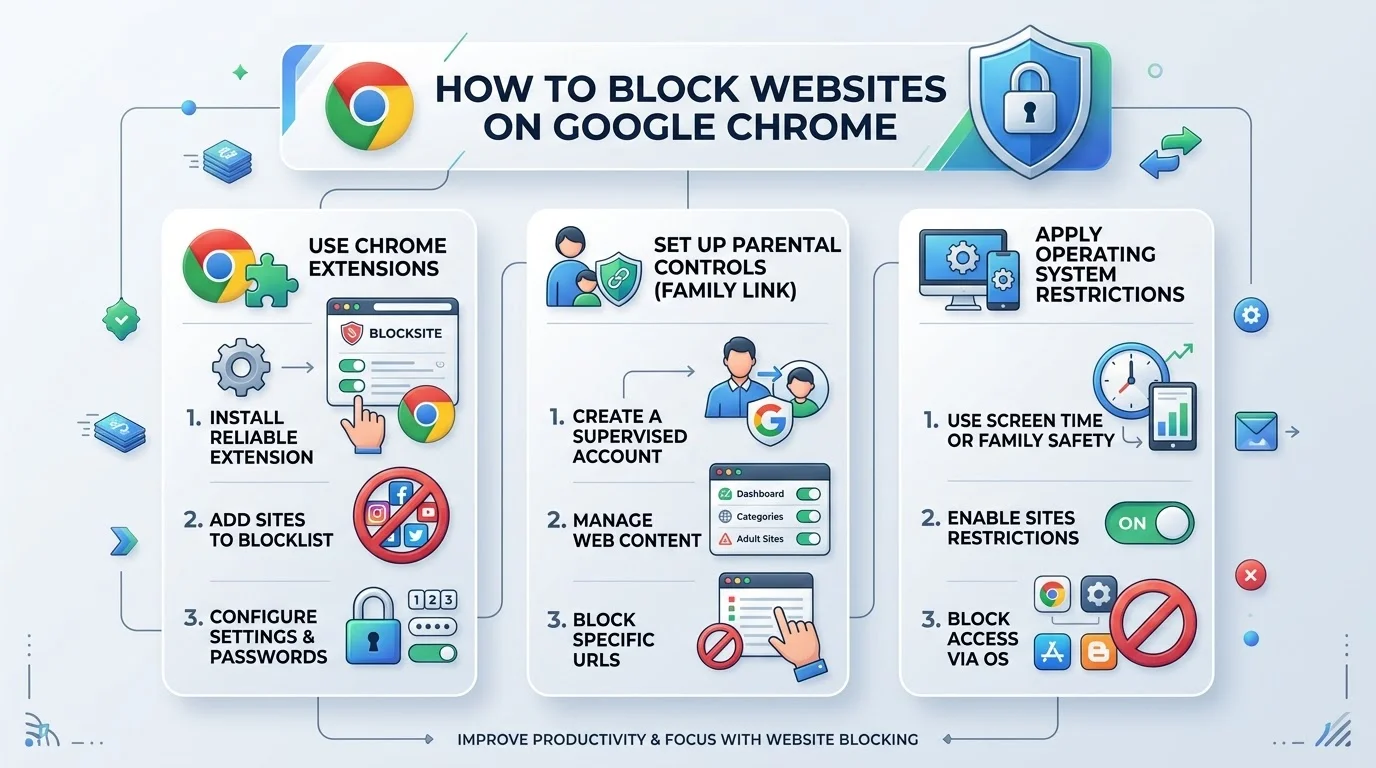
Why Doesn't Chrome Have a Block Site Button?
Good question. I asked it too.
Security.org notes that Chrome has no native website blocking feature, even though it holds over 70 percent of global browser share. So every method below is a workaround.
Some are quick. Others are technical. A few only suit parents or IT admins.
Here's the cheat sheet before we dive in.
Method | Best for | Difficulty | Works in other browsers? |
|---|---|---|---|
Browser extension | Personal focus and productivity | Easy | No |
Google Family Link | Kids' accounts | Easy | No |
Hosts file | Blocking on one computer | Medium | Yes |
Admin console policy | Schools and businesses | Medium | No (Chrome only) |
Router or DNS filter | Whole household network | Medium | Yes |
Method 1: Block Websites With a Chrome Extension
This is the fastest fix, and it's what I'd try first.
A website blocker extension sits in your toolbar and manages your blocklist for you. You don't need admin rights. You don't touch system files. Setup takes about a minute.
Step by Step Setup
Open the Chrome Web Store and search "website blocker".
Click Add to Chrome, then Add extension.
Pin it using the puzzle piece icon.
Open the extension and go to Block Sites.
Paste the domain and click Add.
Already on a distracting page? Click the icon and hit Block this site.
Which Extension Should You Pick?
Here's how three popular options compare, based on their Chrome Web Store listings and independent reviews.
Extension | Standout feature | Good for |
|---|---|---|
BlockSite | Password protection, scheduling, daily limits | Beginners |
StayFocusd | Daily time limits and the "Nuclear Option" | Heavy procrastinators |
LeechBlock NG | Up to 30 block sets with a lockdown feature | Power users |
Not sure? Start with BlockSite. Move to StayFocusd if you need stricter limits.
Want more options beyond blockers? Check out our roundup of the best productivity Chrome extensions in 2026.
Make It Work in Incognito Mode
Here's the catch.
Chrome turns extensions off in Incognito mode by default, so anyone can bypass your blocks with a private window. Google's help page explains the fix.
Click the puzzle icon, then Manage extensions.
Open Details on your blocker.
Turn on Allow in Incognito.
Done.
Method 2: Block Sites With Google Family Link
Setting this up for your kid? Use parental controls instead.
Google's Family Link guide confirms that site blocking works on Android, Chromebooks, iPhones, iPads, and Windows, Mac, and Linux computers. Plus, Incognito mode is turned off while a child is signed in with a supervised account.
Step by Step Setup
Open the Family Link app and select your child.
Tap Controls, then Google Chrome and Web.
Under "Manage sites," tap Approved sites and Blocked sites.
Tap Add a website and enter it.
A quick tip from Google: include "www." to block one specific site, or enter a bare domain to cover related versions.
Your child can also ask for permission to visit a blocked site, and you approve or deny it from your phone.
Method 3: Block Sites With the Hosts File
Want the block to work in every browser? Try this one.
The hosts file tells your computer where a domain name points. Send a site to your own machine, and it never loads.
Windows Steps
Run Notepad as administrator.
Open
C:\Windows\System32\drivers\etc\hosts(choose "All files").Add a line like
127.0.0.1 www.example.com.Save and restart Chrome.
On Mac or Linux, the file lives at /etc/hosts.
If It Doesn't Work
Check DNS over HTTPS. Yahoo Tech notes that when the browser uses its own secure DNS, it ignores the hosts file. Turn that off and try again.
Method 4: Block URLs in the Chrome Admin Console
Managing a team or a classroom? This is your route.
The Chrome Enterprise help page covers the URLBlocklist and URLAllowlist policies. You can block or allow up to 1,000 URLs, and the allowlist wins when both match.
Step by Step Setup
Sign in to the Google Admin console.
Go to Devices > Chrome > Settings > Users & browsers.
Select an organizational unit if you need to target specific users.
Open Content > URL Blocking.
Add your Blocked URLs, then click Save.
To check it, visit chrome://policy on a managed device and confirm the policy status says OK.
Two Recent Details Worth Knowing
First, Google's URLBlocklist documentation says that from Chrome version 147, a lone * wildcard no longer covers internal chrome:// pages. You need to add chrome://* explicitly.
Second, the same documentation warns the policy doesn't stop in page requests loaded by JavaScript. So treat it as a strong guardrail, not a perfect wall.
Method 5: Block Sites on Chrome for Android and iPhone
Mobile works a little differently.
On iPhone and iPad, Apple's Screen Time can filter adult sites. Go to Settings, then Screen Time, then Content & Privacy Restrictions, then Web Content. Apple's parental controls guide says Limit Adult Websites is on by default for children under 18.
On Android, Family Link (Method 2) is the cleanest option. A dedicated blocker app from Google Play is the usual alternative.
Method 6: Block Sites on Your Whole Network
Finally, there's the router.
Log in to your router's admin panel and look for "Parental Controls" or "Website Blocking," as Security.org describes. Add your domains, save, and every device on your WiFi follows the rule.
It's broad. It's also easy to dodge with mobile data, so use it as a layer, not your only defense.
Limits and Bypass Risks You Should Know
I'd rather be honest than oversell.
No method is bulletproof. Here's where each one slips:
Extensions can be disabled unless you add password protection.
Family Link on desktop can be dodged if a child signs out of Chrome or opens another browser, per Google. Learning how to change the default browser helps you see how easily links open somewhere else.
Hosts file edits are skipped when browser level secure DNS is on.
Microsoft Family Safety has a quirk: its web filter supports Edge, and Microsoft says unsupported browsers get blocked. In 2025, BleepingComputer reported that this stopped Chrome from launching for some users.
So layer two methods. An extension plus a hosts file entry is a strong combo.
How to Unblock a Website Later
Changed your mind?
Remove the domain from your extension's list, delete the line from your hosts file, or take it off the Admin console list. If you're on Family Link, move it from "Blocked" to "Approved." Then restart Chrome.
Only annoyed by a site's popups, not the site itself? You may not need a block at all. Our guide on how to manage popups in Chrome walks you through the settings.
Frequently Asked Questions
Can you block a website on Chrome without an extension?
Yes. You can edit the hosts file, use Family Link, set up Admin console policies, or filter at your router.
Does Chrome have a built in website blocker?
No. Chrome has no native site blocking feature, which is why extensions and system tools are needed.
How do I block a website in Chrome Incognito mode?
Install a blocker, then turn on Allow in Incognito in the extension's Details page. Or use Family Link, which disables Incognito for supervised accounts.
How do I block websites on Chrome for Android?
Use Google Family Link and add the site under Blocked sites in the Chrome controls.
Can I block a single page instead of a whole site?
With the Admin console, yes. Its URL format supports paths. Most extensions block at the domain level, so check your tool's settings.
Are website blocker extensions safe?
Stick to well reviewed ones from the official Chrome Web Store, and review the permissions they request.
So, Which Blocker Should You Use?
Let me wrap this up simply.
If you're blocking distractions for yourself, use an extension. If it's for a child, use Family Link. If it's for a team, use the Admin console. And if you want every browser covered, add a hosts file entry or a router filter.
My honest pick for most readers? Install a trusted blocker like BlockSite today. Add your three biggest time wasters, turn on password protection, and enable Incognito access.
If the free list runs out, a paid plan is worth considering. Not because it's flashy, but because a calmer browser buys back real hours.