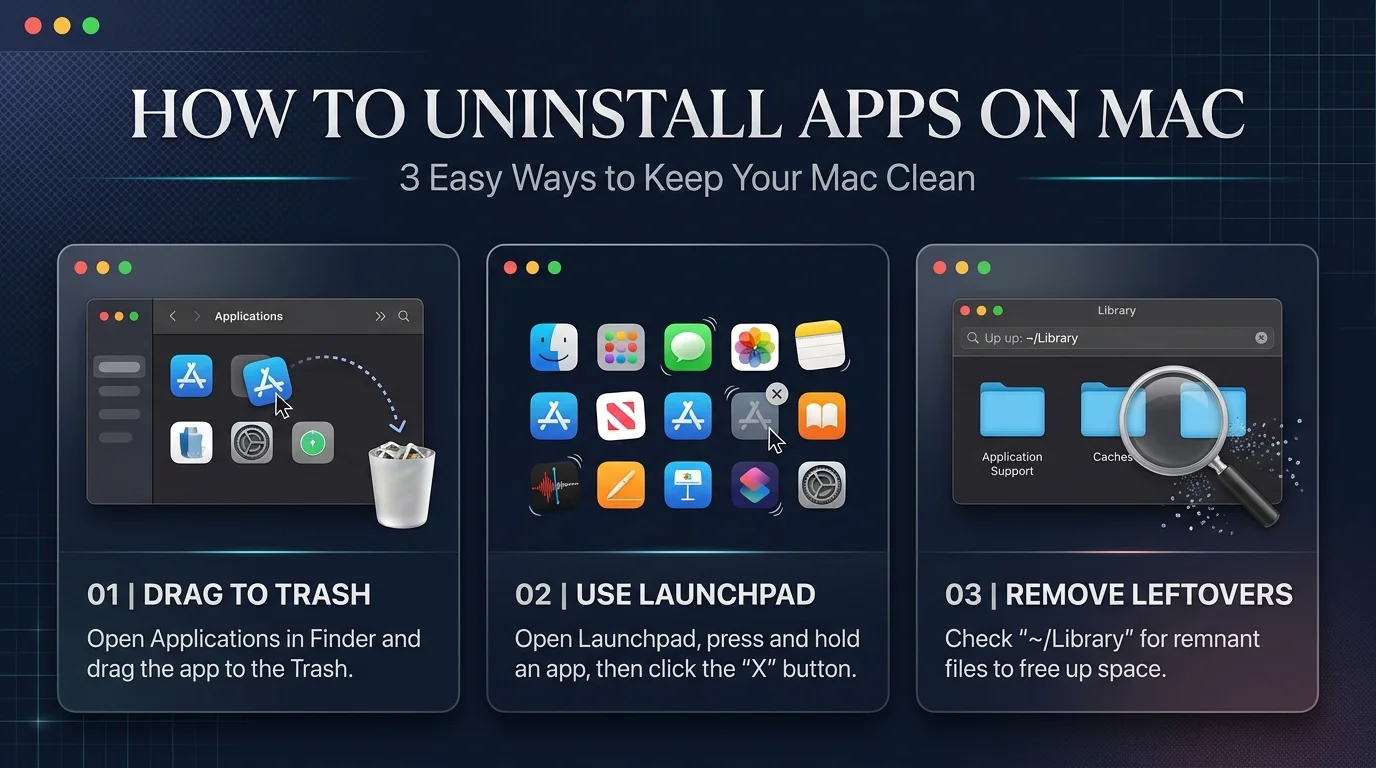
How to uninstall apps on Mac, open Finder, go to the Applications folder, and drag the app to the Trash. That removes the app itself, but small support files often stay behind in your Library folder. For a truly clean removal, delete those leftovers too, or use a dedicated Mac app uninstaller.
Let me be honest with you.
I used to think dragging an app to the Trash was the whole job. Then I checked my storage and found gigabytes of junk from apps I deleted months earlier. Annoying, right?
So I dug into Apple's own guidance, the Homebrew docs, and the most trusted uninstaller tools. Here's everything I learned, in plain English.
What Changed for Uninstalling Apps in macOS Tahoe
If you updated to macOS Tahoe, you may have noticed something odd. The old trick of holding Option in Launchpad and clicking the little X is gone. Apple replaced Launchpad with a new Apps screen, and the jiggle mode no longer works there.
Don't panic, though. You still have several clean ways to delete apps on Mac, and MacMost walks through them too. Plus, Apple keeps an official uninstall guide you can bookmark.
4 Ways to Uninstall Apps on Mac, Step by Step
Here's the thing: no single method fits every app. Apps from the web, the App Store, and Homebrew all behave a little differently. So I'll walk you through each method in the order I'd try them, starting with the easiest.
Ready? Let's go.
Method 1: Use Finder (works for almost every app)
This is the classic route, and it covers apps from the App Store, a DMG file, or a developer's website. It takes about ten seconds, so you can't really mess it up.
Quit the app first.
Open Finder and click Applications in the sidebar.
Right click the app and choose Move to Trash.
Empty the Trash to free up storage on Mac.
Method 2: Use System Settings Storage
Maybe you're not sure which apps are hogging space. Good news: macOS shows you, and you can delete from the same screen. It's perfect for a quick spring clean.
Open System Settings.
Go to General, then Storage.
Click the info button next to Applications.
Pick the app and click Delete.
Want to know how much space you're really getting back? Check how many GB are in a TB before you panic about numbers.
Method 3: Run the app's own uninstaller
Some big apps, like Adobe tools, ship with their own removal tool. Apple recommends using it because it can remove extra components stored outside the main app. So check before you drag anything.
Open the Applications folder.
Look inside the app's folder for a file named Uninstall or Uninstaller.
Double click it and follow the prompts.
Method 4: Use Homebrew (for Terminal fans)
If you installed the app with Homebrew, remove it the same way. The official Homebrew Cask docs say brew uninstall --cask appname removes the cask and the app from your Applications folder.
Want a deeper clean? Add the --zap flag. It tries to remove all files tied to that cask, though it may touch resources shared with other apps. Use it carefully.
How to Remove Leftover Files After You Uninstall an App
So you dragged the app to the Trash. Done, right? Not quite. Dragging an app to the Trash only removes the app bundle, while caches, preferences, and support data stay in your Library.
Most of these files are tiny. Still, they add up, especially after years of trying new software.
Step by step: clean the Library folder by hand
In Finder, click Go, then Go to Folder.
Type
~/Libraryand press Return.Check these folders for anything named after the app: Application Support, Caches, Preferences, Containers, Logs, Saved Application State, and LaunchAgents.
Move only the matching items to the Trash.
Restart your Mac.
One warning, and I mean it. Delete the app's own subfolder, not the parent folder. Shared vendor folders can belong to other apps, and deleting them breaks things.
If you accidentally trash the wrong file, don't sweat it. Here's how to recover deleted files on your computer.
Best Mac App Uninstaller Tools Compared
Honestly, doing the Library walk by hand gets old fast. That's why I recommend a Mac app uninstaller if you remove apps often. It finds the hidden stuff for you, and you review everything before it's deleted.
Tool | Price | Best for | Notes |
|---|---|---|---|
AppCleaner | Free | Simple drag and drop removal | Long running, trusted developer |
Pearcleaner | Free, fair code license | Orphaned files and Homebrew users | Distributed via GitHub, check macOS compatibility |
App Cleaner & Uninstaller | Paid, listed at $14.95 per year in a June 2026 comparison | Deep scans and bulk removal | Free trial available |
Mole | Free, open source | Terminal lovers | Command line tool |
My honest take? Start with the free tools. If you uninstall software weekly and want the most thorough scan, the paid option saves real time. You'll feel the difference the first time it finds 2 GB of old caches.
What to Do When an App Won't Delete
Sometimes macOS says the item can't be moved because it's open. Even when you swear it's closed. Frustrating, I know.
The cause is usually a background process that never shut down. Fortunately, the fix takes about a minute.
Try Force Quit from the Apple menu. Here's my full guide on how to force quit on Mac.
If the app isn't listed, open Activity Monitor, search for it, and quit the process.
Try deleting again.
Still stuck? Restart in Safe Mode and try once more.
Also, remember that macOS protects built in apps like Mail, Music, and Safari. You can't remove those, and you shouldn't try.
Which Method Should You Choose?
Let me make this easy for you.
If you only delete an app now and then, use Finder and clean the Library by hand. If you try lots of software, grab a free app uninstaller like AppCleaner or Pearcleaner today. And if you want the deepest scans with the least effort, the paid option is worth a trial.
Don't let old apps eat your disk space another week. Pick one method, clear out three apps right now, and watch your storage bar shrink.
Frequently Asked Questions
How do I completely uninstall an app on Mac?
Move the app to the Trash from the Applications folder, then delete its leftover files in the Library folder. Or use an uninstaller tool that finds those files automatically.
Is dragging an app to the Trash enough?
For most apps it removes the main app, but support files usually remain. They're typically small, though they can add up over time.
How do I uninstall apps on macOS Tahoe without Launchpad?
Use Finder, or go to System Settings, General, Storage, then Applications. Both work without Launchpad.
Can I delete built in Mac apps?
No. macOS protects system apps like Mail, Music, and Notes, so they can't be removed the normal way.
Why does my Mac say the app is still open?
A background process is probably still running. Quit it with Force Quit or Activity Monitor, then try again.
Do I need to restart after uninstalling?
Not always. However, restarting helps unload leftover background services, so I recommend it.
Final Thoughts
You now know every reliable way to uninstall apps on Mac, from the quick Finder drag to a full Library cleanup. Start with the simple method, upgrade to a tool when it makes sense, and keep your Mac lean.
Got a stubborn app I didn't cover? Drop it in the comments, and I'll help you track it down.