Quick answer: To force quit on Mac, press Option + Command + Esc, select the unresponsive app in the Force Quit Applications window, and click Force Quit. Apple Support documents this shortcut as the fastest fix. If that fails, try the Apple menu, Activity Monitor, or a restart.
Picture this.
You're halfway through an email, the spinning beach ball appears, and nothing responds.
Ugh, I know.
Below, I'll walk you through seven methods, step by step. I'll also show you what to do when even force quit gets stuck.
Which Force Quit Method Should You Use? (Quick Comparison)
Short on time? Good, so was I when my own Mac froze mid-deadline. This table sums up all seven methods at a glance, so you can pick the right one fast. Each row uses details from Apple and Intego. Then, if you want the full walkthrough, jump to the matching section below.
Method | Steps in brief | Best for | Risk to unsaved work |
|---|---|---|---|
1. Keyboard shortcut | Option + Command + Esc, select app, Force Quit | Fastest fix, laggy mouse | High |
2. Apple menu | Apple menu > Force Quit | Pointer still works | High |
3. Dock | Control-click icon, hold Option | Apps visible in Dock | High |
4. Relaunch Finder | Force Quit window > Finder > Relaunch | Frozen desktop or folders | Low |
5. Activity Monitor | Select process > Stop > Force Quit | Apps missing from the list | High |
6. Terminal |
| Advanced users | High |
7. Restart or force shut down | Apple menu > Restart, or hold power button | Whole Mac frozen | High |
Why Learning to Force Quit on Mac Matters
Nobody studies this stuff until something breaks. Fair enough. But a frozen app can hold your whole afternoon hostage, so one reliable fix pays for itself fast. Think of it as an emergency exit: you hope you never use it, yet you're glad it's there. Besides, force quitting is simple once you've seen it done. So, let me explain what it does and when to use it.
What force quit actually does:
It ends an app immediately, even when the app has stopped answering.
It skips the app's normal shutdown routine.
It can cost you unsaved changes.
Because of that last point, treat it as plan B.
Try a Normal Quit First
Before reaching for the big red button, pause for a second. When an app quits normally, it can do what it needs to do first, such as saving your changes. Force quitting skips all of that. Sometimes an app is just slow, not dead. So, give it a few seconds, then try the steps below before escalating.
Click inside the app.
Press Command + Q.
Or choose Quit from the app's menu in the menu bar.
Wait a few seconds.
Still frozen? Then let's get serious.
Method 1: Force Quit on Mac With the Keyboard Shortcut
This is my go-to, and honestly it should be yours too. The Force Quit Mac shortcut works even when your mouse lags badly, because it doesn't need the frozen app to respond. Apple lists it first. Plus, once you've done it twice, it takes about five seconds. Here's the process.
Press Option (Alt) + Command + Esc together.
The Force Quit Applications window opens.
Select the app marked "Not Responding."
Click Force Quit.
If your Mac has a Touch Bar, Esc sits on its left side.
Is There a Control-Alt-Delete on Mac?
Switching from Windows? Then you're probably hunting for Control-Alt-Delete on Mac. There's no exact match, but Option + Command + Esc fills the same role, and Pocket-lint draws the same comparison. While you're learning Mac shortcuts, you'll probably want to know how to screenshot on Mac too. So, think of Option + Command + Esc as your new Task Manager shortcut.
Force Quit Without a Mouse
What if your pointer won't budge? Good news: you can finish from the keyboard. Intego explains this route, and most guides skip it, which is a shame. Here are the steps.
Press Option + Command + Esc.
Use the arrow keys to highlight the frozen app.
If the Force Quit button is selected, press Return.
If not, press Tab until it is, then press Return.
Method 2: Force Quit From the Apple Menu
Prefer clicking over keyboard gymnastics? No problem. The Apple menu opens the very same Force Quit window, so you get an identical result by a different route. Apple documents it right beside the shortcut. It works best when your pointer still moves and the menu bar still responds.
Click the Apple menu in the top-left corner.
Choose Force Quit.
Select the unresponsive app.
Click Force Quit.
Method 3: Force Quit From the Dock
Here's a handy one for apps sitting right in your Dock. You skip the extra window, which saves a click or two. However, the menu can differ between macOS versions, so check it on your own Mac before relying on it in a crisis. Intego describes the Option-key trick, and I've laid out the steps below.
Right-click (or Control-click) the app's icon in the Dock.
Hold down the Option key while the menu is open.
Watch Quit change to Force Quit.
Click it.
One quirk: an older iMore guide says Force Quit usually appears only when the app isn't responding. So, if you don't see it, hold Option.
Method 4: Force Quit Finder (Relaunch It)
Finder is different. It's always open, so it doesn't offer a regular Force Quit button. Instead, Apple says you can force it to quit and reopen. That helps when desktop icons vanish or folders refuse to open. Better yet, relaunching is much gentler than restarting your whole Mac.
Press Option + Command + Esc.
Select Finder in the list.
Click Relaunch.
Give it a moment, and your desktop should come back.
Method 5: Force Quit on Mac With Activity Monitor
Now we're in power-user territory. Activity Monitor is the Mac's built-in process viewer, and it shines when an app won't show up in the usual window. Apple notes it can quit a process even if it's in a loop or not responding. Plus, it shows you what's eating your CPU usage. Let's walk through it.
Open Spotlight with Command + Space.
Type "Activity Monitor" and press Return.
Find the app in the Process Name list. Unresponsive ones show (Not Responding) in red.
Click the Stop button in the upper-left corner.
Choose Force Quit.
Quit vs. Force Quit in Activity Monitor
You'll see two choices after clicking Stop, and they're not the same. Picking the wrong one can cost you data, so it's worth a quick look. Here's how Apple's guide describes them.
Quit works like File > Quit. The process closes when it's safe, and it won't if that could cause data loss.
Force Quit stops the process immediately. Open files may lose data, and other apps relying on that process may have problems.
Also, if you quit a process you don't own, you may need an administrator password.
Method 6: Force Quit on Mac Using Terminal
Let's be real: this one's for people who don't mind typing commands. The Terminal route is powerful, but I wouldn't start here. Intego suggests saving it for users comfortable with commands. Still, when everything else fails, it's a solid backup. Here's how it works.
Run the killall Command
The killall command ends processes by name instead of by process ID. According to the macOS manual page, it sends a TERM signal by default, and you can choose another signal with -SIGNAL.
Open Terminal from Applications > Utilities.
Type
killalland the app's name, likekillall Safari.Press Return.
The app should close right away.
Names With Spaces Need Quotes
Here's a gotcha that trips people up. If the app's name has a space, wrap it in quotation marks. Intego's example uses System Settings: killall "System Settings". Then press Return.
Method 7: Restart or Force Shut Down Your Mac
Sometimes even force quit gets stuck. It happens. Heavy load, a stuck background process, or a fully frozen system can block it, as Intego points out. Don't smash every key, though. Instead, escalate calmly, from gentlest to harshest. Here are the two final options.
Restart From the Apple Menu
If the Apple menu still opens, this is Apple's own next step. A normal restart closes every app and gives macOS a clean slate. Plus, it's safer than cutting power.
Click the Apple menu.
Choose Restart.
Optionally, deselect "Reopen windows when logging back in," so frozen apps don't pop right back open.
Force Your Mac to Turn Off
Still stuck? Then you're at the last resort. Per Apple's instructions, you hold the power button until the Mac shuts off. However, Apple warns you may lose unsaved changes in open documents.
Press and hold the power button for up to 10 seconds, until the Mac turns off.
On laptops with Touch ID, hold the Touch ID button.
Press and release the power button to turn it back on.
If problems keep returning after a restart, starting in safe mode can help you isolate the cause.
How to Force Quit Specific Mac Apps
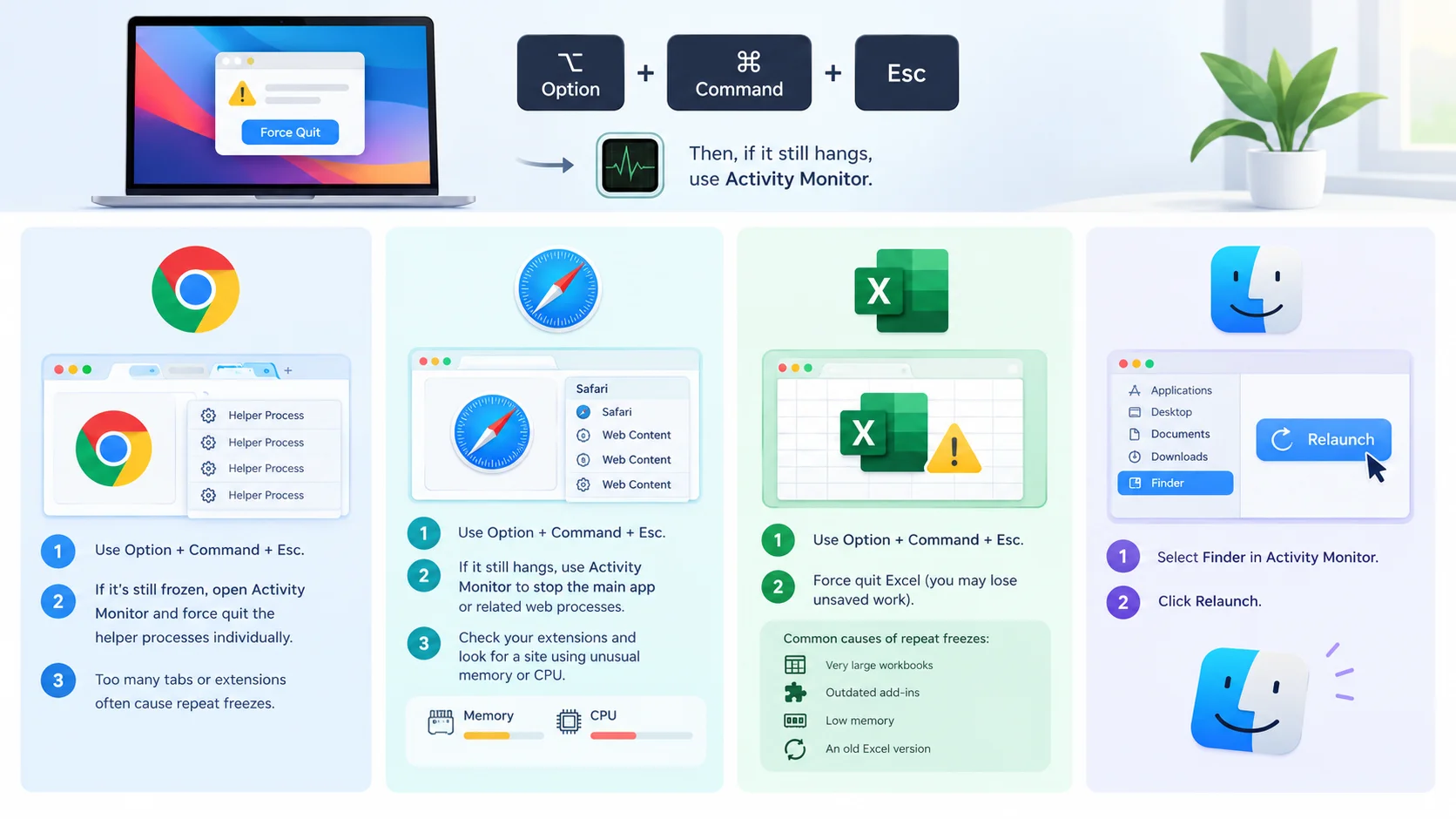
Different apps freeze for different reasons. So, one size doesn't always fit all. Intego covers several popular apps, and I've condensed the advice below. In every case, try Option + Command + Esc first. Then, if the app still hangs, move to Activity Monitor.
How to Force Quit Chrome on Mac
Chrome splits tabs into helper processes, so a single freeze can leave several entries behind. First, use the shortcut. If that fails, open Activity Monitor and force quit the helpers individually. Also, too many tabs or extensions often cause repeat freezes.
How to Force Quit Safari on Mac
Start with Option + Command + Esc. If Safari still hangs, use Activity Monitor to stop the main app or any related web processes. Afterward, check your extensions, and look for a site using unusual memory or CPU.
How to Force Quit Excel on Mac
Press Option + Command + Esc and force quit Excel. Keep in mind you may lose unsaved work. If it freezes often, suspect very large workbooks, outdated add-ins, low memory, or an old Excel version.
How to Force Quit Finder
Covered in Method 4: select Finder and click Relaunch.
Why Your Mac Apps Keep Freezing (and How to Stop It)
Force quitting fixes the symptom, not the cause. So, if the same app keeps freezing, play detective. Intego says most freezes come from temporary slowdowns, overloaded resources, or software issues rather than broken hardware. That's good news, because you can usually fix those. Here are the usual suspects.
Common causes:
Too many open apps or browser tabs
Low memory or low storage
Outdated software
Browser extensions, plug-ins, or add-ons
Hidden background tasks hogging CPU
What helps:
Keep your Mac up to date.
Quit apps and tabs you aren't using.
Check Activity Monitor for resource hogs.
Restart your Mac now and then.
Force Quit on Mac: Frequently Asked Questions
Still have questions? Fair. These are the ones I hear most, and each answer comes from the sources linked below. They're short on purpose, so you can scan them quickly. And if yours isn't here, ask in the comments.
What is the shortcut to force quit on Mac?
It's Option + Command + Esc. Press all three together, select the frozen app, and click Force Quit. Apple lists it first.
Is there a Control-Alt-Delete on Mac?
Not exactly. Option + Command + Esc does the same job: it opens the Force Quit window so you can close an unresponsive app.
How do I force quit without a mouse?
Press Option + Command + Esc, use the arrow keys to pick the app, then press Tab until Force Quit is selected and hit Return, per Intego.
How do I force quit Finder?
Open the Force Quit window, select Finder, and click Relaunch, as Apple describes.
Will force quitting delete my work?
Possibly. The app can't save first, so unsaved changes may be lost. That's why Apple says to try a normal quit first. If a file does go missing afterward, here's how to recover deleted files.
Is force quit bad for my Mac?
Not normally. Intego says it won't usually harm your Mac, though frequent freezes suggest a deeper issue.
Why won't Force Quit work on my Mac?
Heavy load, a fully frozen app, or a frozen system can block it. Try Activity Monitor, then restart, per Intego.
How do I force quit when my whole Mac is frozen?
Hold the power button for up to 10 seconds until it turns off, then press it again, as Apple instructs. Use this only as a last resort.
Final Thoughts on How to Force Quit on Mac
You now have seven ways to force quit on Mac, from a five-second shortcut to the power-button reset. Honestly, you'll probably only need the first one. But when things get hairy, you'll know exactly how to escalate without panicking.
So, which method will you try first? Bookmark this guide, tell me how it went in the comments, and share it with a friend who still waits ten minutes for that beach ball to vanish.