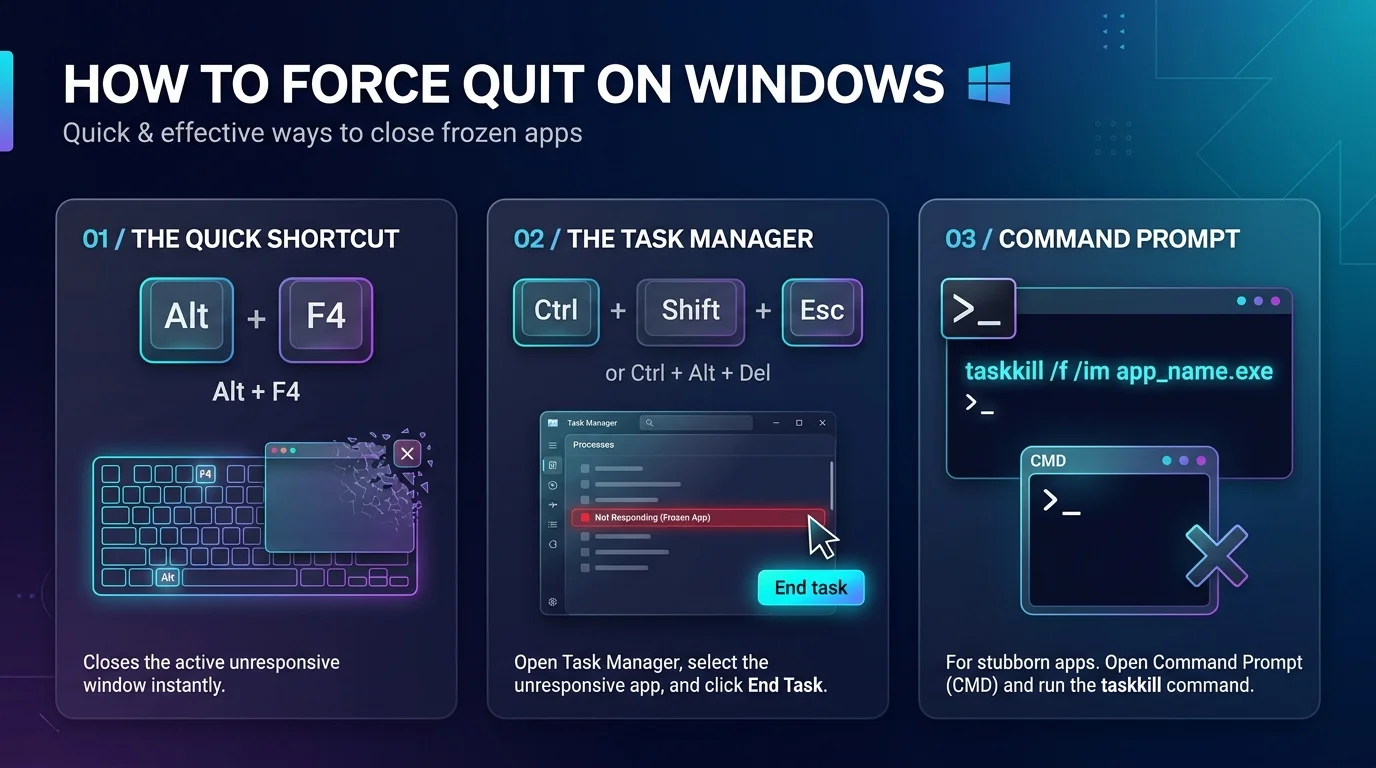
How To force quit on Windows, press Ctrl + Shift + Esc, select the frozen app, and click End task. If Task Manager won't respond, open an admin Command Prompt and run taskkill /f /im appname.exe. Both work on Windows 10 and Windows 11.
That's the short version.
Now let me show you every method, when to use each, and how to avoid losing your work. (Using a Mac instead? Here's how to force quit on Mac.)
Which Force Quit Method Should You Use?
I'm a big fan of picking the right tool the first time. Some fixes are gentle and some are brutal. This table puts all seven methods side by side so you can choose in seconds, and the sections below walk through each one step by step.
Method | Shortcut or command | Best for | Risk to unsaved work | Works on |
|---|---|---|---|---|
Alt + F4 | Alt + F4 | App still responds | Low | Windows 10, 11 |
Task Manager | Ctrl + Shift + Esc | Frozen apps | High | Windows 10, 11 |
Security screen | Ctrl + Alt + Delete | Stuck desktop | High | Windows 10, 11 |
Taskbar End task | Right click icon | Quick repeat kills | High | Windows 11 23H2 and later |
Taskkill |
| Stubborn processes | High | Windows 10, 11 |
Stop-Process |
| PowerShell users | High | Windows 10, 11 |
End process tree | Details tab | Zombie child processes | High | Windows 10, 11 |
Why Do Windows Apps Freeze?
A frozen program has simply stopped responding. It's stuck waiting on a driver, a file, or memory, so it ignores your clicks. Windows labels these unresponsive apps as "Not Responding", as Technobezz explains.
Here's my first rule: wait a minute or two. Many hung applications recover on their own, according to Geekrewind.
Still frozen? Keep reading.
Method 1: Force Quit With Task Manager
Task Manager is my first fix. It works even when the frozen window ignores everything, and it shows you every running process. In my experience, this solves most freezes.
Here's how:
Press Ctrl + Shift + Esc. Computer Hope notes this shortcut has opened Task Manager since Windows 95.
Click More details if the window looks tiny.
Find the app on the Processes tab, where it may say "Not Responding".
Select it and click End task.
Computer Hope's End task guide describes the same flow.
What If Task Manager Won't Open?
Press Ctrl + Alt + Delete. This opens the security screen, and per Technobezz you can launch Task Manager from there even when the desktop seems stuck. Microsoft lists more combos on its keyboard shortcuts in Windows page.
Method 2: Try Alt + F4 First
Before going nuclear, try the polite way. Alt + F4 asks the app to close, so a healthy program can still prompt you to save your work. Business Insider explains how it differs from Ctrl + F4.
There's one trap, though.
If your desktop has focus, Alt + F4 opens the Shut Down Windows dialog. Click the frozen app first. And if the app is truly hung, you'll probably just see a "not responding" box, so move to Task Manager.
Method 3: Enable the Taskbar End Task Option
This one is my favorite hidden trick. Windows 11 can add End task to the right click menu on your taskbar icons, so you skip Task Manager entirely.
It's off by default. To turn it on:
Press Win + I to open Settings.
Go to System, then For developers.
Switch on End task.
PCWorld confirms this path. Eleven Forum says the feature arrived with Windows 11 build 22631.2715 and doesn't need Developer Mode, and Betanews agrees. Tom's Hardware calls it easy to reverse.
Now right click any frozen app's taskbar icon and hit End task. Done!
Method 4: Force Quit With Command Prompt
When an app refuses to die in Task Manager, the command line gives you precise control. It looks scary, but it's honestly simple.
How to Use Taskkill
Microsoft documents the taskkill command, where the /f switch forces termination. Follow these steps:
Open Command Prompt as administrator.
Run
tasklistto find the process ID (PID) or image name. Microsoft's tasklist reference lists aSTATUS eq NOT RESPONDINGfilter.Type
taskkill /f /im notepad.exe, swapping in your app's name.Or run
taskkill /pid 1234 /t /fto kill the process and its child processes.
Want to close every frozen app at once? Geekrewind's guide shows taskkill /f /fi "status eq not responding". Review the list first, because it ends all of them.
How to Use PowerShell
Prefer PowerShell? Run Stop-Process -Name "notepad" -Force. Microsoft's Stop-Process documentation says the Force parameter skips the confirmation prompt.
Don't Kill System Processes
Hold on before you end anything unfamiliar. Ending system processes can log you out or crash Windows, as MacMyths warns. Only target apps you recognize.
Method 5: End the Whole Process Tree
Ever clicked End task and the app just lingered? Annoying! A Microsoft Q&A answer has the fix:
Open Task Manager.
Right click the app and choose Go to Details.
Right click the highlighted entry.
Click End process tree.
This shuts down the parent and every attached background process.
What If Nothing Works?
Restart your PC. Windows force quits the problem app on the way down, as SlashGear notes. Hold the power button only if the whole system is locked up.
Lost a file in the chaos? Don't panic. Here's how to recover deleted files step by step.
Frequently Asked Questions
What is the shortcut to force quit on Windows?
Press Ctrl + Shift + Esc to open Task Manager, select the frozen app, and click End task. Alt + F4 is the gentler option and asks the app to close normally.
Why won't End task work on my app?
The app may have child processes still running. Open the Details tab and choose End process tree, or run taskkill /f /pid [number] /t from an admin Command Prompt.
Does Alt + F4 force quit a program?
Not really. Alt + F4 requests a normal close, so a frozen app often ignores it. Use Task Manager when the program is not responding.
How do I force quit without Task Manager?
Enable the taskbar End task option in Settings, System, For developers, or use taskkill /f /im appname.exe in Command Prompt.
Is force quitting safe?
It's safe for normal apps, but unsaved work is lost. Avoid ending unknown system processes.
Stop Losing Work to Frozen Apps
Force quitting is a skill, and now you've got seven ways to do it.
So here's my challenge: open Settings, then System, then For developers right now and switch on End task. It takes thirty seconds.
Then keep Ctrl + Shift + Esc in your muscle memory and turn on autosave in your apps. Future you will say thanks the next time a deadline day freeze hits.