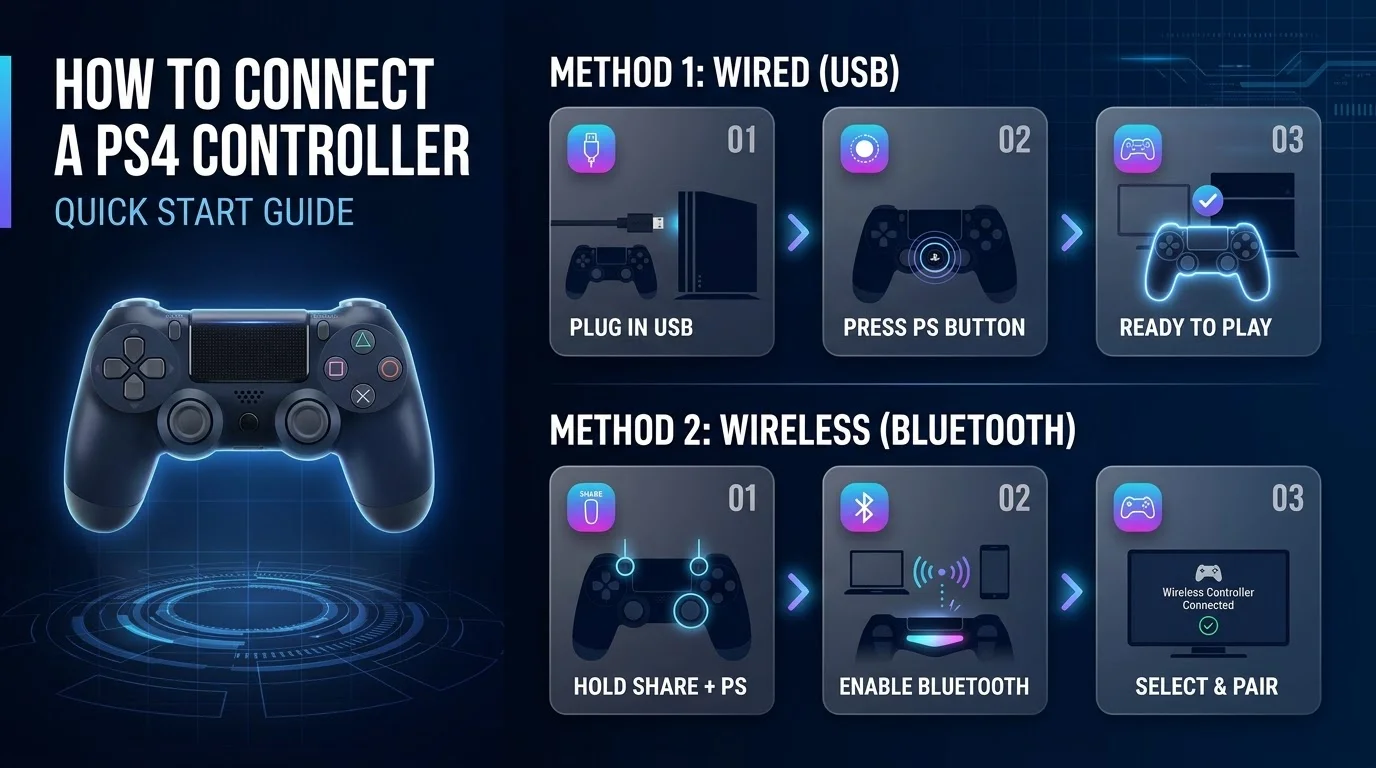
To connect a PS4 controller to a PS4, plug it in with a USB cable and press the PS button. For Bluetooth on a PC, phone or Mac, hold SHARE and PS until the light bar flashes, then pick Wireless Controller in your Bluetooth settings. If pairing fails, reset the controller with the tiny button near L2.
Last week, my DualShock 4 was collecting dust in a drawer. Today, it runs my PC games, my phone, and my old console. Crazy, right? I checked every step below against official guidance from Sony, Apple, and Valve's Steam Input, so none of it is guesswork. Ready? Let's get you playing.
Connection Methods at a Glance
Short on time? Same here. This chart shows the fastest way to pair your wireless controller with each device, so you can jump straight to the one you need. I built it from the official sources linked throughout this guide. If you want the full walkthrough for a device, the sections below cover every step, and they flag the tricky bits too.
Device | Fastest method | Minimum software | Good to know |
|---|---|---|---|
PS4 console | USB cable, then PS button | Any | Pairs with one console at a time, up to four controllers per console |
Windows PC | Bluetooth (SHARE and PS) or USB | Bluetooth adapter if none built in | Turn on PlayStation support in Steam |
Mac | Bluetooth or USB | macOS Catalina | Customize it in Game Controllers settings |
iPhone and iPad | Bluetooth (SHARE and PS) | iOS and iPadOS 13 | Touchpad and light bar color are limited |
Android | Bluetooth (SHARE and PS) | Android 10 | Rumble and motion may not work |
What You Need Before You Connect
Honestly, most connection failures happen before you press a single button. Wrong cable. Flat battery. Old software. I've been there, and it's annoying. So sort that out first. Thirty seconds now saves you a rage quit later, and it also makes every method below work on the first try instead of the third.
A micro USB data cable. Some cables only charge, and a data cable is what you need for pairing.
A charged wireless controller. Sony says an empty battery takes about two hours to fill.
A supported operating system. Sony lists Android 10, iOS 13, and macOS Catalina or later.
How to Connect a PS4 Controller to a PS4 Console
This one's the easiest. Seriously, it's plug and press. Still, one detail trips people up. A controller remembers only one console at a time, so pairing it somewhere else can knock it off your PlayStation 4. Follow these steps in order, and you'll be done before your game even loads.
Turn on your PS4.
Plug the controller into the console with the USB cable.
Press the PS button.
Wait for the light bar to blink and the player indicator to glow.
Unplug the cable once the battery has enough charge.
Sony confirms a controller pairs with one console at a time, and you can connect up to four controllers to one console. Perfect for local multiplayer nights.
How to Connect a PS4 Controller to a PC
Wondering whether your PC will even recognize it? It will. You've got two routes, Bluetooth or a cable, and both take just a few minutes. Sony's PC and Mac guide also mentions the DUALSHOCK 4 USB wireless adaptor. Be warned, though. PC Gamer calls it discontinued, so plan on a standard Bluetooth adapter or a plain cable.
Pair Your PS4 Controller Over Bluetooth
Bluetooth is the cordless way, and it takes about a minute. Your PC needs built in Bluetooth or a cheap USB dongle, like the Bluetooth adapter Adorama recommends. The trick is pairing mode, which is different from a normal power on. Skip it and your PC will never see the controller, so follow these steps closely.
Make sure the player indicator is off. Hold the PS button until it goes dark, then unplug any cable.
Hold SHARE and the PS button together until the light bar flashes.
Open Bluetooth settings on your PC.
Select Wireless Controller from the list.
Sony's own steps match this exactly.
Use USB and Steam Input
Prefer zero fuss? Plug in the cable and you're done. Then there's Steam, which supports the DualShock 4 natively. Without the right setting, though, some games won't see your controller, so check this once and forget about it. It takes under a minute, and it also unlocks remapping, gyro options and a handy calibration screen.
Open Steam and head to Settings, then Controller.
Set PlayStation Controller Support to Enabled in Games w/o Support.
Open Calibration and Advanced Settings to tune sticks and the light bar.
PC Gamer's walkthrough covers it. For games outside Steam, DS4Windows is the usual fix.
How to Connect a PS4 Controller to iPhone, iPad, Mac, and Android
Yes, your phone works as a mobile gaming rig. It's brilliant for Apple Arcade and cloud streaming. The process mirrors the PC one, which makes life easy. Learn the pairing trick once and you can reuse it everywhere. Just note the small limits I flag below, because wireless pairing on other devices skips a couple of console features.
Start with the controller turned off.
Hold SHARE and the PS button until the light bar flashes.
On iPhone or iPad, open Settings, then Bluetooth. On Mac, open System Settings and choose Bluetooth. On Android, open Bluetooth settings.
Tap DUALSHOCK 4 Wireless Controller under nearby devices.
Prefer a cable? Apple says the controller pairs automatically when plugged in with a data capable USB cable. Pairing an iPad accessory for the first time? Our guide on how to connect Apple Pencil to iPad walks through a similar Bluetooth routine.
Heads up: over Bluetooth on other devices, Sony notes the touchpad doesn't work and the light bar color can't change. It's a small trade off. You can also pair it for PS4 Remote Play and stream your console to a laptop or phone. For smooth streaming, a steady home network matters, so these tips to improve your WiFi signal can help.
What to Do When Your PS4 Controller Won't Connect
Light bar blinking forever? Breathe. It's almost never dead. Usually the controller just lost its pairing with the console. Work through these fixes from easiest to most hands on, and stop the moment it works. Most people are sorted by the second or third step, so don't rush to buy a replacement just yet.
Swap the cable. Try a different USB cable and port first.
Pair again over USB. Plug in, then press the PS button.
Hard reset it. Find the tiny hole near the L2 button on the back. Press it with a paperclip for about five seconds, as MakeUseOf explains, then reconnect by cable.
Force wired mode. On the console, go to Settings, Devices, Controllers, Communication Method, and pick Use USB Cable.
Cut interference. Move other Bluetooth gadgets away.
Still stuck after a reset? Sony points you to PlayStation Repairs.
PS4 Controller Connection FAQ
Got a specific question? These are the ones people ask most often, and each answer is short on purpose so you can grab it and get back to your game. If yours isn't covered here, the troubleshooting steps above handle most edge cases, and Sony's support page is a solid backup when something truly odd happens.
Can you connect a PS4 controller without a cable?
Yes, but only after the first pairing on a console. On a PC, phone or Mac, hold SHARE and PS until the light bar flashes, then pick Wireless Controller in your Bluetooth settings. On a PS4 itself, you need the USB cable the first time, then you can unplug it and play wirelessly.
Why is my PS4 controller blinking but not connecting?
It usually means the controller lost its pairing. Plug it into the console with a data cable and press the PS button. If that fails, use the reset button near L2 for about five seconds, then pair again by cable. A different cable or USB port also solves many cases.
Can one PS4 controller work with two devices?
Sort of. Sony says a controller pairs with one console at a time, so you pair again when you switch. iMore also reported that an iPhone and iPad only remembered the most recent pairing. Expect to repeat the pairing steps whenever you change devices, which only takes a minute once you know the routine.
How many PS4 controllers can connect to one PS4?
Up to four, according to Sony's support page. Pair each one with the USB cable and press its PS button. Each controller gets its own player indicator light, which makes local multiplayer simple. Remember that every controller still pairs with only one console at a time, so friends who bring their own pad need to pair it again at home.
How long does a PS4 controller take to charge?
About two hours from empty, per Sony. The company also advises charging the controller at least once a year, even if you rarely use it, to keep it working properly. If it still won't charge, try a different micro USB cable before you blame the battery, because a worn cable is the most common culprit.
Why You Should Buy a DualShock 4 Today
Let me be blunt. A controller that works on your console, PC, Mac, iPhone and Android phone is rare. This one does. You learn one pairing routine and use it everywhere, which beats juggling a different gamepad for every screen you own. So here's my honest advice: buy a genuine DualShock 4 instead of a random knockoff.
Why? Because everything above, from Steam Input to Apple's built in support, is built around the real thing. Pair it with a quality data cable and a Bluetooth 5 adapter, and you've got a setup that just works.
Don't wait until your next game night goes sideways. Grab your DualShock 4 now, follow the steps above, and start playing tonight.
Related Guides
Want to get more out of your setup? These existing guides cover the pieces that usually come next once your controller is connected, from better wireless performance to a smoother gaming PC. Each one is short, practical and written to help you fix the problem in a few minutes, just like this walkthrough.
Hardware accelerated GPU scheduling for a smoother gaming PC.
How to set up two monitors for a roomier desk and game setup.