Quick Answer: You can improve your wifi signal by repositioning your router to a central, elevated, open location, switching to a less congested wifi channel, updating your router's firmware, and limiting the number of connected devices. Most of these fixes are free and take under 10 minutes. If dead zones persist after that, a mesh wifi system typically solves whole-home coverage problems better than a single extender.
Let me guess.
You're sitting in your bedroom, your Netflix show is buffering for the third time, and you're this close to throwing your router out the window.
I get it. I've been there.
The good news? You almost never need to buy expensive gear to fix a weak wifi signal. Most of the time, the fix is free, and it takes less than ten minutes.
In this guide, I'll walk you through exactly how to improve wifi signal strength in your home, room by room, wall by wall. We'll cover router placement, channel settings, interference, and the hardware upgrades that actually matter (spoiler: most people buy the wrong one).
Let's get into it.
Why Is Your Wifi Signal So Weak?
Before you fix anything, you need to know what's actually breaking your connection.
Here's the thing — a weak wifi signal is rarely just "bad luck." It's almost always caused by one (or several) of these specific, fixable problems.
So let's diagnose first. Then we'll treat.
Physical Obstructions Are Killing Your Signal
Walls are the enemy. I'm not exaggerating.
According to RouterHax, concrete walls cause 10–15 dB of signal loss per wall, and two or three concrete walls stacked between you and your router can cost you 20–30 dB total — enough to turn a strong signal into an unusable one. That's basically a wifi dead zone built right into your floor plan.
Drywall is gentler. Brick and concrete are brutal. And metal? Metal is basically a signal-blocking cage.
Your Router Is Probably in the Worst Possible Spot
Here's an uncomfortable truth.
Most people place their router wherever the cable guy left it. A corner. A closet. Behind the TV stand.
None of those are good spots for wifi router placement. In fact, as RouterHax points out, a corner placement wastes half your router's range broadcasting into your neighbor's yard instead of your living room.
Channel Congestion Is a Silent Killer
This one surprises people.
If you live in an apartment building, chances are good that five or six of your neighbors are all broadcasting on the same wifi channel. That's channel congestion, and it acts almost exactly like a dead zone — even when your signal bars look full.
BGR explains this well: on the 2.4GHz band, only channels 1, 6, and 11 don't overlap with each other. Everything else is basically static soup.
Everyday Devices Are Interfering With Your Signal
Your microwave is not innocent.
Wifi interference commonly comes from microwaves, baby monitors, cordless phones, and Bluetooth devices — all of which love to squat on the same 2.4GHz frequency your router uses. HP lists these as some of the most common (and most overlooked) causes of a spotty connection.
Step 1: Reboot Your Router and Modem First
I know. It sounds too simple.
But before you touch a single setting, just restart your router and modem. Unplug both, wait 30 seconds, plug the modem back in first, then the router.
Why does this work?
Routers accumulate memory bloat and temporary glitches over time, the same way your laptop slows down after two weeks without a restart. A clean reboot regularly clears this out, and according to Clark.com, it's the single easiest fix for a weak connection.
Try this first. Always.
Step 2: Fix Your Router Placement
Now we get into the good stuff.
Router placement is, hands down, the most impactful free fix you can make. Get this right, and you might not need to do anything else on this list.
Put It in the Center of Your Home
Not the corner. Not the closet. The center.
Think of your router like a light bulb — it broadcasts signal in every direction equally. If it's in a corner, half that "light" is wasted outside your walls.
Elevate It
Put your router on a shelf, not the floor.
Signal spreads better when it doesn't have to fight through furniture and flooring first.
Keep It Out in the Open
Resist the urge to hide it in a cabinet.
Per Brightspeed, you should avoid closets and crowded bookshelves entirely, and try opening doors between rooms so the signal has a clear path to travel.
Keep It Away From Metal and Appliances
Metal filing cabinets, refrigerators, and large appliances all reflect and absorb wifi signal.
Keep your router at least a few feet from anything metal, and definitely away from the kitchen.
A quick real-world test: In a typical two-bedroom apartment, moving a router from a corner TV cabinet to a centrally located open shelf commonly recovers a signal that reads "1 bar" in the far bedroom up to "3 bars" — without touching a single setting. That's the power of placement alone, before you even get to channels or hardware.
Step 3: Understand 2.4GHz vs 5GHz Wifi
Okay, quick technical detour. I promise it's worth it.
Most modern routers are dual band routers, meaning they broadcast on two separate frequencies at once: 2.4GHz and 5GHz. Understanding the difference between these is genuinely one of the highest-leverage things you can learn.
Here's the breakdown, according to Glo Fiber:
Feature | 2.4GHz Band | 5GHz Band |
|---|---|---|
Range | Longer, better wall penetration | Shorter, weaker through walls |
Speed | Slower | Faster |
Interference risk | Higher (shared with microwaves, Bluetooth) | Lower |
Best for | Devices far from router, smart home gadgets | Devices close to router, gaming, streaming |
Ideal use case | Whole-home coverage priority | Speed priority |
So what should you actually do with this?
Simple rule of thumb: use 2.4GHz for devices far from the router (like a smart speaker in the garage), and 5GHz for devices close to the router where you want speed (like your gaming PC or streaming box).
Step 4: Change Your Wifi Channel to Reduce Interference
This step feels a little "techy," but stick with me — it's easier than it sounds.
Wifi channel interference happens when your network and your neighbor's network are shouting on the same frequency at the same time. Switching channels is like moving to a quieter room at a party.
Here's how to do it, step by step:
Download a free wifi analyzer app on your phone (there are several good ones on the Play Store and App Store)
Run a scan to see which channels are the most crowded in your area
Open a browser and log into your router's admin panel (usually at 192.168.0.1 or 192.168.1.1)
Head to your Wireless Settings
On the 2.4GHz band, manually set your channel to 1, 6, or 11 — whichever the app shows as least congested
On the 5GHz band, choose from 36, 40, 44, or 48
This single change won't magically add range to your network, but as BGR notes, it will noticeably improve stability.
Step 5: Update Your Router's Firmware
I'll be honest — this one gets ignored constantly.
Router firmware is the software running your router's brain. And just like your phone's operating system, it needs updates.
Outdated firmware can leave you stuck with security holes, bugs, and missing performance improvements. Newer firmware, as PCQuest points out, can even unlock features like QoS and better 5GHz channel management that didn't exist on your router when you first set it up.
Most routers now update automatically. But if yours doesn't, check your router's settings menu or manufacturer's app — it usually takes two clicks.
If your ISP provides a router management app — like Xfinity's xFi — check what xFi Complete actually includes, since some of these plans bundle automatic firmware updates and built-in device prioritization you might already be paying for.
Step 6: Limit Devices and Set Up QoS
Your wifi isn't just fighting walls and channels. It's also fighting your own devices.
Every phone, laptop, smart TV, doorbell camera, and game console on your network is splitting your available bandwidth. The more devices connected, the less speed each one gets.
Turn Off What You're Not Using
Simple, but effective. Disconnect devices during peak hours if you're not actively using them.
While you're auditing connected devices, it's also a good time to change your wifi password if you haven't in a while — old passwords are one of the most common reasons unknown devices quietly eat up your bandwidth.
Set Up Quality of Service (QoS)
QoS, or Quality of Service, lets you tell your router what traffic matters most.
Want your work Zoom call to never lag, even while someone's gaming in the next room? QoS is how you do that. As Brightspeed explains, you can prioritize things like video calls over less time-sensitive traffic like downloads.
Check your router's manual for the specific steps, since this setting lives in a different place depending on the brand.
Step 7: Upgrade Your Hardware (If You Still Need To)
Tried everything above and still battling wifi dead zones? Time to talk hardware.
But don't just grab the most expensive router on Amazon. Match the fix to the actual problem.
Solution | Best For | Range | Setup Difficulty | Typical Cost |
|---|---|---|---|---|
Wifi extender | Single small dead zone | Limited (rebroadcasts only) | Easy | $ |
Mesh wifi system | Whole-home, multi-floor coverage | Wide, seamless roaming | Moderate | $$$ |
Powerline adapter | Hard-to-wire rooms, thick walls | Depends on electrical wiring | Moderate | $$ |
High-gain antenna | Directional coverage boost | Moderate | Easy | $ |
Wifi Extenders
A wifi extender rebroadcasts your existing signal into a specific problem area — like that one bedroom that never gets reception.
Good for small, single dead zones. Not great for whole-home coverage.
Mesh Wifi Systems
A mesh wifi system uses multiple connected units spread through your home to create one seamless network.
Unlike an extender, mesh systems automatically route your device's connection through the fastest available node as you walk from room to room. According to TP-Link, this is the best choice for whole home wifi coverage, especially in larger homes or multi-story houses.
Powerline Adapters
Got thick concrete walls or a house that's hard to run cable through? A powerline adapter uses your home's existing electrical wiring to carry your internet connection to another room, then broadcasts wifi from there.
TP-Link recommends this specifically for congested environments or spots where running new cable just isn't practical.
High-Gain Antennas
If your router has removable antennas, upgrading to high-gain or directional antennas can meaningfully boost coverage. Directional antennas focus your signal toward where you actually need it, while high-gain omnidirectional antennas boost coverage in every direction at once, according to HP.
How to Test If Your Fixes Actually Worked
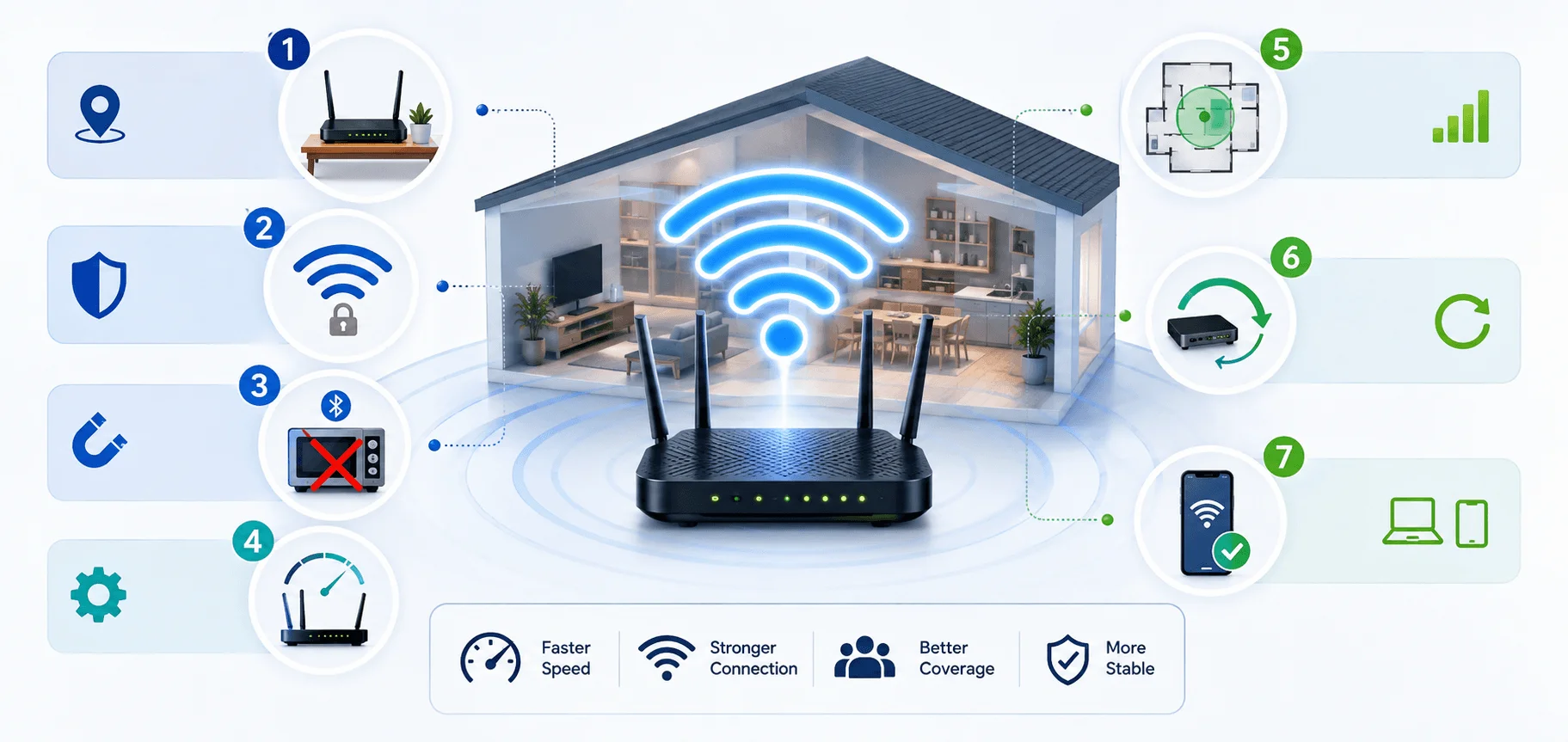
Don't just guess. Measure it.
Run a wired speed test first — plug a laptop directly into your modem with an ethernet cable
Then run a wireless speed test standing right next to your router
Finally, test in your problem room
If your wired speed is fast but your wireless speed near the router is slow, the issue is your router's settings or hardware. If wireless is fast near the router but slow in your bedroom, you're dealing with a distance or obstruction problem, and it's time to revisit router placement or consider a mesh system.
Related reading: check out our guide on what xFi Complete includes if you're on Xfinity, and how to change your wifi password for a quick security tune-up alongside your speed fixes.
Common Wifi Mistakes You Should Avoid
Let's wrap up the technical stuff with a quick gut-check.
Don't hide your router in a cabinet or behind the TV
Don't ignore firmware updates for months (or years)
Don't assume "auto" channel selection is always picking the best channel
Don't place your router directly next to your microwave or cordless phone base
Don't buy a range extender before you've even tried repositioning your router
Frequently Asked Questions
Does moving my router really make a difference?
Yes. Moving your router to a central, elevated, open location is often the single biggest factor in overall wifi performance, and it costs nothing.
Is 5GHz always better than 2.4GHz?
Not always. 5GHz is faster but has a shorter range and struggles with walls. 2.4GHz travels further and penetrates walls better, but it's slower and more prone to interference.
Should I get a mesh system or a wifi extender?
For a small, single-room dead zone, an extender usually does the job. For whole-home coverage across multiple rooms or floors, a mesh system is the better long-term investment.
How often should I update my router's firmware?
Check every few months if it's not automatic. Firmware updates patch security vulnerabilities and often improve speed and stability.
How much signal do walls actually block?
Concrete and brick walls can cause 10–15 dB of signal loss each, according to RouterHax. Two or three walls stacked together can add up to 20–30 dB of total loss, which is often enough to create a dead zone.
Final Thoughts
Here's what I want you to take away from all this.
You don't need to be a network engineer to fix your wifi. You just need to work through the fixes in order — placement first, then channels, then firmware, then hardware.
Start with the free stuff. Most people never even need to buy anything.
And if you do all seven steps above and you're still stuck? That's usually a sign it's time to call in a networking professional or seriously consider a mesh upgrade.
Either way, you've got this.