A mobile hotspot is a feature or device that converts your cellular data (4G LTE or 5G) into a Wi-Fi signal, letting other devices like laptops and tablets connect to the internet without a fixed broadband line. You can use your smartphone's built-in hotspot feature or a dedicated hotspot device, and most carriers now include a hotspot data allowance as part of your monthly plan.
That's the short answer. Now let me walk you through everything else you need to know.
Have you ever been sitting in a coffee shop, laptop open, deadline looming and the free Wi-Fi just... dies? Or maybe you're on a road trip and your GPS won't load because you're in the middle of nowhere? (If you navigate with your phone, our guide to the Google Maps speedometer on Android Auto covers another handy driving feature.)
Yeah. I've been there too.
That's exactly where a mobile hotspot comes in clutch.
In this guide, I'm going to cover what a mobile hotspot is, how it actually works, the different types you can choose from, what it costs in 2026, and a step-by-step setup guide so you're not left guessing.
Sound good? Let's get into it.
What Is a Mobile Hotspot?
A mobile hotspot takes your cellular connection and turns it into a private Wi-Fi network. This section breaks down exactly what that means and why it's different from your home router.
Here's the simple version.
A mobile hotspot is a feature (or a standalone device) that takes your cellular data connection — think 4G LTE or 5G — and turns it into a Wi-Fi signal. That signal can then be picked up by your laptop, tablet, smart TV, or basically any Wi-Fi-enabled gadget nearby.
Honestly, think of it like a mini wireless router that lives in your pocket.
According to TechTarget, a mobile hotspot works by converting a 3G, 4G, or 5G signal to a Wi-Fi signal and vice versa, creating a network that nearby devices can share — usually within about 10 meters.
Pretty wild when you think about it, right? You're basically carrying your own personal internet bubble everywhere you go.
There are two flavors of this:
Phone-based hotspots — the built-in "Personal Hotspot" feature already sitting on your smartphone
Dedicated hotspot devices — standalone gadgets, often called MiFi devices, built specifically for this one job
Both do the same basic thing. But — and this matters — they're not identical in performance, battery life, or reliability. I'll break that down soon. (If your signal's the real problem, check out our guide to improving your Wi-Fi signal for more troubleshooting tips.
How Does a Mobile Hotspot Actually Work?
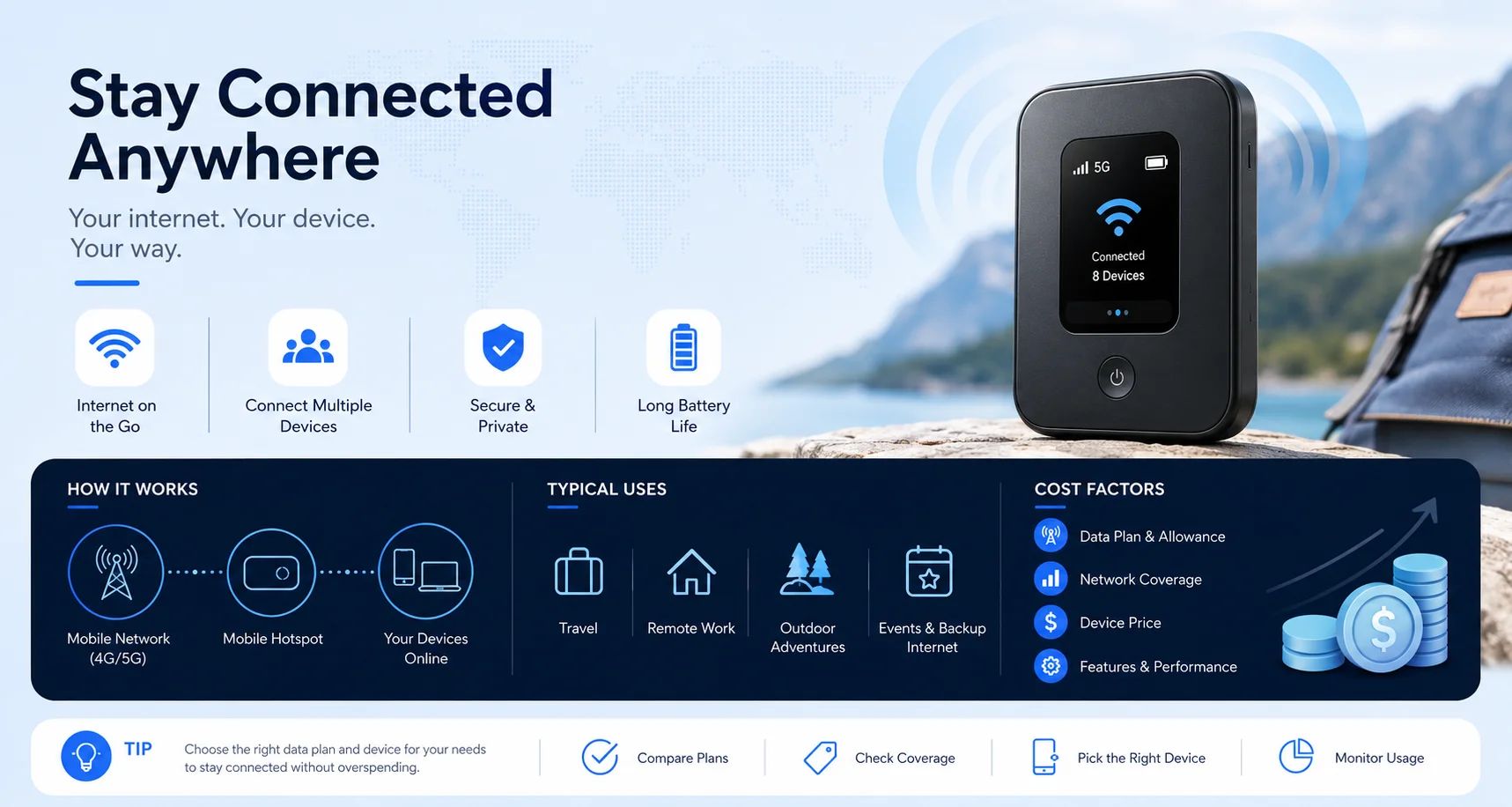
Understanding the mechanics helps you troubleshoot problems later. This section walks through the three-step process behind every hotspot connection.
Okay, so now that you know what it is, let's talk about how the magic happens. I promise it's not as complicated as it sounds.
According to EarthLink, the process boils down to two core steps: your device connects to the cellular network, and then that cellular data gets converted into a usable Wi-Fi signal.
Let's zoom in.
Step 1: Your Device Connects to a Cell Tower
Your phone or hotspot gadget reaches out to the nearest cell tower — the exact same way it does when you're making a call or scrolling Instagram. This connection relies on your SIM card and whatever data plan you're paying for.
Step 2: Cellular Data Becomes Wi-Fi
Once that connection is live, your device acts like a mini modem. It takes the incoming cellular signal and rebroadcasts it as a Wi-Fi network — complete with its own network name (called an SSID) and password.
Step 3: Other Devices Join In
Your laptop, tablet, whatever — they connect to that Wi-Fi signal exactly like they would connect to your home router. Simple as that.
Just remember: every device that joins is pulling from your hotspot data allowance. So if you've got five devices streaming Netflix off one hotspot, don't be shocked when your data disappears fast.
Types of Mobile Hotspots
Not all hotspots are built the same, and picking the wrong type can cost you battery life or reliability. Let me break this down for you.
1. Smartphone Personal Hotspot
This is the built-in feature already living on your iPhone or Android. No extra hardware. No extra cost, usually — depends on your carrier plan.
It's convenient, sure. But it also drains your phone's battery fast and can slow down your actual phone usage while it's running.
2. Dedicated Hotspot Devices (MiFi)
These are standalone units built for one job: creating Wi-Fi from cellular data. Per TP-Link, a dedicated device is more reliable for longer sessions and multiple connections compared to using your phone.
Some standalone routers, according to CompareInternetHub, can now connect 15 to 30+ devices simultaneously without draining a smartphone's battery — a big deal if you're running a small office or an RV setup.
If you travel often, work remotely, or need consistent connectivity, this is honestly the better investment.
3. Router Modes You Should Know About
Here's something most guides skip over. Netgear explains that mobile Wi-Fi routers can actually operate in five different modes:
AP mode — turns a wired connection into a wireless one
Router mode — the classic setup where your devices connect to the hotspot router
Repeater mode — extends your existing Wi-Fi coverage
Bridge mode — splits one connection into a separate broadcast network
Client mode — gives wireless capability to non-wireless devices
You probably won't need all five. But knowing they exist? That's a game-changer if you ever run into a weird networking situation.
What Does a Mobile Hotspot Cost in 2026?
Pricing varies a lot by carrier and how much data you actually need. Here's what the market looks like right now.
Good news: hotspot allowances have grown a lot. Where 10GB of hotspot data was considered generous back in 2020, today's top plans offer 200GB or more, according to CompareInternet's 2026 market roundup.
Here's a rough breakdown of what you're looking at:
Carrier/Plan | Monthly Cost | Hotspot Data | Notes |
|---|---|---|---|
Visible | ~$20-25/mo | Unlimited (capped at 5 Mbps) | Best for budget, unlimited but slow |
T-Mobile Go5G Next | ~$100/mo | 100GB high-speed | Most high-speed data before throttling |
Verizon Unlimited Plus | Bundled | 30GB included | Add-on booster available for $10/mo (100GB) |
Standalone hotspot device plan | ~$30/mo | ~10GB | Best for a dedicated MiFi puck |
Worth noting: most carriers charge $10-15 per GB in overage fees once you exceed your cap, according to YouCompare's 2026 hotspot comparison — which is exactly why unlimited plans tend to work out cheaper for heavy users, even at a higher base price.
One more thing to watch for: deprioritization. This is different from throttling. Throttling is a hard speed cap. Deprioritization means your hotspot traffic gets bumped behind other users during network congestion — so your "unlimited" plan can still feel painfully slow at a crowded event or in a busy city center.
Why Use a Mobile Hotspot? (Real Benefits)
Let's be real for a second — why should you even bother with this? I'll give you the honest breakdown.
It Keeps You Connected Anywhere
Whether you're on a train, at a campsite, or your home internet just went down — a mobile hotspot gives you internet wherever there's cellular coverage. That's huge.
It's More Secure Than Public Wi-Fi
This one surprises people. According to a Forbes Advisor survey cited by EarthLink, 40% of travelers had their security compromised while using public Wi-Fi.
A personal hotspot, on the other hand, is password-protected and encrypted — way safer than logging onto random airport or café networks.
It's Great for Remote Work
Freelancer? Remote employee? Digital nomad? A hotspot means you're not chained to your home office or a coffee shop's spotty connection. You can genuinely work from anywhere. (See our remote work internet setup guide for more on building a reliable on-the-go workstation.)
It Works as a Backup Internet Connection
Home broadband down? No panic needed. Flip on your hotspot and keep your Zoom call running like nothing happened.
How to Set Up a Mobile Hotspot: Step-by-Step
Setup only takes a few minutes once you know where to look. Here's exactly how to get your hotspot running.
Step 1: Check Your Data Plan
First things first — call your carrier or check your account app. Make sure your data plan actually supports personal hotspot usage, and confirm your hotspot data allowance. Some plans throttle speeds after a certain limit.
Step 2: Turn On the Hotspot Feature
On most phones, per Verizon's guide, you'll head into your Settings menu, find "Mobile Hotspot" or "Personal Hotspot," and toggle it on.
Step 3: Set a Strong Password
Please — don't skip this. Set a unique Wi-Fi password so random strangers can't hop onto your data plan uninvited. Need to update one later? Here's our full guide on how to change your Wi-Fi password.
Step 4: Connect Your Devices
Go to the Wi-Fi settings on your laptop or tablet, find your hotspot's network name, enter the password, and boom — you're online.
Step 5: Monitor Your Data Usage
Keep an eye on how much data you're burning through, especially if you're streaming video or doing video calls over the connection.
Mobile Hotspot vs. Public Wi-Fi vs. Home Broadband
Quick comparison, because I know you're wondering which option actually fits your situation.
Feature | Mobile Hotspot | Public Wi-Fi | Home Broadband |
|---|---|---|---|
Security | High (password-protected) | Low (open networks) | High |
Portability | Excellent | Depends on location | None |
Speed consistency | Varies with cell signal | Unreliable | Very stable |
Cost | $20-100/mo depending on data | Free (with risks) | Monthly fee |
If portability and security matter most to you, a hotspot wins. If raw speed and stability are your priority, stick with home broadband.
Common Mobile Hotspot Problems (And How to Fix Them)
Even the best tech has hiccups. Here's what usually goes wrong — and what to do about it.
Slow Speeds
This usually comes down to weak cell signal or network congestion. Try moving closer to a window, or physically relocating to an area with better coverage. If you're comparing this to home Wi-Fi troubles, our xFi Complete explainer covers a similar coverage-boosting solution for home networks.
Battery Drains Fast
Running a hotspot off your phone is a battery hog. If you use it often, invest in a dedicated hotspot device instead — it'll save your phone's battery life for, you know, actually using your phone.
Data Runs Out Too Quickly
This one's simple math. More devices connected equals more data burned. Disconnect devices you're not actively using, and avoid heavy streaming unless absolutely necessary.
Frequently Asked Questions
Can a mobile hotspot replace home internet?
Yes, if you're in an area with strong 4G or 5G coverage and use less than 100GB monthly, according to YouCompare's 2026 guide. It works well for streaming and basic work tasks, but may struggle with multiple simultaneous users or gaming.
How much hotspot data do I actually need?
Light users (email, web browsing) typically need 10-20GB monthly. Heavier users who stream or share the connection across multiple devices should look at 50GB or unlimited plans.
Is a mobile hotspot faster than public Wi-Fi?
It depends on your cellular signal strength and your plan's speed cap. A strong 5G hotspot connection can easily outperform a congested public Wi-Fi network, but a throttled or deprioritized hotspot can be slower.
Does using a hotspot drain my phone's battery?
Yes, noticeably. Running your phone as a hotspot for extended periods uses significantly more battery than normal use. A dedicated hotspot device avoids this problem entirely.
What's the difference between mobile hotspot and tethering?
They're closely related — tethering usually refers to connecting one device via USB or Bluetooth, while a mobile hotspot broadcasts Wi-Fi that multiple devices can join at once.
Final Thoughts
So, here's the bottom line.
A mobile hotspot is honestly one of the most underrated tools for staying connected in 2026. Whether you're working remotely, traveling, or just need a backup plan when your home Wi-Fi decides to quit on you — it's got your back.
You don't need to be a tech expert to use one. You just need to know what it is, how it works, what it costs, and which type fits your lifestyle.
And now? You do.
Go set yours up, and enjoy the freedom of internet access that actually goes wherever you go.