Yes, you can unsend an email, but only under narrow conditions. Undo send gives you a window of 5 to 30 seconds to pull a message back before it leaves your outbox. Email recall, a separate feature built into Outlook and Microsoft 365, tries to retrieve a message after delivery, but only works between accounts on the same organization's Exchange server, and only if the recipient hasn't opened it yet. Once the delay window closes and the email leaves your outbox, it's gone. This guide covers both methods, platform by platform, plus a comparison table so you can see your exact options at a glance.
Why This Question Matters More Than You'd Think
I'll be honest with you: almost everyone has felt that stomach-drop moment right after hitting send. Maybe you spotted a typo. Maybe you attached the wrong file. Maybe, and this is the bad one, you sent something private to the wrong person entirely.
That panic is universal, and it's exactly why "can you unsend an email" gets searched thousands of times a month. People aren't asking out of curiosity. They're asking mid-crisis, phone in hand, hoping there's a magic button.
There sort of is. But it's not as powerful as most people assume, and understanding its limits now (alongside good email etiquette habits) will save you from a much worse surprise later.
Quick Comparison: Undo Send Windows by Provider
Before you dig into the steps, here's how the major providers stack up. This is the fastest way to see what you're actually working with.
Provider | Default Delay | Max Delay Available | True Recall Support |
|---|---|---|---|
Gmail | 5 seconds | 30 seconds | ❌ No |
Apple Mail (iPhone) | 10 seconds | Adjustable in settings | ❌ No |
Outlook (New / Web) | 10 seconds | Up to 30 seconds | ✅ Yes (same-org only) |
Outlook for Mac | Off by default | Up to 120 seconds | ✅ Yes (same-org only) |
Outlook.com (personal) | 5 or 10 seconds | 10 seconds | ❌ No |
Classic Outlook (Windows) | No built-in undo send | N/A (needs a delay rule) | ✅ Yes (same-org only) |
Proton Mail | 10 seconds | Adjustable in settings | ❌ No |
As the table shows, true recall is a Microsoft-only capability. Every other provider relies purely on the delay-based undo send mechanism.
What You Need Before You Try to Unsend Anything
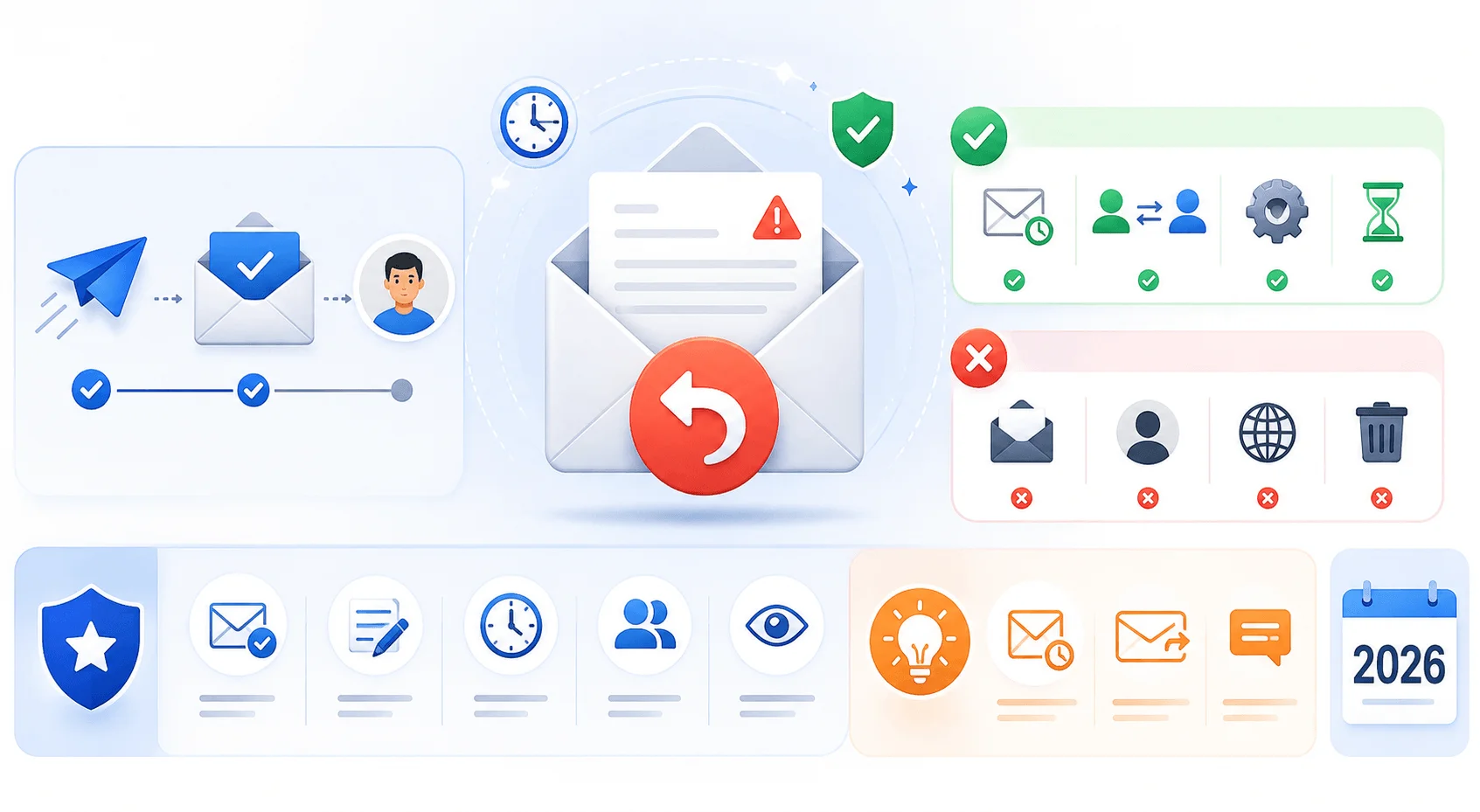
Before you go clicking around your inbox, it helps to know what you're actually dealing with. Not every "unsend" is the same feature.
Here's the quick breakdown:
Your email provider — Gmail, Outlook, Apple Mail, and Proton Mail each handle this differently
How much time has passed — seconds matter enormously here
Whether the recipient has opened it — this single factor decides almost everything for recall
Whether you and the recipient share the same email system — true recall basically requires this
Once you know these four things, you'll know which method applies to your situation, and whether you're wasting your time.
Undo Send vs. Email Recall: What's the Actual Difference
These two get lumped together constantly, and that's where most of the confusion starts. They are not the same feature, and knowing the difference changes what you should expect.
Undo send works by delaying delivery. When you hit send, your email client doesn't actually transmit the message right away. It holds it in a queue for a set number of seconds. If you click "undo" during that window, the message never leaves your account. This is why Proton's team describes it as canceling the email before it leaves the server.
Email recall, on the other hand, deals with a message that has already been sent and delivered. It's an after-the-fact retrieval attempt, not a cancellation. As one breakdown puts it plainly: undo send cancels a message in the first seconds before it leaves, while recall tries to retrieve a message that has already been delivered to the recipient's mailbox.
So if you're past your undo-send window, you're not "unsending" anymore. You're attempting a recall, and that's a much shakier proposition. If the mistake involved the wrong sender identity, it's worth knowing what an email alias is and how it can help you avoid this in the future.
Step-by-Step: How to Unsend an Email With Undo Send
This is your best shot at truly stopping a message, and it works across nearly every major platform. Here's how to set it up and use it properly.
Step 1: Turn On Undo Send in Your Settings
Most email clients don't automatically maximize your delay window, so go check your settings first.
In Gmail: Go to Settings, and under the general tab you'll find the option to set a send cancellation period of 5, 10, 20, or 30 seconds. Always pick 30. There's no good reason not to.
In Apple Mail (iPhone): You get 10 seconds by default, and you can extend that delay in your Mail settings if you want a bigger buffer.
In Outlook: This one varies by client, which trips a lot of people up:
New Outlook and Outlook on the web: Settings > Mail > Compose and reply > Undo send, offering up to 30 seconds on current builds
Outlook for Mac: up to 120 seconds, the longest window of any Outlook client
Outlook.com (personal): 5 or 10 seconds
Classic Outlook for Windows: no built-in undo send at all, so you'll need a delay-delivery rule as a workaround
This spread is documented well by Exclaimer's guide to recalling and unsending emails, if you want the full comparison.
In Proton Mail: The default is 10 seconds, and clicking undo reopens the message in your composer so you can edit or scrap it entirely.
Step 2: Watch for the Undo Notification
After you hit send, a banner or notification appears, usually at the bottom of your screen. In Gmail it's the "Message sent" strip with an Undo option. In Proton it's a "Message sent. Undo" banner.
Step 3: Click Undo Before the Timer Runs Out
This is the whole game. Once your set number of seconds passes, the email actually leaves the server, and at that point it genuinely cannot be recalled the same way, since it's left your control entirely.
Speed matters here more than almost anything else in this guide. And if the mistake was actually about who received the email rather than needing to unsend it, you might find it faster to just forward the corrected email in Gmail to the right person instead.
Step-by-Step: How to Recall an Email in Outlook
If your undo-send window has already closed and you're on a work or school Microsoft account, message recall might still save you. It's a longer shot, but worth attempting quickly. Here's the short version, and you can find the full walkthrough in our guide on how to recall an email in Outlook.
Step 1: Confirm You Meet the Requirements
Recall only works if:
Both you and your recipient are on Microsoft 365 or Exchange, in the same organization
The recipient hasn't opened the email yet
The recipient's email client actually supports recall
If any of these fail, particularly if you sent to a Gmail or Yahoo address, recall won't work. It genuinely does not work across organizations or outside the Microsoft ecosystem, according to Microsoft's own recall documentation.
Step 2: Open the Message in Sent Items
Go to your Sent Items folder and double-click the message. This part is easy to mess up: just selecting it in the reading pane won't work. You need it open in its own window.
Step 3: Trigger the Recall
From the ribbon, select Recall This Message, then confirm. You can also choose to send a replacement message at this point, which is handy if the issue was a missing attachment rather than something more sensitive.
Step 4: Check the Recall Report
Within a few minutes, you'll get a Message Recall Report showing whether the attempt succeeded, is pending, or failed for each recipient. According to Microsoft's support page, this can take up to five minutes for smaller recipient lists, and up to thirty for very large ones.
How Reliable Is Email Recall, Really?
Not very, and you should plan accordingly. A widely cited 2023 Microsoft study found that only about 30-40% of message recalls succeeded under the classic (client-side) version of the feature, as reported in CodeTwo's breakdown of message recall. Microsoft's newer server-side version, rolled out to mobile Outlook in May 2025, claims north of 90 percent effectiveness, though that figure depends heavily on the recipient's setup, whether the message has been read, and whether both sides are on the same tenant.
The single biggest killer of a recall attempt is a simple one: has the email been read yet. Once it's opened, recall cannot pull it back, full stop, no matter how quickly you act afterward.
There's also an awkward side effect worth knowing about. If your recall fails, the recipient often gets a notification saying you tried to recall a message with a specific subject line. Ironically, that can draw more attention to the exact thing you were trying to hide.
Common Mistakes People Make When Trying to Unsend an Email
A few patterns show up over and over, so let's clear them up quickly.
Mistake 1: Assuming undo send and recall are the same thing. They're not. One prevents sending. The other retrieves a delivered message, with far less reliability.
Mistake 2: Waiting too long to act. Every second matters. The moment you notice the mistake, act, don't finish your coffee first.
Mistake 3: Expecting recall to work across providers. If your recipient is on Gmail, Yahoo, or any non-Exchange system, Outlook recall simply won't function. There's no version of it that reaches outside Microsoft's ecosystem.
Mistake 4: Treating recall as a security fix. If you sent something confidential to the wrong person, don't rely on recall as your solution. Notify whoever needs to know and follow your organization's actual incident process right away.
Mistake 5: Never setting up delay-send in the first place. This is the one truly preventable mistake on this list. A 30-second buffer costs you nothing and catches most panic-send moments before they become a problem.
Frequently Asked Questions
Can you unsend an email after it's been read?
No. Once a recipient opens the email, neither undo send nor recall can pull it back. At that point your only real option is a follow-up email.
Does Gmail let you unsend an email to anyone?
Yes, within your chosen window of 5 to 30 seconds, regardless of what email provider the recipient uses, since this happens entirely on your own server before the message ever leaves.
Can you recall an email sent to a Gmail or Yahoo address from Outlook?
No. Recall only functions between Microsoft 365 or Exchange accounts within the same organization.
Is there a way to unsend an email on iPhone?
Yes, Apple Mail includes an undo send option with a default 10-second window that you can extend in your Mail settings.
What happens if a recall fails?
The recipient may receive a notification that you attempted to recall a message, which can sometimes bring more attention to the original email than if you'd left it alone.
Final Thoughts
So, can you unsend an email? For the first handful of seconds after you hit send, yes, and that small window is genuinely useful. Beyond that, you're relying on recall, a feature that only works in narrow circumstances and fails more often than it succeeds.
Your best move isn't really about mastering recall. It's about setting your undo-send delay to the maximum your provider allows, right now, before you need it. That single setting change, paired with solid email etiquette habits, will save you from far more headaches than any recall attempt ever will.