To forward an email in Gmail, open the message, click the forward arrow below the body, enter a recipient's address, and click Send. This takes under 15 seconds and includes all attachments up to 25 MB. Gmail also supports automatic forwarding for every incoming message, and filter-based forwarding for only specific senders or keywords. This guide covers all three methods, plus multi-address forwarding, admin-level routing for Google Workspace, and the deliverability mistakes that get forwarded mail flagged as spam.
Why You'd Want to Forward Emails in Gmail
Let's start with the "why," because it shapes which method you should use.
You might be consolidating two inboxes into one so you're not checking five tabs a day. You might be handing off a role and need your replacement to see incoming client emails. Or you might just want a personal backup of anything that lands in your work account before you lose access to it. Each of these scenarios calls for a different forwarding setup, and picking the wrong one is how people end up frustrated.
Here's the quick breakdown:
One-off forwarding — send a single email to someone right now
Automatic forwarding — send every new email to another address, going forward
Filtered forwarding — send only emails matching certain criteria (a sender, a keyword, an attachment) elsewhere
Gmail Forwarding Methods Compared
Before you pick a method, here's how the four options stack up side by side.
Method | Setup Time | Forwards Old Mail? | Multiple Recipients? | Best For |
|---|---|---|---|---|
Manual forward | Under 15 sec | Yes (any message, anytime) | Yes, per message | One-off shares |
Automatic forwarding | 3–5 min | No, new mail only | No, one address only | Full inbox migration |
Filter-based forwarding | 2–3 min | No, new mail only | Yes, with separate filters | Routing specific senders/topics |
Admin routing (Workspace) | 5–10 min | No, new mail only | Yes, via address map | Org-wide or offboarding routing |
What You Need Before You Start
Before you dive into any of the steps below, make sure you have the following ready:
A Gmail account you're signed into
The exact email address you want to forward messages to
Access to that second inbox, since Gmail sends a verification link there
A few minutes, since Gmail requires you to confirm the forwarding address before automatic forwarding will work
If you're setting this up for a Google Workspace account rather than a personal Gmail, you'll also want admin access, since some forwarding controls live in the Google Admin console rather than your personal settings.
How to Forward a Single Email in Gmail
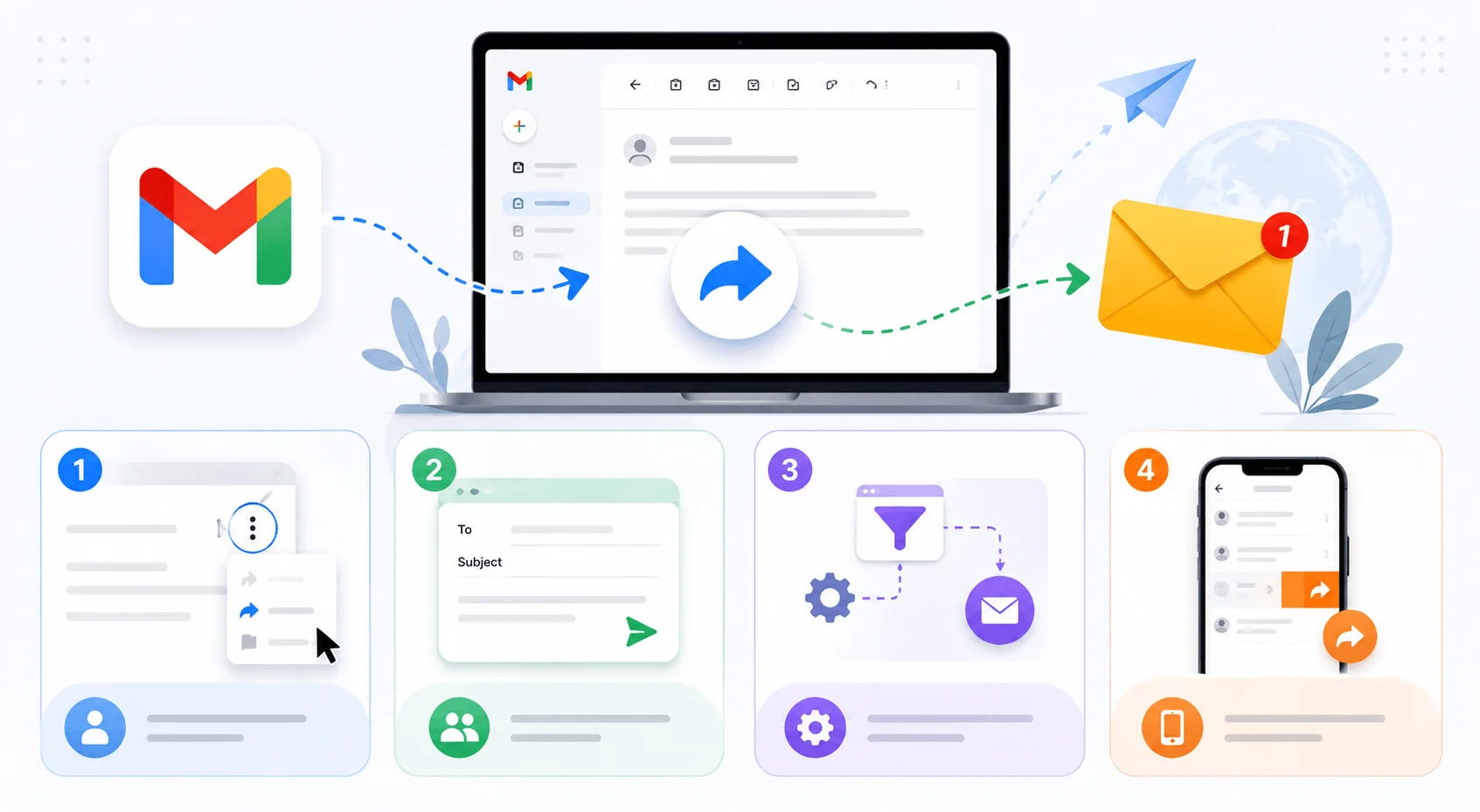
This is the method most people need most often, and it's genuinely simple.
On Desktop
Open the email you want to forward.
Click the forward arrow icon below the message body (or click the three-dot menu and select Forward).
Type the recipient's address in the To field.
Add a note above the original message if you want to give context.
Click Send.
Attachments carry over automatically, up to Gmail's 25 MB size limit. If you're forwarding something bigger, Gmail usually converts it into a Google Drive link instead.
On Mobile
Open the Gmail app and tap the email.
Scroll down and tap Forward (or use the three-dot menu).
Enter the recipient and tap the send arrow.
The mobile app only handles single-email forwards. Automatic forwarding and filters both require a desktop browser.
How to Forward an Entire Email Thread
Sometimes a single message doesn't cut it, and you need the whole back-and-forth conversation sent along.
Open the conversation, click the three-dot menu in the top right of the thread, and select Forward all. This bundles the whole thread into one message rather than making you forward each reply individually.
How to Set Up Automatic Email Forwarding
This is where most of the confusion happens, so let's slow down here.
Automatic forwarding sends every new incoming message to another address, without you lifting a finger. Here's the process straight from Google's own support documentation:
Open Gmail on your computer.
Click the gear icon in the top right, then See all settings.
Go to the Forwarding and POP/IMAP tab.
Under Forwarding, click Add a forwarding address.
Type in the address you want to forward messages to, then click Next, Proceed, and OK.
Gmail sends a verification email to that address. Open it and click the confirmation link.
Head back to your Gmail settings and refresh the page.
Select Forward a copy of incoming mail to, and choose the address from the dropdown.
Decide what happens to the original copy: keep it in your inbox, archive it, or delete it. Keeping a copy is the safer default.
Scroll down and click Save Changes.
Gmail's auto-forwarding only supports one address. If you need mail going to multiple people, set up separate filters for each destination, covered next. If you're also cleaning up your browser workflow while you're at it, our guide on how to block websites on Chrome covers another common productivity fix.
How to Forward Only Specific Emails Using Filters
Automatic forwarding sends everything, which isn't always what you want. If you only care about messages from a certain sender, containing a certain keyword, or with attachments, Gmail filters are the tool for the job.
Click the down arrow inside the Gmail search bar to open advanced search options.
Fill in your criteria. Use the From field for a sender, Subject for keywords, or check Has attachment.
Use search operators directly, like
from:client@example.comorfrom:person1@example.com OR from:person2@example.comto target multiple senders at once.Click Create filter at the bottom of the search window.
Check the box for Forward it to, and pick your verified forwarding address.
Click Create filter again to save it.
This method is genuinely underused. It lets you route invoices to your accountant, forward newsletter signups to a marketing folder, or split personal and work mail without touching your main inbox flow. Add labels to keep things organized on the receiving end once volume picks up.
How to Forward Emails to Multiple Addresses
Native auto-forwarding caps out at one destination, so sending mail to multiple people takes a small workaround.
Set up a separate filter for each recipient, using the same search criteria but a different forwarding address in the action step. To send every email from a specific client to both your assistant and your project manager, create two filters with identical "From" criteria and two different "Forward it to" addresses. It's not elegant, but it works reliably once configured.
Turning Off Email Forwarding
Open Gmail settings and go to Forwarding and POP/IMAP.
Click Disable forwarding.
Click Save Changes at the bottom.
For filter-based forwarding, go to the Filters and Blocked Addresses tab instead, find the filter, and click Delete next to it.
Forwarding for Google Workspace Admins
If you're managing a business domain rather than a personal account, forwarding controls extend further. Admins can set up domain-wide redirect rules through the Google Admin console under Apps > Google Workspace > Gmail > Routing, using a recipient address map. This is useful for routing a departing employee's mail to their manager, or mapping an old support address to a new one.
Messages redirected this way appear to come directly from the original sender, rather than showing as a forward, which matters for compliance or record-keeping workflows. If you're managing account settings across services generally, our guide on canceling a subscription on iPhone walks through a similar settings-menu process on a different platform.
Common Mistakes to Avoid
A few things trip people up consistently:
Forgetting to verify the forwarding address. Automatic forwarding silently won't work until you click that confirmation link.
Assuming filters forward old emails. They don't. Filters and auto-forwarding only apply to new messages arriving after setup.
Overlapping filters. If mail arrives duplicated at the destination, check for two filters matching the same criteria.
Ignoring deliverability. According to Gmail's best practices documentation, Gmail runs its own authentication check on forwarded mail rather than trusting a prior pass. If you're forwarding a lot of mail into Gmail from another domain, make sure that domain's SPF record includes the forwarding server, or messages risk landing in spam.
FAQ
Can I forward emails to multiple addresses at once in Gmail?
Not with native auto-forwarding, since it only supports one destination address. Achieve the same result by creating separate filters, each pointing to a different forwarding address.
Does Gmail forward old emails automatically?
No. Both automatic forwarding and filter-based forwarding only apply going forward, to new mail arriving after setup.
Why isn't my Gmail forwarding working?
The most common cause is an unverified forwarding address. Check your destination inbox for the confirmation email, click the link, then refresh Gmail's settings page and re-save your forwarding preference.
Can I forward emails from the Gmail mobile app?
You can forward individual emails from the mobile app, but automatic forwarding and filters require a desktop browser.
Is forwarded email as secure as the original?
Not automatically. Gmail re-authenticates forwarded messages rather than trusting the original sender's authentication, so forwarding into Gmail from another domain at scale calls for checking your SPF setup to avoid spam flags.
Wrapping Up
Forwarding a single email in Gmail is about as simple as it gets. The real decision point is whether you need everything forwarded automatically, or just a filtered slice of your inbox routed somewhere specific. Start with the method that matches what you need, verify your forwarding address, and double-check your filters aren't overlapping. Once set up correctly, it tends to keep working quietly in the background.