You can schedule an email in Outlook by composing your message, clicking the dropdown arrow next to Send, selecting Schedule Send, and choosing a delivery date and time. The exact steps differ slightly between Classic Outlook, New Outlook, and Outlook on the Web — Classic Outlook calls the feature Delay Delivery instead, and it's tucked under a different menu. This guide covers all three versions as of 2026, plus how to fix a scheduled email that didn't send.
Why Scheduling Emails in Outlook Actually Matters
Let's be real for a second — timing your emails isn't just a "nice to have" anymore. You're probably juggling different time zones, trying not to blow up someone's phone at 11pm, or writing when you're in the zone and sending when it actually counts. That's the whole point of email scheduling.
Here's the thing though: this isn't just a productivity hack.
Sending at the right moment can meaningfully improve how many people open your message, and mistimed emails are a common source of lost focus and missed replies for busy professionals, according to industry writeups on the topic from Online Tool Guides. I'm not going to hand you an unverified percentage here — the specific stats floating around marketing blogs on this topic aren't tied to a named primary study, so I'd rather you not quote them than repeat a shaky number.
There's also a work-life balance angle. Some workplaces now follow "right to disconnect" norms, and scheduling emails helps you respect your team's off-hours without sacrificing your own late-night writing sessions.
What You Need Before You Start
Before we jump into the steps, let me save you some frustration.
Schedule Send and Delay Delivery are not available for IMAP or POP email accounts, full stop. If you're on a personal IMAP setup instead of an Exchange or Microsoft 365 account, this feature simply won't show up — no matter how many times you dig through the ribbon.
Quick checklist:
✅ You're using an Exchange, Microsoft 365, or Outlook.com account
✅ You know which version of Outlook you're running (Classic, New, or Web)
✅ Your email draft is finished and proofread — including a clean email sign-off — before scheduling
✅ You've double-checked the recipient's time zone if it matters
Classic Outlook vs. New Outlook vs. Outlook on the Web
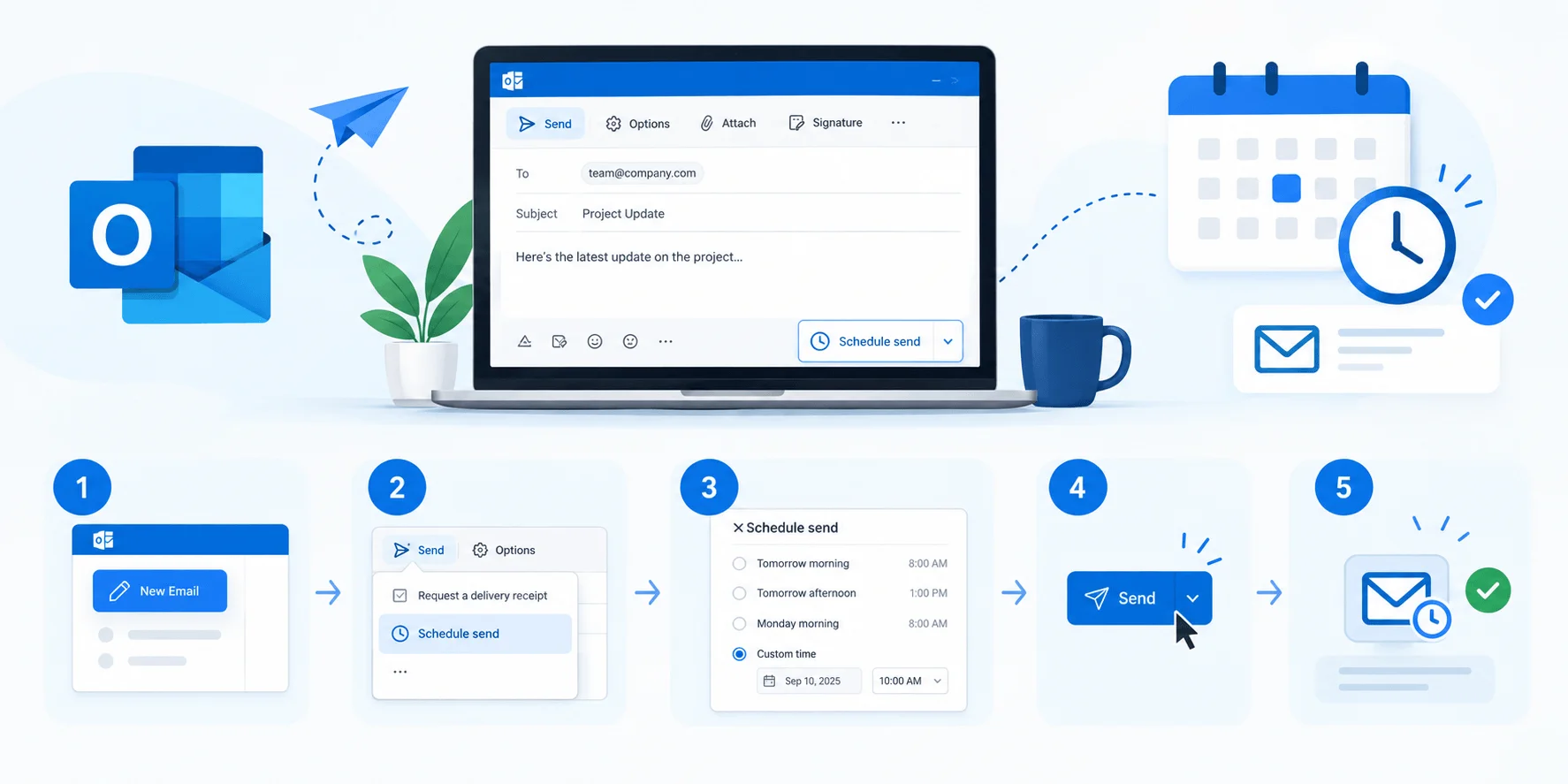
Here's a quick side-by-side before we get into the step-by-step instructions for each one, so you know exactly what to expect from your version.
Feature | Classic Outlook | New Outlook | Outlook on the Web |
|---|---|---|---|
Feature name | Delay Delivery | Schedule Send | Schedule Send |
Where to find it | Options tab → Delivery Options | Dropdown arrow next to Send | Dropdown arrow next to Send |
Device must stay on? | ✅ Yes | ❌ No (cloud-based) | ❌ No (cloud-based) |
Where message waits | Outbox folder | Drafts folder | Drafts folder |
Cancel/edit before send | Via Outbox message options | Cancel Send in Drafts | Cancel Send in Drafts |
How to Schedule an Email in Classic Outlook
Classic Outlook — the older desktop version most of us grew up on — calls this feature Delay Delivery instead of Schedule Send, and it lives in a slightly different spot. Follow these steps and you'll have it down in under a minute.
Compose your email like you normally would.
Click the Options tab in the ribbon.
Find Delay Delivery inside the Delivery Options group.
In the pop-up Properties dialog, check the box that says "Do not deliver before".
Choose your desired date and time.
Click Close, then hit Send.
Your message doesn't leave your machine yet. It sits in your Outbox folder until the scheduled time arrives — and that leads to the single biggest gotcha with Classic Outlook.
The Catch With Classic Outlook
Outlook has to stay open on your computer for the scheduled send to actually fire. If you shut your laptop or close the app, that email just sits there until you open Outlook again.
To cancel or edit:
Go to your Outbox folder.
Open the delayed message.
Click the Message Options arrow in the Tags group.
Under Delivery options, uncheck "Do not deliver before".
Click Close and Send.
How to Schedule an Email in New Outlook
New Outlook is Microsoft's cloud-based redesign, and as of 2026 it's the version most Microsoft 365 users are being migrated onto by default. The feature here is cleanly labeled Schedule Send, and it lives right next to the Send button — no digging through tabs required.
Finish writing your email (always compose fully before scheduling).
Click the small dropdown arrow next to the Send button.
Select Schedule Send.
Pick one of the default suggestions (like "Tomorrow morning") or choose Custom time for full control.
Confirm, and you're done.
Your scheduled email gets handed off to Microsoft's cloud servers the moment you schedule it. That means it'll send right on time even if your laptop is closed, asleep, or halfway across the world in your backpack.
Scheduled messages sit in your Drafts folder rather than the Outbox while they wait.
Canceling a Scheduled Send in New Outlook
Open the Drafts folder.
Find your scheduled message.
Click Cancel send.
Edit if needed, then hit Send again whenever you're ready.
How to Schedule an Email in Outlook on the Web
If you're working from a browser — say, on a shared computer or a Chromebook — Outlook on the Web mirrors the New Outlook experience almost exactly.
Compose your message in the browser.
Click the dropdown next to Send.
Select Schedule Send.
Choose a default time or set a custom date and time.
Click Send to lock it in.
Because everything here is cloud-based, you don't need to keep any tab or window open. Close the browser, walk away — your email will still go out exactly when you told it to.
Bonus: Let Outlook's AI Suggest the Best Time for You
Outlook has a smart layer called Schedule Send Suggestions, powered by Viva Insights (previously MyAnalytics). It watches for a common problem — you writing an email outside someone's working hours — and nudges you to delay it.
You'll see a suggestion pop up when:
All recipients in the To field are currently outside working hours
You're not emailing yourself
There are 15 or fewer recipients
It's not within the 30 minutes right before someone's workday starts
When the suggestion appears, you can:
Keep the suggested time and hit Send
Adjust the date/time manually, then Send
Click Cancel scheduled send if you'd rather send it immediately
Common Problems With Scheduled Emails (And How to Fix Them)
Scheduled sends do occasionally misbehave. If your scheduled email isn't sending, check these in order:
Is Outlook (Classic version) still open? If you're on Classic Outlook, this is almost always the culprit.
Is your internet connection stable? A dropped connection at send-time can delay delivery.
Is your system clock accurate? A misconfigured clock can throw off the scheduled timing entirely.
Are you using IMAP/POP? If so, the feature simply isn't supported — switch to Exchange or Microsoft 365 if you need it.
Did an Outlook rule interfere? Rules that delay outgoing mail can conflict with Schedule Send Suggestions, so you may need to disable one to use the other.
Power-User Trick: Delay All Outgoing Mail With a Rule
If scheduling every single email individually feels tedious, Classic Outlook lets you set up a rule that automatically delays every outgoing message by a fixed number of minutes — say, 120 minutes — giving you a built-in buffer to catch typos or change your mind before anything actually sends. This pairs nicely with Undo Send, which some Outlook versions support as a short grace-period safety net right after you hit Send — and if you're curious what your options are once a message is already gone, see can you unsend an email
Native Outlook vs. Third-Party Scheduling Tools
Outlook's built-in scheduling is solid for everyday use, but it has limits. If you're running email campaigns, need to schedule to hundreds of contacts, or want conditional logic, you'll likely need a third-party add-on.
If you're managing email across multiple platforms, it's worth knowing how to forward emails in Gmail too, especially if your team isn't fully on Outlook
Tool | Best for | Key extra feature |
|---|---|---|
Native Outlook Schedule Send | One-off, individual emails | Free, built-in, no setup |
Boomerang | Follow-ups and reminders | Auto-reminders if no reply |
Mailmeteor | Bulk/marketing sends | Email throttling to avoid spam flags |
Frequently Asked Questions
Is Schedule Send free in Outlook?
Yes. Schedule Send and Delay Delivery are built into Outlook at no extra cost, as long as you're using a supported Exchange, Microsoft 365, or Outlook.com account.
Why don't I see Schedule Send in my Outlook?
You're most likely using an IMAP or POP account, which doesn't support this feature, or you're on an older Classic Outlook build where it's labeled Delay Delivery instead.
Can I edit a scheduled email before it sends?
Yes. In New Outlook, open the Drafts folder, click Cancel Send on the message, make your edits, then reschedule or send it manually.
Does my computer need to stay on for scheduled emails to send?
Only in Classic Outlook. New Outlook and Outlook on the Web use cloud servers, so your device can be off and the email will still send on time.
How far in advance can I schedule an email?
Outlook allows scheduling hours, days, or even months in advance — there's no strict native cap on how far out you can set it.
Final Thoughts
Scheduling an email in Outlook in 2026 comes down to knowing which version you're using: Schedule Send in New Outlook and the Web, Delay Delivery in Classic. Once you've got that down, you can write on your own schedule and let Outlook handle the timing for everyone else. If you run into delivery issues, work through the troubleshooting checklist above before assuming something's broken — nine times out of ten, it's a closed app, a shaky connection, or an IMAP account that doesn't support the feature.
Read More: How to Recall an Email in Outlook 2026