You can recall an email in Outlook only if you and the recipient both use Microsoft 365 work or school accounts in the same organization. Open the message from Sent Items in its own window, choose Recall This Message (or Recall Message in new Outlook), then check your Message Recall Report. Gmail, Hotmail, and Outlook.com recipients can't be recalled.
You just hit Send. Your stomach drops.
Wrong recipient. Missing attachment. A typo in the subject line. Ouch.
I've been there, and it's a terrible feeling. The good news is that recall works far better than it used to, and I'll show you exactly how to use it. I'll also show you what to do when it fails, and how to stop the mistake before it leaves your outbox.
Not sure whether your email service even supports this? Our guide on whether you can unsend an email compares how the major providers handle it.
Does Outlook Message Recall Actually Work?
Short answer? Yes, but only under the right conditions. Microsoft rebuilt the feature, so it's no longer the coin flip it once was. Still, Outlook message recall has rules, and knowing them saves you a ton of panic. Two minutes here beats an hour of awkward damage control.
Here's the deal.
Recall works when you and your recipient both have a Microsoft 365 work or school account in the same organization. Personal accounts like Gmail, Hotmail, and Outlook.com can't use it. If you're on a personal account and want better tools, our roundup of the best free email clients is a good place to start.
How Reliable Is Recall in 2026?
The old version, which relied on the recipient's Outlook app, was a gamble. Microsoft's own Exchange team said its average success rate was about 50%, and the new cloud based message recall is more than twice as effective.
Practical365 reports slightly different numbers from Microsoft. It cites 800,000 daily recall attempts at a 40% success rate before the redesign, and around 90% after. The figures vary by source, so treat them as ranges, not promises.
Why the jump? The new system runs on the server. A background agent hunts down the message in recipients' mailboxes, so nobody's Outlook has to be open.
Why Microsoft's Documentation Seems to Contradict Itself
Here's a wrinkle most guides skip.
Microsoft's support page says recall works only if the recipient hasn't opened the message. But the Exchange admin documentation says the "unread only" wording in Outlook's dialog is no longer accurate. Recalling already read messages is on by default, and admins can turn it off.
So can you recall an email the recipient already read? Often yes, but it depends on your organization's settings. If it matters, ask your IT team.
How to Recall an Email in Outlook: Step by Step
The exact clicks depend on which Outlook you use, and that's where most people get stuck. So I've split this into three paths: classic Windows, new Outlook and Mac, and mobile. Pick yours and follow along. Speed matters, because recall works best when you act fast.
Classic Outlook for Windows
Classic Outlook is where recall began, so it may feel familiar. One catch: you must open the message in its own window. The reading pane won't show the option.
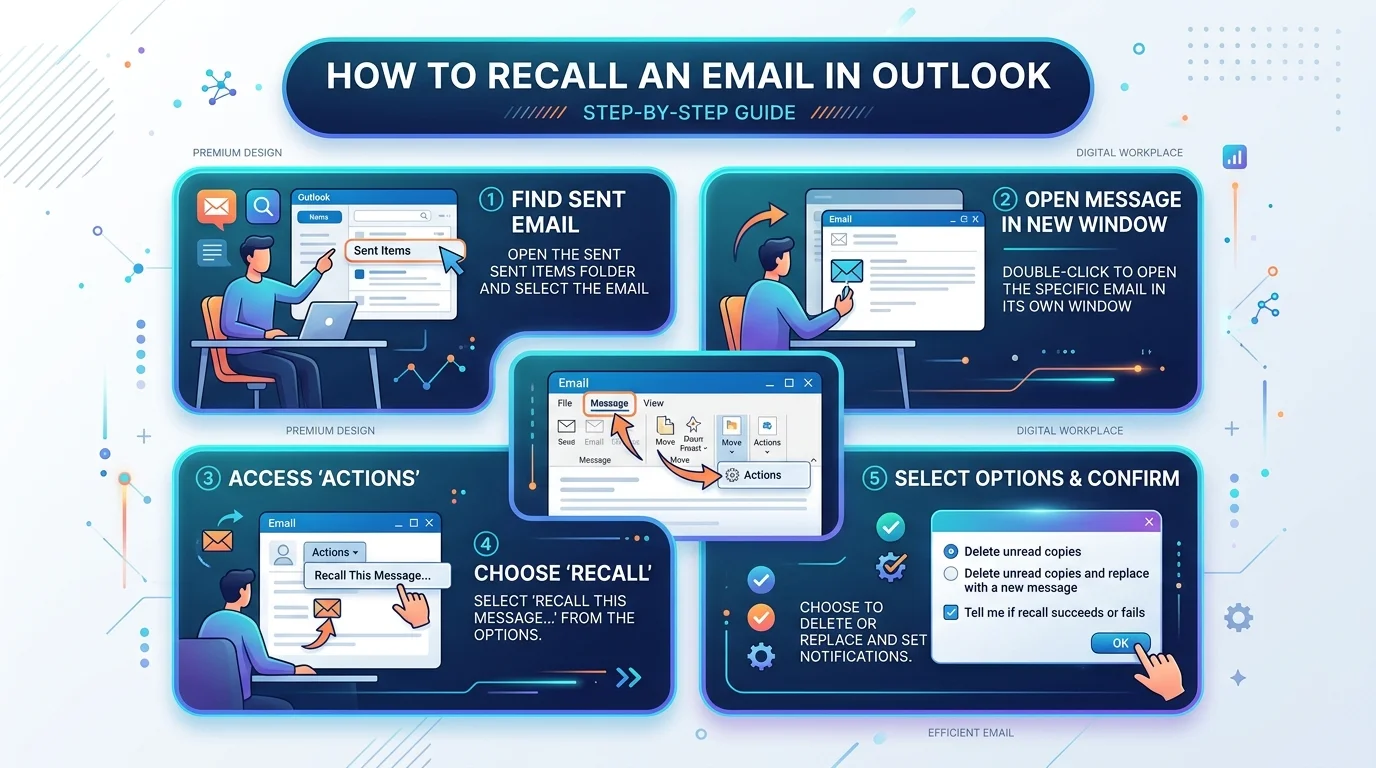
Open your Sent Items folder.
Double click the email so it opens in a separate window.
On the Message tab, click Actions, then choose Recall This Message.
Choose whether to remove the message or replace it with a corrected one, then click OK.
Want to fix the error right away? Choose the replace option.
New Outlook for Windows and Outlook for Mac
The new Outlook is even simpler, and Mac users finally get the feature too. On Mac, you need version 16.94 or later. Legacy Outlook for Mac isn't supported.
Open Sent Items (it's just "Sent" on Mac).
Double click the message to open it in a separate window.
Click Recall Message in the ribbon.
Confirm with OK.
Outlook Mobile (iPhone and Android)
Panic sent something from your phone? Same here. Outlook for iOS and Android now supports recall, under the same organization rules. Encrypted and S/MIME messages won't show the option, and very old emails may fail. If you don't see Recall, update the app first.
Open the Sent folder and tap the message.
Tap the three dots at the top right.
Tap Recall, then confirm.
Check Your Message Recall Report
Now wait about thirty seconds. A Message Recall Report lands in your inbox and tells you whether the recall succeeded, is pending, or failed. If it says "pending," don't refresh it forever. Give it time.
Recall vs. Undo Send vs. Delay Rule vs. Schedule Send
Recall isn't your only option, and honestly, it's rarely the best one. Prevention beats rescue. So here's a side by side comparison of every method, so you can pick the right safety net before you need it. Bookmark this table. You'll thank me later.
Method | Works after sending? | Account needed | Time window |
|---|---|---|---|
Message Recall | Yes, but not guaranteed | Microsoft 365 work or school, same organization | Depends on admin's maximum message age (5 minutes to 3,650 days) |
Undo Send | Yes, briefly | New Outlook or Outlook on the web | Up to 30 seconds |
Delay delivery rule | Yes, message waits in Outbox | Classic Outlook | Up to 120 minutes |
Schedule send | Before the scheduled time | New Outlook and recent versions | Per message, any time you choose |
Sources: Microsoft's delay and schedule guide, Microsoft Q&A on Undo Send, and o365info on the recall age limit.
How to Turn On Undo Send
In new Outlook, open Settings, then Mail, then Compose and reply. Choose how many seconds Outlook should wait before sending.
That tiny buffer catches most "oops" moments.
Delay Rules and Schedule Send
Classic Outlook can hold all outgoing mail with a defer delivery rule via File > Manage Rules & Alerts. Nothing leaves your Outbox until the timer ends.
New Outlook doesn't support that rule, according to Microsoft Q&A. But Schedule send works message by message. For a full walkthrough, see our guide on how to schedule an email in Outlook.
Why Outlook Recall Fails (and What to Do Next)
Let's be real: recall isn't magic. When it fails, it usually fails for a predictable reason. Knowing the cause tells you what to do next, so you're not staring at a "failed" report wondering what happened. Here are the most common culprits, plus quick fixes.
Common reasons a recall fails:
The recipient uses Gmail, Yahoo, or another outside provider.
You're on a personal Outlook.com or Hotmail account.
The message was encrypted or protected with S/MIME.
In Outlook for Windows, you're in Online mode, or your profile has multiple Exchange accounts.
Your admin disabled recall, or the message is older than their limit.
Will the Recipient Know You Recalled It?
Usually not. A successful cloud recall removes the message silently, and the recipient isn't notified. However, an admin can enable optional recipient notifications.
If Recall Fails, Send a Short Correction
Own the mistake. Keep it to two sentences: what was wrong, and what's right. A quick, honest follow up beats awkward silence every time. If you're unsure how to close it professionally, our tips on how to end an email will help.
Can You Recall From a Shared Mailbox?
Yes, with limits. You can trigger a recall from a shared or delegated mailbox, but some restrictions apply, and the report goes to a specific place. Microsoft's FAQ covers the details. If your team lives in shared inboxes, test this before you need it.
Cross Tenant Message Recall: The 2026 Game Changer
Most guides miss this one. On July 10, 2026, Microsoft announced cross tenant message recall, extending recall beyond a single organization. Rollout began in mid August, and Microsoft's schedule called for completion by mid September, so check whether it has reached your tenant.
Here's the catch.
The feature is disabled by default. The receiving organization's admin must switch it on and add your tenant ID to an allow list. No approval means no recall.
So if you email partners or clients often, ask their IT team whether they've enabled it. One question could save you later.
For Admins: How to Enable and Check Message Recall
Admins, this one's for you. Recall is controlled at the organization level in Exchange Online, and the defaults may not match what your team expects. A few minutes of setup prevents a lot of confusion later. Here's the short version.
Connect to Exchange Online PowerShell.
Run
Set-OrganizationConfig -MessageRecallEnabled $true -RecallReadMessagesEnabled $trueto allow recall and recall of read messages.Set a maximum message age if you want a time limit.
Optionally turn on recipient notifications.
Use a message trace to confirm whether a recall worked. Microsoft support suggests checking after 24 hours.
Changes can take about an hour to apply, per Microsoft Learn.
Frequently Asked Questions
Can I recall an email sent to Gmail?
No. Message Recall only works between Microsoft 365 work or school accounts in the same organization. Messages sent to or from Gmail, Hotmail, or Outlook.com can't be recalled. Use Undo Send or a delay rule to catch mistakes before they leave.
Will the recipient know I recalled the email?
Usually not. Cloud recall removes the message silently. But an Exchange administrator can enable optional notifications, so recipients might see a message saying it was recalled. Ask your admin if your organization uses them.
Can I recall an email that was already read?
Often, yes. Microsoft's Exchange documentation says recalling read messages is enabled by default, though admins can turn it off. The older "unread only" wording is outdated. Your organization's setting decides the outcome.
Why is my recall stuck on "pending"?
Pending usually means the request hasn't finished processing. The recipient's mailbox may be temporarily unavailable, or the recipient may be outside your organization. Check your Message Recall Report later, and ask your admin to run a message trace if it stays pending.
Does recall work in Outlook mobile?
Yes. Outlook for iOS and Android supports recall through the three dot menu in Sent, under the same organization rules. Encrypted and S/MIME messages don't show the option, and very old emails may fail. Update the app if you don't see it.
Does cross tenant recall work automatically?
No. It's disabled by default. The receiving organization's admin must enable it and add your tenant ID to an allow list. Without that approval, recall across organizations still fails.
Why Microsoft 365 Is Worth Every Penny
Now for my honest pitch. Recall, Undo Send, scheduling, and admin controls all live in Microsoft 365 work and school environments. Free personal accounts miss the best parts. If your emails carry your reputation, your clients, or your job, this is cheap insurance. That's why I'd upgrade without hesitation.
It actually recalls emails. Personal accounts can't use recall at all.
It works on the server. Recipients don't need Outlook open for recall to run.
Your admins stay in control. They can tune recall settings, age limits, and notifications.
It keeps improving. Mobile recall and cross tenant recall both arrived within the last two years.
I can't promise recall saves every email. Nobody can. But Exchange Online gives you the best odds available, and that peace of mind is hard to put a price on.
Don't wait for your next disaster email. Get Microsoft 365 for your team today, then turn on Undo Send before lunch.
Final Thoughts on Recalling an Email in Outlook
You now know how to recall a sent email, read the report, and handle failures. That's more than most Outlook users ever learn. Better yet, you know how to prevent the mistake in the first place, which is really the whole game.
My four step plan:
Turn on Undo Send today.
Bookmark the recall steps for your Outlook version.
Act fast the moment you spot a mistake.
Upgrade to Microsoft 365 if you're still on a personal account.