A RAID array is a group of two or more physical hard drives or SSDs combined into a single logical storage unit, so your computer sees one drive instead of many. I've spent a good chunk of time digging into storage systems, and RAID is one of those topics that sounds intimidating until someone breaks it down properly. You combine multiple disks, you get either better speed, better protection, or both. Businesses use RAID to keep servers running when a drive fails. Home users use it to build faster or safer storage setups. By the end of this guide, you'll know exactly what a RAID array is, how the different levels compare, how much usable storage each one leaves you with, and which one actually fits your situation in 2026.
Why RAID Arrays Matter for Your Storage Setup
Here's the thing: a single hard drive is a ticking clock. Every drive fails eventually, and when it does, whatever wasn't backed up is gone. That's the entire reason RAID exists.
RAID was first defined in 1988 by David Patterson, Garth Gibson, and Randy Katz at UC Berkeley, in a paper titled "A Case for Redundant Arrays of Inexpensive Disks" (you can read the original abstract on Wikipedia's RAID entry). Their idea was simple. Instead of relying on one expensive, high-performance disk, you could combine several cheaper disks and get similar or better performance, plus fault tolerance as a bonus.
Fast forward to 2026, and RAID still sits at the core of nearly every server, NAS box, and data center on the planet, even as NVMe drives and software-defined storage have changed how it's implemented. If you're running a business, a home lab, or even a media server, understanding RAID isn't optional anymore. It's foundational.
You'll also hear about data redundancy a lot in this context. That's just the fancy term for "the same data exists in more than one place," which is exactly what protects you when a drive dies.
If you're setting up your first home server, it's worth reading our guide to home server setups alongside this one, since your RAID choice will shape a lot of those decisions.
What You Need to Know Before Choosing a RAID Level
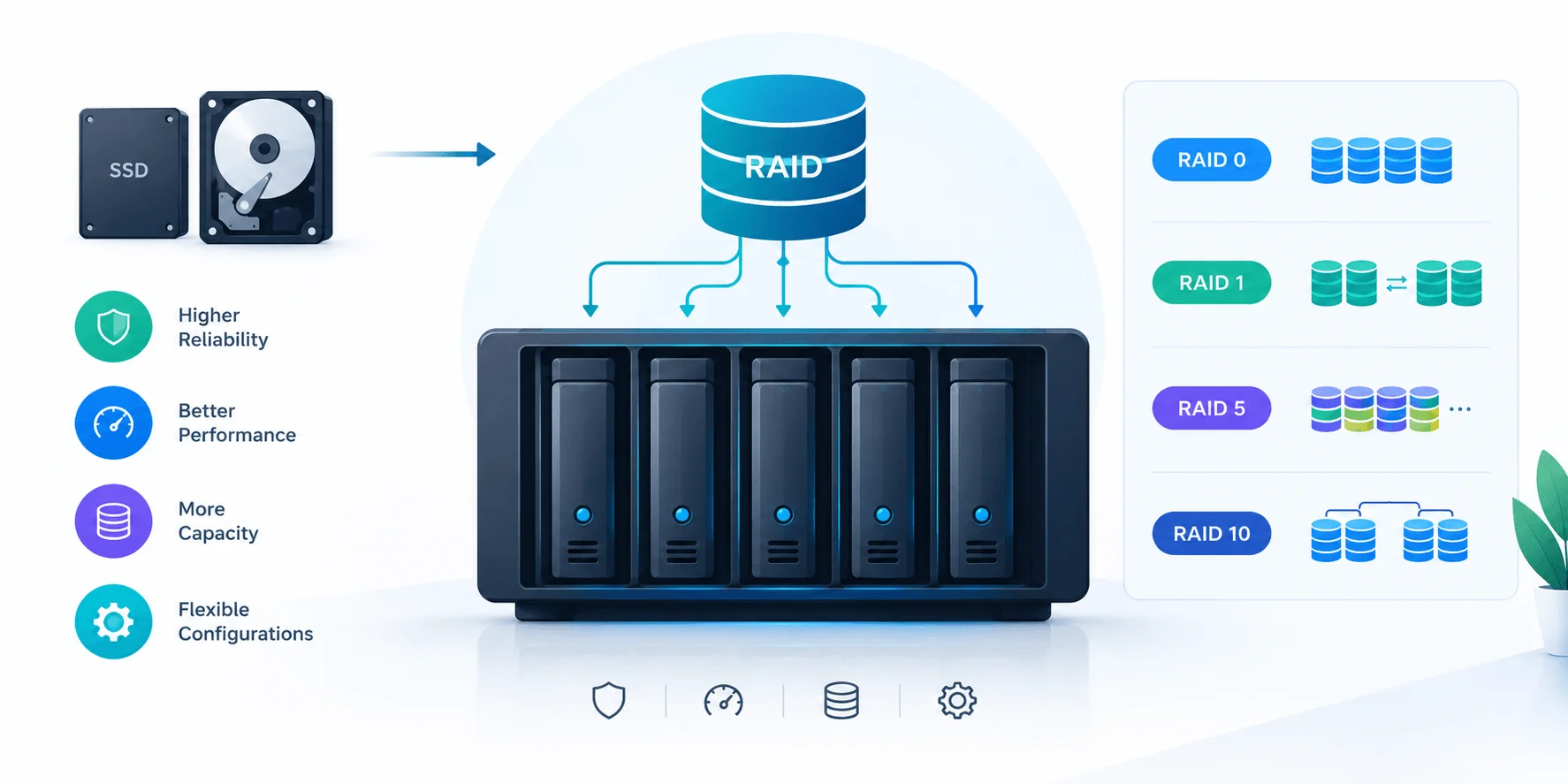
Before you jump into picking a RAID level, you need to understand the three techniques that make RAID work. Every single RAID level is really just a different combination of these three ideas. Get this part right, and the rest of RAID clicks into place fast.
Disk Striping
Disk striping means splitting a file into small chunks and writing those chunks across multiple disks at the same time. Because several disks are reading and writing simultaneously, you get a real speed boost. The tradeoff? Striping alone offers zero redundancy. Lose one disk in a striped set, and the whole array is toast.
Disk Mirroring
Disk mirroring is the opposite philosophy. Instead of splitting data for speed, you duplicate it entirely across two or more disks. If one drive fails, the mirrored copy keeps your data safe and accessible. You sacrifice some usable storage capacity for peace of mind, and honestly, that's a trade most people should be willing to make for anything important.
Parity
Parity is where RAID gets a little more mathematical. It's calculated data stored alongside your actual files that lets the system rebuild lost information if a drive fails. Think of it as an insurance policy written in binary. You don't get full duplication like mirroring, but you still get solid protection while keeping more usable capacity than a mirrored setup.
RAID Levels Compared: Quick Reference Table
Before the step-by-step breakdown, here's the table I wish someone had handed me when I first started comparing RAID levels. It shows minimum disks, redundancy, speed, and usable capacity side by side, using four 4TB drives as the example where the level allows it.
RAID Level | Min. Disks | Redundancy | Read/Write Speed | Usable Capacity (4x 4TB) | Best For |
|---|---|---|---|---|---|
RAID 0 | 2 | ❌ None | Fastest | 16TB (100%) | Scratch disks, temp data |
RAID 1 | 2 | ✅ Full mirror | Good reads, average writes | 8TB (50%) | Small business, critical files |
RAID 5 | 3 | ✅ 1 drive failure | Good | 12TB (75%) | General-purpose servers |
RAID 6 | 4 | ✅ 2 drive failures | Moderate (slower writes) | 8TB (50%) | Large arrays, archival storage |
RAID 10 | 4 | ✅ 1 drive per mirrored pair | Fastest with redundancy | 8TB (50%) | Databases, high-transaction apps |
Notice the capacity trade-off pattern here. The more protection you add, the less usable space you get from the same raw drives. That's not a flaw, it's the whole point of RAID: you're trading raw capacity for either speed or safety, and this table makes that trade visible at a glance.
Step-by-Step: Understanding the Main RAID Levels
Now let's actually walk through the RAID levels you'll run into most often, including how much usable capacity you actually get out of each one.
Step 1: RAID 0 — Pure Speed, Zero Protection
RAID 0 needs a minimum of two disks. Data gets striped across them, which means blazing-fast read and write speeds. There's a catch though, and it's a big one. RAID 0 provides no redundancy whatsoever. One drive dies, everything's gone.
Capacity-wise, RAID 0 gives you 100% of your raw storage. Two 4TB drives means 8TB usable. Nothing is sacrificed for protection, because there isn't any.
Use RAID 0 only for temporary or non-critical data where speed genuinely matters more than safety. Video editing scratch disks are a classic example.
Step 2: RAID 1 — Mirrored Protection
RAID 1 takes two (or an even number of) disks and mirrors data across them. If one drive fails, you're still up and running on the other. This is the setup most small businesses and home users should start with when data loss simply isn't an option.
The capacity cost is steep. With two 2TB drives in RAID 1, you still only get 2TB of usable space, since the second drive is just a copy.
Step 3: RAID 5 — The Balanced Choice
RAID 5 requires a minimum of three disks and spreads parity information across all of them instead of dedicating one drive to it. This setup gives you a nice middle ground between performance, capacity, and protection, which is exactly why so many small-to-medium servers run on RAID 5.
Capacity works out to (n-1) drives' worth of space, where n is your total drive count. Three 4TB drives gives you 8TB usable, since one drive's worth of capacity goes to parity. since one drive's worth of capacity goes to parity. If you want a refresher on the math, check out our guide on how many GB are in a TB before working out your own array's usable capacity. One drive can fail and your data stays intact while you rebuild the array
Step 4: RAID 6 — Double the Fault Tolerance
RAID 6 needs at least four disks and stores two separate parity blocks instead of one. That means the array can survive two drive failures at once, which matters a lot on larger arrays where rebuild times stretch out and a second failure during rebuild becomes a real risk, a point Enterprise Storage Forum also flags as a key reason RAID 6 has grown more popular for large-capacity drives.
Capacity works out to (n-2) drives' worth of space. Four 4TB drives gives you 8TB usable, since two drives' worth goes to double parity. The downside is write performance takes a hit because of the extra parity calculations.
Step 5: RAID 10 — Combining Speed and Safety
RAID 10 (sometimes written RAID 1+0) requires a minimum of four disks. It stripes data across pairs of drives for speed, then mirrors those stripes for redundancy. You get the performance of RAID 0 and the protection of RAID 1 in one setup.
Capacity lands at 50% of raw storage, same as RAID 1, since half the drives are mirrors. Four 4TB drives gives you 8TB usable. This is the level you'll see in high-transaction databases and environments where both speed and data security are non-negotiable.
Beyond the Basics: RAID 50, RAID 60, and JBOD
Once you've got the core five levels down, it's worth knowing a few configurations that show up in larger deployments and comparison discussions, even if you won't use them day to day.
RAID 50 combines RAID 5 and RAID 0. You build multiple RAID 5 groups, then stripe data across those groups. You get RAID 5's parity protection per group plus a speed boost from striping across groups, at the cost of needing a lot more drives (six minimum) to make it worthwhile.
RAID 60 does the same thing with RAID 6 groups instead of RAID 5, giving you double-parity protection per group plus striping across groups. It needs at least eight drives and is mostly seen in large enterprise storage arrays where both scale and fault tolerance matter.
JBOD (Just a Bunch of Disks) technically isn't RAID at all, it's worth mentioning as a contrast point. JBOD combines drives into one logical volume without striping, mirroring, or parity. You get the full combined capacity of every drive, but zero redundancy and zero performance benefit. If one drive fails, you typically lose whatever was stored on that specific drive rather than the whole array, which is different from how RAID 0 behaves.
Hardware RAID vs. Software RAID: Which One Should You Use?
The difference between hardware RAID and software RAID comes down to who's doing the heavy lifting: a dedicated chip, or your computer's own processor.
Hardware RAID
Hardware RAID uses a dedicated RAID controller, usually a card that plugs into a PCIe slot, to manage the array completely independent of your operating system. TechTarget's breakdown of RAID controllers notes that vendors like Broadcom, Adaptec, Intel, IBM, Dell, and Cisco all offer hardware options, and the decision usually comes down to RAID levels supported, cache size, and OS compatibility. Because the controller handles everything, hardware RAID tends to be faster and more reliable, especially with a battery-backed cache. The tradeoff is cost, and if the controller itself ever fails, you generally need the exact same model to recover the array without a rebuild.
Software RAID
Software RAID handles everything through the operating system instead, using your existing CPU and RAM. Tools like mdadm on Linux or Storage Spaces on Windows fall into this category. It's cheaper, more flexible, and often easier to migrate between machines since there's no proprietary hardware locking you in. Performance is usually a bit lower than hardware RAID, though modern CPUs have narrowed that gap considerably going into 2026. narrowed that gap considerably going into 2026. If local redundancy alone doesn't feel like enough, it's worth comparing RAID against cloud storage services as a complementary layer of protection
So which should you pick? If you're running a home lab or a small setup on a budget, software RAID does the job just fine. Check out our comparison of NAS operating systems if you're deciding between platforms. If you're running enterprise workloads where every millisecond and every ounce of reliability counts, hardware RAID is worth the investment.
Common Mistakes People Make With RAID Arrays
You'd be surprised how many people set up RAID and then assume they're fully protected. That assumption gets people burned, so let's clear a few things up.
Treating RAID as a backup. RAID protects against drive failure. It does nothing for accidental deletion, ransomware, or a file you overwrote by mistake. You still need actual backups, ideally following the 3-2-1 backup rule. If you ever do lose a file despite RAID, our guide on how to recover deleted files walks through your options. Our backup strategy guide walks through setting that up alongside your RAID array.
Mixing drive ages in the same array. If you built your array with drives from the same batch, they tend to fail around the same time. Stagger your purchases when you can.
Ignoring rebuild times on large arrays. The bigger the array, the longer a rebuild takes after a failed drive, and the more exposed you are to a second failure during that window. This is exactly why RAID 6 exists.
Skipping monitoring. A failed drive sitting unnoticed in a RAID 5 array means you're one more failure away from total data loss. Set up alerts.
How to Choose the Right RAID Level for Your Needs
Picking a RAID level really comes down to answering one question honestly: what matters more to you, speed, capacity, or protection? Nobody gets all three maxed out at once, so you're always balancing tradeoffs.
If you want raw speed and don't care about redundancy, go with RAID 0. If protecting your data is the priority and you don't mind losing some capacity, RAID 1 is your answer. Need a solid balance for a small business server? RAID 5 covers most bases. Running something bigger where a second drive failure during rebuild is a real concern? RAID 6 gives you that extra cushion. Need both serious speed and serious redundancy with the budget for more drives? RAID 10 is hard to beat. And if you're scaling into enterprise territory, RAID 50 or RAID 60 extend those same tradeoffs across larger drive groups.
Frequently Asked Questions About RAID Arrays
Is RAID the same as a backup?
No, and this trips people up constantly. RAID protects against hardware failure. It won't save you from ransomware, accidental deletion, or corruption. You still need a separate backup strategy.
How many drives do I need for RAID?
It depends on the level. RAID 0 and RAID 1 need at least two drives. RAID 5 needs at least three. RAID 6 and RAID 10 need at least four. RAID 50 needs at least six, and RAID 60 needs at least eight.
How much usable storage do I actually get with RAID 5?
You get (n-1) drives' worth of capacity, where n is the total number of drives. Three 4TB drives in RAID 5 gives you 8TB usable, since one drive's capacity is used for parity.
Can I mix SSDs and HDDs in the same RAID array?
Technically yes, but it's not recommended. The array's performance will drop to match the slowest drive, so you lose most of the SSD's speed benefit.
What happens if a drive fails in a RAID array?
Depending on the level, the array either keeps running in a degraded state (RAID 1, 5, 6, 10) while you replace and rebuild the failed drive, or the entire array fails immediately (RAID 0).
Is RAID 5 outdated in 2026?
Not outdated, but for very large drives, RAID 6 or RAID 10 are often recommended instead, since rebuild times on big RAID 5 arrays leave a longer window of risk as drive capacities keep growing.
Final Thoughts on Building Your RAID Array
At this point, you've got a solid grip on what a RAID array actually is, how striping, mirroring, and parity each play their part, how much usable capacity each level leaves you with, and which level fits which situation. RAID isn't magic. It's a set of tradeoffs, and the right choice depends entirely on what you're protecting and what you're willing to spend to protect it.
Start by figuring out your priority between speed, capacity, and protection, pick the RAID level that matches using the comparison table above, and pair it with a real backup plan. Get those two pieces right, and your storage setup will hold up when a drive eventually fails, because it will.