Quick answer: A network security key is your Wi-Fi password: the code a device needs to join a protected wireless network. It also powers the encryption (WPA2 or WPA3) that keeps your data private. You can find it on your router's label or in your device's Wi-Fi settings.
If Windows just asked you for a network security key, type your Wi-Fi password.
That's all it wants.
Below, I'll show you how the key works, which security type to use, and exactly where to find or change it on every major device.
What Is a Network Security Key?
A network security key is the secret code that authorizes a device to join a private wireless network. WaTech, Washington State's technology agency, defines it as data used to authorize a user to connect to a private network. In practice, it's your Wi-Fi passphrase. And it guards a lot: the Wi-Fi Alliance reports 23.3 billion Wi-Fi devices in use, with smartphone owners spending 77–88% of their screen-on time connected to Wi-Fi.
You'll see it called many names:
WPA key or WEP key
Wireless network key
Wi-Fi security key
Pre-shared key (PSK)
Same thing, different labels.
Why Windows Uses the Term "Network Security Key"
Windows is the main reason people search this phrase. When you open the wireless properties of a saved network, Microsoft labels the password field Network security key. So when your laptop asks for the key, it wants the exact password printed on your router sticker. Routers and ISPs add to the confusion by using their own labels for the same field.
Don't overthink it.
Enter your Wi-Fi password, and you're in.
Wi-Fi Password vs. Router Password vs. SSID
Three similar-sounding credentials cause most lockouts, so here's the clear split. Your Wi-Fi password and network security key are identical. The router admin password is a separate login that protects the settings page where you change your network name and encryption. The SSID is your network's public name and involves no secret at all.
Wi-Fi password = network security key → joins the network
Router admin password → opens router settings
SSID → the network name you pick from the list
How Your Wi-Fi Key Protects Your Network
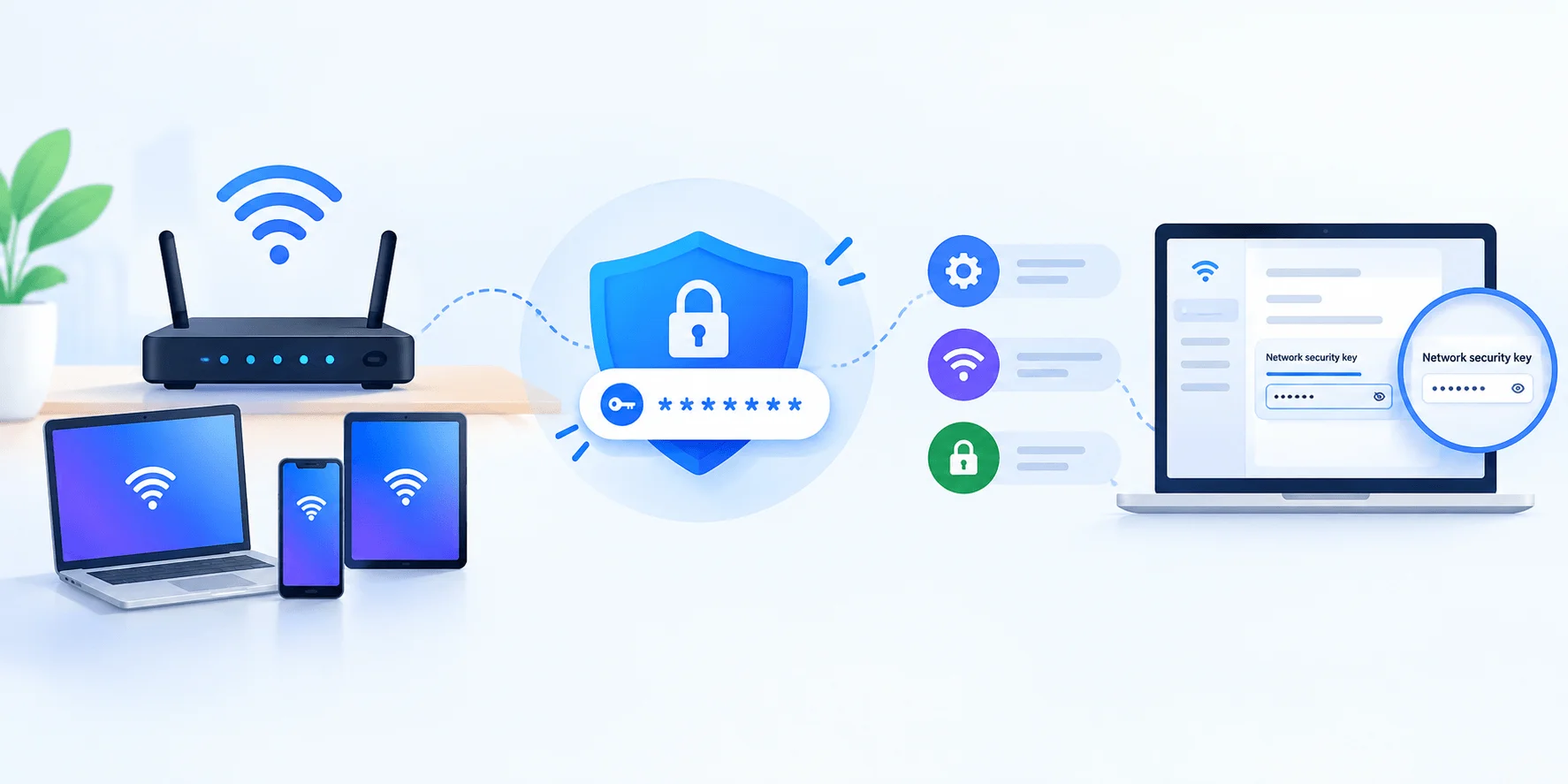
Your Wi-Fi password handles two jobs at the same moment. First comes authentication: your device and router run a handshake to prove both know the same secret. Then comes data encryption: that handshake generates session keys that scramble your traffic with AES encryption. The FTC warns that people on an unprotected network might see what you do online.
Here's why that matters.
Your signal travels past your walls, into the hallway and the street.
The key is what stops strangers from joining and snooping.
The 4 Types of Network Security Keys
Every Wi-Fi password is only as strong as the protocol behind it. There are four wireless security protocols: WEP, WPA, WPA2, and WPA3. Each generation fixed flaws found in the one before, and all of them are certified by the Wi-Fi Alliance. This table gives you the full picture at a glance.
Protocol | Introduced | Encryption | Status | Use It? |
|---|---|---|---|---|
WEP | 1997 | RC4 | Broken | ❌ No |
WPA | 2003 | TKIP | Outdated | ❌ No |
WPA2 | 2004 | AES (CCMP) | Acceptable fallback | ✅ If no WPA3 |
WPA3 | 2018 | AES + SAE | Current standard | ✅ Yes |
WEP and WPA: Retire Them Today
WEP shipped with the original 802.11 standard in 1997, and its RC4 design was cracked years ago. WPA arrived in 2003 as a stopgap using TKIP, which the Wi-Fi Alliance built because WEP had serious weaknesses. Today, CISA tells you to replace or upgrade any router still using WEP, WPA, or WPA2-TKIP.
Treat both as unlocked doors.
WPA2: The Acceptable Fallback
WPA2 launched in 2004 and ruled home Wi-Fi for well over a decade. When set to WPA2-AES (also labeled WPA2-PSK or WPA2-Personal), CISA still considers it safe. It has two known weak spots, though. Attackers can capture a handshake and guess passwords offline, and the 2017 KRACK attack exposed flaws in the four-way handshake itself.
Use it only when WPA3 isn't an option.
And keep every device patched.
WPA3: The Current Standard
WPA3 is the strongest option available, and it's what I recommend for every home network that supports it. The Wi-Fi Alliance introduced WPA3 in June 2018, and it became mandatory for Wi-Fi CERTIFIED devices on July 1, 2020. It also requires Protected Management Frames, and it's mandatory for Wi-Fi 6E devices on the 6 GHz band.
What SAE Changes for You
WPA3-Personal replaces the old pre-shared key exchange with Simultaneous Authentication of Equals (SAE), also called the Dragonfly handshake. The Wi-Fi Alliance's WPA3 Security Considerations explains that SAE resists offline dictionary attacks, so a captured handshake can't be cracked at home. It also adds forward secrecy, which keeps past traffic protected even if your password leaks later.
WPA2 vs WPA3: Which Should You Choose?
Choose WPA3-Personal whenever your router and devices support it. If some older gadgets can't connect, use WPA3 transition mode, which runs WPA3 and WPA2 side by side with the same password. Only fall back to WPA2-AES on its own if WPA3 isn't listed at all. Use this table to pick the right setting from your router's security menu.
If your router offers… | Choose this | Why |
|---|---|---|
WPA3-Personal | ✅ WPA3-Personal | Strongest home protection |
WPA3/WPA2 transition (mixed) | ✅ Transition mode | Supports older printers and TVs |
WPA2-Personal (AES) only | ✅ WPA2-AES | Acceptable, keep firmware updated |
WPA2-TKIP, WPA, or WEP only | ❌ Replace the router | CISA flags these as unsafe |
Running a business network? Look at WPA3-Enterprise. It uses 802.1X so each user signs in with individual credentials instead of one shared key, as Cisco's deployment guide outlines.
How to Find Your Network Security Key (Step-by-Step)
You can find your Wi-Fi password in under two minutes if you know where to look. The fastest route depends on what's nearby: the router, a computer already connected, or a phone that joined before. Each method below uses official steps from the device maker. Pick your device and follow along.
On Your Router
Your router is the most reliable source, especially if nobody changed the default password. Most ISPs print it on a label on the bottom or back, marked "Wi-Fi Password," "WPA Key," or "Network Key." If it was changed after setup, you'll need to log into the router admin page instead.
Check the router sticker for the default Wi-Fi password.
If it was changed, open Command Prompt on a connected PC and type
ipconfig.Note the Default Gateway address, as Microsoft's Q&A team explains.
Enter that address in your browser and log in.
Open Wireless or Wi-Fi Settings and read the password field.
On Windows 11 and Windows 10
Windows stores the password for every network your PC has joined, and revealing it takes a few clicks. Windows 11 added a direct "Show" button, while Windows 10 uses the older wireless properties window where the "Network security key" label appears. Both methods come from Microsoft Support.
Windows 11:
Open Settings > Network & internet > Wi-Fi > Manage known networks.
Select your network.
Click Show next to Wi-Fi network password.
Windows 10:
Open Settings > Network & Internet > Status > Network and Sharing Center.
Click your Wi-Fi network, then Wireless Properties.
Open the Security tab and check Show characters.
Command Prompt Method
This trick works on both versions and reveals passwords for networks you're not currently connected to. Open Command Prompt and run netsh wlan show profile to list saved networks. Then run the command below with your network name, and read the value next to Key Content.
netsh wlan show profile name="YourNetworkName" key=clear
On iPhone, iPad, and Mac
Apple devices sync saved Wi-Fi passwords through iCloud Keychain, so any of them can reveal a network another one joined. iOS 16 and later let you view the password in Settings, and iOS 18 added the dedicated Passwords app. Face ID, Touch ID, or your passcode protects the reveal.
iPhone or iPad (Apple Support):
Open Settings > Wi-Fi.
Tap the Info (i) button next to the network.
Tap Password and authenticate.
Mac on macOS 13+ (Apple Support):
Open System Settings > Network > Wi-Fi.
Click Advanced to see known networks.
Click More (…) beside the network and choose Copy Password.
On Android
Android phones running version 10 or later can create a Wi-Fi QR code containing your network name and password. Guests scan it with their camera to join instantly. Most phones also print the password in plain text below the code, so you can read it yourself.
Steps, via How-To Geek:
Open Settings > Network & internet (or Connections) > Wi-Fi.
Tap your connected network or its gear icon.
Tap Share or the QR code icon.
Confirm with your PIN or fingerprint.
Read the password or let someone scan the code.
On a Mobile Hotspot
A phone hotspot has its own network security key, separate from your home Wi-Fi. You set it in the hotspot menu, and you can change it anytime. If you're new to tethering, start with our explainer on what a mobile hotspot is and how it works. Then find your hotspot password here:
iPhone: Settings > Personal Hotspot > Wi-Fi Password
Android: Settings > Network & internet > Hotspot & tethering > Wi-Fi hotspot > Hotspot password
Menu names vary a little by phone brand.
How to Change Your Wi-Fi Password
Changing your Wi-Fi password is one of the fastest security upgrades available, especially if you still use the ISP default. Anyone who visited your home might know the old one. The change happens in your router's admin page and takes about five minutes. Every device will disconnect afterward, so have the new password ready.
Log into your router admin page.
Go to Wireless > Security (names vary by brand).
Set the security mode to WPA3-Personal or transition mode.
Enter a new Wi-Fi passphrase of 12 characters or more.
Click Save or Apply.
Reconnect each device with the new key.
WPA and WPA2 passphrases can run 8 to 63 characters, so use the room. A phrase like purple-kettle-dances-at-noon beats P@ss123 easily. For router-by-router screenshots and ISP app instructions, follow our full guide on how to change your Wi-Fi password.
How to Fix a "Network Security Key Mismatch" Error
A network security key mismatch means your device and router disagree on the password or security settings. A typo is the usual culprit. Outdated drivers and incompatible security modes cause the rest. Printers, smart TVs, and older IoT gadgets often fail here because they only support WPA2 while the router runs WPA3-only.
Work through these fixes in order:
Retype the key. Passwords are case-sensitive.
Forget the network and reconnect to clear old saved credentials.
Restart the router and the device.
Update Wi-Fi drivers on Windows PCs.
Enable WPA3 transition mode for older printers, TVs, and consoles.
Factory reset the router as a last resort, then use the sticker password.
7 Best Practices to Keep Your Wi-Fi Key Safe
A strong password only protects you when the rest of the router is locked down too. Weak defaults, stale firmware, and risky convenience features can quietly undo your work. These seven practices come straight from CISA and the FTC, so you're following official guidance.
Use WPA3, or WPA2-AES at minimum.
Create a strong Wi-Fi password without your name, address, or router brand.
Change the router admin password from its default.
Disable WPS. CISA warns its PIN design makes brute force attacks easier.
Set up a guest Wi-Fi network for visitors and smart devices.
Update router firmware. Patches fixed KRACK. A new password alone didn't.
Turn off remote management unless you need it.
Network Security Key FAQs
These are the questions people ask most after running into the term for the first time. Each answer is short and direct, built on the official sources cited throughout this guide. If your question isn't covered, the step-by-step sections above go into more detail on every device.
Is a network security key the same as a Wi-Fi password?
Yes. For home networks, the network security key and the Wi-Fi password are identical. Windows simply uses the more technical label. The only related credential that differs is the router admin password, which protects your router's settings page instead of the network itself.
How long should my Wi-Fi password be?
WPA and WPA2 accept passphrases from 8 to 63 characters. Eight is the bare minimum and too short for comfort. Aim for at least 12 to 16 characters, ideally a string of random words you can remember. WPA3's SAE makes offline guessing much harder, but length still helps.
Where is the network security key on my router?
Look for a label on the bottom or back of the router marked Wi-Fi Password, WPA Key, or Network Key. If the password was changed after setup, log into the router's admin page using the default gateway address and open the wireless settings.
Can I share my Wi-Fi password from iPhone to Android?
Yes. On iOS 18 or later, open the Passwords app, tap Wi-Fi, choose your network, and select Show Network QR Code. The Android phone scans it with its camera to join. This option is also documented for the Passwords app on Mac. Want a printable code for guests instead? Follow our guide to creating a QR code.
Why does my printer say the network security key is wrong?
Many printers and smart TVs only support WPA2. If your router is set to WPA3-only, these devices reject the correct password. Switch the router to WPA3/WPA2 transition mode, or put older devices on a separate guest network, then reconnect.
What's the difference between WPA2-Personal and WPA2-Enterprise?
Personal mode uses one shared password for everyone, which suits homes. Enterprise mode uses 802.1X, so each user signs in with individual credentials checked by an authentication server. Businesses prefer Enterprise because removing one employee doesn't require changing the password for everyone.
Does changing my Wi-Fi password protect me from KRACK?
No. The KRACK researchers explain the attack targets the WPA2 handshake, so a new password doesn't stop it. The real fix is updating your devices and router firmware. Moving to WPA3 adds another layer of protection.
Is WPA2 still safe in 2026?
WPA2-AES remains acceptable according to CISA, as long as devices are patched and the password is strong. WPA3 is clearly better, though. It blocks offline dictionary attacks and adds forward secrecy. If your router supports WPA3, switch today.
Network Security Key: Key Takeaways
Your network security key is simply your Wi-Fi password, backed by the protocol that encrypts your traffic. The type of protection matters as much as the password itself, so WPA3 plus a long passphrase is the combination to aim for. Keep these points handy:
Network security key = Wi-Fi password. Windows just uses the technical name.
Use WPA3, or transition mode if older devices struggle.
Find it on the router label, in Windows settings, or in Apple's Passwords app.
Mismatch errors usually come from typos or WPA3-only settings.
Update firmware, because patches protect you where passwords can't.
Log into your router now and check its security mode.
If it says WEP, WPA, or TKIP, upgrade today.
Which device gave you the most trouble finding your network security key? Tell me in the comments.