Quick answer: You can create a QR code in under 10 seconds using your browser's built-in tool, or use a free QR code generator like Canva or Adobe Express for a fully branded design. For business use, a dynamic QR code gives you tracking and editable links. Below, I'll walk you through every method, step-by-step.
Now let me tell you a quick story.
I still remember the first time I tried to create a QR code for a client's flyer. I had no idea where to start, and honestly? Most of the "guides" I found online were either outdated or way too technical.
So I decided to fix that.
In this guide, I'm going to show you exactly how to create a QR code — whether you want something quick and free, or a fully branded, trackable code for your business. You'll learn the tools, the steps, and the mistakes to avoid.
Let's dive in.
What Is a QR Code (And Why Should You Care)?
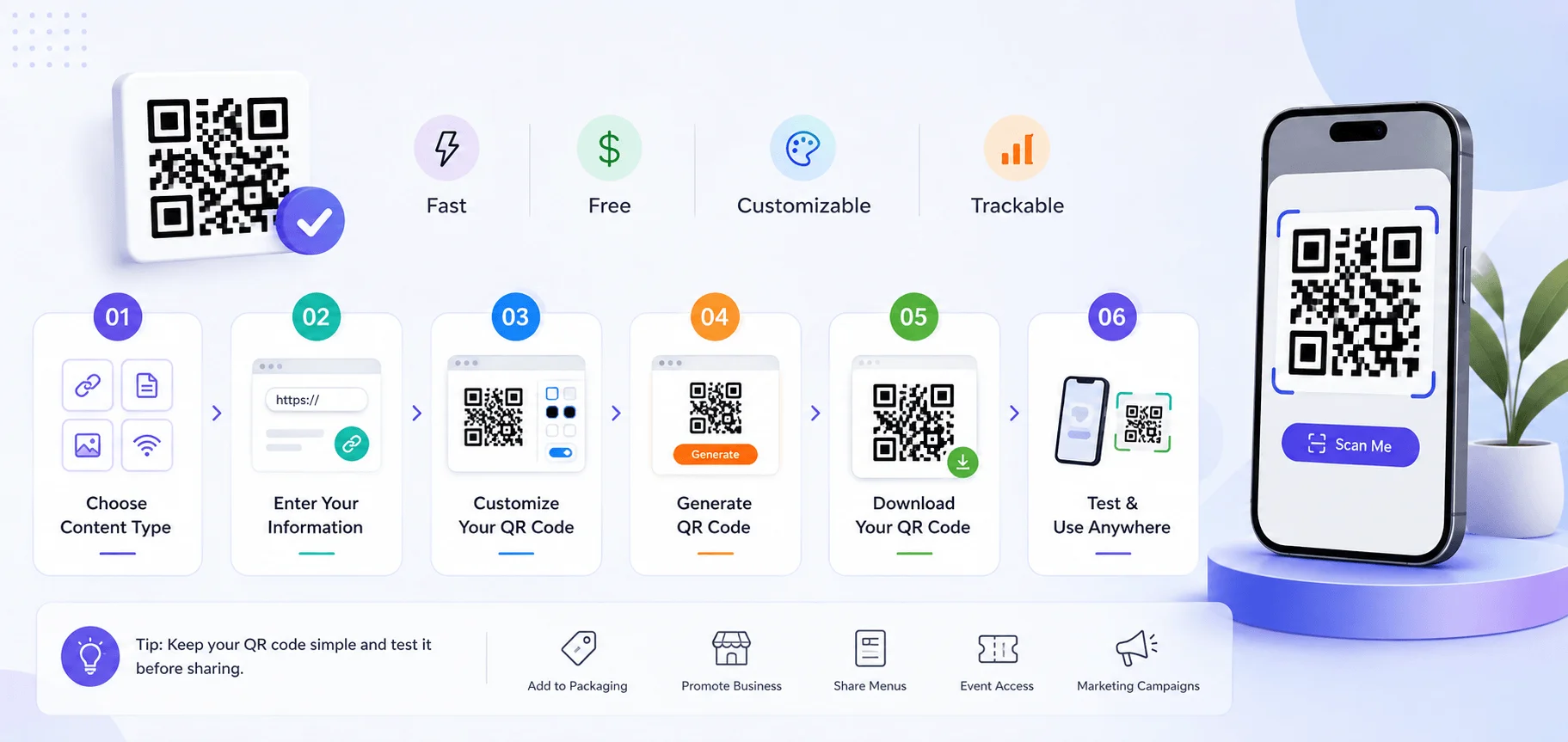
Quick refresher before we get into the how-to part. A QR code — short for "Quick Response code" — is a type of scannable barcode that transports users from something physical (like a poster or a menu) straight to a digital destination. Think of it like a little digital doorway.
You point your camera. You tap. You're there. No typing, no searching.
Here's the thing, though — QR codes aren't some pandemic-era gimmick that's fading away. Quite the opposite, actually.
According to Uniqode's 2026 data, roughly 102.6 million people are expected to scan QR Codes in 2026 — that's about one in three Americans. And 98% of marketers report a positive impact from using them. That's not a small number, my friend.
Meanwhile, QRTRAC reports that 72% of consumers scanned a QR code in the past month, with restaurant and hospitality applications accounting for 42% of all scans. So yeah — this stuff is very much alive.
Now let's get you one of your own.
Method 1: Create a QR Code Using Your Browser (Fastest, Free)
Okay, so if you're in a hurry and just need a simple QR code for a webpage — I've got great news. You don't need any app. You don't need to sign up anywhere. Your browser can do it.
This is honestly my go-to when I just need something fast.
Step-by-Step: Chrome or Edge
Open Google Chrome or Microsoft Edge.
Navigate to the webpage you want people to land on.
Right-click anywhere on the page.
Select "Create QR Code for this page."
Your browser instantly generates a unique QR code for that exact URL.
Hit the download button.
That's it. Seriously.
If you're someone who lives in your browser for quick tasks like this, you might also like my breakdown of the best productivity Chrome extensions for 2026 — a few of them make QR generation and sharing even faster.
According to Zapier's breakdown, Android users can do something similar — tap the three dots in the address bar, hit Share, then QR Code.
Boom. Done in under 10 seconds.
But — and this is important — this browser trick only handles the simplest case. If you want a custom QR code with your logo, brand colors, or something more advanced like a WiFi QR code or vCard QR code, you'll need a dedicated tool. Let's talk about that next.
Method 2: Use a Free Online QR Code Generator
Alright, so let's say you want more control. Maybe you're building something for a client, or maybe you just want it to look... nicer.
This is where a proper QR code generator comes in.
Here's how it typically works, step-by-step:
Choose the type of content. Most generators let you pick from options like URL, text, email, phone number, PDF, or WiFi credentials.
Enter your information. If you picked "URL," you'll just paste your link in.
Customize (optional). Change colors, add a logo, tweak the pattern.
Generate the code. Click "Create" or "Generate."
Download it. Choose your file format — usually PNG or JPG.
Pretty painless, right?
Now — a quick heads up. According to QRCodeKIT's 2026 guide, you'll want to decide early whether you need a static QR code or a dynamic QR code. Here's a side-by-side so you can decide fast:
Feature | Static QR Code | Dynamic QR Code |
|---|---|---|
Editable after printing | No | Yes |
Scan tracking/analytics | No | Yes |
Cost | Usually free | Often subscription-based |
Best for | One-time use, personal projects | Marketing campaigns, packaging, ads |
Link changes if destination moves? | No — code becomes dead | Yes — update anytime |
I always recommend dynamic codes for anything you're printing at scale. Trust me on this one. Not sure which tool to trust? See which free QR code generator never expires, and which ones cap your scans
Method 3: Design a Custom QR Code with Canva or Adobe Express
Now here's where things get fun. If you want your QR code to actually match your brand — not just look like a random black-and-white square — you'll want a design tool.
Using Canva
Per Zapier's guide, here's the process:
Go to canva.com and log in (or sign up free).
Click "Create a design."
Choose your size — poster, flyer, business card, or custom dimensions.
Search for the QR code app inside Canva's tools.
Paste your link and generate.
Style it to match your design — colors, fonts, the whole deal.
Using Adobe Express
Similarly, Adobe Express offers a free QR generator that doesn't even require an account:
Copy and paste your URL.
Click "Generate QR code."
Adjust the style and color if you'd like.
Download — or open it directly inside Adobe Express to keep designing.
Quick comparison, since I get asked this constantly:
Tool | Account Required | Best For | Free Tier |
|---|---|---|---|
Canva | Yes | Posters, flyers, business cards | Yes |
Adobe Express | No | Quick one-off codes | Yes |
Browser tool | No | Instant, no-frills QR codes | Always free |
I've personally tested all three side-by-side for a client project, and honestly, Adobe Express wins on speed while Canva wins on design flexibility. It really comes down to what you're optimizing for.
Method 4: Create Specialized QR Codes (WiFi, vCard, Payments)
Here's something a lot of beginner guides skip over — not every QR code links to a website. You can actually encode all kinds of data directly into a QR code. Let me break down the most useful ones.
WiFi QR Codes
Ever walked into a coffee shop and scanned a code to join their WiFi instantly? That's a WiFi QR code. No typing passwords. No spelling errors. Just scan and connect.
If your WiFi connection itself is spotty in the first place, no QR code will fix that — check out my guide on how to improve your WiFi signal first.
vCard QR Codes
A vCard QR code stores your entire contact card — name, phone, email, company. Scan it, and it drops straight into someone's phone contacts. Genius for business cards, if you ask me.
Payment QR Codes
According to QRCodeChimp's 2026 data, push-payment QR codes held 58.67% of payment-model revenue in 2025, and India's UPI system alone processed 23.2 billion transactions in a single month this year. That's massive.
Menu QR Codes
And of course — the classic. Restaurants use these constantly. Per QRTRAC, hospitality accounts for the single biggest share of all QR scans.
Most generators let you pick these formats from a dropdown menu — you don't need separate tools for each one.
Choosing the Right File Format (PNG vs. SVG)
Okay, quick technical detour — but stick with me, because this genuinely matters.
When you download your QR code, you'll usually get a choice between PNG and SVG. Here's the breakdown, per IronSoftware:
Format | Type | Best Use | Scales Without Blurring? |
|---|---|---|---|
PNG | Raster | Websites, presentations, digital | No |
SVG | Vector | Print — flyers, banners, packaging | Yes |
If you ever need to convert between formats — say, turning a scanned code into a PDF for a print vendor, or converting a HEIC file to JPG for a logo you want to embed — those guides walk you through it.
If you're printing something big — like a billboard or storefront sign — always go SVG. A blurry QR code that won't scan is worse than no QR code at all.
Best Practices for a Scannable QR Code
Alright, let's talk about making sure your code actually works. A QR code nobody can scan is basically useless — I've seen this mistake more times than I can count.
Use a high error correction level. Per QRNow's guide, setting your error correction level up to 30% means your code stays scannable even if part of it is damaged or covered by a logo.
Link to mobile-friendly content. Most scans happen on phones. Don't send people to a desktop-only page.
Give people a reason to scan. A discount, exclusive content, a free download — anything. Per QRNow, a clear incentive dramatically boosts scan rates.
Add a call-to-action frame. A QR code frame with text like "Scan Me" adds context and draws the eye.
Test before you print. Scan it with multiple phones before finalizing anything for print. Once it's on 10,000 flyers, it's too late.
Watch Out for "Quishing" (QR Code Phishing)
Here's something newer that's worth flagging. As QR codes have grown in popularity, so has QR phishing, often called "quishing."
Per Krofile's 2026 report, quishing has become a real security concern — scammers create malicious QR codes leading to fake login pages or malware downloads.
My advice? Always use a branded QR code with a custom, recognizable domain when possible. It builds trust and makes it obvious the code is legitimately yours — not some scammer's link.
Should You Use a Dynamic QR Code for Business?
If you're generating QR codes for actual marketing purposes, I'd strongly push you toward dynamic codes.
Per Mordor Intelligence's data, dynamic QR codes represented 64.92% of format revenue in 2025 and are projected to grow at a 17.27% CAGR through 2031. Businesses are clearly voting with their wallets here.
The benefit is simple: you get scan tracking, the ability to update the destination link anytime, and real data on how your campaign is performing. Static codes give you none of that.
Frequently Asked Questions
Do QR codes expire?
Static QR codes never expire — they're permanent once generated. Dynamic QR codes technically don't expire either, but the service hosting them could stop working if you cancel a subscription, so check your provider's terms.
Is Canva or Adobe Express better for creating a QR code?
Adobe Express is faster and doesn't need an account, making it better for quick one-off codes. Canva offers more design flexibility, which makes it better if you're building a full flyer or poster around the code.
Can I create a QR code for free?
Yes. Your browser (Chrome or Edge), Adobe Express, and most basic generator tools let you create a QR code at no cost. Paid tiers usually unlock dynamic tracking and bulk generation.
Why won't my QR code scan?
The most common causes are low error correction, poor print resolution, or a logo covering too much of the code. Always test your code on multiple devices before printing at scale.
What's the difference between a static and dynamic QR code?
A static code's destination is locked forever. A dynamic code can be edited after printing and gives you scan analytics — see the comparison table above for a full breakdown.
Final Thoughts: Which Method Should You Actually Use?
So, which method is right for you? Honestly, it depends on what you're trying to do.
Need something in 10 seconds? Use your browser's built-in tool.
Want a polished, branded design? Go with Canva or Adobe Express.
Running a real marketing campaign? Use a dedicated QR generator with dynamic tracking.
Building something programmatically? Look into a QR code API or SDK.
Whatever route you pick, the core steps stay the same: choose your content type, enter your details, customize if you'd like, generate, and download.
That's genuinely all there is to it.
Now go create a QR code — and go make it a good one.