Quick answer: To convert JPG to PDF free on Windows, right-click your image in File Explorer, select Print, choose Microsoft Print to PDF as the printer, then click Print and save. On Mac, open the image in Preview and choose File → Export → PDF. Both are free, instant, and require no upload.
Now the longer version.
I've converted thousands of images over the years. Screenshots, scanned passports, receipts crumpled at the bottom of a bag — all of it.
And here's the thing nobody tells you when you search convert JPG to PDF free: the fastest method is already installed on your device. You don't need a website. You don't need an account. You definitely don't need to upload your bank statement to a random server in a country you can't spell.
This guide walks you through every free method, ranked by how much I actually trust them.
Let's get into it.
Why Convert JPG to PDF at All?
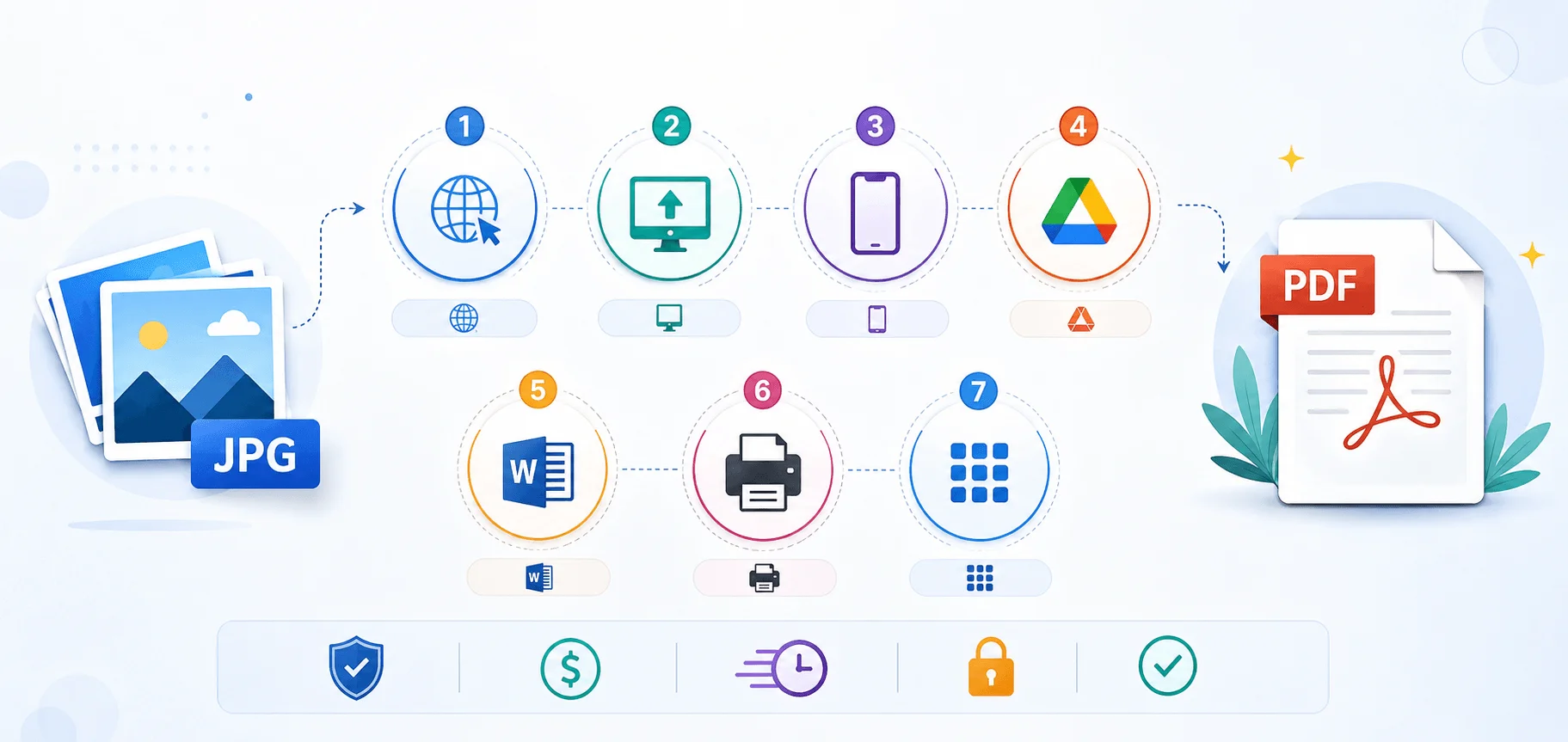
Before I show you the how, let me spend thirty seconds on the why — because understanding this changes which method you pick. A JPG is a picture file. A PDF, short for Portable Document Format, is a document container standardised internationally as ISO 32000-2. That distinction sounds academic until you try to email fourteen separate photos of a lease agreement to a landlord who wanted one file. PDFs hold multiple pages, print predictably, and render identically on every device and operating system you'll ever touch.
Here's what pushes most people to convert:
Combining multiple images into one PDF for job applications, visa forms, or invoices
Locking in page orientation and A4 paper size so nothing shifts when printed
Meeting an upload portal that flatly rejects
.jpgfilesCreating a document that survives long-term — the Library of Congress tracks PDF/A precisely because it's built for archival stability
Quick sidebar, since I get asked constantly: JPG and JPEG are the same format. The three-letter version is a leftover from early Windows, which only supported three-character file extensions. No difference in quality. None.
Method 1: Microsoft Print to PDF (Windows 10 and Windows 11)
This is my default recommendation, and honestly it's not close. Windows ships with a virtual printer called Microsoft Print to PDF that converts any image without a single byte leaving your machine. No watermark. No signup. No registration required, no file size limit, and unlimited free conversions for as long as you own the computer. It's the answer most "free tool" articles bury below six affiliate links, which tells you something about how those articles get paid.
Step-by-step: convert JPG to PDF on Windows
Open File Explorer and find your JPG.
Right-click the image and choose Print.
In the Printer dropdown, select Microsoft Print to PDF.
Set your paper size, margins, and layout — portrait or landscape.
Click Print, name the file, and hit Save.
That's it. Five clicks, roughly nine seconds.
Don't see the option? Enable it manually under Control Panel → Programs → Turn Windows features on or off, then tick Microsoft Print to PDF in the list of optional Windows features.
One honest limitation: the Windows Photos app can't batch-convert multiple images into a single PDF. For one or two files, it's perfect. For thirty scanned pages, skip to Method 5.
A warning about the browser print trick
Some guides suggest opening your JPG in Chrome and pressing Ctrl+P. It works — but I'd avoid it. That route re-scales the image during printing, and results can come out pixelated or blurry. If image quality matters, and for a signed contract it absolutely does, use File Explorer instead.
Worth noting for Chromebook users: you don't have Microsoft Print to PDF, but ChromeOS includes Save as PDF inside its native print dialog, which behaves the same way.
Method 2: Preview on Mac (Free, Built In, Underrated)
Mac users, you've got the most capable free image to PDF converter of anyone reading this, and it's been sitting in your Applications folder the whole time. Preview handles single files, batch conversions, compression filters, and password encryption without asking for a cent. Apple documents all of it officially, which is more than I can say for most converter websites. I've used this method for years across four different Macs and never once needed a paid tool for basic conversion work.
Converting a single image
Per Apple's own Preview guide:
Open your image in Preview.
Choose File → Export.
Click the Format pop-up menu and select PDF.
Optionally apply a Quartz filter to shrink file size, or encrypt the file with a password.
Name it, pick a location, click Save.
Converting multiple images at once
Open all the images in one Preview window, select them in the sidebar, then follow the same steps. Apple explicitly supports this — it's the cleanest batch convert workflow available for free on any operating system.
Prefer more control over page scaling? Use File → Print → Save as PDF instead. Slower, but you get proper layout settings.
Method 3: iPhone (The Feature Apple Hid on Purpose, Apparently)
There is no giant "Convert to PDF" button anywhere in iOS. There should be. Instead the feature lives buried inside the Share menu, which is exactly why so many people assume their iPhone simply can't do this on its own. It absolutely can, and the whole thing takes about ten seconds once somebody shows you where to look. Even better, this method automatically merges several photos into one single document — a feature plenty of paid App Store tools will happily charge you for.
The Print trick (works with every image format)
Open Photos and select your image — or several images.
Tap the Share icon.
Scroll down and tap Print.
On the preview screen, tap Share again in the top right.
Choose Save to Files.
Select multiple photos before step two and iOS merges them into one PDF in your selection order. Genuinely useful.
The Files app method
Alternatively: save your photo to Files, long-press it, tap Quick Actions, then Create PDF.
Fair warning — this route only works on JPEG images. If your iPhone shoots in HEIC, which it does by default, the option may not appear. Use the Print trick instead. (While you're in the settings weeds, we've also covered how to cancel a subscription on iPhone.)
Method 4: Android and Google Drive
Android's approach is different — it's built around scanning rather than converting, which turns out to be better for anyone photographing paperwork. Google Drive ships on virtually every Android phone and includes a document scanner that outputs PDFs directly. No third-party app. No Play Store hunting. And because it's Google's own infrastructure, you're not handing files to an unknown operator.
Here's the flow, per Google's official Drive documentation:
Open Google Drive and tap the + button.
Select Scan and photograph your document.
Adjust using Crop & Rotate, apply a Filter, or use Clean to erase stains and fingers.
Tap Add to scan additional pages into the same file.
Name your file and choose .pdf as the format.
Pick a Drive folder, then tap Save.
The Clean tool is quietly excellent. It removes shadows and thumb-tips from photographed receipts, and the output looks close to a flatbed scan.
Method 5: Free Online Converters Compared
Now we get to what most people actually searched for. Online tools require nothing but a browser, support drag and drop upload, and handle batch conversion far better than any built-in method. But they are not equivalent to each other, and the differences matter considerably more than the marketing copy on their homepages suggests. The single question that separates a safe tool from a risky one is where your file is actually processed.
Tool | Watermark | Signup | Processing | File deletion | Batch |
|---|---|---|---|---|---|
PDFgear | None | Not required | In-browser (local) | Never uploaded | Yes |
Drawboard | None | Not required | In-browser (local) | Never uploaded | One at a time |
Smallpdf | None | Not required | Server-side | 1 hour | Yes |
PDF24 | None | Not required | Server-side | Short retention | Yes |
FreeConvert | None | Not required | Server-side | Not stated | Yes |
FreePDFConvert | None | Not required | Server-side | 3 hours | Paid tier |
Client-side tools
Client-side processing means your file never leaves your device. PDFgear converts locally in the browser without uploading, and Drawboard processes everything on-device. For sensitive documents, this is the only acceptable answer among online tools.
Server-side tools
Server-side processing means uploading. Reputable services handle it responsibly — Smallpdf uses TLS encryption and deletes files one hour after conversion, while FreePDFConvert gives you a three-hour download window before deletion. That's fine for a holiday snapshot. It is not fine for your passport.
Most of these also accept PNG, BMP, GIF, HEIC, TIFF, and WebP alongside JPG.
Method 6: The Security Risk Nobody Mentions
I'm putting this in its own section because it's the most important thing in this article, and almost no competing guide covers it. In March 2025, the FBI issued a public warning about exactly the kind of tool you were about to click on. This isn't hypothetical scaremongering or SEO fear-bait — it's a federal advisory naming this specific use case, and it deserves ninety seconds of your attention before you upload anything.
According to the FBI Denver Field Office, criminals are using free online document converter tools to load malware onto victims' computers, in some cases leading to ransomware.
The bureau specifically called out sites offering to combine multiple JPEG files into one PDF as a lure. The malicious tools do perform the conversion — that's what makes them convincing — while the returned file carries hidden code capable of harvesting names, Social Security numbers, banking credentials, and cryptocurrency wallet details.
Security researchers confirmed the pattern independently.
Never install a browser extension a converter site pushes on you — stick to extensions you've actually vetted
How you stay safe
Use built-in OS methods for anything sensitive — IDs, medical records, financial statements
Stick to established names with a public privacy policy if you must go online
Never install a browser extension a converter site pushes on you
Be suspicious of any tool demanding a desktop download for a browser-level task
Scan downloaded files before opening them
Honestly? If the document contains personal data, just use Method 1 or Method 2. Free, instant, zero exposure.
Method 7: Quality, File Size, and Getting It Right
Conversion isn't lossless, and pretending otherwise does you no favours at all. JPG uses lossy compression, meaning data is permanently discarded every time the file is written. How your chosen converter handles DPI and resolution determines whether the finished PDF looks crisp on a client's screen or like a fax sent from 1997. A little care at this stage saves you redoing the entire job later, which I have done more times than I'd like to admit.
Keeping quality high
Don't resize or re-compress your JPG before converting
Select High Quality or Print Quality output where offered
Match paper size to your image aspect ratio to avoid awkward scaling
Avoid double conversion — every round trip degrades the image
Shrinking an oversized PDF
Upload portals love their 2MB limits, and if you're fuzzy on what those numbers actually mean, here's how file sizes scale from GB to TB. On Mac, apply a Quartz filter during export.
Frequently Asked Questions
These are the questions I get asked most often, pulled straight from search data and reader emails. Short answers, no padding — because if you're mid-task you don't want three paragraphs of preamble before the thing you came for. Each one links back to the relevant method above if you need the full walkthrough.
Is JPG the same as JPEG?
Yes, identical. JPG is simply the three-letter shorthand, a holdover from early Windows versions that only supported three-character file extensions. Same compression, same quality, same underlying standard.
How do I combine multiple JPGs into one PDF for free?
On Mac, open all images in one Preview window and export together. On iPhone, select multiple photos before tapping Share → Print. On Android, use Google Drive's Scan and tap Add for each page. Online, any server-side tool in the table above handles it.
Is it safe to use free online JPG to PDF converters?
For non-sensitive images, established tools are generally fine. For anything containing personal data, the FBI's 2025 advisory is reason enough to use a built-in operating system method instead.
Why won't my iPhone show the Create PDF option?
Your photo is probably in HEIC format. The Files app Create PDF shortcut only works on JPEG files. Use the Photos → Share → Print method instead, which works with every format.
Will converting to PDF reduce my image quality?
Slightly, depending on settings. Choose High Quality output and avoid pre-compressing the JPG. Browser-based printing causes the most visible degradation.
Can I convert JPG to PDF without internet access?
Yes. Microsoft Print to PDF, Mac Preview, and the iPhone Print method all work completely offline.
Which Method Should You Actually Use?
Let me make this simple, because you've read enough.
Windows, one or two images: Microsoft Print to PDF. Done.
Mac, any number of images: Preview → File → Export. Done.
iPhone: Photos → Share → Print → Save to Files.
Android: Google Drive → + → Scan.
Thirty images, needs merging, nothing confidential: a client-side online converter from the table above.
Anything with your name, address, or account number on it: built-in tools only. No exceptions. The FBI warning exists for a reason.
The best way to convert JPG to PDF free was never a website. It was the thing already on your device — you just needed someone to point at it.
Now go convert something.