What is a Docker container? A Docker container is a lightweight, isolated process that packages an app with everything it needs to run: code, libraries, and settings. It is a running instance of a Docker image, and it shares the host's kernel, so it starts faster and uses fewer resources than a virtual machine.
That's the short answer.
Now let me show you how it works, where it fits, and how you can run your first one in about five minutes.
What Is a Docker Container, Really?
Let's strip away the jargon. A container is a process running on your machine, wrapped in a protective bubble. Inside that bubble, your app sees its own files, its own network, and its own settings. Outside the bubble, your computer carries on as normal. That separation is the whole trick, and it's why people love this containerization approach so much.
The 4 Traits That Define a Container
Docker's documentation names four core properties. I'm adding my plain-English take on each.
Self-contained: everything the app needs lives inside.
Isolated: it barely touches your host or other containers.
Independent: delete one, and the rest keep running.
Portable: laptop, data center, or cloud, it behaves the same.
Simple enough, right?
Container vs. Containerization
Quick vocabulary check.
A container is the running thing. Containerization is the practice of packaging software this way.
One more heads-up. The Kubernetes documentation warns that "container" is an overloaded word. So when a colleague uses it, it's worth checking they mean the same thing you do.
Why Docker Containers Exist (The "Works on My Machine" Problem)
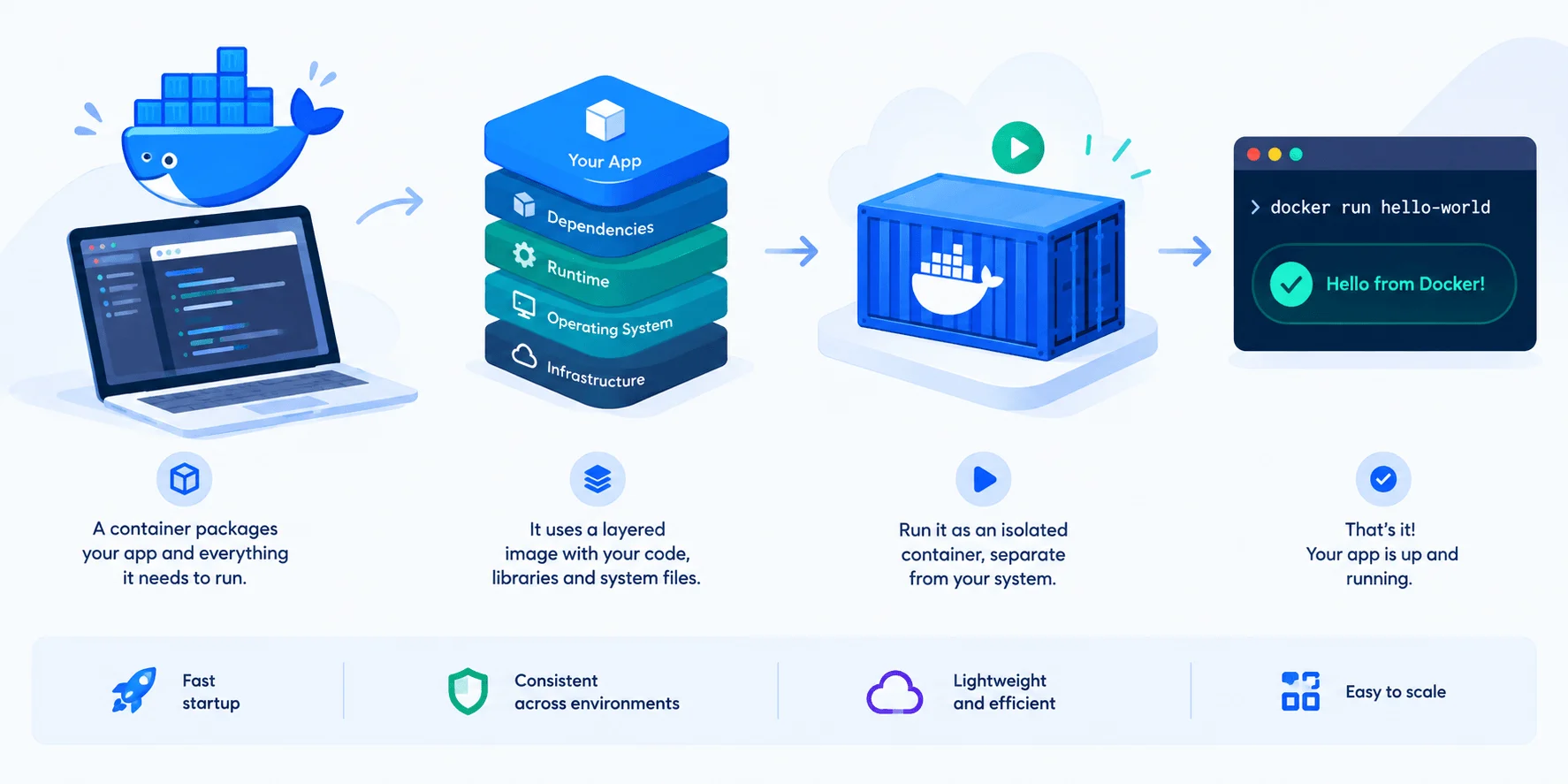
Every developer has said it at least once: "But it works on my machine!"
Then production breaks.
The culprit is nearly always a mismatched environment. Different versions, different libraries, different settings. Containers fix this by shipping the environment along with the app. In this section, I'll show you the problem first and then the fix, because seeing both makes the value obvious.
The Problem
Imagine your team builds a React frontend, a Python API, and a PostgreSQL database.
Without containers, everyone installs Node, Python, and Postgres by hand. One person ends up on version 15. Another lands on version 16. Your CI server has a third opinion.
Sound familiar?
The Fix
With containers, each component runs in its own isolated environment, and you pin the exact versions once.
After that, your development environment, test server, and production all match. That consistency is why DevOps teams rely on containers, and why they slot so neatly into CI/CD pipelines, a use case Docker highlights directly.
Docker Container vs. Image: What's the Difference?
This is the number one point of confusion for beginners, so let's clear it up right now.
An image is the blueprint. A container is the thing built from it. Below, I'll define each term, then give you a side-by-side table you can bookmark, because this comparison comes up in almost every Docker conversation.
What Is a Docker Image?
A container image is a standardized package holding the files, binaries, libraries, and configuration needed to run a container.
Two rules matter here.
First, images are immutable. You can't edit one after it's built. You create a new image or stack changes on top.
Second, images are made of image layers, and each layer records a set of filesystem changes.
What Is a Docker Container, Then?
A container is a runnable instance of an image, as Docker's overview puts it. When it starts, Docker adds a thin read-write layer on top of the image.
But here's the catch.
When you remove the container, any changes not saved to persistent storage disappear.
Side-by-Side Comparison
Feature | Docker Image | Docker Container |
|---|---|---|
What it is | Read-only template | Running instance of an image |
Can you modify it? | No, build a new one | Yes, in a temporary writable layer |
Made of | Stacked layers | Image + writable layer + config |
Lifespan | Stays until you delete it | Ends when removed (unsaved data is lost) |
Analogy | Recipe | The cooked dish |
Docker Container vs. Virtual Machine
Time for the classic showdown.
Both technologies isolate your apps, but they do it in very different ways. That difference explains why containers feel so much lighter. I'll walk through each approach, and then you'll get a table that sums it all up.
How a Virtual Machine Works
A VM carries an entire operating system, with its own kernel, drivers, and programs. According to Docker's explanation, spinning one up just to isolate a single app is a lot of overhead.
How a Container Works
A container is simply an isolated process plus the files it needs.
All containers on a host share the same kernel. No extra operating system per app. That's why you can run more apps on less infrastructure.
Container vs. VM at a Glance
Feature | Docker Container | Virtual Machine |
|---|---|---|
Kernel | Shares the host kernel | Runs its own kernel |
What's inside | App, libraries, settings | Full operating system plus app |
Weight | Lightweight | Heavier |
Isolation | Process-level | Stronger, hardware-level |
Density per server | Higher | Lower |
Best for | Microservices, CI/CD, fast scaling | Running different operating systems, strict isolation |
Can You Use Both Together?
Absolutely, and teams do it constantly. In the cloud, your servers are usually VMs, and you run many containers inside them. Honestly, it's often the best of both worlds.
How a Docker Container Works Under the Hood
Okay, let me pull back the curtain a little.
You don't need this knowledge to use Docker. But understanding it makes debugging far easier, and it helps you explain things to teammates. This section covers the architecture first, then the Linux features doing the heavy lifting, and finally the standards that keep everything compatible.
Docker's Architecture: Client, Daemon, and Registry
Docker uses a client-server architecture. Here's the flow in a simple diagram:
You type: docker run ...
        │
        ▼
 Docker client (docker)
        │  REST API
        ▼
 Docker daemon (dockerd)  ───pulls images───►  Container registry (Docker Hub)
        │
        ▼
   Running container
Diagram: how the Docker client, daemon, and registry work together to run a Docker container.
The client sends your command to the Docker daemon (dockerd) through a REST API. The daemon builds, runs, and distributes containers.
Images live in a container registry. Docker Hub is the default public one, and Docker's docs mention alternatives like Amazon ECR and Azure Container Registry. A registry holds many repositories, and each repository holds related images, such as different versions of one project.
The Linux Features Behind It
So how does Docker isolate a process? With two Linux kernel features.
Linux namespaces give each container a private view of system resources. The namespaces man page lists eight types: cgroup, IPC, network, mount, PID, time, user, and UTS. It even notes that one use of namespaces is to implement containers.
Control groups (cgroups) limit and monitor resource use. The cgroups man page explains that they organize processes into hierarchical groups whose CPU, memory, and other usage can be capped. They first appeared in Linux 2.6.24, and cgroups v2 became official in Linux 4.5.
Together, namespaces decide what a container can see, and cgroups decide how much it can use.
The Standards: Open Container Initiative
Here's something most beginner guides skip.
The Open Container Initiative (OCI) is a Linux Foundation project that Docker, CoreOS, and other industry leaders launched on June 22, 2015. It defines three open specifications: runtime, image, and distribution. The distribution spec reached v1.0 in May 2020, and Docker donated its runtime, runC, to the effort.
Why should you care?
Because an image built with Docker isn't locked to Docker. Other compliant container runtimes, like containerd, can run it too.
Step-by-Step: Run Your First Docker Container
Enough theory. Let's get your hands dirty.
I'll walk you through the exact commands from Docker's beginner tutorial. You'll need Docker Desktop installed first. Each step below takes under a minute, and by the end you'll have a real website running from an isolated container on your own machine.
Step 1: Start a Container
Open your terminal and run:
docker run -d -p 8080:80 docker/welcome-to-docker
The -d flag runs it in the background. The -p 8080:80 part is port mapping, which connects port 8080 on your computer to port 80 inside the container.
If the image isn't on your machine yet, Docker downloads it automatically.
Step 2: Check That It's Running
docker ps
You'll see a table with the container ID, image, status, and ports. Want to include stopped ones? Add -a.
Step 3: Open It in Your Browser
Visit http://localhost:8080.
Boom. A working website, served from an isolated container.
Step 4: Stop the Container
Grab the container ID from docker ps, then run:
docker stop <container-id>
You don't need the full ID. The first few unique characters work fine.
Bonus Step: Peek at the Image Layers
Curious about those layers?
docker pull docker/welcome-to-docker
docker image history docker/welcome-to-docker
You'll see each layer, its size, and the command that created it. In Docker's own tutorial, this small image weighs about 29.7 MB uncompressed, which shows how compact a container image can be.
The Docker Container Lifecycle
You just stopped a container, so let's zoom out. A container moves through a few clear states, and knowing them saves you from confusion. In this short section, I'll map the lifecycle to the commands you already met, so you can predict what happens after each one.
Per Docker's docs, you can create, start, stop, move, or delete a container using the CLI or API. In practice, it looks like this:
Create: Docker builds the container from an image (
docker create).Run: it starts and executes your app (
docker rundoes create plus start).Stop: the process ends, but the container still exists (
docker stop).Remove: it's deleted for good, and unsaved data goes with it (
docker rm).
Remember the earlier exit example? When you quit an interactive container, it stops but isn't removed. You can start it again or delete it.
Dockerfiles, Volumes, and Compose: The Next Steps
Now that you've run a ready-made container, you'll want to build your own. Three tools cover most of what beginners need next: the Dockerfile, volumes, and Docker Compose. I'll introduce each in plain language and link you to the official docs for the deeper details.
What Is a Dockerfile?
A Dockerfile is a text file of instructions for building an image. Each instruction creates a layer. When you change the file and rebuild, Docker only rebuilds the changed layers, which keeps builds fast.
Volumes vs. Bind Mounts
Remember how removing a container erases unsaved data? Volumes solve that. A volume keeps data outside the container's writable layer, so it survives.
This matters most for databases. If you run MySQL or PostgreSQL in a container, keep its data in a volume. And if your queries start dragging, our guide on how to fix slow MySQL queries can help.
A bind mount instead links a folder from your computer into the container. It's handy during development, because you can edit files on your machine and see changes instantly. See Docker's guides on volumes and bind mounts.
What Is Docker Compose?
Real apps use several containers. Docker Compose lets you define and run an application made of multiple containers, like your frontend, API, and database, from one file.
What Can You Use Docker Containers For?
So you've run one. Now what?
Here's where containers earn their keep. These use cases come from Docker's own list, and I've kept each one practical. Skim the bullets below, and then read the microservices part if you plan to work on larger systems.
Fast, consistent delivery: teammates share identical environments, so bugs get fixed once and shipped everywhere.
Scaling and portability: run on laptops, servers, or clouds, and scale up or down in near real time.
Better hardware use: sharing a kernel lets you fit more workloads on each server, which can lower costs.
Microservices and Orchestration
Many teams split big apps into small services, each in its own container. That's microservices architecture.
To manage dozens of them, you'd use Kubernetes orchestration. Kubernetes runs containers inside Pods across a cluster, using runtimes like containerd or CRI-O.
Are Docker Containers Secure?
Short answer? Mostly, yes. But not automatically.
I want to be honest here, because plenty of blog posts gloss over this. Containers share the host kernel, so their isolation is different from a VM's. In this section, I'll cover what Docker does by default, where the risks sit, and what you can do about them.
What Docker Does by Default
According to Docker's security documentation, each container gets namespaces and cgroups. Docker also drops all Linux capabilities except an allowlist of the ones it needs. That's a solid baseline.
Where You Need to Be Careful
Because containers share the host kernel, a kernel bug can matter more than it would with a VM.
Also, the Docker daemon normally needs root privileges, unless you opt into rootless mode. So only trusted users should control it.
Common Docker Mistakes to Avoid
I see the same errors again and again. Watch out for these:
Running as root inside the container. Use a non-root user instead.
Relying on the
latesttag. It changes over time, so pin a specific version.Storing data inside the container. Use a volume, or you'll lose it.
Granting extra capabilities you don't need. Docker recommends removing all but the required ones.
Exposing the Docker daemon API without TLS. Docker requires securing it with certificates. Our guide to the SSL certificate chain explains how those certificates are validated.
Docker also supports user namespaces, which map container root to a non-root host user. They're available but not enabled by default, so consider turning them on.
Docker Container FAQ
Here are the questions people ask most, answered in a sentence or two. Each answer stands alone, so you can jump straight to the one you need.
What is a Docker container in simple terms?
It's an isolated, portable process that bundles an app with its dependencies so it runs the same everywhere.
What is the difference between a Docker image and a container?
An image is a read-only template. A container is a running instance created from that image.
Is a Docker container a virtual machine?
No. A container shares the host's kernel, while a VM runs its own operating system and kernel.
Do Docker containers have their own operating system?
Not a full one. They include the files and libraries they need but use the host's kernel.
Where are Docker images stored?
In a registry. Docker Hub is the default public one, and Docker's image documentation says it hosts over 100,000 images. You can also run a private registry.
What happens to data when a container is removed?
Anything not stored in persistent storage, like a volume, is lost.
Are Docker containers secure?
They're reasonably secure by default thanks to namespaces, cgroups, and dropped capabilities. However, they share a kernel, so hardening still matters.
What is the difference between Docker and Kubernetes?
Docker builds and runs containers. Kubernetes orchestrates containers across many machines.
Can Docker containers run without root?
Yes. Docker offers rootless mode for the daemon.
What is OCI in Docker?
The Open Container Initiative sets open standards for container runtimes, images, and distribution, so images work across compatible tools.
Final Thoughts
So, what is a Docker container?
It's a portable, isolated process that bundles your app with its dependencies. It shares the host kernel, starts fast, and runs the same wherever you put it.
You now know how it differs from an image and a VM. You've seen the Linux features behind it, and you've run your own.
Here's my challenge for you.
Pick a small project you already have. Write a simple Dockerfile for it this week. Then build it, run it, and break it on purpose.
That's how it truly sticks.