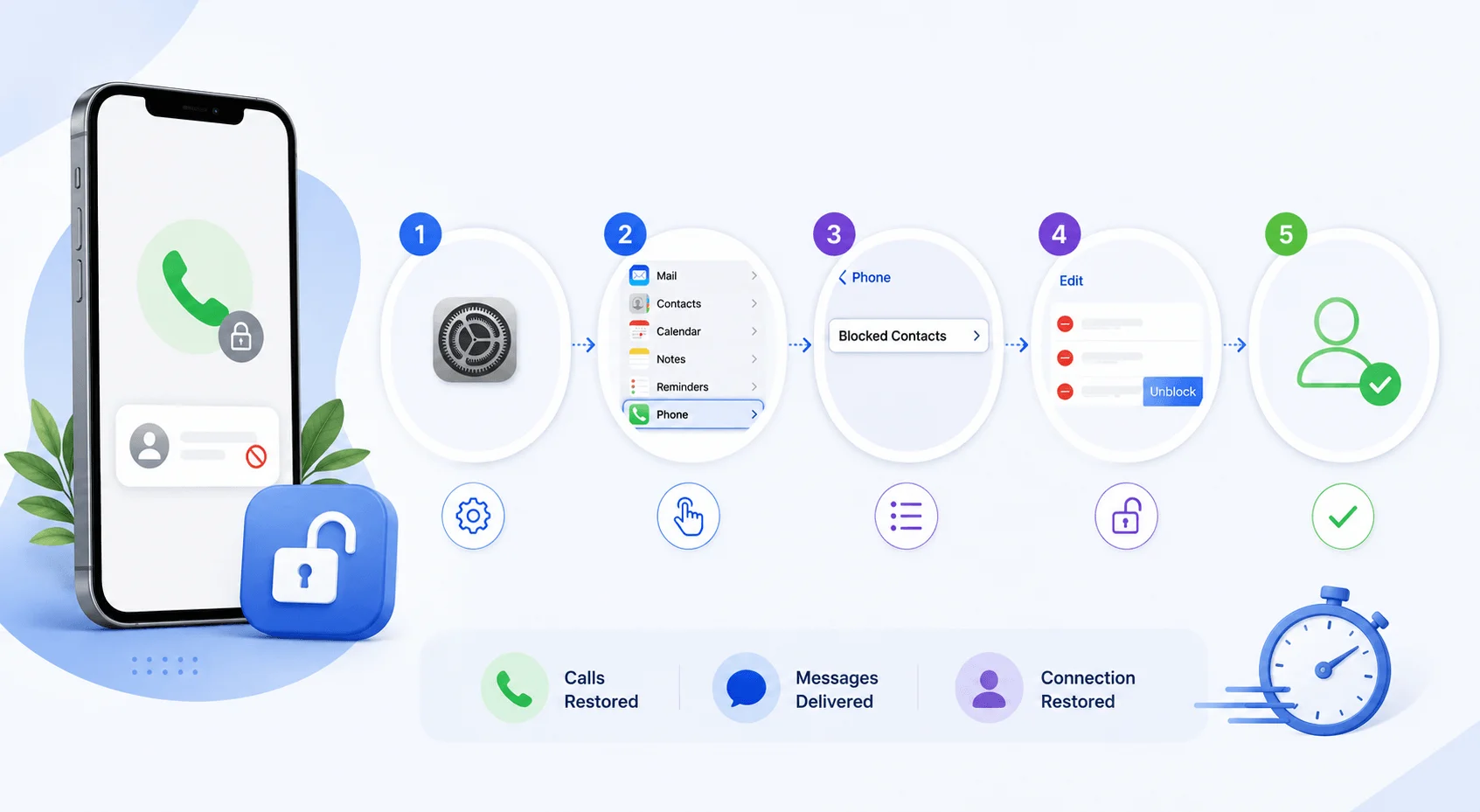
To unblock a number on iPhone, go to Settings → Privacy & Security → Blocked Contacts, tap Edit, tap the red minus icon next to the number, then tap Unblock. The process takes under 30 seconds and works the same way whether the number was blocked from Phone, Messages, or FaceTime. Once unblocked, the person can call, text, and FaceTime you again immediately, with no notification sent to either side.
That's the short version. Below, you'll find every method Apple supports, what actually happens after you unblock someone, and a fix for a known iOS 26 bug that stops unblocking from taking effect.
Why Knowing How to Unblock a Number on iPhone Matters
Blocking someone feels permanent in the moment, but circumstances change. An old contact reconnects, a business number gets reassigned, or a number gets blocked by mistake. Knowing how to reverse it quickly means you don't miss a call that actually matters.
A few common reasons people search for this:
An accidental tap blocked the wrong contact
A personal relationship changed and communication needs to reopen
A business or service number was mistakenly flagged as spam
The iOS 26 sync bug made a number appear blocked when it shouldn't be
Whatever the reason, the fix takes less than a minute once you know where to look. And if you're cleaning up other device settings while you're at it, you might also want to cancel a subscription on iPhone.
What You Need Before You Start
Before unblocking a number, confirm the following:
You know whether the number is saved as a contact or was blocked directly from Recents
Your iPhone is updated to the latest available iOS version, since menu paths shift between updates
You're not confusing a blocked number with a Focus Mode or Screen Time restriction, which behave differently
With that confirmed, here are the four ways to unblock a number.
Quick Comparison: The 4 Ways to Unblock a Number on iPhone
Method | Where It Works | Steps Required | Best For |
|---|---|---|---|
Settings → Blocked Contacts | All apps at once | 5 taps | Fastest, most reliable |
Recents tab | Unsaved numbers | 4 taps | Numbers not in Contacts |
Contacts | Saved contacts | 4 taps | People already in your address book |
Swipe-left shortcut | Blocked Contacts list | 1 swipe + 1 tap | Fastest for repeat use |
Method 1: Unblock a Number Through Settings
This is the most reliable method because it works no matter which app originally blocked the number, and Apple has consolidated it into a single screen as of iOS 26.
Step-by-Step Instructions
Open the Settings app
Tap Privacy & Security (or Phone on older iOS versions)
Tap Blocked Contacts
Tap Edit in the top-right corner
Tap the red minus icon next to the contact
Tap Unblock
Every number, email address, and contact blocked across Phone, Messages, FaceTime, and Mail appears on this one screen, and Apple's own support documentation confirms the same core action: tap the delete button next to the contact you want to unblock, then tap Unblock.
Method 2: Unblock a Contact From Recent Calls
If the number isn't saved in Contacts, this method works for numbers blocked directly from the call log.
Step-by-Step Instructions
Open the Phone app
Tap Recents at the bottom
Find the number, tap the "i" icon next to it
Scroll down and tap "Unblock this Caller"
According to How-To Geek's walkthrough, the button label flips from "Unblock this Caller" to "Block this Caller" once the change goes through, confirming it worked.
Method 3: Unblock a Saved Contact
For contacts already saved in your address book, this is the most direct route.
Step-by-Step Instructions
Open the Phone app
Tap Contacts
Select the contact
Scroll down, tap "Unblock this Caller"
The contact can now reach you via calls, texts, and FaceTime without any further action needed.
Method 4: The Swipe-Left Shortcut
Inside the Blocked Contacts list, swiping left on any entry reveals an Unblock button directly, skipping the Edit-mode flow entirely.
This gesture works consistently across iOS 17 through iOS 26, per testing documented by AppleHeadlines, and it's the fastest option if you're unblocking multiple numbers in one sitting.
What Happens After You Unblock Someone
Three things happen, and one thing doesn't:
They can immediately call, text, or FaceTime you again
No notification is sent to either party, Apple keeps the action completely silent
Messages sent while the number was blocked are not delivered afterward. They're gone permanently
This behavior is confirmed by Smartupworld's iOS 26 breakdown and hasn't changed with the Privacy & Security consolidation.
Fixing the iOS 26 Unblock Bug
The Problem
Some users on iOS 26 report that a number still appears in Blocked Contacts as removed, but calls and texts from that number still fail to arrive. This is a confirmed sync issue, not user error.
The Fix
Go to Settings → [your name] → iCloud
Toggle Contacts off
Restart your iPhone
Turn iCloud Contacts back on
If the problem continues, disable Focus sync at Settings → Focus → Share Across Devices
Apple has acknowledged the issue but hadn't shipped a permanent fix as of mid-2026, according to Smartupworld's reporting.
When It's Not Actually a Block
Sometimes a number that seems blocked is being filtered by something else entirely. Check these before assuming it's a blocking issue:
Settings → Focus — confirm Do Not Disturb isn't filtering unknown callers
Settings → Screen Time → Communication Limits — check for active restrictions
Your carrier's own network-level filtering, which exists outside Apple's system
There's no native "temporary block" feature on iPhone. For short-term filtering without a permanent entry in your blocked list, a custom Focus mode that excludes specific contacts is the closest workaround. If you're managing distractions more broadly, the same logic applies to blocking websites on Chrome for focused work sessions.
Common Mistakes to Avoid
Assuming old messages will arrive after unblocking. They won't
Expecting a notification to be sent. None is sent, in either direction
Confusing Focus Mode restrictions with an actual block
Following outdated tutorials that reference pre-iOS 26 menu paths
Giving up after one failed attempt instead of trying the iCloud sync reset
Frequently Asked Questions
Does the person know they were unblocked?
No. Apple sends no notification when a number is blocked or unblocked.
Will I receive messages sent while the number was blocked?
No. Messages sent during the blocked period are not delivered afterward. Unblocking only restores communication going forward.
Where do I find my full blocked contacts list on iOS 26?
Settings → Privacy & Security → Blocked Contacts. This single screen covers Phone, Messages, FaceTime, and Mail.
Why can't a contact reach me after I unblocked them?
Check Focus Mode settings, Screen Time restrictions, carrier-level filtering, or the known iOS 26 sync bug covered above.
Is there a way to temporarily block someone instead of permanently?
Not natively. A custom Focus mode that filters specific contacts is the closest available workaround.
Does unblocking work the same way for FaceTime?
Yes. Once unblocked through any method, FaceTime communication resumes automatically alongside calls and texts.
Quick Recap
Fastest method: Settings → Privacy & Security → Blocked Contacts → Edit → Unblock
Unsaved numbers: Phone → Recents → tap "i" → Unblock this Caller
Saved contacts: Phone → Contacts → select contact → Unblock this Caller
Fastest repeat use: Swipe left on the entry → tap Unblock
Bug fix: Toggle iCloud Contacts off and on, then restart
Unblocking a number on iPhone takes under a minute once you know the current menu path. Pairing this with other routine maintenance, like knowing how to change your WiFi password, keeps your device's settings clean and current.
Unblocking a number on iPhone takes under a minute once you know the current menu path. The process is the same for calls, texts, and FaceTime, and reversing it never notifies the other person either way.
Read more: how to host a Gimkit game