A Gimkit host is the teacher, parent, or team leader who launches and runs a live Gimkit game session — picking a Kit, choosing a game mode, sharing the join code, and tracking results in real time. If you're wondering how to host Gimkit the right way in 2026, this guide walks you through the entire process, step by step.
I've hosted more Gimkit games than I can count.
And here's the thing nobody tells you when you first click that green "Play Live" button: hosting isn't just pressing start and hoping for the best.
It's a skill.
By the end of this guide, you'll know exactly what a Gimkit host does, how to set up your first live game correctly, and the small tweaks that separate a chaotic classroom session from one where kids are begging you to play again.
Let's get into it.
Quick Facts: Gimkit Host at a Glance
Before we dive deep, here's the fast version if you're skimming:
What it is: The teacher-controlled screen that launches and manages live Gimkit sessions
Cost to host: Free forever on Gimkit Basic; Gimkit Pro is $14.99/month or $59.88/year
Free plan limit: Pro Exclusive modes cap at 5 players on a free account (confirmed via Gimkit's official help center)
Game modes available: 13+ active 2D modes plus Classic and social deduction formats
Students need an account? No — just the join code
What Is a Gimkit Host, Exactly?
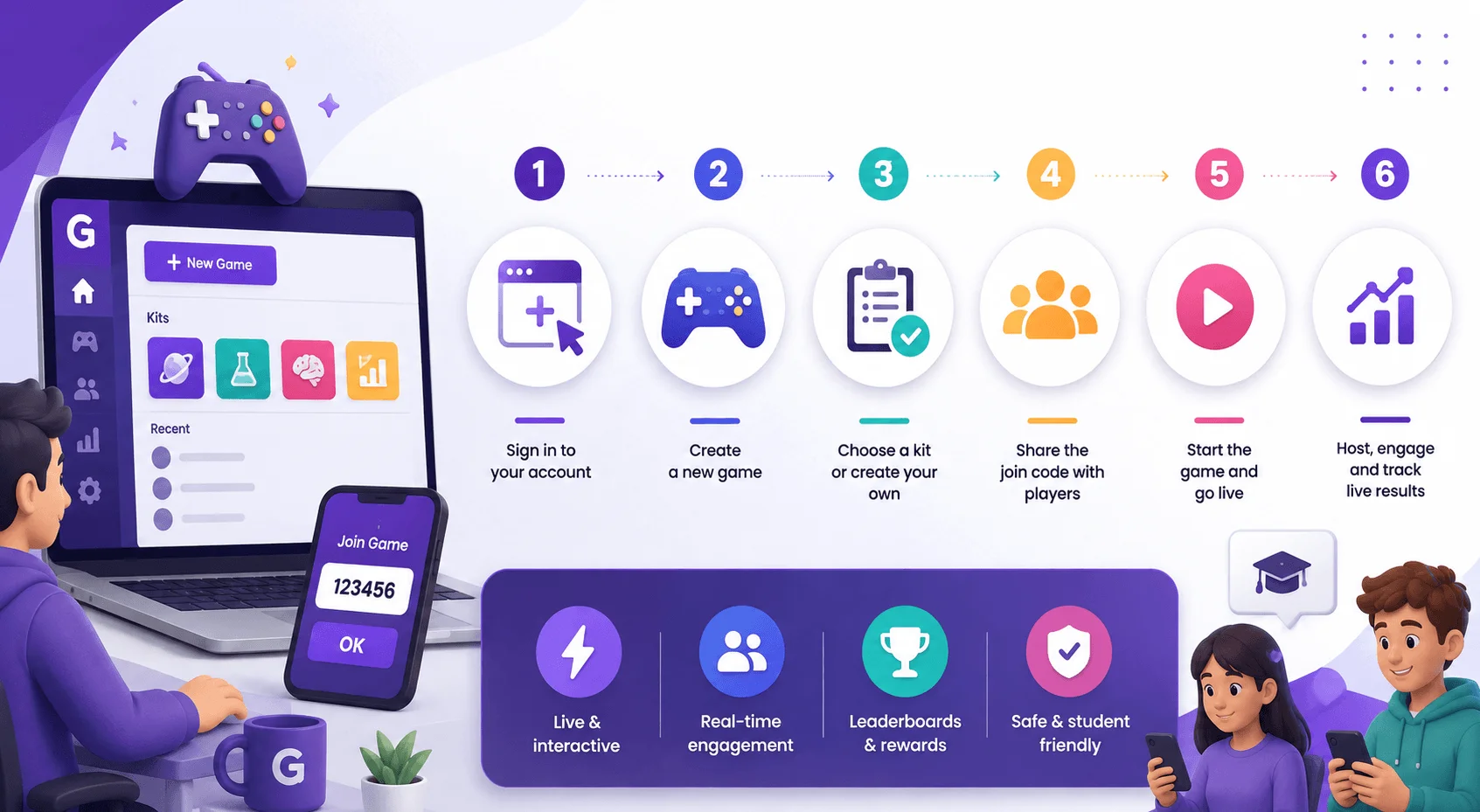
Before we go step-by-step, let's clear up what "hosting" actually means on this platform, because a lot of guides skip this part and jump straight to buttons.
A Gimkit host is the person who launches and runs a live game session. You pick the Kit (that's Gimkit's word for a question set), choose a game mode, tweak the settings, and hand out the join code.
You're the architect and the referee, all at once.
The Host's Core Responsibilities
Here's what you're actually in control of every time you run a session:
Selecting or building the Kit (your question bank)
Choosing a game mode that fits your lesson goal
Setting game options like timers, teams, and power-ups
Sharing the game code or join link
Watching the live leaderboard
Reviewing the post-game report afterward
That last one matters more than people realize. The reporting dashboard shows per-student accuracy in real time, which makes it way easier to spot who's struggling before test day.
If you haven't built your question set yet, check out our guide on how to create a Gimkit kit before moving on — it'll make this whole process smoother.
How to Host a Gimkit Game: Step-by-Step
Okay, let's actually do this.
I'll walk you through the exact flow, start to finish, so you're not fumbling around during class.
Step 1: Sign Up and Get to Your Dashboard
Head over to gimkit.com and create a free teacher account using your email or your Google login.
Quick tip: verify your email right away. It takes ten seconds and saves you a headache later.
Once you're in, you'll land on your dashboard — home base for every kit, class, and report you'll ever touch.
Step 2: Build or Choose Your Kit
Your Kit is the heart of the whole game.
You can build one from scratch, import questions from a spreadsheet, or grab a pre-made kit from Gimkit's library if you're short on time (no shame in that).
Multiple choice and short answer both work, and you can drop in images or audio if you're on Gimkit Pro.
Step 3: Click "Play Live" and Pick Your Mode
From your dashboard, click the green Play Live button next to your kit.
This opens the Mode Picker, where you'll browse the available game modes. Click "Learn More" on any mode to see what it does before committing.
Once you've picked one, it gets outlined in yellow. Hit Continue in the top-right corner.
Step 4: Configure Your Game Options
This is where a lot of new hosts rush — don't.
Set your game goal, decide whether latecomers can join mid-session, and consider flipping on the Nickname Generator if you want to avoid inappropriate usernames. When it's on, students can't edit their assigned name at all.
Step 5: Share the Join Code
Once your lobby opens, you'll see a unique game code front and center.
Display it big. Whiteboard, projector, screen share — whatever gets it in front of every student's eyes fast.
Students head to gimkit.com/join, punch in the code, and they're in.
Step 6: Start the Game and Watch the Magic
When your roster looks full, hit start.
From here, you'll see a live leaderboard (in non-2D modes) or your character on-screen in 2D game modes. Either way, you've got a real-time view of who's crushing it and who might need a nudge.
Step 7: Review the Post-Game Report
When the timer runs out — or you manually hit End Game — don't just close the tab.
The post-game report breaks down individual and class-wide accuracy. I genuinely use this data to plan the next day's review.
Gimkit Game Modes: Which One Should You Actually Use?
Honestly? This is where most of the fun lives.
Gimkit isn't just one quiz format wearing different skins — it's a genuinely different game depending on which mode you pick, even though the same kit powers all of them.
Classic Mode (Your Reliable Default)
Classic mode is the baseline. Straightforward, low-chaos, great for pure review sessions when you need focus over flash.
The 2D Game Modes
This is where it gets interesting.
Gimkit currently runs 13 active 2D modes, split between top-down maps and side-scrolling platformers.
Top-down modes include:
Snowbrawl — a PVP snowball fight where correct answers earn you ammo
Fishtopia — a favorite for longer, lower-pressure sessions
One Way Out — cooperative, works great with small squads
Capture the Flag — team-based, needs a bigger crowd
Platformer modes include:
Don't Look Down — a survival-style mode that keeps attention locked in
Knockback, Dig It Up, and Color Clash
According to Gimkit Info's breakdown, Don't Look Down and Classic tend to generate the most answers per student per minute — so if pure retrieval practice is your goal, those two are your workhorses.
Trust No One: The Social Deduction Wildcard
If you've got a big enough class, Trust No One turns review into a deduction game. It genuinely needs a crowd to work — too few players and the whole mechanic falls flat.
Other Notable Modes
The Gimkit Wiki lists a whole catalog beyond these, including The Floor Is Lava, Team Tycoon, Humans vs. Zombies, and Draw That — plus modes that rotate in and out seasonally.
Worth noting: Gimkit retires and reintroduces modes on purpose to keep things fresh, so don't be surprised if your favorite disappears for a while. For a full breakdown of every mode and when to use it, see our best Gimkit modes for every classroom guide.
Gimkit Pro vs. Free: What Actually Changes for Hosts
Let's talk money, because this trips people up constantly.
Gimkit Basic (Free)
Your free Gimkit Basic account gets you:
Unlimited players in Featured Free modes (usually three rotate at a time)
Kit creation and class rostering
Full access to post-game reports
The catch? Pro Exclusive modes still show up in your Mode Picker — but per Gimkit's official help documentation, they cap out at just five players per session on a free plan. Not exactly classroom-friendly.
Gimkit Pro
Gimkit Pro runs $14.99 per month or $59.88 annually, which works out to roughly $4.99/month if you go yearly.
Here's what it unlocks:
The entire mode catalog, with no five-player cap
Gimkit Assignments — self-paced homework kits with due dates
Image and audio uploads inside questions
14-day free trial, no credit card required
If you're teaching foreign language listening comprehension or science diagrams, that image/audio feature alone might justify the upgrade.
Group and School Pricing
If your whole department wants in, Gimkit offers Group licensing — roughly $650/year for up to 20 teachers, or $1,000/year for a full school building. That math gets pretty favorable at scale.
Common Hosting Mistakes (And How to Dodge Them)
I've made basically all of these myself, so let me save you the trouble.
Skipping the Test Run
Don't launch a brand-new kit cold in front of 30 kids.
Run a quick solo preview first. You'll catch broken timers, typo'd answers, and awkward pacing before it's a problem.
Ignoring Difficulty Calibration
Too-hard questions kill momentum fast. Students disengage the second they feel stuck.
Test on a small group, start easy, and ramp up gradually.
Forgetting to Project the Code Clearly
Sounds small. Costs you five minutes of chaos every single time you skip it.
Not Using the Nickname Generator When You Should
If you're worried about inappropriate usernames, just toggle it on. It's a thirty-second fix.
Gimkit vs. Kahoot vs. Blooket: Where Hosting Fits In
I get asked this constantly, so let's lay it out clearly.
Platform | Free Plan | Paid Plan Cost | Best For | Player Cap (Free) |
|---|---|---|---|---|
Gimkit | Gimkit Basic | $14.99/mo or $59.88/yr | Strategy-driven play, async Assignments | 5 players on Pro-exclusive modes |
Kahoot | Kahoot Basic | ~$120/yr (comparable tier) | Rapid-fire quizzing, large groups | Higher caps on paid tiers |
Blooket | Blooket free | ~$4.99/mo | Collection-based motivation mechanics | Varies by mode |
Source: comparison data via Eastern Herald
Plenty of teachers rotate between all three depending on the lesson. There's no single "best" — it depends on what kind of engagement you're chasing that day. If you want the full head-to-head, check out our Gimkit vs. Kahoot vs. Blooket deep-dive comparison.
Frequently Asked Questions About Hosting Gimkit
Do students need an account to join a Gimkit game?
No. Students only need the join code. Accounts are optional, though having one lets them track progress across sessions.
How many players can join a live Gimkit session?
Per Gimkit's official help center, Featured Free modes support large groups with no hard cap for typical classroom sizes, while Pro Exclusive modes are capped at 5 players on a free account and unlocked to full capacity with Gimkit Pro. Always check the help center directly, since Gimkit updates these limits periodically.
Is Gimkit COPPA and FERPA compliant?
Yes — Gimkit states it adheres to both standards, which matters if your district requires it for classroom tools.
Can I host Gimkit without Pro?
Absolutely. Gimkit Basic is free forever and covers kit creation, class rosters, reports, and full-size sessions in the rotating free modes.
What's the difference between top-down and platformer 2D modes?
Top-down modes use an overhead camera where you move in all four directions. Platformer modes use a side-view camera with gravity, so you jump between platforms instead.
Final Thoughts on Becoming a Confident Gimkit Host
Here's my honest take, after all this: hosting Gimkit well isn't about mastering every single mode.
It's about matching the right mode to your actual lesson goal, testing before you launch, and actually using that post-game data instead of letting it sit there unread.
Start with Classic mode if you're new. Branch into Snowbrawl or Don't Look Down once your class is comfortable. And don't be afraid to upgrade to Gimkit Pro the moment the five-player cap starts cramping your style.
You've got everything you need now to run your first session as a Gimkit host with actual confidence — go make it a good one.