How to Use Excel Pivot Table: An Excel pivot table summarizes a big spreadsheet by letting you drag fields into Rows, Columns, Values, and Filters. To build one, clean your data, select it, choose Insert > PivotTable, then drag fields into place. Press Alt+F5 to refresh it when your data changes.
What Is an Excel Pivot Table?
Here's the thing. A pivot table sounds scary, but I promise it isn't.
It's a tool that turns hundreds of messy rows into a short, readable report. You rearrange it by dragging, not by typing formulas. That's why I teach it before anything else in Excel.
Microsoft describes a PivotTable as a way to calculate, summarize, and analyze data so you can see comparisons, patterns, and trends.
In plain English, it answers your questions fast.
Step 1: Prepare Your Source Data
Before you click anything, slow down.
Bad source data gives you bad reports. I've wasted whole afternoons on this, so learn from my mistake. A few minutes of cleanup now saves you real pain later.
Follow these rules:
Put your data in columns with a single header row.
Give every column a unique label, and leave no blanks in the header row.
Avoid merged cells and blank rows.
Don't mix text and numbers in one column.
Microsoft also recommends formatting your data as an Excel table. Got nested or messy data? Power Query can reshape it before you start.
Working inside a company Microsoft 365 setup? If copying data into Excel throws a blocked clipboard message, here is the fix: Your Organization's Data Cannot Be Pasted Here (Fix).
Step 2: Build Your First PivotTable
Now the fun part.
With clean data, your first report takes about thirty seconds. You can't break anything here. If a field lands in the wrong place, just drag it back out.
Insert the PivotTable
This first move is quick, so let's do it together.
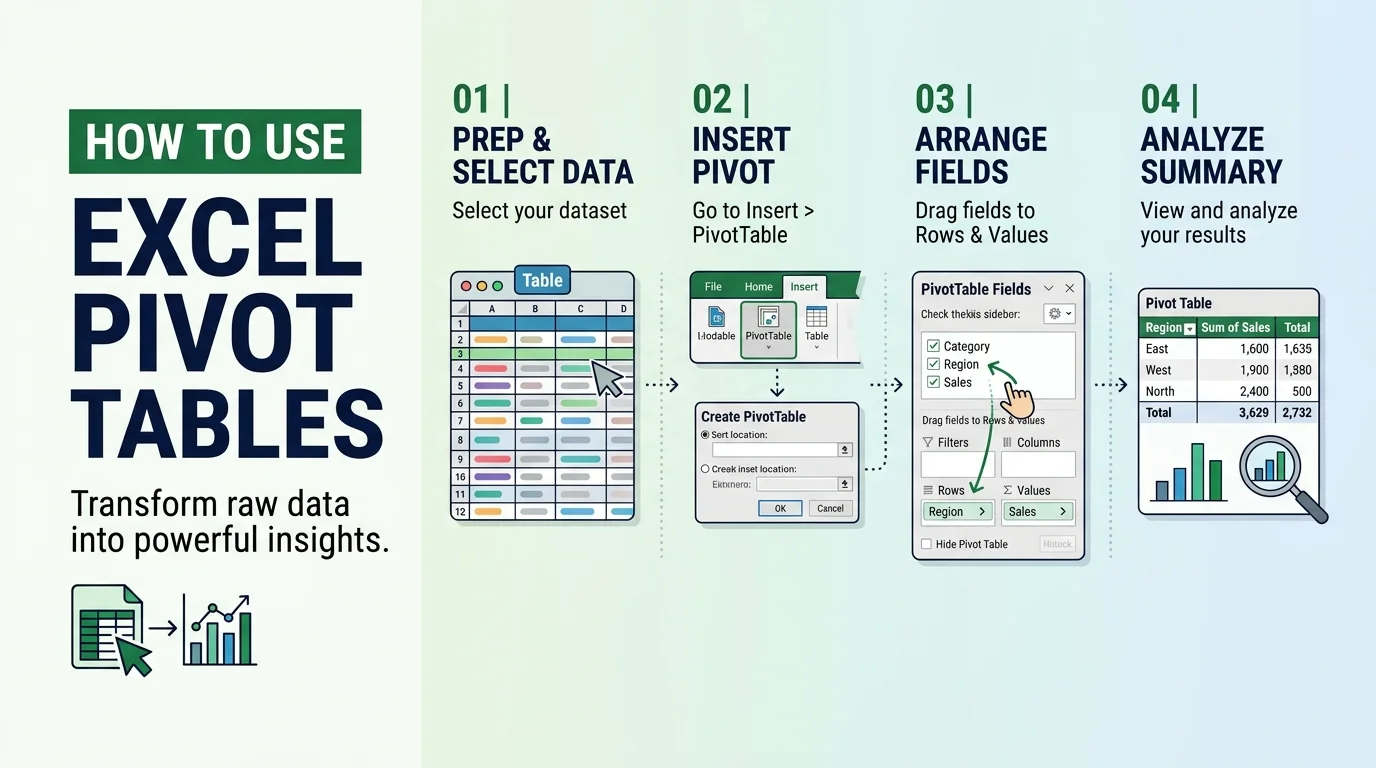
Click any cell inside your data.
Go to Insert > PivotTable.
Confirm the table or range.
Choose New Worksheet or Existing Worksheet.
Click OK.
Excel opens a blank report plus the PivotTable Fields pane.
Drag Fields into Areas
Next, you'll see four areas: Filters, Columns, Rows, and Values.
Excel places fields automatically. Text goes to Rows, date hierarchies go to Columns, and numbers go to Values.
Want a different layout? Drag the field. Try "Region" in Rows and "Sales" in Values, and you've got totals by region. You can also explore the Field List options to arrange things your way.
Step 3: Summarize, Calculate, and Filter Your Data
Okay, you've got a basic report. Now let's make it smart.
This is where a pivot table goes from "neat" to "I can't work without it." I'll show you the tools I use most, and each takes under a minute to learn. Together they cover most business reporting needs.
Microsoft says numeric fields use Sum by default, while blanks or text trigger Count. Here are your main summary functions:
Summary function | What it calculates |
|---|---|
Sum | Total of the values (default for numbers) |
Count | Number of filled cells (default for text) |
Average | The mean of the values |
Max and Min | Largest and smallest value |
Product | Product of the values |
Distinct Count | Number of unique values |
To switch, right click a value and choose Summarize Values By.
Show percentages. Use Show Values As to display a percentage of grand total with no formula. This walkthrough on percentages in PivotTables covers every option.
Group dates. Right click a date and pick Group to roll up by months, quarters, or years. Microsoft explains how to group or ungroup data.
Add slicers. Slicers are clickable filter buttons that stay visible on your sheet. One catch: they only connect to PivotTables sharing the same data source. For dates, add a timeline instead. You can also filter manually or use report filters.
Create a calculated field. Need profit margin? Build a calculated field with your own formula. Microsoft covers this under calculating values in a PivotTable.
Turn it into a chart. Finally, build a PivotChart for interactive visuals.
Standard PivotTable vs. Data Model: Which Should You Use?
So, when is a basic pivot table not enough?
Honestly, most of the time it is enough. But if your data lives in several related tables, you'll want the Data Model. Microsoft's guide to using multiple tables explains that you add each table to the Data Model, then create relationships between them.
Here's how they compare:
Situation | Standard PivotTable | Data Model (Power Pivot) |
|---|---|---|
Number of tables | One table or range | Two or more related tables |
Large datasets | Fine for typical use | Better suited to large data |
Custom calculations | Calculated fields | Measures |
Relationships | Not needed | Required between tables |
XelPlus recommends a standard pivot table for one Excel table and the Data Model for related tables, repeated KPIs, and advanced calculations. Excel University also shows how to build a PivotTable with the Data Model.
One warning: Microsoft's multiple table guide notes Data Models aren't supported on Excel for Mac.
Keep Your Pivot Table Fresh and Avoid Classic Mistakes
Here's what trips up almost everyone, including me.
You add new rows, check your pivot table, and nothing changed. Don't panic. Your report works from a saved snapshot, so it needs a nudge.
Right click the pivot table and choose Refresh, or press Alt+F5. Microsoft lists every option to refresh PivotTable data, including refreshing when the file opens. As of that page, automatic refresh when the source changes was limited to Microsoft 365 Insider participants, so check whether you have it.
Still missing rows? Your range probably didn't grow. Convert your data to an Excel table, or change the data source.
Avoid these mistakes:
Blank rows that break your range
Numbers stored as text
Renaming fields before you finish setup
Frequently Asked Questions
Got questions? Good. Here are quick answers.
What is a pivot table used for in Excel?
You use it to summarize data, compare categories, and spot patterns without writing formulas. Typical jobs include totals by region, monthly sales, and percentage breakdowns. It turns long lists into short, interactive reports.
How do I create a pivot table in Excel?
Select your data, go to Insert > PivotTable, choose where to place it, and click OK. Then drag fields into Rows, Columns, Values, and Filters in the PivotTable Fields pane.
Why is my pivot table not updating?
Excel doesn't update pivot tables automatically in most cases. Right click and choose Refresh, or press Alt+F5. If new rows still don't appear, update the data source or convert it to an Excel table.
Can one slicer control multiple pivot tables?
Yes, if they share the same data source. Select the slicer, open Filter Connections, and check each PivotTable you want it to control.
What's the difference between Sum and Count in a pivot table?
Sum adds numbers. Count tallies filled cells. Excel defaults to Count when a field contains text or blanks, so keep value columns purely numeric.
Do I need Microsoft 365 to use pivot tables?
No. PivotTables work in Excel 2016 and later. But Microsoft says Recommended PivotTables are available only to Microsoft 365 subscribers.
Why Microsoft 365 Is the Smartest Way to Master Pivot Tables
Let me be straight with you.
You can learn pivot tables on many Excel versions. But for the smoothest experience, I'd choose Microsoft 365 every time. I switched myself, and I'd do it again.
Here's why:
Recommended PivotTables build a starting layout for you, and Microsoft says this is available only to subscribers.
With the right license, you can ask Copilot to help create a PivotTable.
Your files work across Windows, Mac, web, and mobile.
If one pivot table saves you two hours a week, that adds up fast. And once your report is ready, learn how to schedule an email in Outlook so it lands in the right inbox at the right time.
So don't wait. Get Microsoft 365, open your messiest spreadsheet today, and follow the steps above.
Your future self will thank you.