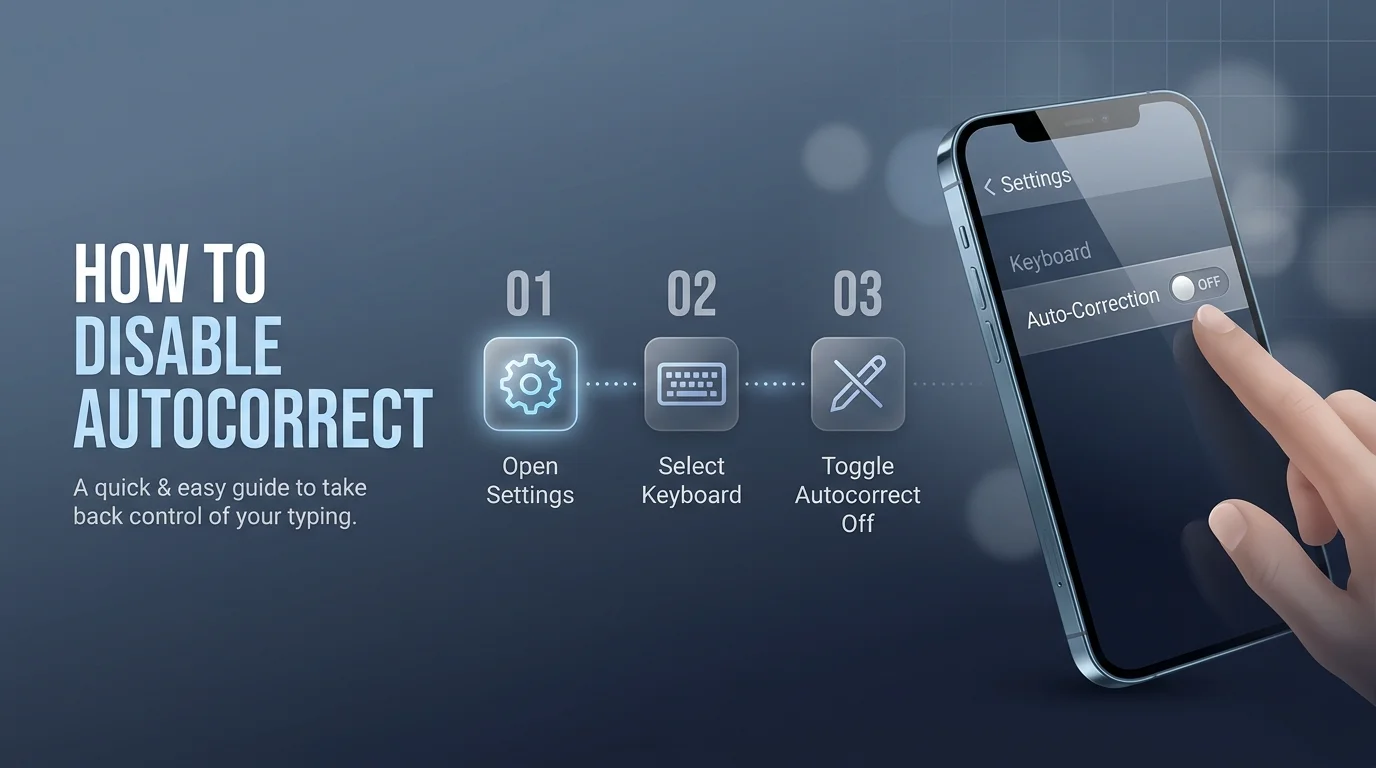
You can Disable autocorrect in your device's keyboard or typing settings. On iPhone, go to Settings > General > Keyboard and switch off Auto-Correction. On Android, open your keyboard's Text correction settings. On Windows and Mac, use the typing or keyboard settings. Apps like Word and Google Docs have their own switches, so you may need to check those too.
That's the short version. Now let me walk you through every step.
You type "meeting at the pier." Your phone sends "meeting at the pie." Annoying, right?
I've been burned by this more times than I'd like to admit. So I put together one guide that covers every major device, plus the sneaky app settings most people miss.
Where to Find Autocorrect Settings: Quick Comparison
Before the details, here's a cheat sheet. Bookmark it. You'll thank me later.
Device or App | Where to Look | Setting Name |
|---|---|---|
iPhone | Settings > General > Keyboard | Auto-Correction |
Android (Gboard) | Keyboard settings > Text correction | Auto-correction |
Samsung Keyboard | Samsung Keyboard settings | Auto replace |
Windows 11 | Settings > Time & language > Typing | Autocorrect misspelled words |
Mac | System Settings > Keyboard | Correct spelling automatically |
Microsoft Word | File > Options > Proofing | Replace text as you type |
Google Docs | Tools > Preferences > General | Automatically correct spelling options |
Chrome | Settings > Languages | Spell check |
Why You Might Want to Turn Off Autocorrect
Autocorrect isn't evil. But it can wreck your typing experience in a hurry.
If you write in two languages, use slang, or type brand names, you already know the pain. It's like having an editor who never read your brief.
The usual complaints:
Unwanted word replacement on names and jargon
Predictive text that guesses wrong mid sentence
Auto capitalization that fights your style
"Fixes" for typos that weren't typos
And you're not doing anything unusual. Apple's own Mac guide says you can switch these features off whenever you need to.
How to Disable Autocorrect on Your Phone
Your phone is where autocorrect hurts most, because that's where you type fastest. The good news? It takes about ten seconds.
How to Turn Off Autocorrect on iPhone
Apple calls it Auto-Correction, and it lives in your keyboard settings. Ubergizmo's walkthrough confirms the path.
Open Settings.
Tap General, then Keyboard.
Flip Auto-Correction off.
Want to go further? Cult of Mac explains that Check Spelling and Predictive Text have their own toggles. If you leave Check Spelling on, typos still get underlined in red but won't be changed.
What If Your iPhone Still Changes Words?
This one drives people crazy. Everything's off, yet words still change.
Check Smart Punctuation on the same Keyboard screen. iGeeksBlog lists it as the fix. Also, Apple doesn't offer a per app autocorrect toggle on iPhone, so the setting applies everywhere.
How to Turn Off Autocorrect on Android
Android depends on your keyboard app. Most phones use Gboard. Digital Citizen's guide describes the path, though menu labels shift between Android versions.
Open Settings, then System, then Language & input.
Tap your on screen keyboard, then Gboard.
Tap Text correction.
Switch off Auto-correction.
Heads up: Help Desk Geek notes the keyboard may still offer correction suggestions afterward. That's normal. Turn off the suggestion strip if you want it gone.
On a Samsung? Samsung's support page says to open Samsung Keyboard settings and turn off Auto replace. You can also disable Predictive text and Auto spell check there.
How to Stop Autocorrect on Windows and Mac
Phones are only half the battle. Your computer can be just as pushy.
Windows 11
Eleven Forum walks through this setting in detail.
Go to Settings, then Time & language.
Click Typing.
Turn off Autocorrect misspelled words.
Next, consider switching off text suggestions for your physical keyboard. Managing a work PC? A Microsoft Learn answer mentions a Group Policy setting called TurnOffAutocorrectMisspelledWords for administrators.
Mac
On macOS, the feature is labeled "Correct spelling automatically." Apple's guide says to open System Settings, click Keyboard, and turn it off.
Only want it off in one app? Open that app and choose Edit > Spelling and Grammar > Correct Spelling Automatically. If there's no checkmark, it's off.
How to Disable Autocorrect in Word, Google Docs and Chrome
Here's the part most guides skip. Even after you fix your device, apps can keep correcting you.
Microsoft Word
Go to File > Options > Proofing > AutoCorrect Options, then clear Replace text as you type. Microsoft's article covers current versions.
Here's the catch. Microsoft notes that the AutoCorrect list applies across Office programs, so changes in Word also affect the others. On mobile, Microsoft says you change your device's keyboard settings instead.
Google Docs
Click Tools > Preferences > General and uncheck the corrections you don't want, per Google's help page. Then open the Substitutions tab to remove things like automatic symbol swaps.
While you're tweaking Docs, you might also like our guide to Google Docs dark mode. It makes long writing sessions a lot easier on your eyes.
Chrome
Open Settings > Languages and toggle spell check, as Google explains. Also, Google notes that Enhanced spell check sends what you type to Google, while Basic doesn't. Privacy matters, so Basic is the safer pick.
Want more ways to tune your browser for writing? Browse our list of the best productivity Chrome extensions.
What Most Guides Miss: Autocorrect Isn't One Switch
Here's my honest take after digging through all this. "Autocorrect" is really a bundle of separate features:
Auto correction replaces words as you type
Spell check underlines mistakes
Predictive text suggests the next word
Auto capitalization changes your letters
That's why people turn it off and still get bugged. You switched off one feature, but three others are still running. Check each one.
Frequently Asked Questions
How do I turn off autocorrect on my iPhone?
Go to Settings > General > Keyboard and switch off Auto-Correction. You can also disable Predictive Text and Check Spelling there.
How do I turn off autocorrect on Android?
Open your keyboard's settings, tap Text correction, and turn off Auto-correction. On Samsung, turn off Auto replace instead.
Can I turn off autocorrect for just one app?
On Mac, yes, through Edit > Spelling and Grammar. On iPhone, no. Apple doesn't offer a per app toggle.
Why does autocorrect still work after I turned it off?
Another feature is probably active, such as Smart Punctuation, predictive text, or an app's own setting. Check each one.
Is turning off autocorrect a bad idea?
Not necessarily. But you become the proofreader, so a good writing assistant helps.
Take Control of Your Writing
So you've turned autocorrect off. Great. But now one missed typo can make your post or email look sloppy.
Sent something with a mistake already? Learn how to recall an email in Outlook before anyone spots it.
That's why I stopped relying on luck. I use a proper writing assistant that flags grammar slips and respects my custom dictionary, without quietly rewriting my words.
If you want that same control, [YOUR PRODUCT] is the tool I'd put in your hands today. It's fast, simple, and works across the devices we just fixed. Try [YOUR PRODUCT] now and write exactly what you mean.