To copy and paste on a Chromebook, highlight the text, press Ctrl + C to copy, then click where you want it and press Ctrl + V to paste. Chromebooks also come with a built-in clipboard history that remembers your last five copied items, accessible with Search + V. Below, I'll walk you through every method, including touchpad gestures, touchscreen taps, file copying, and what to do when none of it seems to work.
Let's get into it.
Why Copy and Paste on Chromebook Trips People Up
You'd think copy and paste would work the same on every device. It mostly does, but Chromebooks throw in a couple of curveballs that catch new users off guard.
Chrome OS wasn't built to be a Windows clone or a MacBook copycat. It has its own keyboard layout, its own Search key (instead of a Windows key), and its own gesture system on the trackpad. So if you're coming from a different operating system, a few of your old habits just won't carry over cleanly.
That's honestly the whole reason this topic gets searched so much. People aren't confused about the concept of copying and pasting. They're confused about where Chrome OS moved the buttons.
If you're new to the platform entirely, it's worth pairing this guide with our Chromebook keyboard shortcuts cheat sheet before you go further.
What You Need Before You Start
Before you try any of the methods below, make sure you've got the basics covered. It'll save you a headache later.
A Chromebook running an updated version of ChromeOS (check under Settings > About ChromeOS > Check for updates)
A mouse, touchpad, or touchscreen, depending on your device
Text, an image, or a file that's actually selectable (not, say, text baked into a picture)
Five minutes, because that's genuinely all this takes
Got that? Good. Let's copy and paste something.
Step-by-Step: How to Copy and Paste Text on a Chromebook
This is the method you'll use 90% of the time, so I want to walk through it slowly.
Step 1: Highlight the Text You Want to Copy
Click and drag your cursor over the text, just like you would on any other computer. If you're on a touchpad, you can tap and hold with one finger, then drag a second finger across the text to select it.
Step 2: Copy It
Once your text is highlighted in blue, you've got a few options, according to Google's official ChromeOS keyboard shortcuts page:
Press Ctrl + C on your keyboard (the fastest method, hands down)
Right-click the highlighted text with a mouse and choose Copy
Tap the touchpad with two fingers and select Copy from the pop-up menu
Hold the Alt key and click the highlighted text, then choose Copy from the menu
Step 3: Paste It
Click into the spot where you want the text to land. Then:
Press Ctrl + V to paste with formatting
Or press Ctrl + Shift + V to paste as plain text (this strips out fonts, colors, and sizing, which is genuinely useful when you're copying from a messy webpage)
That's it. Three steps, and you're done.
How to Copy and Paste on a Chromebook Using the Touchpad
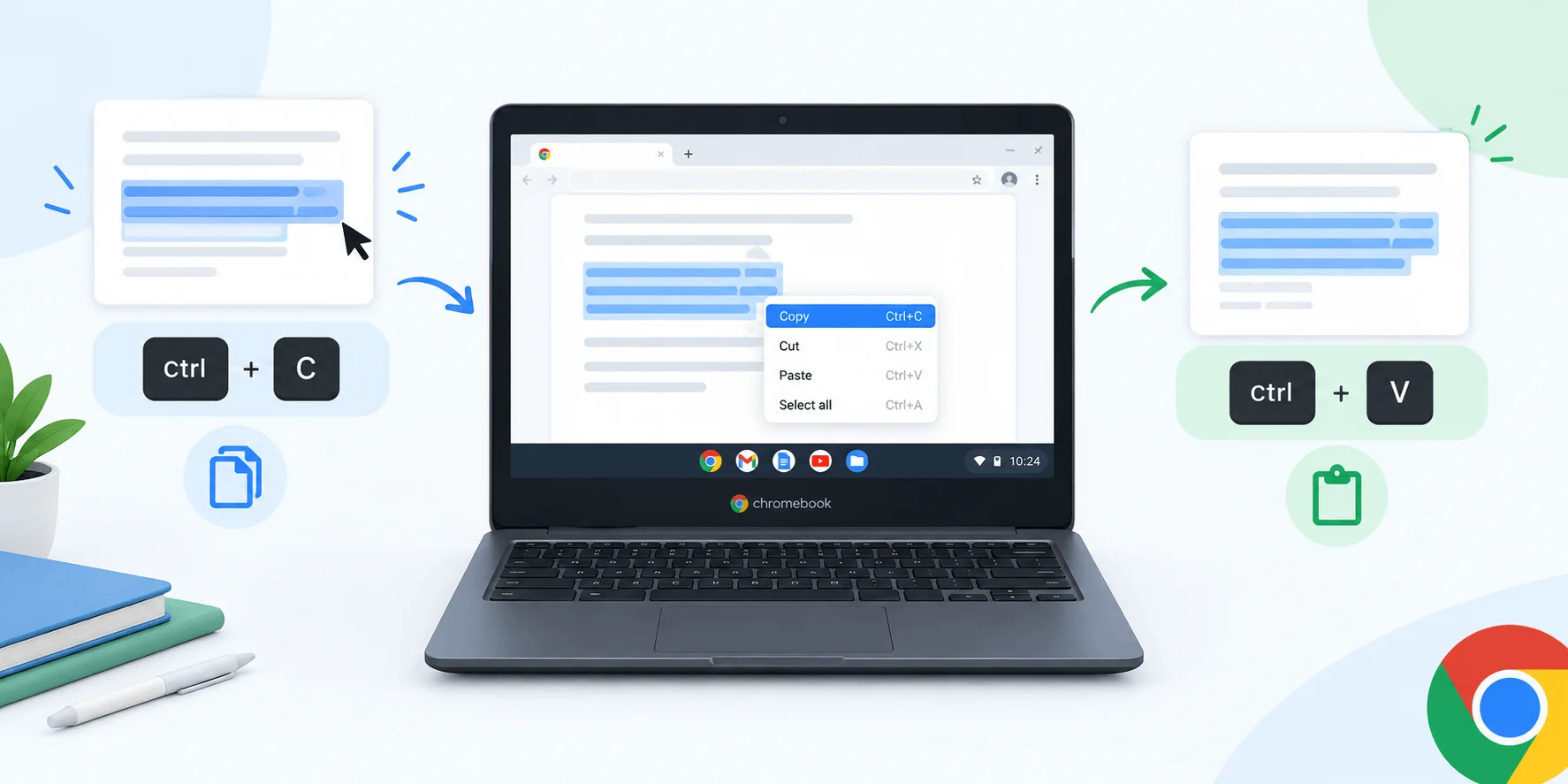
Now let's talk trackpad gestures, because a lot of Chromebook users never even try these.
Here's the move: tap and hold one finger on the starting point of your text, then drag a second finger to extend the selection. Lift both fingers off once you've got what you need highlighted. From there, tapping the touchpad with two fingers brings up a quick menu with Copy and Paste right there, a method confirmed in Lenovo's official Chromebook FAQ.
It feels a little unnatural at first. Give it a few tries and it becomes second nature, especially if you're someone who hates reaching for the keyboard mid-task.
Copying Images With the Touchpad
Images work almost the same way. Tap with two fingers directly on the image, select Copy image, move to where you want it, then tap with two fingers again and choose Paste. This works in Google Docs, emails, and most web forms.
How to Copy and Paste on a Chromebook Touchscreen
If your Chromebook has a touchscreen, you've got a fourth method in your back pocket.
Double-tap directly on the text you want. This selects a word and pulls up little handles on either side. Drag those handles until you've highlighted exactly what you need, then tap Copy from the menu that pops up. To paste, tap and hold your finger where you want the text to go, then choose Paste.
Fair warning: this one takes some practice. Your finger isn't nearly as precise as a cursor, so expect a little trial and error the first few times.
If you'd rather skip touch input altogether on a 2-in-1 device, here's how to turn off the touchscreen on your Chromebook.
How to Copy and Paste Files on a Chromebook
Text and images aren't the only things you'll want to move around. The Files app handles file copying a bit differently.
Open the Files app from your shelf
Right-click (or long-press on touch) the file you want to duplicate
Select Copy
Navigate to the destination folder
Right-click inside the folder and select Paste, or use Ctrl + V
This same process works for moving files between Google Drive, your local Downloads folder, and any connected USB or SD storage.
Copying Between Android and Linux Apps
If you're running Android apps or the Linux (Beta) environment on your Chromebook, copy and paste generally works the same way inside each app, but text doesn't always transfer cleanly between Android apps and native ChromeOS apps. When that happens, your safest bet is pasting as plain text with Ctrl + Shift + V to avoid formatting errors.
The Chromebook Clipboard History Trick Almost Nobody Uses
Okay, this is my favorite part of this whole guide, and it's the thing that actually makes Chromebooks better than most laptops for this specific task.
Chrome OS has a built-in clipboard manager. It's not just one clipboard slot like on Windows. It remembers your last five copied items, whether that's text, links, or images, a feature that Android Central's coverage traces back to the Chrome OS 89 update.
Here's how to use it:
Copy a few different things using Ctrl + C
Click into any text field
Press Search + V (the Search key is the one that usually sits where Caps Lock would be)
A small popup appears showing your last five clips
Click the one you want, and it pastes right in
If you're the type of person who's constantly gathering links, quotes, or snippets from different tabs, this alone might change how you work.
On some devices, you might also see Alt + Shift + V work for a similar clipboard menu, or you can right-click in a text field and look for a Clipboard option in the context menu.
What If You're on a Keyboard Without a Search Key?
If you've attached an external Windows keyboard to your Chromebook, there's no dedicated Search key. In that case, the Windows key takes over that role automatically, so Windows key + V opens the same clipboard history panel.
What If Clipboard History Isn't Showing Up?
A few quick fixes to try, in order:
Make sure your ChromeOS is fully updated (Settings > About ChromeOS > Check for updates)
Check chrome://flags in your address bar and search for "Clipboard History." If it's disabled, flip it on and restart
Restart your Chromebook. Sounds obvious, but it fixes more than you'd think
If you're using an external Windows keyboard, remember the Search key maps to the Windows key on that keyboard
If instead of a missing clipboard, you see a message saying "organization's data cannot be pasted here," that's a different issue entirely, usually tied to a managed work or school account. Here's how to fix that error specifically.
Best Tools and Options for Copying and Pasting on Chromebook
Method | Best For | Speed | Learning Curve |
|---|---|---|---|
Ctrl + C / Ctrl + V | Everyday text copying | Fastest | Low |
Touchpad gestures | Hands-off-keyboard workflow | Fast | Medium |
Touchscreen | Tablet-style Chromebooks | Slower | Medium-High |
Search + V (clipboard history) | Multi-item copying, research | Fast | Low once learned |
Windows key + V | External keyboard users | Fast | Low |
Clipboard History extension | Power users, unlimited history | Fast | Low |
If you're regularly juggling dozens of snippets, an extension like Clipboard History from the Chrome Web Store can extend that five-item limit into something closer to unlimited, plus give you search and pinning features the built-in tool doesn't have. For more picks worth installing, check out our best productivity Chrome extensions for 2026.
Common Mistakes People Make When Copying and Pasting on Chromebook
I've seen a few patterns come up again and again in forums like Kismac's community board, so let's cover the mistakes before you make them yourself.
Mistake 1: Expecting Ctrl + V to show clipboard history.
It won't. Regular paste only grabs your most recent copy. You need Search + V for the history panel.
Mistake 2: Pasting formatted text into places that don't need it.
Copying from a website into an email or doc often drags along fonts and colors you didn't want. Use Ctrl + Shift + V to paste as plain text instead.
Mistake 3: Forgetting the clipboard clears on restart.
Chromebook clipboard history doesn't survive a reboot. If there's something important in there, paste it somewhere permanent before you shut down.
Mistake 4: Trying keyboard shortcuts on an unresponsive app.
Some web apps override default copy and paste behavior. If a shortcut fails in one place, try right-clicking instead. That usually gets around app-specific quirks.
Frequently Asked Questions
What is the shortcut to copy and paste on a Chromebook?
Press Ctrl + C to copy and Ctrl + V to paste. This works the same way it does on Windows.
How do I access clipboard history on a Chromebook?
Press Search + V while your cursor is in a text field. It shows your last five copied items. On an external keyboard, use the Windows key + V instead.
Why is copy and paste not working on my Chromebook?
Usually it's an outdated ChromeOS version, a disabled clipboard flag, or an app that's blocking the default shortcut. Try updating your device first, then check chrome://flags.
Can I copy and paste images on a Chromebook?
Yes. Tap the image with two fingers on the touchpad, choose Copy image, then paste it wherever you need it.
Can I copy and paste files on a Chromebook?
Yes, through the Files app. Right-click the file, select Copy, navigate to the destination, and select Paste.
Does Chromebook clipboard history save after a restart?
No. It clears when you reboot, so paste anything important before shutting down.
Wrapping This Up
Copying and pasting on a Chromebook comes down to five core methods: keyboard shortcuts, touchpad gestures, the right-click menu, touchscreen taps, and the Files app for documents. Pick whichever fits your workflow, and don't sleep on Search + V (or Windows key + V on an external keyboard). That clipboard history shortcut alone is worth bookmarking this page for.
Give these a try on your own device right now. Copy a sentence, pull up your clipboard history, paste it somewhere new. You'll have it memorized within a day.