Here's the short version: Discord is a free text, voice, and video platform organized into communities called servers, which are subdivided into channels. To use Discord, you create an account, join a server through an invite link or the Explore tab, then chat in text channels or click straight into a voice channel — no ringing, no calling. Everything below walks you through it, step by step.
Now, the longer version.
I still remember the first time I opened Discord. Servers on the left. Channels in the middle. A weird green dot next to somebody's name. I closed the app in about forty seconds.
So if you're wondering how to use Discord without feeling like you've walked into somebody else's group chat — you're in the right place.
Let's get into it.
What Is Discord, Exactly?
Before you learn how to use Discord, it helps to know what the thing actually is — because the marketing never really explains it. People call it a gaming app. People call it a Slack alternative. People call it a forum. Honestly? It's a bit of all three. According to Discord's own beginner documentation, it's a communication platform where you interact through text, voice, and video inside communities built around shared interests. That's the cleanest definition you'll find anywhere.
Here's the mental model that finally made it click for me:
Discord is a building. Servers are the rooms. Channels are the conversations happening in each room.
That's it. That's the whole architecture.
Discord by the Numbers
Quick context before you dive in — because scale tells you something about whether a platform is worth learning. These are the figures worth knowing, each with its reporting year attached:
~690 million total registered accounts, per 2026 industry tracking
200 million+ monthly active users (Discord's own internal figure, 2025), with third-party estimates running as high as 260 million
~30 million daily active users, giving roughly a 12–15% DAU/MAU ratio
19 million active servers per week (Discord company page, 2022)
42% of the global user base is aged 18–24; another 28% is 25–34, per Whop's statistics roundup
So it skews young-adult, not child. Good to know.
Gamers built the place. But study groups, book clubs, freelance collectives, open-source projects, and language exchange communities have absolutely moved in. If you're learning a language, a Discord server is a great place to practice speaking, and it pairs well with one of the best language learning apps. If you've ever navigated Reddit's mix of subreddits and rules, the structure will feel familiar — I broke that platform down in how to use Reddit.
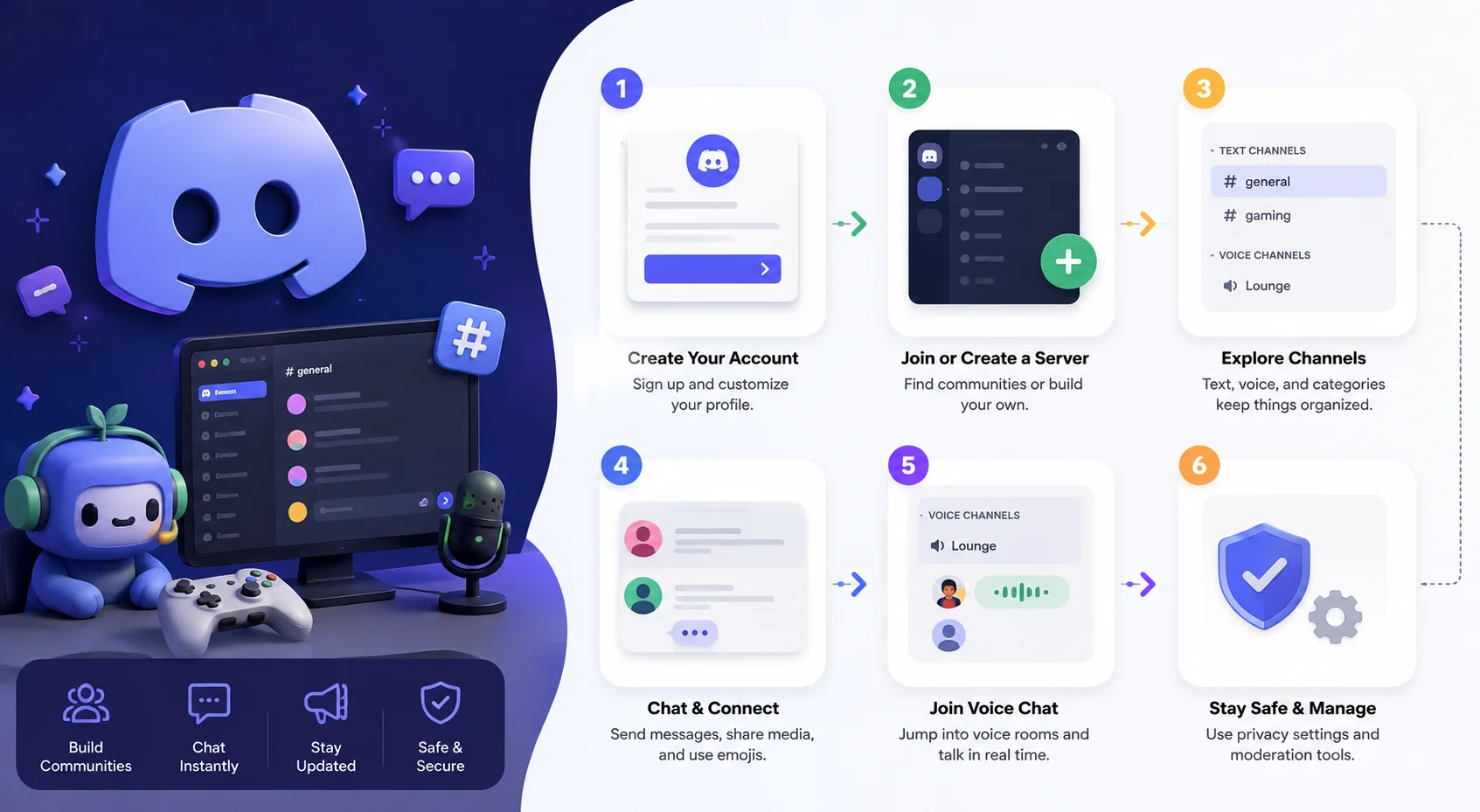
Step 1: Creating Your Discord Account
Okay — hands on keyboard. Creating a Discord account takes maybe three minutes, and you've got options: the desktop app, the mobile app, or straight through your browser. I'd genuinely recommend the desktop app if you're on a computer, because the browser version quietly drops a few features like game overlays and better audio handling. Discord's sign-up and registration guide covers the error cases if something goes sideways.
Here's the sequence:
Head to discord.com/download and grab the app — or click Open Discord in your browser.
Click Register.
Enter your email, a display name, a username, your date of birth, and a password.
Hit Continue.
Check your inbox and click the verification link.
Done. You have an account.
One thing worth pausing on: your username and display name are two different animals. The username is your unique handle — it's how friends find you. The display name is the pretty version everyone sees. Change the display name whenever. The username, less freely.
Verify Your Email. Seriously.
I know. Nobody wants another verification email. But an unverified account gets throttled hard — a lot of servers won't let you post until you've confirmed you're a real person, and some won't let you through the door at all.
Discord maintains a dedicated account verification article if the email never shows up.
Check spam first, though. It's almost always spam.
Step 2: How to Join a Discord Server
Right — you've got an account and a very empty sidebar. Time to fix that. Joining a Discord server happens one of two ways: somebody hands you an invite link, or you go hunting through Discord's built-in directory. Both take about ten seconds. And here's the part nobody tells beginners — joining a server costs nothing, commits you to nothing, and you can leave silently at any time.
Follow these steps:
If you have an invite link, click it. It'll look something like
discord.gg/example. Confirm, and you're in.If you don't, click the compass icon in your left sidebar to open Explore Public Servers.
Search a topic you actually care about — gardening, Rust programming, Formula 1.
Preview the server before joining. Most public servers let you look around first.
Click Join Server.
PCWorld's Discord walkthrough covers the discovery process from a slightly different angle if you want a second opinion.
My advice? Join two or three servers max at first. I joined about thirty in week one and the notification volume nearly killed me.
The First Thing You Should Do Inside a New Server
Find the rules channel. Read it. It's usually named #rules, #welcome, or #start-here, and increasingly it's baked into Discord's Server Guide feature, which shows new members a curated intro screen the moment they arrive.
Then lurk for a day.
Genuinely — just read. Every community has an unwritten vibe, and lurking is the fastest way to learn it.
Step 3: Understanding Text and Voice Channels
This is the concept that trips up almost every new user, so let's slow down. Every server splits into text channels and voice channels, and they behave in completely different ways. Text channels carry a # prefix. Voice channels show a small speaker icon. The critical difference — and this genuinely surprises people — is that voice channels don't ring anybody.
You just... walk in.
How Text Channels Work
Text channels are dedicated spaces for written conversation, and they exist to keep topics from colliding. One server might run #introductions, #general, #help, and #off-topic — each a separate stream. Discord's text channel documentation covers the management side.
You can send messages, share images, drop links, react with emoji, and spin up threads for side conversations.
Threads are underrated. Use them.
How Voice Channels Work
Here's where Discord genuinely beats every other chat app. Click a voice channel and you're instantly connected — no calling, no ringing, no "can you hear me?" ritual. Other members see you sitting in there and drop in whenever they feel like it. Discord's voice channel FAQ has the full settings breakdown.
It's closer to a physical room than a phone call. That's the whole magic.
Quick etiquette note: mute yourself when you join a busy channel. Your keyboard is louder than you think.
Step 4: Screen Sharing and Go Live
Once you're comfortable in voice, screen sharing on Discord is the natural next move — and it's shockingly good for a free product. You can share from inside a voice channel, a direct message, or a group DM. Gamers use it for co-op sessions. I use it for debugging code with friends and, embarrassingly often, for arguing about spreadsheet formatting. The feature's called Go Live, documented in Discord's Go Live and Screen Share article.
To start:
Join a voice channel.
Look at the bottom-left panel.
Click Share Your Screen.
Pick a specific window or your entire display.
Choose your resolution and frame rate.
Free accounts generally cap at 1080p/30fps. Discord Nitro unlocks higher-quality streaming — more on that shortly.
Step 5: Adding Friends and Using Direct Messages
Not everything needs to happen in public. Direct messages let you talk one-on-one, and group DMs let you pull together a small crew without spinning up an entire server. Group DMs support up to 25 people, according to Discord's group chat and calls guide.
To add someone:
Open the Friends tab.
Click Add Friend.
Type their exact username — it's unforgiving about typos.
Send the request.
Faster alternative: right-click anyone's name in a server and send the request straight from their profile card.
Step 6: Creating Your Own Discord Server
Ready to run your own space? Creating a Discord server is free and takes under two minutes, which is either liberating or dangerous depending on your self-control. Discord offers server templates for gaming, study groups, friend groups, and creator communities — and I'd recommend using one your first time rather than building from an empty canvas.
Here's the flow:
Hit the + button at the bottom of your server sidebar.
Choose Create My Own — or pick a template.
Tell Discord whether it's for a club, a community, or just friends.
Name the server and upload an icon.
Click Create.
That's the skeleton. Now you fill it. And if you're building a server around an audience rather than a friend group, it's worth pairing this with a proper creator strategy — the server is the community, not the growth engine.
Setting Up Roles and Permissions
Discord roles and permissions are the single most powerful feature on the platform, and also the one people botch most often. A role is a label — @Moderator, @Member, @Verified — carrying a bundle of permissions with it. Assign the role, and the permissions follow automatically. Discord's permissions setup FAQ is required reading before you hand anyone moderation powers.
Set them up like this:
Open Server Settings → Roles.
Click Create Role and name it.
Toggle only the permissions that role genuinely needs.
Drag the role into position. This is the step everyone skips.
Assign it by right-clicking a member → Roles.
The rule that saves you hours: roles work in a strict hierarchy. A role can only manage roles positioned below it in the list. Drag order matters enormously, and it's the root cause of most "why won't my moderator ban anybody" support tickets.
You can also build role-exclusive channels — private spaces only certain roles can see — via Discord's role-exclusive channel guide.
Adding Bots to Automate the Boring Stuff
Discord bots handle moderation, welcome messages, leveling systems, polls, music, and roughly ten thousand other things. Find them in the built-in Discord App Directory or on third-party listings. MEE6 is the classic starting point — I've ranked the rest in the best Discord bots for new servers.
Critical warning. Per MEE6's own setup documentation, a bot cannot moderate anyone whose highest role sits equal to or above the bot's own role. Discord's hierarchy overrules the bot's dashboard settings every single time.
So drag the bot's role up, above the roles it manages. That one move fixes most "the bot isn't working" complaints.
Also — resist installing fifteen bots. Start with one that does several jobs well.
Communities like Discord and Reddit can genuinely drive traffic, though the tactics differ sharply — I covered the Reddit side in how to get backlinks from Reddit.
Managing Notifications Before They Manage You
Let me be blunt: default Discord notifications are chaos. Join five active servers and your phone becomes a slot machine. Fortunately the controls are excellent once you find them — Discord's notification settings guide covers every layer.
Do this on day one:
Right-click any server icon → Notification Settings.
Switch the server default to Only @mentions.
Tick Suppress @everyone and @here on large servers.
Mute individual channels you'll never read.
Set Mobile Push Notifications to off for servers you only check on desktop.
Your sanity will thank you.
Discord Nitro vs. Nitro Basic vs. Free: What You Actually Get
Discord Nitro is the paid subscription, and the tier differences confuse almost everybody. Here's the straight comparison. Note that prices are US figures from Discord's official Nitro announcement and vary by region — your local rate appears under User Settings → Nitro.
Feature | Free | Nitro Basic | Nitro |
|---|---|---|---|
Price (US) | $0 | $2.99/mo | $9.99/mo or $99.99/yr |
File upload limit | 10 MB | 50 MB | 500 MB |
Custom emoji anywhere | No | Yes | Yes |
Custom stickers anywhere | No | Yes | Yes |
HD streaming (1080p60/4K) | No | No | Yes |
Animated avatar & banner | No | No | Yes |
Included server boosts | 0 | 0 | 2 per month |
Boost discount | None | None | 30% off |
Server join limit | 100 | 100 | 200 |
Server Boosts are separate from Nitro. Members chip in to unlock better audio quality, larger uploads, and custom banners for one specific server. Boosts cost $4.99 each, dropping to $3.49 for Nitro subscribers thanks to that 30% discount. Discord's Server Boosting FAQ breaks down what each level unlocks.
My honest take? Skip Nitro until something specifically annoys you. Most perks are cosmetic.
Discord Safety Settings You Should Check Right Now
This section matters far more in 2026 than it did two years ago, because Discord rebuilt its defaults from the ground up. In February 2026, Discord announced teen-by-default settings rolling out globally — updated communication settings, restricted access to age-gated spaces, and content filtering applied broadly, with a phased rollout starting that March.
The company subsequently delayed the global age-assurance rollout to the second half of 2026 to expand verification options and improve vendor transparency, noting that over 90% of users wouldn't need to take any action at all.
Regardless of your age, go to User Settings → Privacy & Safety and:
Set DM content filtering to Filter all direct messages.
Restrict who can add you as a friend to friends-of-friends or server members only.
Enable two-factor authentication under My Account.
Review Data & Privacy toggles.
Parents: Discord's Family Center links your account to a teen's and surfaces weekly activity summaries — which servers, which friends, how much call time — without exposing message content. I've covered the full setup in Discord safety settings for parents.
Keyboard Shortcuts That Make You Look Like a Veteran
Small section, big payoff. Discord's commands and navigation guide documents a full shortcut set, and two of them changed how I use the app entirely.
Ctrl + K (or ⌘ + K on Mac) opens the quick switcher — type a few letters, jump to any server or channel instantly.
Typing / pulls up slash commands for every bot and app in the server.
Learn those two. Ignore the rest until you need them.
Discord FAQ
Is Discord free to use?
Yes. Discord is completely free — you can create an account, join up to 100 servers, use unlimited text and voice channels, make video calls, and share your screen without paying anything. Discord Nitro is optional and mostly unlocks cosmetic perks plus higher upload and streaming limits.
What's the difference between a Discord server and a channel?
A server is an entire community — think of it as a building. A channel is a single conversation space inside that server, like a room. One server typically contains many channels, split into text channels for written chat and voice channels for live audio.
How do I join a Discord server without an invite link?
Click the compass icon in your left sidebar to open Explore Public Servers, then search by topic or interest. Public servers listed in the directory can be previewed and joined directly. Private servers still require an invite link from an existing member.
Do I need Discord Nitro?
Probably not, at least not at first. The free tier covers everything a normal user needs. Nitro becomes worthwhile mainly if you stream regularly and want HD quality, or if you routinely share files above 10 MB. Most other perks are purely cosmetic.
Is Discord safe for kids?
Discord's minimum age is 13. As of March 2026, all accounts default to teen-appropriate settings with content filtering and restricted access to age-gated spaces. Parents can link accounts through Family Center for activity visibility. That said, Discord wasn't designed for children, and active parental involvement still matters more than any in-app control.
Why can't my bot assign roles?
Almost always a hierarchy problem. Discord's role hierarchy overrides bot dashboard settings — your bot's role must sit above any role it needs to assign or manage. Open Server Settings → Roles and drag the bot's role higher in the list.
How do I stop Discord notifications from overwhelming me?
Right-click each server icon, open Notification Settings, and switch the default to Only @mentions. Then tick Suppress @everyone and @here for large servers and mute individual channels you don't follow. This single change removes about 90% of the noise.
Wrapping Up
That's how to use Discord — from empty sidebar to running your own community with roles, bots, and sane notification settings.
Start small. Join one server. Lurk. Say hello in #introductions.
The rest genuinely does click into place within about a week.
Now go find your people.